How to Set Up OpenAI Codex Pay-As-You-Go Pricing for Your Team in 2026
Author: Markos Symeonides | Date: April 6, 2026
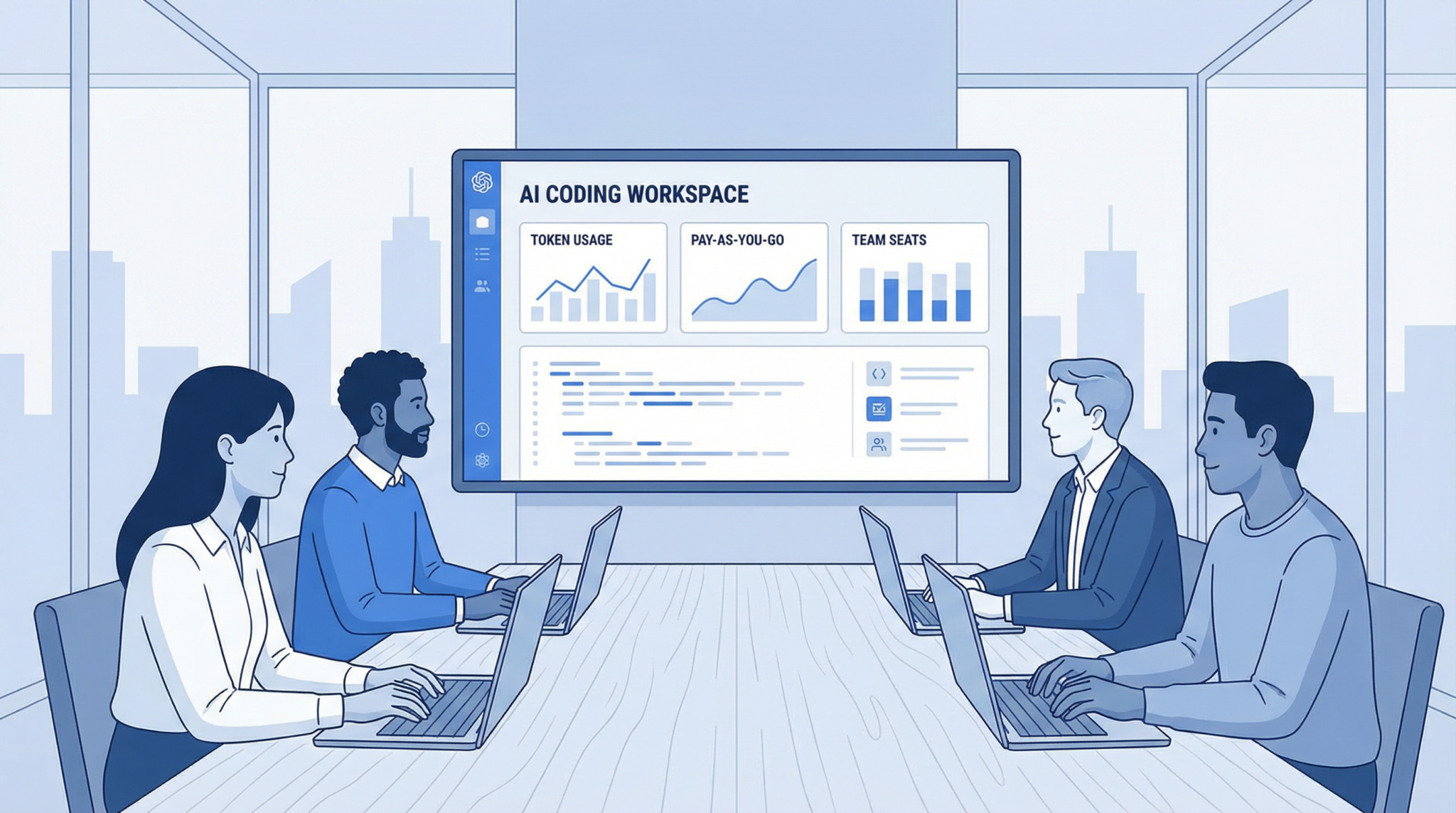
On April 2, 2026, OpenAI announced a transformative update to its Codex offering: Teams subscribed to ChatGPT Business and Enterprise plans can now add Codex-only seats with a flexible pay-as-you-go pricing model. This new structure eliminates rate limits on Codex usage for these seats, billing teams purely on token consumption. Additionally, ChatGPT Business seats now come at a reduced annual price of $20 per seat, down from $25, making powerful AI tools more accessible for teams of all sizes.
To support a smooth onboarding experience, OpenAI released a dedicated Codex app for macOS and Windows, which unlocks new capabilities including Plugins and Automations. This tutorial will walk you through every step to set up Codex pay-as-you-go pricing for your team in 2026 — from workspace creation to cost monitoring and optimization.
Table of Contents
- Prerequisites and Requirements
- Understanding the Pricing Models
- Creating a ChatGPT Business Workspace
- Adding Codex-Only Seats
- Configuring Token Budgets and Spending Limits
- Claiming Your $100 Credits
- Installing and Configuring the Codex App
- Setting Up Plugins and Automations
- Monitoring Usage and Costs
- Team Rollout Best Practices
- Troubleshooting Common Issues
- Cost Optimization Strategies
1. Prerequisites and Requirements
Before diving into the setup process, ensure your team and environment meet the following requirements to leverage OpenAI Codex pay-as-you-go pricing effectively:
- ChatGPT Business or Enterprise Plan: Your organization must be subscribed to either the ChatGPT Business or Enterprise tier. This is mandatory since Codex-only seats are an add-on feature exclusive to these plans.
- Administrator Access: You need admin privileges within your ChatGPT Business workspace to add seats, configure billing options, and set token budgets.
- Team Size Considerations: Codex-only seats can be added individually, but keep in mind that the $100 credit offer applies per new Codex-only seat, with a maximum of $500 per team during the promotional period.
- Supported Operating Systems: The Codex app is available for macOS (version 12 or later) and Windows 10/11. Make sure the machines your team members will use meet these OS requirements for app installation.
- Payment Method: A valid payment method must be linked to your ChatGPT Business account. The pay-as-you-go billing will be charged based on token usage against this method.
- Familiarity with Token Concepts: Understanding tokens is essential since usage and billing are calculated on token consumption. Each API call consumes a variable number of tokens based on input and output size.
Having these prerequisites in place will ensure a seamless setup and optimal experience with the Codex pay-as-you-go seats.
2. Understanding the Pricing Models
OpenAI’s latest pricing introduces two distinct models for teams: the traditional seat-based subscriptions and the new pay-as-you-go Codex-only seats. Below is a comparative table highlighting key differences to help you choose the best fit for your team’s needs.
| Feature | Standard ChatGPT Business Seat | Codex-Only Pay-As-You-Go Seat |
|---|---|---|
| Annual Seat Price | $20 (reduced from $25) | Not applicable (billed based on usage) |
| Rate Limits | Rate limits apply to Codex usage | No rate limits on Codex usage |
| Billing Method | Flat annual fee per seat | Pay-as-you-go token consumption billing |
| Included Codex Usage | Limited usage included with seat | Full access with unlimited usage (billed per token) |
| Credits | None | $100 credits per new Codex-only seat (up to $500 per team) |
| Access to Codex App | Included | Included |
| Plugins and Automations | Available but with usage limits | Full access, no limits |
This structure enables teams to optimize costs by assigning pay-as-you-go seats to heavy Codex users or developers needing unrestricted token access, while maintaining standard seats for other team members.
3. Step-by-Step: Creating a ChatGPT Business Workspace
If your organization does not yet have a ChatGPT Business workspace, follow these detailed steps to create one:
- Navigate to OpenAI’s Business Portal: Open your browser and go to https://chat.openai.com/business.
- Click “Get Started”: On the landing page, select the “Get Started” button to initiate the workspace creation process.
- Sign In or Create an Account: Use your existing OpenAI credentials or create a new account using your work email address. It’s recommended to use a company domain email for easier team management.
- Enter Workspace Details: Provide your organization’s name, preferred workspace URL slug, and your role (administrator).
- Set Up Billing Information: Add a valid payment method—credit card or invoice billing (if eligible). This will be used for seat subscriptions and pay-as-you-go charges.
- Confirm and Create: Review all details and click “Create Workspace.” You will receive a confirmation email shortly.
- Invite Team Members: From the workspace dashboard, navigate to Settings > Team Management, then use the “Invite Members” button to send email invites to your team.
Once your workspace is active and your team invited, you can proceed to add Codex-only seats and configure usage options.
4. Step-by-Step: Adding Codex-Only Seats
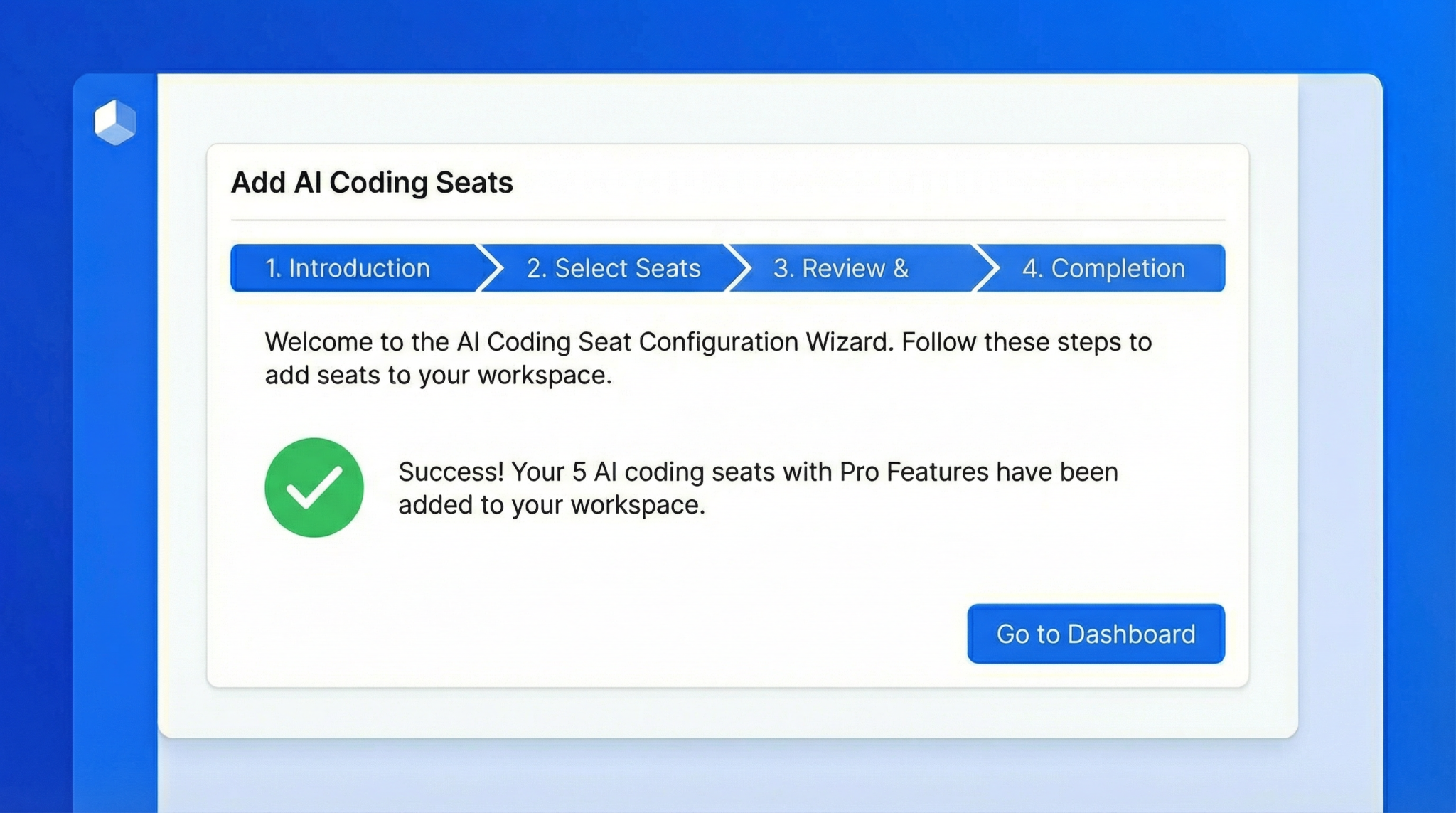
Adding Codex-only seats is a straightforward process accessible to workspace administrators. These seats enable pay-as-you-go pricing without seat subscription fees.
- Log in to your ChatGPT Business Workspace: Visit https://chat.openai.com/business/dashboard and sign in as an administrator.
- Access the Seats Management Page: From the left sidebar, select Settings > Billing > Manage Seats.
- Select “Add Codex-Only Seats”: At the top of the page, click the “Add Seats” button, then choose “Add Codex-Only Seats” from the dropdown menu.
- Specify Quantity: Enter the number of Codex-only seats you want to add. Remember the $100 credit applies per seat with a maximum of $500 total credits per team.
- Confirm Seat Addition: Click “Add Seats” to finalize. You will see the new seats reflected in your billing dashboard immediately.
- Assign Seats to Team Members: Navigate to Settings > Team Management, select a user, then under “Seat Type,” choose “Codex-Only” to assign the seat.
Tip: Codex-only seats are ideal for developers or power users who require unrestricted token access without the constraints of standard seat rate limits.
5. Step-by-Step: Configuring Token Budgets and Spending Limits
To maintain control over your team’s spending on pay-as-you-go Codex seats, OpenAI allows administrators to configure token budgets and spending limits per user or seat.
- Go to Billing Settings: From your workspace dashboard, select Settings > Billing > Budget & Limits.
- Select User or Seat: Choose the Codex-only seat or user account you want to configure from the list.
- Set Monthly Token Budget: Enter the maximum number of tokens allowed for consumption in a given month. Tokens beyond this limit will trigger notifications or restrictions based on your settings.
- Configure Spending Limit: Optionally, set a dollar amount cap corresponding to token usage to prevent unexpected charges.
- Enable Alerts: Enable email or workspace notifications to alert administrators and users when usage approaches 80% and 100% of the set budgets.
- Save Changes: Confirm your settings by clicking “Save.”
Note: These budgets and limits are adjustable at any time and provide a safety net for managing expenses effectively.
6. Step-by-Step: Claiming Your $100 Credits
As part of the limited-time promotion, each new Codex-only seat added to your team comes with $100 in credits, capped at $500 per team. To claim these credits:
- Verify Seat Addition: Confirm you have added new Codex-only seats as shown in the Billing > Manage Seats section.
- Visit the Credit Claim Page: Navigate to Settings > Billing > Promotions.
- Locate the Codex Credit Offer: You will see an offer labeled “Codex Pay-As-You-Go Credits – $100 per new seat” with the number of qualifying seats listed.
- Click “Claim Credits”: Press the button to activate the credits on your account.
- Confirm Credit Application: The credits will appear in your billing summary as a deduction against future token usage charges.
- Track Credit Usage: Credits are applied automatically but can be monitored in Billing > Usage & Credits.
Important: The promotion is time-limited, so ensure you claim credits within 30 days of adding new Codex-only seats.
7. Step-by-Step: Installing and Configuring the Codex App
The dedicated Codex app delivers enhanced performance and access to new features like Plugins and Automations. Follow these instructions to install and configure it:
- Download the App: Visit https://openai.com/codex-app/download and choose the version for macOS or Windows.
- Install the Application: Run the installer and follow on-screen prompts. On macOS, drag the app to your “Applications” folder. On Windows, complete the setup wizard.
- Launch the Codex App: Open the app and sign in using your ChatGPT Business credentials linked to your workspace.
- Verify Seat Type: The app will detect if your account is a standard seat or Codex-only. Codex-only users will have unrestricted access to token usage.
- Configure Preferences: In the app settings (accessible via the gear icon), customize preferences such as default models, token usage alerts, and plugin activation.
- Enable Notifications: Turn on desktop notifications to receive real-time alerts about token usage and spending limits.
With the app installed, your team can leverage the new Codex capabilities optimized for desktop environments.
8. Setting Up Plugins and Automations
The new Codex app supports Plugins and Automations that streamline workflows and extend Codex’s functionality. Here’s how to set them up:
- Open the Codex App: Ensure you are signed in with the appropriate Codex-only or Business seat.
- Access the Plugins Marketplace: Click the “Plugins” tab in the left sidebar, then select “Explore Marketplace.”
- Browse and Install Plugins: Search for relevant plugins such as code linters, deployment tools, or third-party integrations. Click “Install” for the desired plugins.
- Configure Installed Plugins: After installation, click the plugin in your “Installed” list to adjust settings like API keys, permissions, and triggers.
- Create Automations: Switch to the “Automations” tab and click “New Automation.” Define triggers (e.g., code commit, specific command) and actions (e.g., run tests, deploy code) using the drag-and-drop interface.
- Test Automations: Use the “Run Test” button to validate automation workflows before enabling them.
- Enable and Monitor: Enable automations and monitor their execution logs within the app for troubleshooting and optimization.
This robust plugin and automation infrastructure empowers your team to create customized developer environments and workflows tailored to your projects.
9. Monitoring Usage and Costs
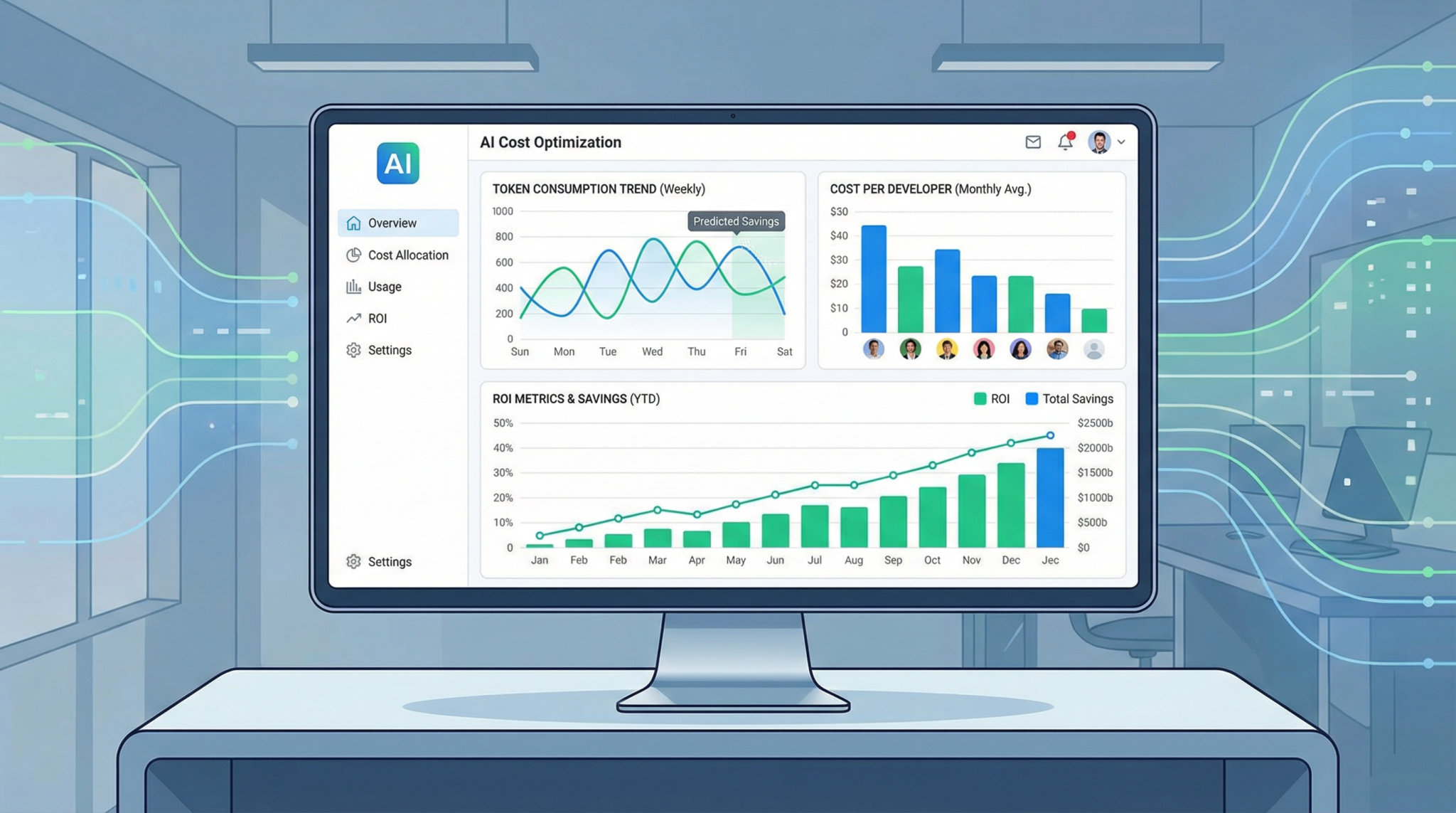
Keeping track of token consumption and associated costs is crucial to prevent budget overruns. OpenAI provides detailed tools for monitoring usage:
- Dashboard Overview: Access your workspace dashboard at Settings > Billing > Usage to view real-time token consumption by seat and user.
- Detailed Reports: Download CSV or PDF reports that break down usage per day, token type (input/output), and API endpoint.
- Alerts and Notifications: Configure alerts to notify admins and users when spending or token limits approach thresholds.
- API Usage Metrics: For teams integrating Codex via API, the Developer Console provides granular insights into request counts, latencies, and error rates.
- Credit Balance Tracking: Monitor remaining promotional credits in the billing section to understand how much free usage remains.
Regular monitoring helps maintain financial control and informs decisions on seat allocation and budget adjustments.
10. Team Rollout Best Practices
Deploying Codex pay-as-you-go seats across your team requires careful planning. Here are best practices to ensure a smooth rollout:
- Identify Heavy Users: Audit current Codex usage to determine which team members will benefit most from Codex-only seats with no rate limits.
- Communicate Pricing and Budgets: Clearly explain the pay-as-you-go pricing, token concepts, and spending limits to team members to encourage responsible usage.
- Phased Seat Allocation: Start by adding a small number of Codex-only seats, then scale up based on usage patterns and feedback.
- Training Sessions: Host workshops or webinars to familiarize users with the Codex app, plugins, automations, and billing dashboard.
- Assign Budget Owners: Designate team leads to oversee token budgets and spending limits, ensuring transparency and accountability.
- Leverage Automation: Use built-in automations to monitor usage spikes and trigger budget alerts automatically.
- Feedback Loops: Regularly solicit user feedback to identify pain points and optimize seat assignments and configurations.
Following these practices will maximize the value your team derives from the new Codex pay-as-you-go model.
11. Troubleshooting Common Issues
While the Codex pay-as-you-go setup is designed to be user-friendly, some challenges may arise. Below are common issues and solutions:
| Issue | Possible Cause | Solution |
|---|---|---|
| Cannot Add Codex-Only Seats | Insufficient admin permissions or plan restrictions | Verify your role in Team Management and confirm your workspace is on Business or Enterprise plan. Contact OpenAI support if unclear. |
| Credits Not Applied | Credits not claimed within promotion window or seats added after cutoff date | Check promotion eligibility in Billing > Promotions and claim credits promptly. Contact billing support if discrepancies persist. |
| App Installation Fails | Unsupported OS version or missing dependencies | Ensure your OS meets minimum requirements (macOS 12+ or Windows 10/11). Update system and retry installation. |
| Token Usage Not Updating | Delayed reporting or API errors | Wait up to 15 minutes for usage data to refresh. If persistent, check API keys and workspace connectivity. |
| Automations Not Triggering | Incorrect trigger configuration or plugin conflicts | Review automation triggers and test individually. Disable conflicting plugins if necessary. |
If issues remain unresolved, OpenAI’s support portal offers direct assistance tailored for ChatGPT Business and Enterprise customers.
12. Cost Optimization Strategies
To maximize ROI on your Codex pay-as-you-go investment, consider these cost optimization approaches:
- Assign Codex-Only Seats Strategically: Reserve Codex-only seats for users with high token consumption needs, while others use standard seats to reduce overall expenses.
- Set Conservative Token Budgets: Use historical usage data to establish realistic monthly token limits, minimizing overspend.
- Encourage Efficient Prompting: Train users to optimize prompts and minimize token-heavy requests, such as avoiding overly verbose inputs.
- Leverage Automations for Monitoring: Automate alerts and shutdowns when token consumption exceeds thresholds to prevent surprises.
- Review Plugin Usage: Disable unnecessary plugins that may trigger excessive API calls and token use.
- Utilize Promotional Credits Fully: Track and plan usage around $100 credits per Codex-only seat to maximize free consumption.
- Analyze Usage Trends Monthly: Adjust seat allocations and budgets based on data-driven insights to align costs with actual needs.
By applying these strategies, your team can harness the power of Codex’s unlimited token access without compromising financial discipline.
Conclusion
The introduction of pay-as-you-go pricing for Codex-only seats marks a significant evolution in how teams can access OpenAI’s powerful coding AI. By following this detailed tutorial, administrators can create a ChatGPT Business workspace, add Codex-only seats, configure budgets, claim promotional credits, and deploy the robust Codex app featuring Plugins and Automations. Monitoring usage and applying best practices ensures your team benefits from enhanced productivity while maintaining cost control.
For practical examples of effective prompts to kickstart new business initiatives using ChatGPT, explore 99+ Impactful ChatGPT Prompts for New Business to Build Y, which provides a comprehensive collection of prompts designed to generate innovative ideas, streamline planning, and enhance customer engagement strategies for startups and entrepreneurs.
For a comprehensive guide on effectively leveraging OpenAI Codex plugins, including setup and best practices, you can refer to Mastering OpenAI Codex Plugins: The Definitive 2026 Tutorial for AI-Assisted Development. This resource offers in-depth insights that can enhance your team’s development workflow with Codex.
For a comprehensive understanding of how OpenAI Codex plugins will evolve and impact enterprise AI development, you can refer to The Complete Guide to OpenAI Codex Plugins: Enterprise AI Coding in 2026. This article offers insights into future integrations and the broader implications of AI coding tools in business environments.
Access 40,000+ AI Prompts for ChatGPT, Claude & Codex — Free!
Subscribe to get instant access to our complete Notion Prompt Library — the largest curated collection of prompts for ChatGPT, Claude, OpenAI Codex, and other leading AI models. Optimized for real-world workflows across coding, research, content creation, and business.
Access Free Prompt Library