
If you’ve read many blogs about Performance Max in the past few years, you probably have a fairly specific opinion of it: it’s a black box from Google. And I’ll admit, I’m guilty of having this opinion and sharing that sentiment. But in my defense, it was well earned…until recently.
In the last year or so, Google has made an effort to open up Performance Max campaigns for better controls and insights. It’s now much easier to understand what’s going on with PMax, so in this article, we want to walk you through all the ways you can track and understand performance for your campaigns.
Contents
How to track your Performance Max campaign performance
At the highest level, we need to know if Performance Max campaigns are converting in the most basic sense. There are a few ways we can do this.
Conversion tracking in Google Ads
All Performance Max campaigns require you to have conversion tracking set up. They only allow for bidding on either conversion volume or conversion value, so without conversions, there is no PMax.
These are easy to set up, and you’ll be able to see all conversion performance in the conversions column in the interface.
💡 PMax campaigns use Smart Bidding, and you can learn how to implement Smart Bidding fast with our free, fool-proof guide to Smart Bidding!
Google Analytics 4 performance tracking
If you’re leveraging autotagging, you’ll be able to see your PMax campaign performance in GA4 as well.
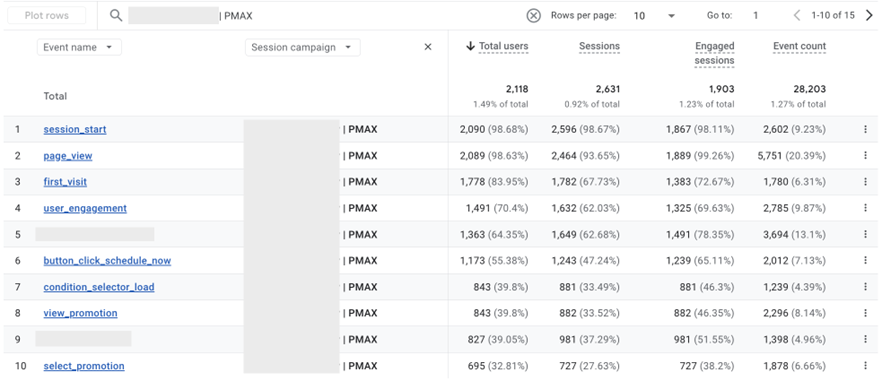
These reports aren’t always as customizable as I’d like, but there are simple ways you can add in a session campaign name to the events report to see how these campaigns are generating events and driving engagement on your site.
Internal CRMs with UTM tracking
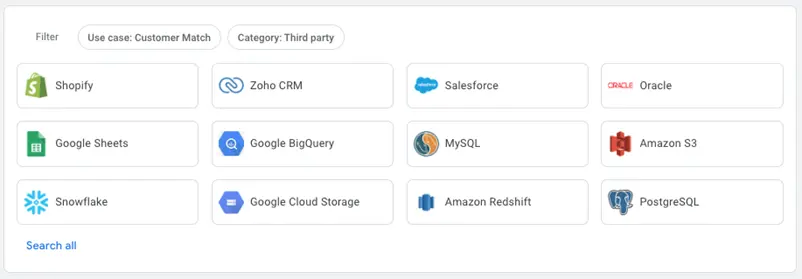
Whether you’re selling products or generating leads, you likely have some form of customer relationship management software in place to keep track of how your customer base is interacting with your business.
Nearly all of these platforms have some form of source and campaign tracking you can use to monitor how each effort is contributing to your goals.
If you’re leveraging UTM tracking parameters on your PMax ads, you’ll be able to see that performance in your CRM.
3 PMax reports you can use for optimizations
Outside of the high-level performance, we want to see what’s working well within the Performance Max campaign. This is where most frustrations with PMax reporting come from. For the longest time, we only got directional insights on what was working and converting, and even when we knew, there wasn’t much we could do about it with limited optimization controls.
But as of last year, that has changed drastically. Here are my favorite reports to review for Performance Max campaign optimization.
⚡Want more ways to optimize your Google Ads strategy? Start with a free, instant account report using our Google Ads Grader!
1. Search term insights
The main frustration I had with PMax campaigns in their original form was their cannibalization of my existing Search campaigns.
Since PMax runs on all Google platforms, it regularly shows on the Search network.

While you can provide search themes (the targeting option that operates the most closely to keywords in PMax), the campaign can still show for just about any keyword Google believes is relevant to your website. With that comes lots of overlap between your existing Search keywords and what PMAX is triggering for. But what’s worse, for much of PMAX’s history, we didn’t get to see the search terms that were being triggered.
Now, you can find many (sometimes most, but never all) of the search terms your PMax campaign is showing for in a couple of different places. The first is on the insights tab, and it will show you some high-level search term themes as well as some insights on performance metrics.
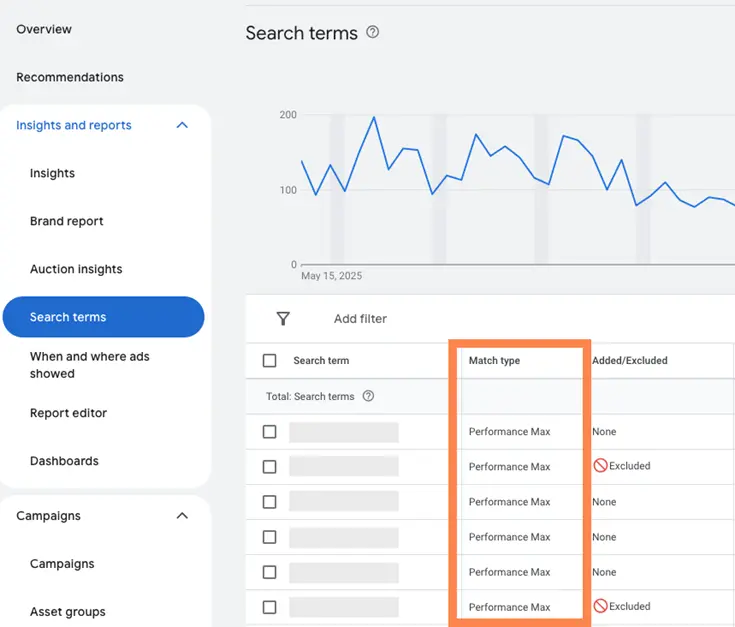
But the better report is the one most recently rolled out: the good old search terms report. Now advertisers can see search terms their PMax campaign triggered for in the same way we see them for search campaigns.
The image below is filtered only for a Performance Max campaign, but if you review the search terms report at the account level, you’ll be able to differentiate which terms were from search campaigns versus PMax campaigns based on the match type column.
How can you optimize based on the search terms report?
With search terms being shown, you have almost all the same controls as with Search campaigns now in Performance Max.
Don’t like a query you’re being shown for? Add a negative keyword to your campaign.
Don’t want PMax to show for your brand terms? Add a negative keyword list full of all variants of your brand name to the campaign.
Finding terms that are irrelevant to your business that you’ll never want to show for? Add an account-level negative keyword.
The ability to add negative keywords to PMax was the biggest hurdle I had to get most clients to test it out. Without those insights and controls, we were flying blind and not even totally sure where we were headed.
2. Placements report
Similar to the search terms report, the placements report shows you which placements your PMax ads showed on the Google networks.
In the reports editor, scroll down until you see the Performance Max placement report.
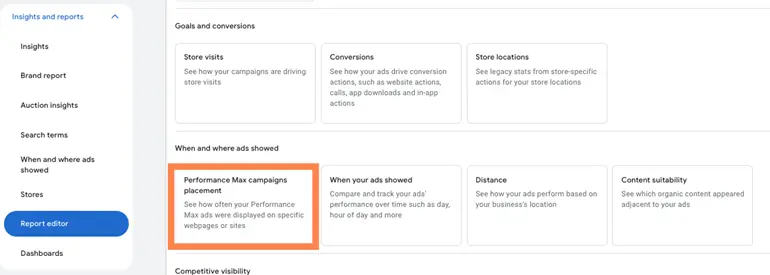
Unfortunately, at the moment, this report is fairly limited as it will only show you impression counts for each placement, but it can still be super helpful if you’re finding lots of irrelevant placements.
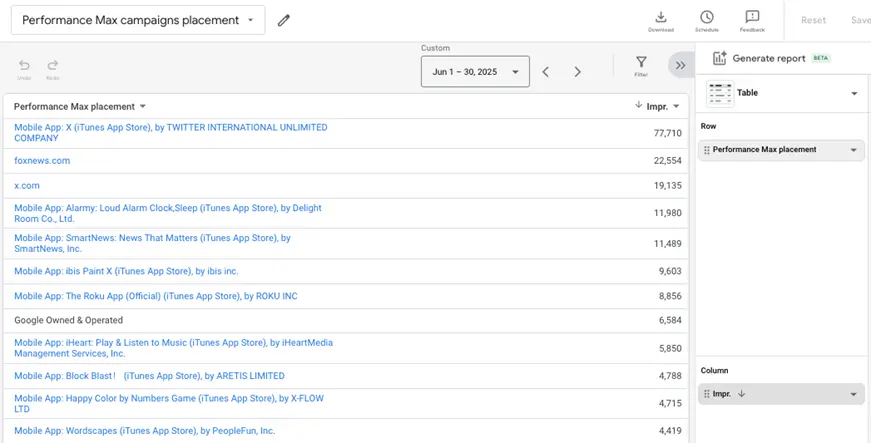
While this account’s report might look bad to one company, it actually isn’t too bad for the one we’re advertising for. We see really strong performance from PMax, and most users are on mobile when they seek out this service, so catching users while they’re in apps is actually working pretty well for us.
How can you optimize based on the placements report?
At this stage, PMax placement controls are only available at the account level. So if you have placements that you don’t want on PMax, but you DO want to show in other campaigns, you likely need to skip this step, as it will exclude a placement from all campaigns in your account.
But if you don’t want to be on a placement at all, then this solution will take it out of PMax but also remove it everywhere else. Win-win.
Once you have your list of URLs you want to exclude, head into the content portion of the interface and navigate to exclusions. In the upper right, click edit exclusions.
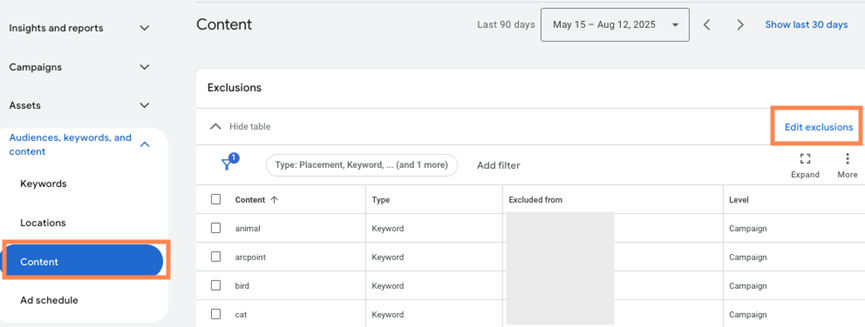
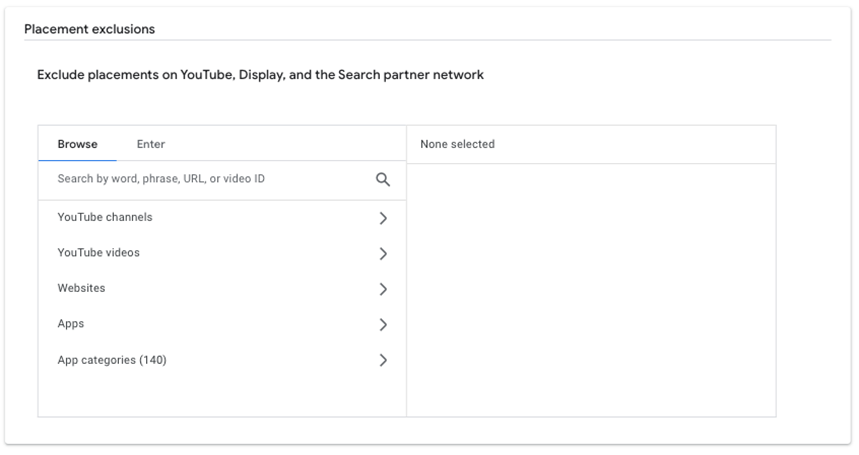
From there, if you’ve filtered your view for Performance Max campaigns only, then you’ll only have the option to add these at the account level. Campaign and ad group will be grayed out.
Once you’ve selected account, you can either browse a list of exclusions as you can see above, or you can click on enter, and you can simply paste the URLs you want to avoid.
3. Channel performance insights
The most recent release has been the rollout of the channel performance report. As mentioned above, PMax campaigns can show on all Google-owned properties, but not all campaigns serve equally across those platforms. Some completely avoid specific locations depending on performance.
With the channel performance report (currently in beta, but actively rolling out worldwide), you can now see which platforms your ads are showing on and understand how those are leading to your overall performance.
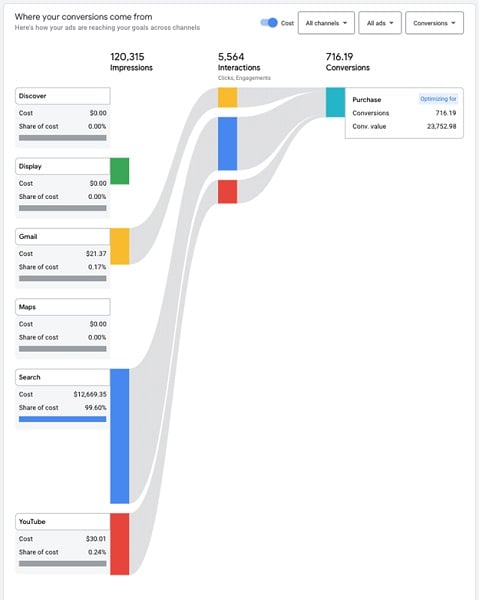
How can you optimize based on the channel performance report?
At the moment, there’s nothing you can do directly to impact performance on a specific channel, and you’re not able to opt out of platforms in PMAX like you can in Demand Gen. I personally find it interesting to see how different platforms are doing with the same ad creatives. If I see one platform perform better than another, then maybe I need to customize my asset list to better lean into that lower-performing placement without sacrificing what I’m already getting elsewhere.
PMAX performance problems and solutions
Overall, there are usually three main reasons you might see Performance Max campaigns perform poorly when evaluating the tracking and reporting methods we covered above.
Problem #1: Not enough conversion volume
The conversion tracking we talked about earlier. Since PMax uses either Maximize Conversions or Maximize Conversion Value (and their subtypes: TCPA and TROAS), having a strong conversion foundation is key.
Solution
If you’re not seeing many conversions and PMax is struggling, you might want to balance your PMax strategy with other campaign types to increase your conversion volume or test a different call to action that could convert at a higher rate.
Problem #2: Poor targeting
It can be easy for advertisers to get discouraged and feel like they have little control over their PMax campaign since its fuctions are so automated. However, don’t overlook what targeting controls you can get a handle on that could make a difference in your PMax campaign.
Solution
Targeting insights can be found in the search terms and placement reports discussed earlier. If you’re leveraging good targets and regularly adding exclusions for low-quality placements, you should be in a good place.
Problem #3: Lackluster ad assets
Having poor creatives can also be the reason for low PMax performance. Many of these placements rely heavily on visual components.
Solution
By using the channel performance report, you could likely infer that strong Search performance coupled with low YouTube performance could mean your video assets aren’t compelling. While this isn’t a perfect science, you can at least get some directional cues as to what’s performing well and adjust your creatives as needed.
Performance Max campaigns are still going to have some blind spots for some advertisers, but they’re a heck of a lot better than they were in the past. We now have more reporting and controls that let us usher them into finding the customers we need and ignoring those we don’t.
Use these reports and controls to make sure you understand if your PMax campaigns are performing and what you can do to make them even more efficient. For more ways to improve your Google Ads Performance Max strategy, see how our solutions can help!