One of the first items I always enable when I get a new Android phone is developer mode. This hidden menu is designed to cater to the needs of developers, and it contains numerous valuable items for power users. I use it to increase the speed of animations, fit even more content on my screen, and enable wired and wireless debugging. But did you know that you can also enable Android Auto developer settings if you use the service in your car?
It’s not as feature-filled as Android proper’s equivalent, but it still includes a few useful items that will enhance your overall smart driving experience. It’s one of the first Android Auto settings I tweak on a new car or phone.
Importantly, I should preface that not everyone needs to enable Android Auto developer mode, and based on comments on previous articles tangentially related to the subject, it’s clear that users are unsure if it’s entirely worth it.
Do you use apps from third-party sources on Android Auto?
562 votes
In this article, I will detail how to enable Android Auto developer settings, where to find them once the mode is enabled, and clarify whether it’s worth doing so.
How to unlock and access Android Auto developer settings
As I’ve discovered, enabling Android Auto developer settings varies between Android versions and OEMs, but once you reach Android Auto’s settings screen, you’re good to go.
For slightly more granular instructions, on a Samsung phone, this involves opening Settings > Apps > Android Auto > Configure in Android Auto. On a Google Pixel, you’ll need to open Settings > Apps > See all apps > Android Auto > Additional settings in the app. Alternatively, you can open the Settings app on your phone and search for “Android Auto.” This should work on most modern Android skins.
Now, from the Android Auto settings screen:
- Scroll down to the About section. Find the Version entry line and tap it to expand it. Bear in mind that the entry might be hidden off-screen based on your screen’s DPI/display density settings.
- Now, tap the larger entry that reads Version and permission info several times. Around 10 taps will do.
- You’ll know that you’ve struck gold once a pop-up system message appears. It’ll read “Allow development settings?”
- Read through this message, bearing in mind its recommendations and warnings. In reality, none of these settings will outright break Android Auto. If you wish to proceed, tap OK.
- A brief toast message will appear confirming that Android Auto developer mode is now enabled.
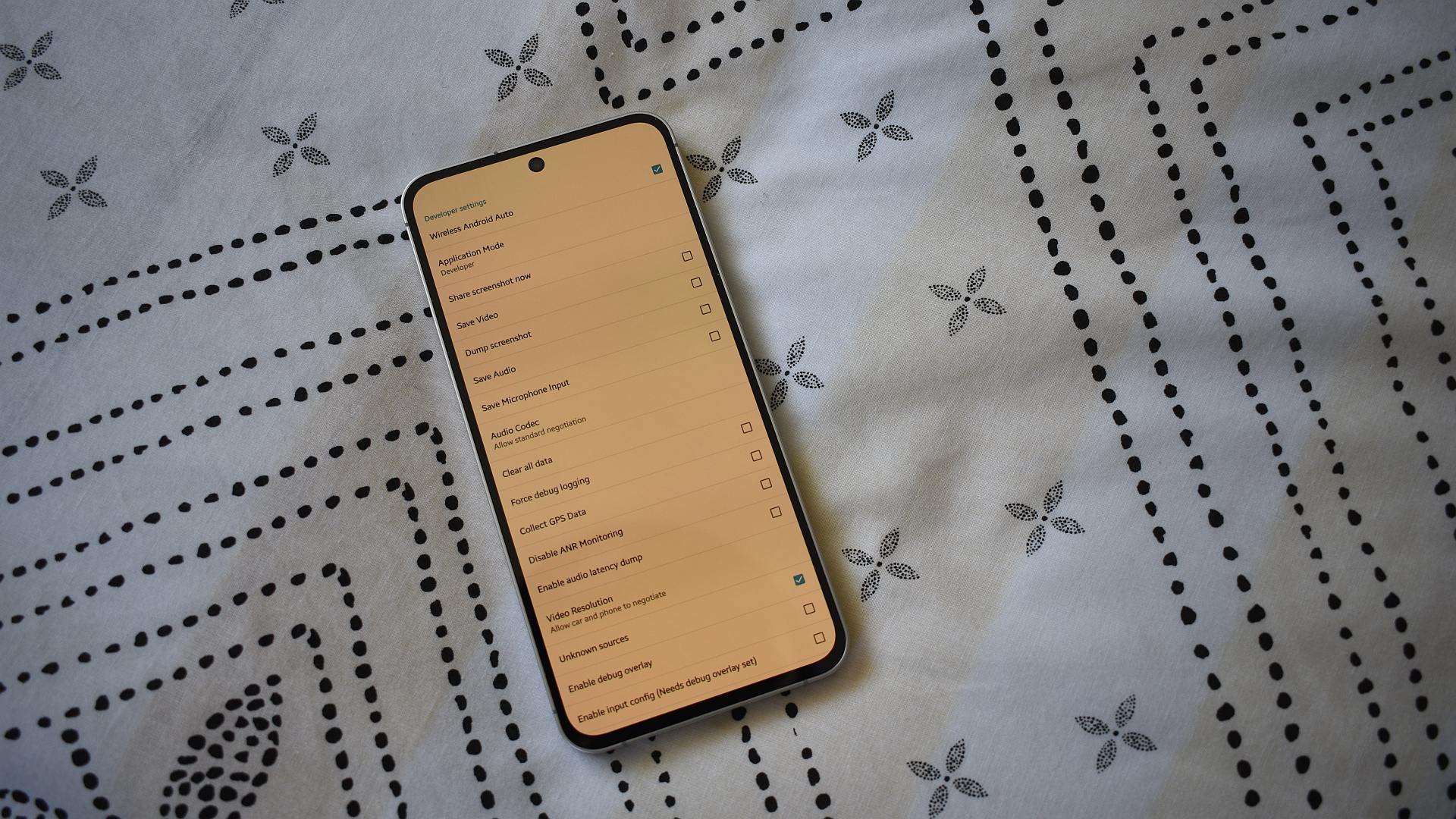
- Now, to access developer mode’s settings, tap the three-dot overflow menu at the top-right of Android Auto’s settings screen. Select Developer settings. A new menu will appear, and this is where the fun begins.
If you ever need or want to quit developer mode, reopen the overflow menu and tap Quit developer mode. You can reenable it at any time using the steps outlined above.
Should you unlock your car’s developer mode?

Andy Walker /
Well, that really depends on whether you need access to one or two settings.
As you may notice, Android Auto developer mode is quite threadbare. It’s not as thick as Android proper’s alternative, at least not for non-developers. However, there are two important settings that developer mode makes available that make it worth it, at least for me.
The first is Wireless Android Auto. As its name suggests, the entry enables or disables support for using Android Auto without a cable connected between your car and smartphone. I keep this enabled, as I use an Android Auto dongle and forego a cable entirely. However, if you are still cable-tied, you can uncheck this option to forbid Auto from seeking any wireless connections. Additionally, if you find that wireless Android Auto isn’t working, investigate if this item is indeed checked.
Only two Android Auto developer mode settings are useful for end users. Everything else is for platform development.
The second and more important option, in my opinion, is Unknown Sources. By default, Android Auto will only display apps on its launcher that have been installed through the Google Play Store. Even if an app supports the car mirroring service, it won’t appear if it wasn’t installed through Google’s official channel. Checking Unknown Sources fixes this. As someone who regularly installs apps via F-Droid and GitHub, these settings allow me to see and use these apps on my dashboard. It’s essential if you want to use services like Newpipe and Tubular for playing YouTube content (albeit audio-only at present), for example.
Beyond these two toggles, Android Auto developer settings aren’t really worth activating. If you don’t use wireless Android Auto or install apps from sources beyond the Play Store, you can leave the version-tapping shenanigans alone.
Thank you for being part of our community. Read our Comment Policy before posting.