By using this site, you agree to the Privacy Policy and Terms of Use.
Accept
World of SoftwareWorld of SoftwareWorld of Software
  • News
  • Software
  • Mobile
  • Computing
  • Gaming
  • Videos
  • More
    • Gadget
    • Web Stories
    • Trending
    • Press Release
Search
  • Privacy
  • Terms
  • Advertise
  • Contact
Copyright © All Rights Reserved. World of Software.
Reading: I found a trick to easily check for new Android updates — here’s how
Share
Sign In
Notification Show More
Font ResizerAa
World of SoftwareWorld of Software
Font ResizerAa
  • Software
  • Mobile
  • Computing
  • Gadget
  • Gaming
  • Videos
Search
  • News
  • Software
  • Mobile
  • Computing
  • Gaming
  • Videos
  • More
    • Gadget
    • Web Stories
    • Trending
    • Press Release
Have an existing account? Sign In
Follow US
  • Privacy
  • Terms
  • Advertise
  • Contact
Copyright © All Rights Reserved. World of Software.
World of Software > News > I found a trick to easily check for new Android updates — here’s how
News

I found a trick to easily check for new Android updates — here’s how

News Room
Last updated: 2026/02/15 at 2:25 PM
News Room Published 15 February 2026
Share
I found a trick to easily check for new Android updates — here’s how
SHARE

Rita El Khoury / Android Authority

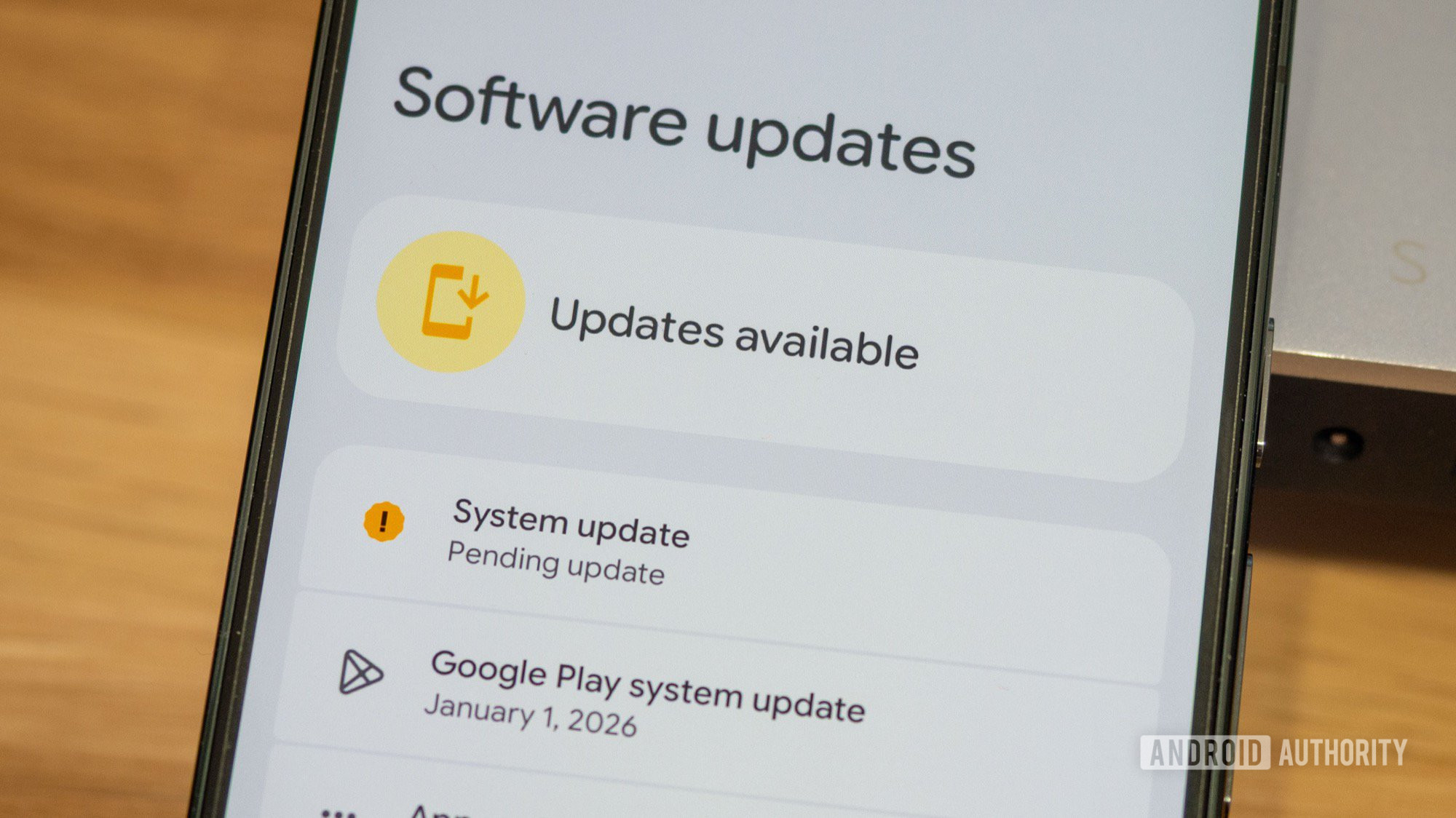
I don’t know about you, but on any given week, I manually check for new Google Play System updates, new betas, new monthly patches, or new QPRs at least a few times. But dropping down the notifications shade or opening the app drawer to tap Settings, scrolling down, finding System, and then the Software updates section gets tedious and annoying time after time.

This is especially true when a hot new Android 17 beta is supposedly being released right away, and I have to keep checking for the OTA every few minutes to see if it’s available — well, uh, before Google pulls the rug and tells us the beta will be a bit delayed. But I digress. The point is: I wanted a faster shortcut to get to updates, and I found two tricks to get it.

How often do you check for new updates on your phone?

1005 votes

The easy way: Use the Settings widget

The most obvious solution to my update mania came to me yesterday, mid-Android 17 beta rush. I remembered that Android has had, since time immemorial, a Settings widget that lets you transform different settings sub-menus into home screen shortcuts. Thankfully, this widget is still there in Android 16, and it still does the job. So, here’s what I did:

  • Create a new home screen widget.
  • Click Browse to open the full list of widgets and pick the Settings widget.
  • Drop it on my home screen, which pops up a menu with choices between all the available settings menus.
  • Scroll down, find System, and choose it.

Done. This transforms the new widget icon into a direct shortcut to the System settings menu, where I can easily tap Software updates. I know it sounds silly, but this saves me a couple of taps and swipes each time I want to check for a new update, and I absolutely love anything that can save me the teeniest amount of time. When your job revolves around checking for and downloading updates on multiple phones, it’s also a crucial productivity hack.

Create a direct shortcut to Software updates

The solution above has one tiny flaw: It only opens the System settings menu and still requires me to tap once to get to the actual software updates section. And as I said, I love anything that can save me time, so I decided to check if Android surfaces an “activity” to go directly to that section. Yes, it does.

Activities on Android are essentially a screen or page within an app that can serve as an entry point and can be linked to directly, bypassing the app’s main menu. For example, apps can link directly to Gmail’s compose message screen. Most apps have several exposed activities, and there are launchers (Niagara or Nova Launcher, among others) or shortcut apps that can use this to create custom shortcuts. I prefer to stick with the default launcher on my Pixel, so I used the free Shortcut Maker app to fix my issue:

  • Open Shortcut Maker and choose Settings in the top shortcut icons.
  • Choose Settings Activities.
  • Search for “update” and select com.google.android.settings.update.SoftwareUpdateActivity.
  • You can now edit the name of the shortcut, its icon, and lock it. I suggest at least renaming it to “Updates” to make things clearer.
  • When you’re done, tap Create Shortcut, then Add to home screen.

This will create a new home screen shortcut that immediately opens the software update screen in Settings, bypassing the System page and anything else in between. And it’s one of the best shortcuts I’ve made in recent times.

pixel home screen system settings software updates shortcuts

Rita El Khoury / Android Authority

Of course, I realize I’m in a very small minority here with my constant and niche need to check for Android updates. But if you’re reading this article, chances are you’re at least a little bit interested in speeding up the update process on your phone, so I hope one of these two solutions helps you cut down on time lost doing so.

Don’t want to miss the best from Android Authority?

google preferred source badge light@2xgoogle preferred source badge dark@2x

Thank you for being part of our community. Read our Comment Policy before posting.

Sign Up For Daily Newsletter

Be keep up! Get the latest breaking news delivered straight to your inbox.
By signing up, you agree to our Terms of Use and acknowledge the data practices in our Privacy Policy. You may unsubscribe at any time.
Share This Article
Facebook Twitter Email Print
Share
What do you think?
Love0
Sad0
Happy0
Sleepy0
Angry0
Dead0
Wink0
Previous Article Capgemini brings its cloud and AI solutions for sovereignty to AWS European Sovereign Cloud Capgemini brings its cloud and AI solutions for sovereignty to AWS European Sovereign Cloud
Next Article The 3 new movies on Paramount+ everyone will be talking about tomorrow The 3 new movies on Paramount+ everyone will be talking about tomorrow
Leave a comment

Leave a Reply Cancel reply

Your email address will not be published. Required fields are marked *

Stay Connected

248.1k Like
69.1k Follow
134k Pin
54.3k Follow

Latest News

The Best Fight Sticks for 2026
News
Thanks a lot, AI: Hard drives are already sold out for the entire year, says Western Digital
News
TheCUBE Research 2026 predictions: The year of enterprise ROI –  News
TheCUBE Research 2026 predictions: The year of enterprise ROI – News
News
Amazon Drone Failed Miserably And Crashed Into An Apartment Building – BGR
News

You Might also Like

The Best Fight Sticks for 2026
News

The Best Fight Sticks for 2026

18 Min Read
Thanks a lot, AI: Hard drives are already sold out for the entire year, says Western Digital
News

Thanks a lot, AI: Hard drives are already sold out for the entire year, says Western Digital

2 Min Read
TheCUBE Research 2026 predictions: The year of enterprise ROI –  News
News

TheCUBE Research 2026 predictions: The year of enterprise ROI – News

44 Min Read
Amazon Drone Failed Miserably And Crashed Into An Apartment Building – BGR
News

Amazon Drone Failed Miserably And Crashed Into An Apartment Building – BGR

3 Min Read
//

World of Software is your one-stop website for the latest tech news and updates, follow us now to get the news that matters to you.

Quick Link

  • Privacy Policy
  • Terms of use
  • Advertise
  • Contact

Topics

  • Computing
  • Software
  • Press Release
  • Trending

Sign Up for Our Newsletter

Subscribe to our newsletter to get our newest articles instantly!

World of SoftwareWorld of Software
Follow US
Copyright © All Rights Reserved. World of Software.
Welcome Back!

Sign in to your account

Lost your password?