By using this site, you agree to the Privacy Policy and Terms of Use.
Accept
World of SoftwareWorld of SoftwareWorld of Software
  • News
  • Software
  • Mobile
  • Computing
  • Gaming
  • Videos
  • More
    • Gadget
    • Web Stories
    • Trending
    • Press Release
Search
  • Privacy
  • Terms
  • Advertise
  • Contact
Copyright © All Rights Reserved. World of Software.
Reading: My iPhone kept getting stuck in SOS mode — here’s how I finally fixed it
Share
Sign In
Notification Show More
Font ResizerAa
World of SoftwareWorld of Software
Font ResizerAa
  • Software
  • Mobile
  • Computing
  • Gadget
  • Gaming
  • Videos
Search
  • News
  • Software
  • Mobile
  • Computing
  • Gaming
  • Videos
  • More
    • Gadget
    • Web Stories
    • Trending
    • Press Release
Have an existing account? Sign In
Follow US
  • Privacy
  • Terms
  • Advertise
  • Contact
Copyright © All Rights Reserved. World of Software.
World of Software > News > My iPhone kept getting stuck in SOS mode — here’s how I finally fixed it
News

My iPhone kept getting stuck in SOS mode — here’s how I finally fixed it

News Room
Last updated: 2026/03/03 at 3:00 AM
News Room Published 3 March 2026
Share
My iPhone kept getting stuck in SOS mode — here’s how I finally fixed it
SHARE

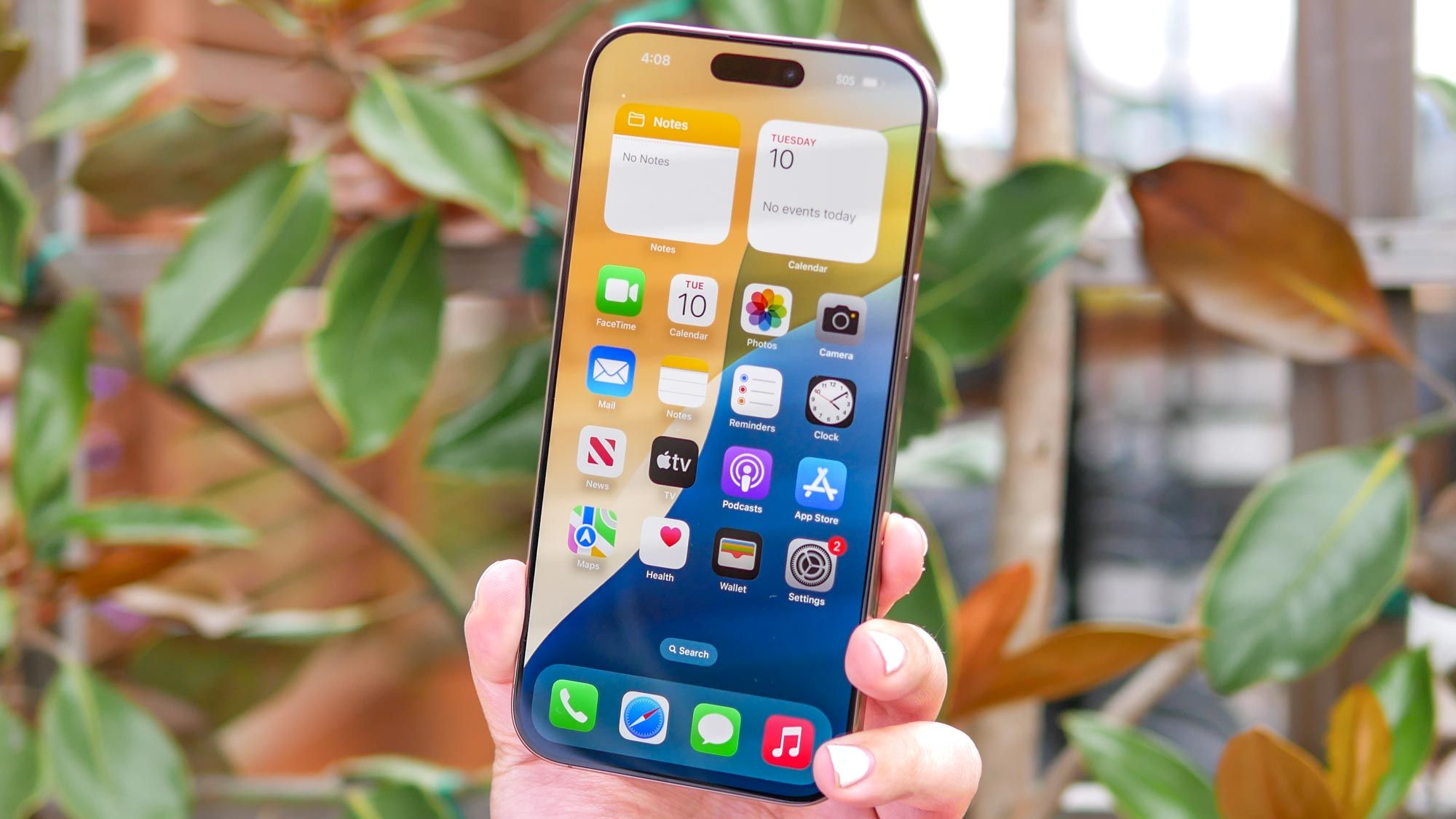
It started happening randomly. I’d glance at my phone and instead of signal bars, I’d see “SOS” in the corner of the screen. Sometimes it would switch back after a few minutes. Other times it stayed there, even when people around me clearly had service.

At first I assumed it was poor coverage. But when it kept happening in areas where I normally had full signal, it became clear something else was going on. If your iPhone keeps getting stuck in SOS mode, here’s what it actually means — and the steps that finally fixed it.

What SOS mode actually means

When your iPhone displays SOS or SOS only in the top-right corner, it means your device can’t connect to your usual carrier network but it can still place emergency calls using any available network.

On iPhone 14 and newer models, you might also see SOS in situations where Emergency SOS via Satellite is available. That feature is designed for remote areas without cellular coverage, allowing you to contact emergency services even when you’re completely off-grid.

However, if you’re seeing SOS in places where you normally have signal — at home, at work or in town, it’s usually not about satellite features at all. It simply means your phone has dropped its regular network connection and hasn’t successfully reconnected.

In most cases, this isn’t a serious fault. It’s a temporary communication breakdown between your iPhone and your carrier, and it’s often fixable in just a few steps.

How to fix SOS mode on iPhone

1. Toggle cellular data off and on

Toggle on cellular data on iPhone

If your iPhone is stuck in SOS mode, the quickest fix is often the simplest. Turning cellular data off and back on forces your device to drop its current network connection and search for a fresh one.

Head to Settings, Cellular, toggle on Cellular Data off, wait 10 to 15 seconds, then turn it back on. In many cases, the signal bars return almost immediately. If the issue was just a temporary problem between your phone and the network, this step resolves it. It’s the first thing I tried and the one that worked most often.

2. Restart your iPhone

Powering down iPhone

If toggling data doesn’t restore service, a full restart is the next logical step. Over time, background processes can hang or misfire, especially when switching between coverage areas.

Power your iPhone off completely, wait about 30 seconds, then turn it back on. This resets active network processes and gives your phone a clean opportunity to reconnect to your carrier.

Once it boots up, give it a minute to search for signal before assuming it hasn’t worked.

3. Check for a carrier settings update

iPhone software update

This is an easy one to overlook. Your carrier occasionally pushes out small updates designed to improve your iPhone’s connectivity and performance.

Go to Settings, General, and see if an update is available. If so, you’ll see a prompt to install it. If you’re stuck in SOS mode without cellular service, you’ll need Wi-Fi connection for this to install.

4. Refresh your SIM or eSIM connection

Reinserted sim card on iPhone

If the problem keeps returning, it may be worth refreshing the line itself. For eSIM users, go to Settings, Cellular, tap your phone number and toggle off, then back on.

For physical SIM users, power down the phone, remove the SIM card, reinsert it carefully and restart.

This effectively reinitializes the connection between your iPhone and your carrier’s network, which can clear persistent registration issues.

5. Reset network settings

Restart Network settings on iPhone

If none of the above fixes solve the issue, resetting your network settings is the final step.

Go to Settings, General, Transfer or Reset iPhone, Reset, and Reset Network Settings. Keep in mind this will erase saved Wi-Fi networks, VPN configurations and cellular preferences, so you’ll need to set those up again.

It’s a more drastic move, but if your iPhone keeps getting stuck in SOS mode in areas with strong coverage, this step often resolves it.


Google

Follow Tom’s Guide on Google News to get our up-to-date news, how-tos, and reviews in your feeds. Make sure to click the Follow button.


You may like


More from Tom’s Guide

Get instant access to breaking news, the hottest reviews, great deals and helpful tips.

Sign Up For Daily Newsletter

Be keep up! Get the latest breaking news delivered straight to your inbox.
By signing up, you agree to our Terms of Use and acknowledge the data practices in our Privacy Policy. You may unsubscribe at any time.
Share This Article
Facebook Twitter Email Print
Share
What do you think?
Love0
Sad0
Happy0
Sleepy0
Angry0
Dead0
Wink0
Previous Article First look: Google Messages’ Trash feature adds a safety net for your chats First look: Google Messages’ Trash feature adds a safety net for your chats
Next Article China’s chip design progress in 2025: Positive signs but some old problems · TechNode China’s chip design progress in 2025: Positive signs but some old problems · TechNode
Leave a comment

Leave a Reply Cancel reply

Your email address will not be published. Required fields are marked *

Stay Connected

248.1k Like
69.1k Follow
134k Pin
54.3k Follow

Latest News

OnePlus 15 to launch next month with aerospace-grade nano-ceramic frame · TechNode
Computing
Iran Threatens to Strike US Tech Companies in the Middle East
News
Generare raises .2M to discover unknown molecules and advance new drugs –  News
Generare raises $23.2M to discover unknown molecules and advance new drugs – News
News
A new milestone in archive management software
News

You Might also Like

Iran Threatens to Strike US Tech Companies in the Middle East
News

Iran Threatens to Strike US Tech Companies in the Middle East

4 Min Read
Generare raises .2M to discover unknown molecules and advance new drugs –  News
News

Generare raises $23.2M to discover unknown molecules and advance new drugs – News

5 Min Read
A new milestone in archive management software
News

A new milestone in archive management software

5 Min Read
The AI Deal for People Who Hate Meetings
News

The AI Deal for People Who Hate Meetings

3 Min Read
//

World of Software is your one-stop website for the latest tech news and updates, follow us now to get the news that matters to you.

Quick Link

  • Privacy Policy
  • Terms of use
  • Advertise
  • Contact

Topics

  • Computing
  • Software
  • Press Release
  • Trending

Sign Up for Our Newsletter

Subscribe to our newsletter to get our newest articles instantly!

World of SoftwareWorld of Software
Follow US
Copyright © All Rights Reserved. World of Software.
Welcome Back!

Sign in to your account

Lost your password?