This article is an updated version of The Markup’s original article on how to prepare your phone for a protest, published in 2020.
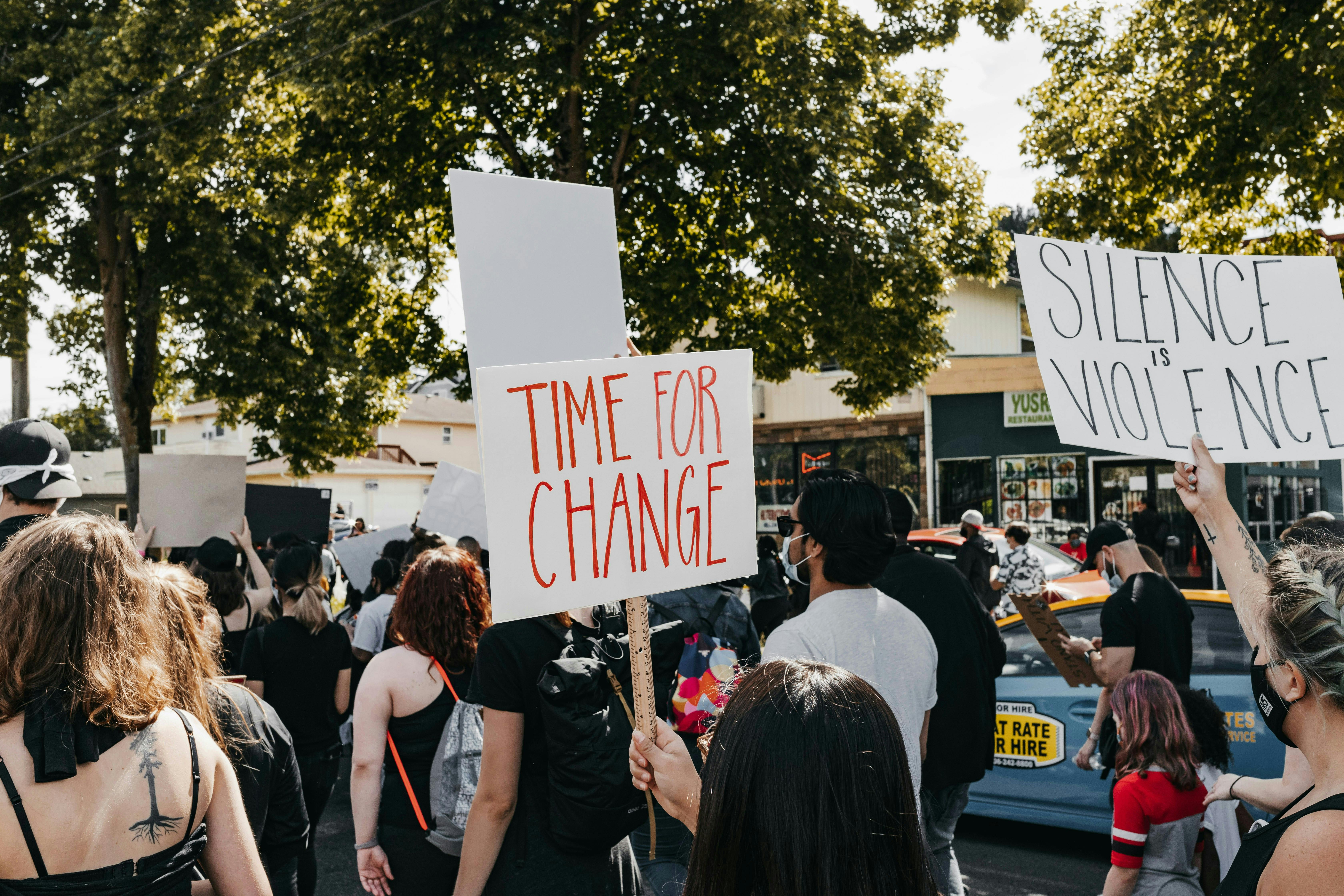
Millions of people across the United States are expected to take part in “No Kings” protests against the Trump administration Saturday.
Before going to a protest, demonstrators or observers should note that their cellphones may subject them to surveillance tactics by law enforcement. If your cellphone is on and unsecured, your location can be tracked and your unencrypted communications, such as SMS, may be intercepted. Additionally, police may retrieve your messages and the content of your phone if they take custody of your phone, or later by warrant or subpoena.
Deciding How and If to Bring Your Phone
Your proximity to organizers of a protest, your immigration status (there are higher stakes for foreign visa holders—here’s what to know if you’re asked about your immigration status at a protest), and other factors mean there is no one-size-fits-all privacy advice for whether to bring your mobile phone to a protest.
“All protesting and all marches are a series of balancing acts of different priorities and acceptable risks,” said Mason Donahue, a member of Lucy Parsons Labs, a Chicago-based group of technologists and activists that run digital security training classes and have investigated the Chicago Police Department’s use of surveillance technology. “There is a lot of communication ability that goes away if you don’t bring a phone period,” he said.
Leaving your phone behind means the data it holds and transmits will be the safest it will ever be, but it also means giving up access to important resources. It becomes much more difficult to coordinate with others, or get updates from social media. For many, phone cameras are also the only way they can document what’s happening.
If you have access to a separate phone, whether it’s a “burner” phone, an old smartphone that you can reset, or an old-fashioned camera, you could choose to bring these devices instead of your regularly-used phone. However, not everyone has access to these devices, or can afford to purchase a separate phone just for protesting.
If you take your cell phone with you, the rest of this guide runs through how to minimize risks to your privacy.
Use a Passcode, Not a Fingerprint
Fingerprint and face locks may be convenient ways to secure your phone, but they don’t always work in your favor if your phone is seized by law enforcement.
In the United States, the Fifth Amendment grants people the right not to be “compelled in any criminal case to be a witness against” themselves. When it comes to whether you’re obligated to unlock your smartphone, your Fifth Amendment protection varies depending on whether you’re using a passcode or biometrics like a fingerprint or face scans.
Courts have made opposing rulings on whether the Fifth Amendment applies to both passcodes and biometric locks, and most recently, a federal appeals court ruled that law enforcement can compel a person to unlock their phone using their fingerprint. On the whole, if you are choosing to bring your phone, privacy experts recommend that you use a passcode as your best option, but it isn’t failsafe.
“Police have these tools by Cellebrite, which essentially try to do tons and tons of guesses really fast on your phone to see what the passcode is. It works pretty effectively for the police because most people use fairly predictable and simple numerical codes,” explained David Huerta, a digital security trainer at the Freedom of the Press Foundation.
He recommends using an alphanumeric passcode, the longer the better. To add an alphanumeric passcode:
iPhone: Settings > Face ID & Passcode > Turn Passcode On or Change Passcode > Passcode Options > Custom Alphanumeric Code
Android: Settings > Security & privacy > Device unlock > Screen lock > PIN > Set pin
To turn your biometric lock off:
iPhone: Settings > Face ID & Passcode >Tap Reset Face ID
Android: Settings > Security & privacy > Device unlock >
- Face > Unlock your phone > Toggle off
- Fingerprint > Unlock your phone > Toggle off
Jennifer Granick, Surveillance and Cybersecurity Counsel at the American Civil Liberties Union, told The Markup, “It is legal to refuse to unlock your phone or to disclose your passcode, citing your Fifth Amendment rights if possible. There should be no negative ramifications.” Granick noted however, that police do not always act lawfully.
Subdue Your Signals (and Download Signal)
Protesters should be prepared for surveillance of their cellphone’s transmissions—even if they don’t make any calls, Huerta said.
In some parts of the United States, law enforcement has tools that can intercept cellphone signals, called “stingrays” or “IMSI catchers.” Stingrays collect the identifying details of phones in the area by “impersonating” cell towers, and newer models are believed to be able to intercept calls and messages, according to TechCrunch.
In 2018, the American Civil Liberties Union identified 75 agencies in 27 states and the District of Columbia that owned stingrays.
You can configure your phone to avoid connecting to the subset of stingrays that use 2G connections:
iPhone: Settings > Privacy & Security > Lockdown Mode
Android (v12 or newer): Settings > Network & Internet > SIMs > [Carrier] > Allow 2G > Off
Note that activating “Lockdown Mode” on iPhone will restrict your phone use, and enhance your security, in a number of other ways; see the link above for more details. Similarly, you may experience less reliable cellular connectivity on Android without the 2G option enabled.
Huerta said that since some of these devices can scoop up text messages, you should use an encrypted messaging app (we like Signal) instead of your default one. (For iPhone users, iMessage is encrypted, but be warned: If you text with an Android phone user, it automatically switches to SMS, which is not.)
Huerta recommends Signal over other apps because it’s battle-tested: In 2016, the U.S. District Court for the Eastern District of Virginia served a subpoena on Open Whisper Systems, the company that makes the app, seeking information about two Signal users for a federal grand jury investigation. The only information the company was holding? The time the users’ accounts were created and the date the users last connected to the app’s servers.
Lockdown Location Tracking
Law enforcement can also request “cell tower dumps” from telecom providers. In its February 2020 transparency report, AT&T disclosed that it received 1,289 demands for cell tower searches during the second half of 2019. The company said that the demands “ask us to provide all telephone numbers registered on a particular cell tower for a certain period of time.”
Because of the risk of such surveillance, some experts suggest turning off your cellphone altogether at a protest. For instance, the Electronic Frontier Foundation recommends turning your phone off or enabling airplane mode while you’re at the protest, because it ensures that your device won’t be transmitting signals.
But turning off your phone means you won’t be able to communicate with others or use your camera to record. So if you have to keep your phone on, try to at least manage what location information your apps may have. The Verge has a handy guide for Android users, and Business Insider has a comparable one for iPhone users.
You can even turn off all location services entirely:
iPhone: Settings > Privacy > Toggle Location Services off
Android: Settings > Location > Toggle Use location off
Harden Your Hardware
Another scenario that Huerta suggested that protesters consider is what to do if your phone is seized by law enforcement. If you can, back up your device before heading out to make the decision to wipe it if you find yourself in a tight situation a little bit easier. There are tutorials for both iPhone and Android users.
Encrypting your phone also makes it more difficult to access information if it’s been seized, because files can only be read if someone has the encryption key. DuckDuckGo, the privacy-oriented search engine, has step-by-step instructions for both iPhone and Android users. (Full disclosure: DuckDuckGo has donated to The Markup.)
Neutralize Notifications
Notifications are normally a great way to quickly check messages, but if your phone is lost or seized, it may reveal information that you’re not comfortable sharing with others.
“Many times, if you don’t have a chance to turn off your phone before a device gets seized, even if law enforcement can’t unlock your phone,” Huerta said, if your notifications are on, “they don’t even have to unlock your phone, they can just scroll down and see everything that you’re up to.”
Reducing the amount of open information that sits on your locked screen can increase the security of you and the people you’re communicating with.
On Android, you can strip notifications of context by going to Settings > App & notifications > Notifications, going to the “Lock screen” section and turning off Sensitive notifications.
With iPhones, you can change how detailed an app’s notifications are by going Settings > Notifications, selecting that app and then scrolling down to the Options section and setting “Show Previews” to “Never” and “Notification Grouping” to “Automatic.”
You can also turn off notifications entirely:
iPhone: Settings > Notifications > Set Show Previews to Never
Android: Settings > Apps & notifications > Notifications > Notifications on lock screen or On lock screen > Don’t show notifications
Think Before You Share
Photos and videos can reveal more than you intend.
Image files can contain metadata that includes the date the photo was taken, the make and model of the device it was shot on, and even the GPS location of where it was taken. One of the easiest ways to strip a photo of its accompanying metadata is to take a screenshot of it and post that instead of the original image, Huerta explains.
And even if you use a screenshot, check the image for information you might not want to make public, such as indications of location and the identity of other people.
Law enforcement has access to powerful facial recognition databases. Civilians also have tools in reach that can reverse engineer the who, what, and where of your social media posts. One way to mitigate these is to cover up identifying information using an emoji or by drawing over it with a solid color.
Signal Messenger also allows users to blur the faces of people in its camera image editor.
Physicalize Your Phonebook
Phones can run out of battery, get lost, broken, or taken away. Don’t make it your only way to access important contact information.
Reporter Madeleine Davies suggested writing down the phone number of a lawyer or emergency contact on your arm with a Sharpie.
The National Lawyers Guild operates legal support hotlines across the United States that are specifically for people who have been arrested at political demonstrations. Look up a hotline for your area and write it down.
Update, May 10, 2024
This story has been updated to make it more clear that “Allow 2G” should be turned off when configuring an Android phone to avoid stingrays.
Credits
- Dan Phiffer, Full Stack Engineer
- Tomas Apodaca, Journalism Engineer
- Miles Hilton, Full Stack Operations Engineer
- Maddy Varner, Investigative Data Journalist
Original 2020 Reporting
- Maddy Varner
Art Direction
- Gabriel Hongsdusit
Engagement
- Maria Puertas
- Xinyan Fu
Editing
- Ryan Tate
- Sisi Wei
Also published here
Photo by Duncan Shaffer on Unsplash