Bluetooth technology has revolutionized wireless connectivity. Connecting two devices and listening to music, sending files, or playing games is easier than ever before. Bluetooth connectivity is so reliable that laggy connections and software glitches are rare. However, it would be a stretch to say that these issues are impossible. Even now, despite the advent of Bluetooth 6.0 technology, which is far more advanced than ever before, there are times when you may face some irritating frustrations.
Windows has a neat Bluetooth troubleshooter that can be used to identify certain problems and figure out how to solve these issues. That being said, this all-encompassing tool isn’t a perfect troubleshooter, especially given how Bluetooth connectivity issues can be far more complex than expected. Thankfully, most Bluetooth issues are so widespread that a bevy of tried-and-tested solutions can be implemented to tackle a wide range of problems.
Bluetooth icon disappearing from Windows
There’s a reason why Windows has a built-in troubleshooter for any Bluetooth issues. As popular as Microsoft’s OS may be, it’s also ground zero for a ton of Bluetooth issues whenever users try to connect anything wirelessly.
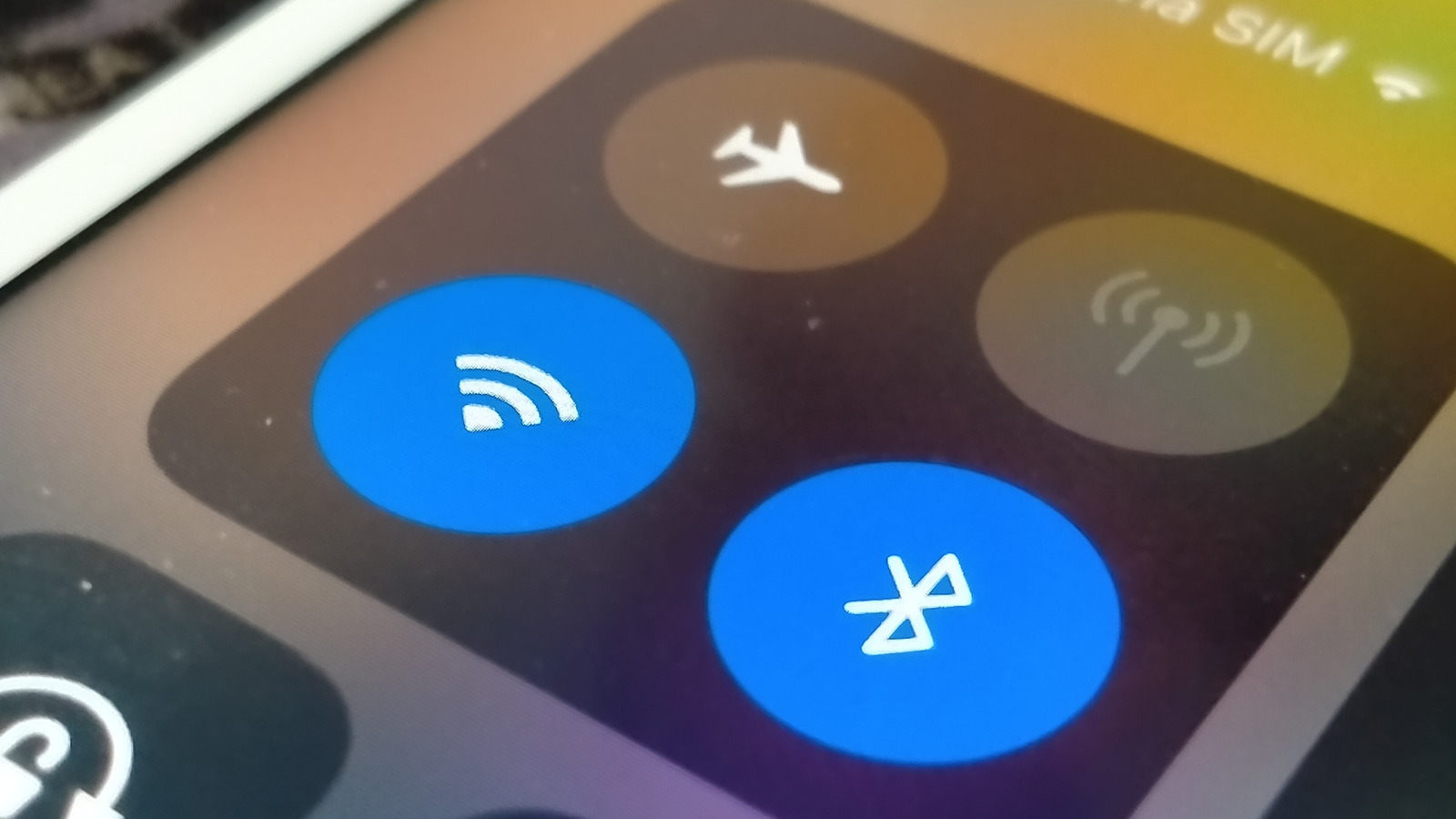
A fairly common issue involves the Bluetooth icon disappearing from the quick tray and system settings in Bluetooth. To remedy this, restart your PC, check for updates, and see if airplane mode is turned on or not. More often than not, these simple solutions resolve any software glitches and bring the Bluetooth icon back to Windows.
If this doesn’t work, look at the drivers. An outdated Bluetooth driver can be pretty debilitating. Try updating your Bluetooth adapter within Device Manager. If the issue remains, then the adapter itself might be the problem. A broken update and third-party programs can lead to faulty Bluetooth drivers being installed on your device, which can hamper connectivity. In such a case, you should uninstall your Bluetooth driver and restart Windows. Don’t worry — the correct Bluetooth drivers either re-install automatically or can be easily found online. These steps should return the Bluetooth icon to your device.
Device not connecting via Bluetooth
Bluetooth connectivity is usually instant and easy to set up. So, if your brand-new Bluetooth speaker fails to connect, there’s an underlying problem that needs to be addressed. In most cases, the solutions are pretty simple. Turn Bluetooth on and off, ensure that the devices aren’t more than ten meters away from each other, double-check their battery levels, enter the correct PIN, and check if pairing mode is turned on.
If the problem persists, enter the unpairing and re-pairing vortex. Sometimes, paired devices refuse to connect again, which is when you should remove the memory of said device from your phone, tablet, laptop, or desktop. Re-pairing the device should take care of this connectivity issue, which is a fairly common way to resolve headphones and controllers refusing to pair with what should be a familiar device.
Unacceptable latency issues
Latency is something that you should expect from any Bluetooth connection. It used to be unbearably laggy at one point, but the technology has greatly improved. Now, any latency is minimal and far from a pain point for most users. However, in some instances, your Bluetooth device may display an unacceptable level of lag that makes it downright impossible to use. Proximity issues and obstructions between two devices are largely to blame here, but this isn’t a universal solution. If latency issues persist, then check if your Bluetooth drivers need to be updated.
Another reason for this lag may stem from Bluetooth multipoint connectivity. Modern accessories can connect to two devices at once, which is convenient if you use your laptop and phone in tandem. However, this can lead to potential latency issues, so it’s better to disable this feature on your Bluetooth device if you aren’t using it often.
If even a minor amount of latency is enough to set you off, then you’re better off buying devices with support for aptX LL (Low Latency), aptX HD, or aptX Adaptive audio codecs. These are tailor-made to minimize latency between two connected devices, making them perfect for gaming setups. Finally, you should check if your device supports Bluetooth 5 technology at the very least. Anything less than that is outdated and will cause noticeable latency issues.
Files not being sent or received via Bluetooth
File transfer is one of the most useful Bluetooth features. Wired connections are slowly becoming outdated, so being able to send files between two devices wirelessly is more useful than you’d think. If a file can’t be transferred between two devices, some basic fixes can be implemented. Reduce device proximity, avoid sending a file that is impractically large, and double-check to see if the request to send files is accepted.
If none of these fixes work, then you should check if the file being sent is compatible with the device in question. Some devices are also encrypted and require special permissions before they can be shared. On Windows, this is enabled by going to the Network and Sharing Center in the Control Panel. From here, you must select “Change advanced sharing settings” and check the “All networks” section. You find a subsection titled “File sharing connections”, where you can enable a setting that allows file sharing for devices that use 40- or 56-bit encryption. With these fixes in place, file transfer between devices shouldn’t be a pain point… unless, that is, you’re trying to send a file to a Bluetooth headset or an Apple device.
No sound/poor audio coming from a Bluetooth audio device
Bluetooth connectivity ensures that earphones or headsets can connect to your device without an aux cable. However, there are times when these connections can be a bit wonky, leading to poor audio quality or no sound whatsoever. Re-pairing the device and double-checking the volume settings are both valid solutions that could be staring you in the face all along. In other instances, your phone or PC may be using the wrong audio output device, which can be changed by digging around in the sound settings and changing the audio output to your preferred source. Ensuring that your device supports the A2DP transfer standard — which should only be missing in older models — and selecting the highest-quality audio format for your Bluetooth device also helps.
If you’re using a wireless audio headset with a program that supports a mic, then you may face an issue where the sound quality is noticeably low, and the solution isn’t entirely obvious. The culprit here is hands-free telephony, a feature that should be useful since it allows you to attend calls without being on the system, but it has a major catch. If a Bluetooth headset has both a mic and a speaker, then the system automatically switches to Hands-Free mode, which reduces audio quality considerably. Disabling this setting from the Services tab of your listed accessory in Device Manager temporarily resolves this issue. For a more permanent solution, go to Hardware and Sound in the Control Panel and click on “View devices and printers.” From here, click on the Hardware section and disable your accessory’s Hands-Free mode directly. Doing so prevents the hands-free telephony feature from automatically switching to this mode every time you boot up your PC.
Bluetooth is unable to find a device
There are times when your Bluetooth accessory doesn’t show up on a list of available devices when trying to connect, which can be a cause for concern. Enable pairing mode on the accessory in question, moving the devices closer to each other for detection, and restarting the system should cover all bases. In case these steps don’t work, you should remove any saved devices that are blocking this connection. More often than not, a device that was already paired to one system and connected to another later on — such as a controller being used for both consoles and PCs — doesn’t show up again. Deleting it from the list of paired devices should solve this problem.
In the rare event that this problem stubbornly persists, you may be dealing with faulty Bluetooth drivers. If they are outdated, then a simple update should take care of things. However, if a recent update has caused this issue, then rolling back the drivers is the way to go. If all else fails, delete the driver, and Windows should auto-install a fresh version of this driver that will, hopefully, resolve this issue for good.
The Bluetooth device constantly disconnects
It’s very irritating when your Bluetooth headphones keep disconnecting when you’re in the middle of something important. Usually, a device disconnects if it’s too far from the system, but the problem may be far more nuanced here. Most PCs and phones have a power saver option that limits certain functions to conserve battery. Wireless connectivity is one of its victims, so you should disable this power-saving setting on your device to stabilize your Bluetooth connection. On Windows, you can go the extra mile here by unchecking the “Allow the computer to turn off this device to save power” option from Device Manager for the Bluetooth device causing these problems.
Another reason for this persistent disconnection is that your Bluetooth accessory is connected to two devices. Most earphones and headsets automatically switch audio based on which device is active, but this feature is far from perfect right now. Even a simple notification ping or incoming call can cause your headphones to switch sources, which is especially annoying if you’re in the middle of an intense gaming session, attending an important work call, or listening to your favorite music. The solution here is simple — disable this Bluetooth multipoint feature on your device and manually connect it to either your phone or PC, depending on what your requirement is.
Bluetooth audio only plays from one channel
Wireless headphones where the audio only plays from one channel are a huge pain to deal with. Before troubleshooting this issue, ensure that your audio device is not at fault here. Test it on multiple systems before moving on. Once it’s confirmed that the accessory is fine, it’s time to implement all possible solutions one by one. Update your drivers, re-pair the problematic accessory, and check if the audio balance isn’t mistakenly skewed in one direction. Sometimes, even enabling the mono audio option can cause sound to emanate from a single channel, so disable it and check if the device is working fine.
If none of these issues work, you should check for a firmware update, because outdated software is a common reason for this glitch. On Windows, verifying the audio format is also recommended, which is done by checking the Sound tab in your system settings and finding your Bluetooth device in the Output section. From here, choose the highest possible audio format and test your accessory to see if this one-channel problem is resolved.
Bluetooth stops working after an update
Updates are usually meant to rectify issues and add new features to devices, but poor quality assurance testing can lead to new problems arising. If Bluetooth isn’t working properly right after an update is installed, then a simple restart may take care of things. Re-pairing the faulty device, clearing your Bluetooth cache to remove any faulty files, and resetting your Bluetooth settings are all viable actions.
If these steps don’t work, then it’s clear that the update itself is at fault here. Rolling back to a previous version is the most logical step. If you’re patient, you can also wait for a hotfix to come out if this issue is so widespread that the manufacturer has to quickly perform some damage control. Both solutions are far from optimal, but it’s still better than having to deal with faulty Bluetooth software.
A Bluetooth device is failing to connect to your car system
Most people tend to connect their phones to their car systems via Bluetooth, allowing them to play music and take hands-free calls with ease. It’s an integral feature for anyone with a long commute who doesn’t want to get bored out of their wits. If your phone refuses to connect to your car’s Bluetooth, the solution may not be obvious. A car’s device memory is significantly limited when compared to other devices, so deleting paired devices from its Bluetooth settings is highly recommended in this situation. You should also keep your car’s software up to date.
A car’s software varies considerably according to the company, which makes it hard to nail down an all-encompassing fix for any connectivity issues. It’s important that you check relevant online forums and discussion boards to see if other vehicle owners are facing similar problems. Chances are that you may discover a crowdsourced solution. If all else fails, it’s time for your car to take a trip to the service center, where you can mention this issue and get it fixed by a certified professional.
Bluetooth audio is not working for calls
Taking calls on a Bluetooth headset is the bare minimum users expect from their device. If you’re unable to make or receive a call from your phone via Bluetooth, then this issue should be fixed at the earliest. Re-pairing the accessory and clearing the Bluetooth cache can help here. If these don’t fix the issue, then it’s possible that one particular setting may be preventing your phone calls from coming through.
Most Bluetooth audio devices with a built-in mic have the “Phone calls” setting enabled by default. If you can’t take calls on your Bluetooth headset or earphones, then you should check their settings in the Paired devices section of your mobile and see if it has been disabled. Even if you enable this setting, there’s a chance that the option will be unchecked again the next time you pair the Bluetooth accessory. In such a case, resetting your network settings should work. You’ll lose access to all your saved WiFis and Bluetooth devices, so keep this as a last resort if this problem refuses to go away.
Bluetooth devices are missing from Device Manager
At this point, it’s clear that Device Manager is your go-to destination to resolve the vast majority of Bluetooth problems on Windows. If a curveball comes your way and any Bluetooth devices are missing in this program, then don’t panic. The obvious explanation is that the setting is hidden, and selecting the “Show hidden devices” option will reveal these elusive Bluetooth devices. However, this issue becomes far more serious if you’re unable to see any Bluetooth settings even after this step, either in Device Manager or anywhere else on your PC.
Checking for a BIOS update may solve your problem, but it’s far more likely that your motherboard itself doesn’t support Bluetooth. On older devices, this shouldn’t be an issue, but contact your device manufacturer if your brand-new laptop or desktop lacks this basic functionality. Until this situation is resolved from their end, you can purchase a Bluetooth dongle as a temporary solution.
Bluetooth settings don’t let you delete a device
Deleting and re-pairing a Bluetooth device is a common solution to rectify the vast majority of connectivity issues. However, Windows may catch you off guard by showing a failed message when trying to delete a problematic paired device. In this situation, Device Manager will come to your rescue yet again. The easiest solution here is to delete the paired device from Device Manager itself, but there are times when this fix doesn’t work out.
If you’ve downloaded third-party apps or tried other ways to connect an unsupported Bluetooth device to your PC, then it’s possible that one or several faulty Bluetooth drivers were installed in the process. These can hamper how Bluetooth works on your system. In this situation, you should search for any outdated or suspicious drivers in Device Manager and delete them. Even if you accidentally delete a legit Bluetooth driver, Windows is smart enough to reinstall said driver once you restart the system.