By using this site, you agree to the Privacy Policy and Terms of Use.
Accept
World of SoftwareWorld of SoftwareWorld of Software
  • News
  • Software
  • Mobile
  • Computing
  • Gaming
  • Videos
  • More
    • Gadget
    • Web Stories
    • Trending
    • Press Release
Search
  • Privacy
  • Terms
  • Advertise
  • Contact
Copyright © All Rights Reserved. World of Software.
Reading: The Hidden Back Tap Feature On Your iPhone Has Some Clever Uses – BGR
Share
Sign In
Notification Show More
Font ResizerAa
World of SoftwareWorld of Software
Font ResizerAa
  • Software
  • Mobile
  • Computing
  • Gadget
  • Gaming
  • Videos
Search
  • News
  • Software
  • Mobile
  • Computing
  • Gaming
  • Videos
  • More
    • Gadget
    • Web Stories
    • Trending
    • Press Release
Have an existing account? Sign In
Follow US
  • Privacy
  • Terms
  • Advertise
  • Contact
Copyright © All Rights Reserved. World of Software.
World of Software > News > The Hidden Back Tap Feature On Your iPhone Has Some Clever Uses – BGR
News

The Hidden Back Tap Feature On Your iPhone Has Some Clever Uses – BGR

News Room
Last updated: 2026/03/22 at 1:54 AM
News Room Published 22 March 2026
Share
The Hidden Back Tap Feature On Your iPhone Has Some Clever Uses – BGR
SHARE


Evolf/Shutterstock

In the past, it was pretty common for Android users to give the iPhone flack for not being customizable enough. But it can be easy to forget the number of options available in the Settings menu of an Apple smartphone. Naturally, we love digging through an operating system to find some of the coolest or most useful tricks — such as these 13 iPhone security settings you should enable right now — and users should be aware of an iPhone feature that essentially turns the back of the device into a giant button. 

Known as the Back Tap feature, those with a supported iPhone model can use the back of their device to perform a variety of actions. This clever feature is buried within the iPhone Settings menu, but if you’re the type that has a flair for automation, it is certainly worth checking out. Getting started with Back Tap is fairly straightforward, but there are a few options to consider, so let’s check it out. As a reminder, there are several hidden iOS 26 features that are actually useful, so remember that exploring your iPhone Settings can help you discover its full capabilities.

Where is the iPhone’s hidden button?
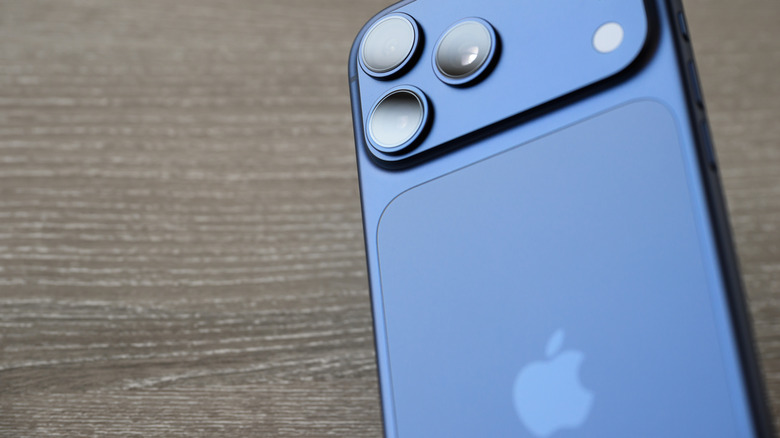

Back of an iPhone on a table
Kenneth Cheung/Getty Images

The Back Tap feature has been available for the iPhone since iOS 14 and works with the iPhone 8 or newer. Located within the Accessibility menu, Back Tap allows users to perform custom actions when they double or triple tap the back of their phone. Users can tap anywhere on the backside of an iPhone, including the area that houses your camera, to activate this hidden feature. 

With it, you can navigate to different system applications, including the Control Center, Lock Screen, or Notification Center. It can also be set up for an Accessibility feature, such as VoiceOver or enabling and disabling Background Sounds. Back Tap supports iOS Shortcuts as well, even those iOS Shortcuts you didn’t know you needed. 

Using Shortcuts options, the Back Tap feature can be used to open apps that aren’t available through Apple’s Settings. And for those who use a cellphone case, Back Tap should work, even if your case is on the bulky side. It’s also worth noting that while more recent versions of iOS will have a banner providing information about when you use the feature, there is no tactile confirmation feedback, meaning it is possible to accidentally trigger Back Tap and not know it. 

How to use Apple’s Back Tap feature
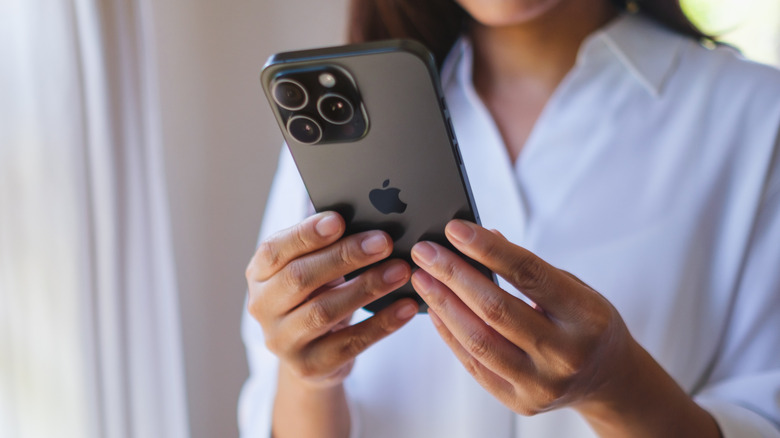

An individual holding a black, 3-camera iPhone model in beytween both of their hands, the individual appears to be indoors and is wearing a dress shirt
Farknot Architect/Shutterstock

Just like some other useful iOS features you need to start using, getting started with Back Tap involves the Accessibility settings on your iPhone. Be aware that you can enable or disable the Show Banner option, which provides a little notification when the Back Tap feature has been used.

With that in mind, here are the steps to use Back Tap:

  1. Open the iPhone Settings menu.

  2. Select Accessibility.

  3. Tap Touch.

  4. Choose Back Tap.

  5. You will have two options: Double Tap or Triple Tap. Selecting one of these options will provide you a list of actions.

  6. Once selected, you can then double tap or triple tap the back of your device to engage that action.

Despite the process being rather simple, you can use this feature to pull off some cool tricks. For example, if you set the Double Tap option to Camera, you can then set the Triple Tap to Volume Up or Volume Down — allowing you to open the Camera app and take a photo with just five taps. If you ever want to disable this feature, set the Double Tap and Triple options to None, which will unassign any actions you previously setup.



Sign Up For Daily Newsletter

Be keep up! Get the latest breaking news delivered straight to your inbox.
By signing up, you agree to our Terms of Use and acknowledge the data practices in our Privacy Policy. You may unsubscribe at any time.
Share This Article
Facebook Twitter Email Print
Share
What do you think?
Love0
Sad0
Happy0
Sleepy0
Angry0
Dead0
Wink0
Previous Article I upgraded my  turntable with these Onkyo speakers, and the sound quality was unrecognizable I upgraded my $40 turntable with these Onkyo speakers, and the sound quality was unrecognizable
Next Article The Best Deals on Lenovo Desktops, Laptops, and Tablets You Can Get Before Amazon’s Big Spring Sale Begins The Best Deals on Lenovo Desktops, Laptops, and Tablets You Can Get Before Amazon’s Big Spring Sale Begins
Leave a comment

Leave a Reply Cancel reply

Your email address will not be published. Required fields are marked *

Stay Connected

248.1k Like
69.1k Follow
134k Pin
54.3k Follow

Latest News

No, the Aura Data Breach Did Not Expose Your SSN or Password. Here’s What Happened
News
We have been believing for more than a century that the appendix is ​​a useless organ and an evolutionary error. We were very wrong
Mobile
Parrot wins first orders from NATO for its mini-drone
Mobile
Apple wasn't alone in 1976 — these companies helped define an era
News

You Might also Like

No, the Aura Data Breach Did Not Expose Your SSN or Password. Here’s What Happened
News

No, the Aura Data Breach Did Not Expose Your SSN or Password. Here’s What Happened

7 Min Read
Apple wasn't alone in 1976 — these companies helped define an era
News

Apple wasn't alone in 1976 — these companies helped define an era

1 Min Read
Run, Don’t Walk to Save Over 0 With This Garmin Smartwatch Deal at Walmart
News

Run, Don’t Walk to Save Over $100 With This Garmin Smartwatch Deal at Walmart

4 Min Read
OpenAI Plans Desktop ‘Superapp’ to Combine ChatGPT, Codex, Atlas Browser
News

OpenAI Plans Desktop ‘Superapp’ to Combine ChatGPT, Codex, Atlas Browser

5 Min Read
//

World of Software is your one-stop website for the latest tech news and updates, follow us now to get the news that matters to you.

Quick Link

  • Privacy Policy
  • Terms of use
  • Advertise
  • Contact

Topics

  • Computing
  • Software
  • Press Release
  • Trending

Sign Up for Our Newsletter

Subscribe to our newsletter to get our newest articles instantly!

World of SoftwareWorld of Software
Follow US
Copyright © All Rights Reserved. World of Software.
Welcome Back!

Sign in to your account

Lost your password?