By using this site, you agree to the Privacy Policy and Terms of Use.
Accept
World of SoftwareWorld of SoftwareWorld of Software
  • News
  • Software
  • Mobile
  • Computing
  • Gaming
  • Videos
  • More
    • Gadget
    • Web Stories
    • Trending
    • Press Release
Search
  • Privacy
  • Terms
  • Advertise
  • Contact
Copyright © All Rights Reserved. World of Software.
Reading: This One Apple TV Setting Can Completely Fix Quiet Dialogue – BGR
Share
Sign In
Notification Show More
Font ResizerAa
World of SoftwareWorld of Software
Font ResizerAa
  • Software
  • Mobile
  • Computing
  • Gadget
  • Gaming
  • Videos
Search
  • News
  • Software
  • Mobile
  • Computing
  • Gaming
  • Videos
  • More
    • Gadget
    • Web Stories
    • Trending
    • Press Release
Have an existing account? Sign In
Follow US
  • Privacy
  • Terms
  • Advertise
  • Contact
Copyright © All Rights Reserved. World of Software.
World of Software > News > This One Apple TV Setting Can Completely Fix Quiet Dialogue – BGR
News

This One Apple TV Setting Can Completely Fix Quiet Dialogue – BGR

News Room
Last updated: 2026/02/08 at 2:03 PM
News Room Published 8 February 2026
Share
This One Apple TV Setting Can Completely Fix Quiet Dialogue – BGR
SHARE


José Adorno/BGR

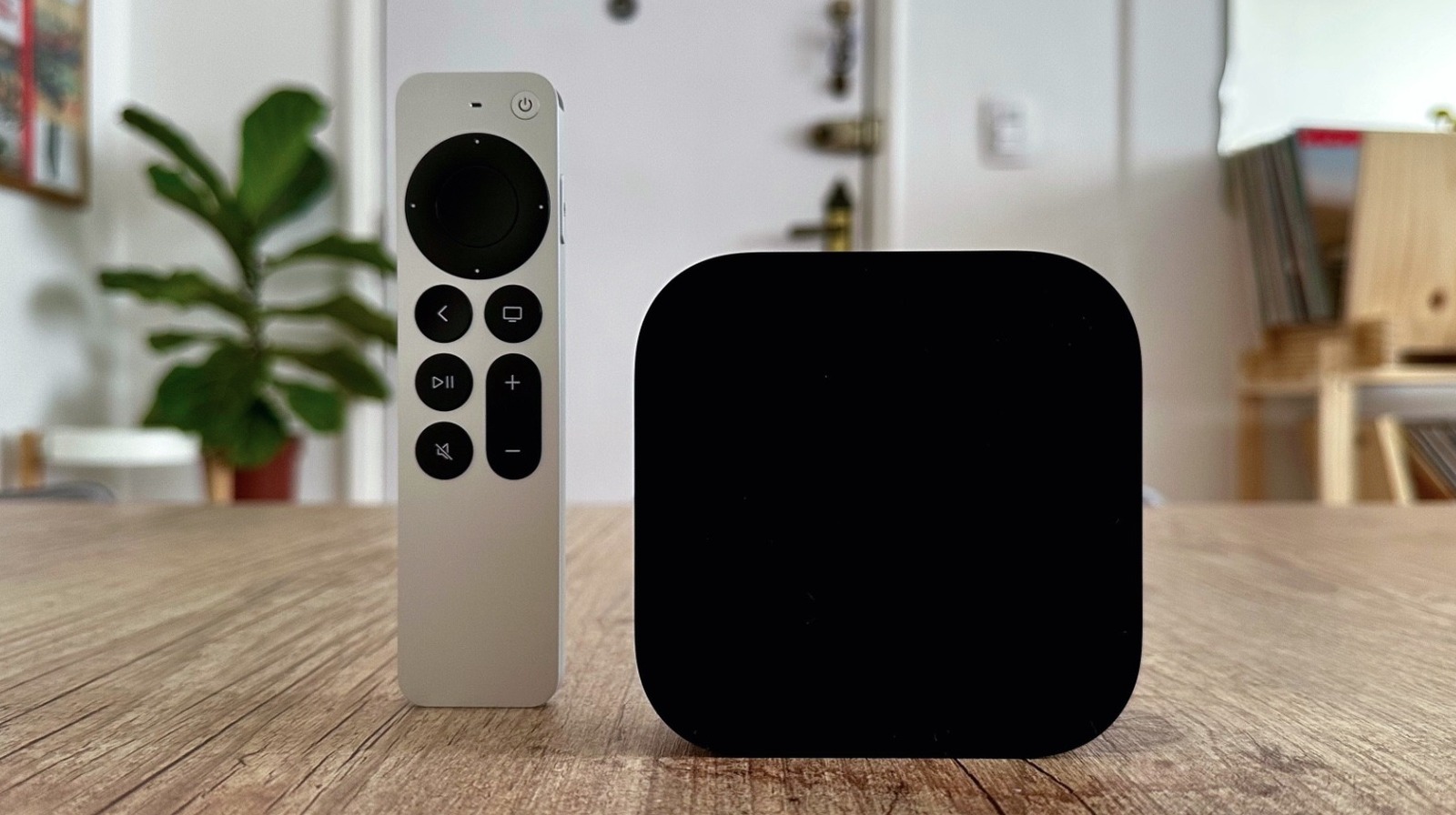
With tvOS 17, Apple introduced the Enhance Dialogue feature on Apple TV, which feels like a magical tool to fix dialogue issues in movies, shows, and documentaries. Whether the content hasn’t been correctly mastered or your TV audio isn’t working as expected anymore, Apple has a quick fix to boost the vocals on the Apple TV 4K.

At first, this feature was exclusive to an Apple TV 4K paired with two HomePod 2 models. However, Apple eventually expanded this functionality with tvOS 18 to support a pair of the original HomePod or HomePod mini, and later by making it available on any smart TV, as long as people were using an Apple TV 4K (2nd generation or later). Even though the feature works on a first-gen Apple TV 4K, you will require a combination of HomePod speakers. With all the requirements in place, here’s how you can enable the feature.

How to enable the Enhance Dialogue feature on your Apple TV
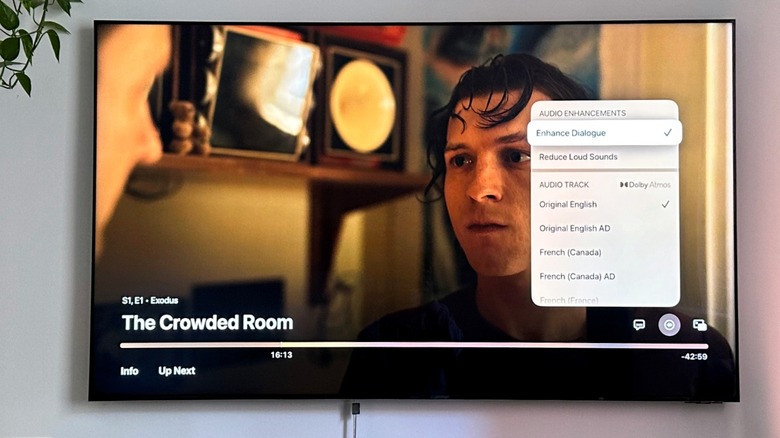

Enhance Dialogue settings being displayed in a Smart TV connected to an Apple TV
José Adorno/BGR

From the Apple TV settings, select Audio Options and enable Enhance Dialogue. The option is available via TV speakers, HDMI-connected devices like soundbars, and Bluetooth-enabled speakers, as long as you have a second-generation Apple TV 4K or later. Enabling the toggle keeps the setting tuned on until you manually turn it off. If you prefer to choose when you want to enable the feature manually, you can activate the Now Playing menu, go to Audio Options, and choose Enhance Dialogue. That said, it’s important to note that the streaming app you use needs to be updated to support this feature.

While we personally prefer using the Enhance Dialogue feature with a pair of HomePod 2 speakers, it does a fairly good job with your TV’s built-in speakers. Interestingly, if you use Apple Fitness+ on your Apple TV, you can choose between enhancing the coach’s voice or the music, depending on what you want to focus on during your workout. Another option is to add Voice Isolation with Enhanced Dialogue, depending on what you’re trying to listen to. You just need to go to the Settings page once again on the Apple TV 4K, select Accessibility, and enable Add Voice Isolation.


Sign Up For Daily Newsletter

Be keep up! Get the latest breaking news delivered straight to your inbox.
By signing up, you agree to our Terms of Use and acknowledge the data practices in our Privacy Policy. You may unsubscribe at any time.
Share This Article
Facebook Twitter Email Print
Share
What do you think?
Love0
Sad0
Happy0
Sleepy0
Angry0
Dead0
Wink0
Previous Article Al music on Spotify is exploding — here’s how to identify it before you hit play Al music on Spotify is exploding — here’s how to identify it before you hit play
Next Article Super Bowl 2026 on Fire TV: How to watch Seahawks vs Patriots today Super Bowl 2026 on Fire TV: How to watch Seahawks vs Patriots today
Leave a comment

Leave a Reply Cancel reply

Your email address will not be published. Required fields are marked *

Stay Connected

248.1k Like
69.1k Follow
134k Pin
54.3k Follow

Latest News

Crypto.com places M bet on AI.com domain ahead of Super Bowl |  News
Crypto.com places $70M bet on AI.com domain ahead of Super Bowl | News
News
14 Years Ago, Steam Launched One Of Its Most Controversial Platforms – BGR
News
Blink Outdoor 2K+ Review: A Tiny Camera With Outsized Battery Life
News
3 HDMI Gadgets That Can Tidy Up Your Setup – BGR
News

You Might also Like

Crypto.com places M bet on AI.com domain ahead of Super Bowl |  News
News

Crypto.com places $70M bet on AI.com domain ahead of Super Bowl | News

2 Min Read
14 Years Ago, Steam Launched One Of Its Most Controversial Platforms – BGR
News

14 Years Ago, Steam Launched One Of Its Most Controversial Platforms – BGR

5 Min Read
Blink Outdoor 2K+ Review: A Tiny Camera With Outsized Battery Life
News

Blink Outdoor 2K+ Review: A Tiny Camera With Outsized Battery Life

3 Min Read
3 HDMI Gadgets That Can Tidy Up Your Setup – BGR
News

3 HDMI Gadgets That Can Tidy Up Your Setup – BGR

6 Min Read
//

World of Software is your one-stop website for the latest tech news and updates, follow us now to get the news that matters to you.

Quick Link

  • Privacy Policy
  • Terms of use
  • Advertise
  • Contact

Topics

  • Computing
  • Software
  • Press Release
  • Trending

Sign Up for Our Newsletter

Subscribe to our newsletter to get our newest articles instantly!

World of SoftwareWorld of Software
Follow US
Copyright © All Rights Reserved. World of Software.
Welcome Back!

Sign in to your account

Lost your password?