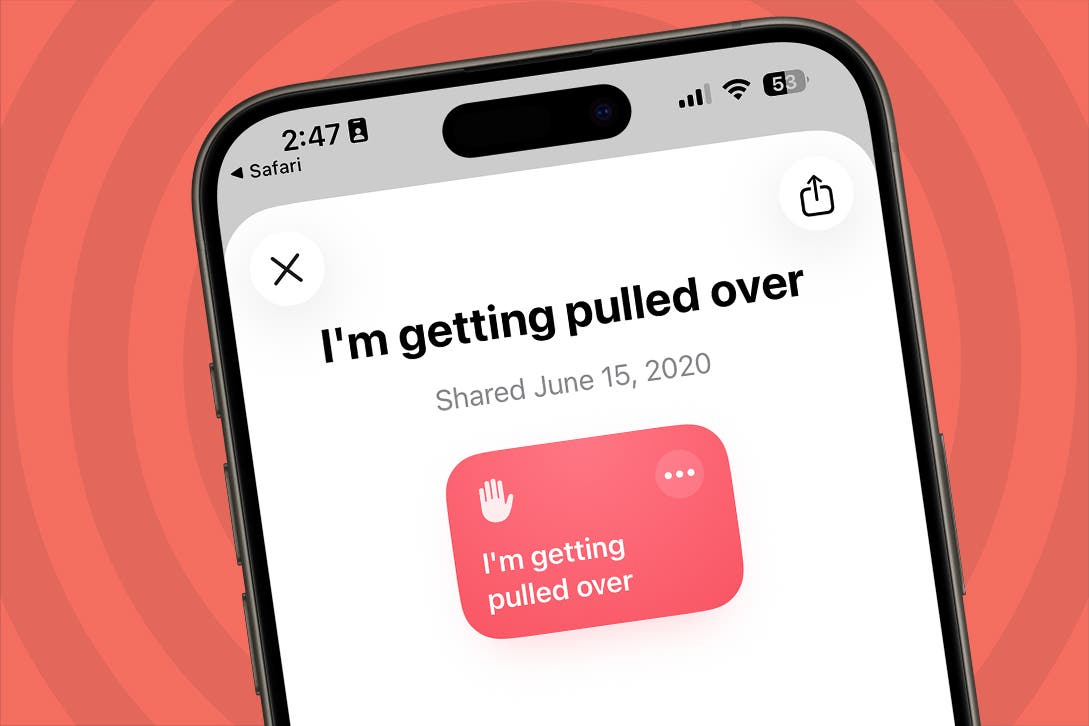
Being pulled over can be a scary experience, even when you haven’t done anything wrong. Thankfully, there’s a helpful Shortcut that can document your interaction, make getting pulled over a bit more bearable. Here’s how to get and use the “I’m getting pulled over” Shortcut for your iPhone.
Why You’ll Love This Tip
- Safely let your friends or family know when you’re being pulled over.
- Ensure your own safety during traffic stops.
How to Set Up “I’m Getting Pulled Over” Shortcut
System Requirements
This tip was performed on an iPhone 15 Pro running iOS 26.3.1. Find out how to update to the latest version of iOS.
With this helpful Shortcut, you can simply say, “Hey Siri, I’m getting pulled over,” and your iPhone will run the Shortcut automatically. When you activate this Shortcut, it will dim your screen, lower media volume, send your current location to a trusted contact, and start recording a video from your front-facing camera. Once the video stops, it will upload to your iCloud storage and send a copy to your trusted contact.
Note
If you have restrictions on which apps can access your locations or send messages, you may need to tap allow a few times in the Shortcuts app before the messages this shortcut generates will send. You can check which apps have access in your Privacy settings.
For more helpful iPhone tips and tricks, be sure to sign up for our free Tip of the Day newsletter. Now, here’s how to set up the “I’m getting pulled over” Shortcut:
- Open this link to download the Shortcut.
- Tap Set Up Shortcut.
![a screenshot of the shortcuts app on iphone displaying the shortuct "i'm getting pulled over"]()
- Due to some bugs in the setup process, I recommend simply tapping Skip Setup.
![a screenshot of the shortcuts set up screen with a red box around skip setup]()
- If you’re not already there, navigate to your Library tab.
![Tap Library]()
- Once you have the Shortcut saved, tap the three dots next to the Shortcut name.
![a screenshot of the shortcuts app with a red box around the three dots next to the "I'm getting pulled over" shortcut]()
- Scroll down and tap Recipients.
![a screenshot of the shortcuts app displaying the details for the "i'm getting pulled over" shortcut with a red box around recipients]()
- Type the name of a contact to add them.
![a screenshot of the contact select screen with a red box around the name of a contact]()
- Tap the checkmark icon.
![a screenshot of the contact select screen with a red box around the checkmark icon]()
- Scroll down and tap Recipients again, and repeat the process to finish setting up this Shortcut.
![a screenshot of the shortcuts app displaying the details for the "i'm getting pulled over" shortcut with a red box around recipients]()
- You can test out this shortcut by pushing the play button at the bottom of your screen. Make sure to tell your contact that they’re about to get some otherwise concerning messages from you, though!
![Tap play]()


Now, you should be ready to use the “Hey Siri, I’m getting pulled over” Shortcut. Again, keep in mind that upon activation, this Shortcut dims your phone screen, turns down media volume, sends your current location to a trusted contact, and starts a video from the front-facing camera. The Shortcut will then send that video to your trusted contact and upload it to iCloud. Don’t forget to turn your iPhone volume back up when you’re done with the shortcut!
More On: The Shortcuts App
- How to Edit Shortcuts on iPhone
- How to Make a Shortcut on iPhone
- How to Delete Shortcuts from iPhone