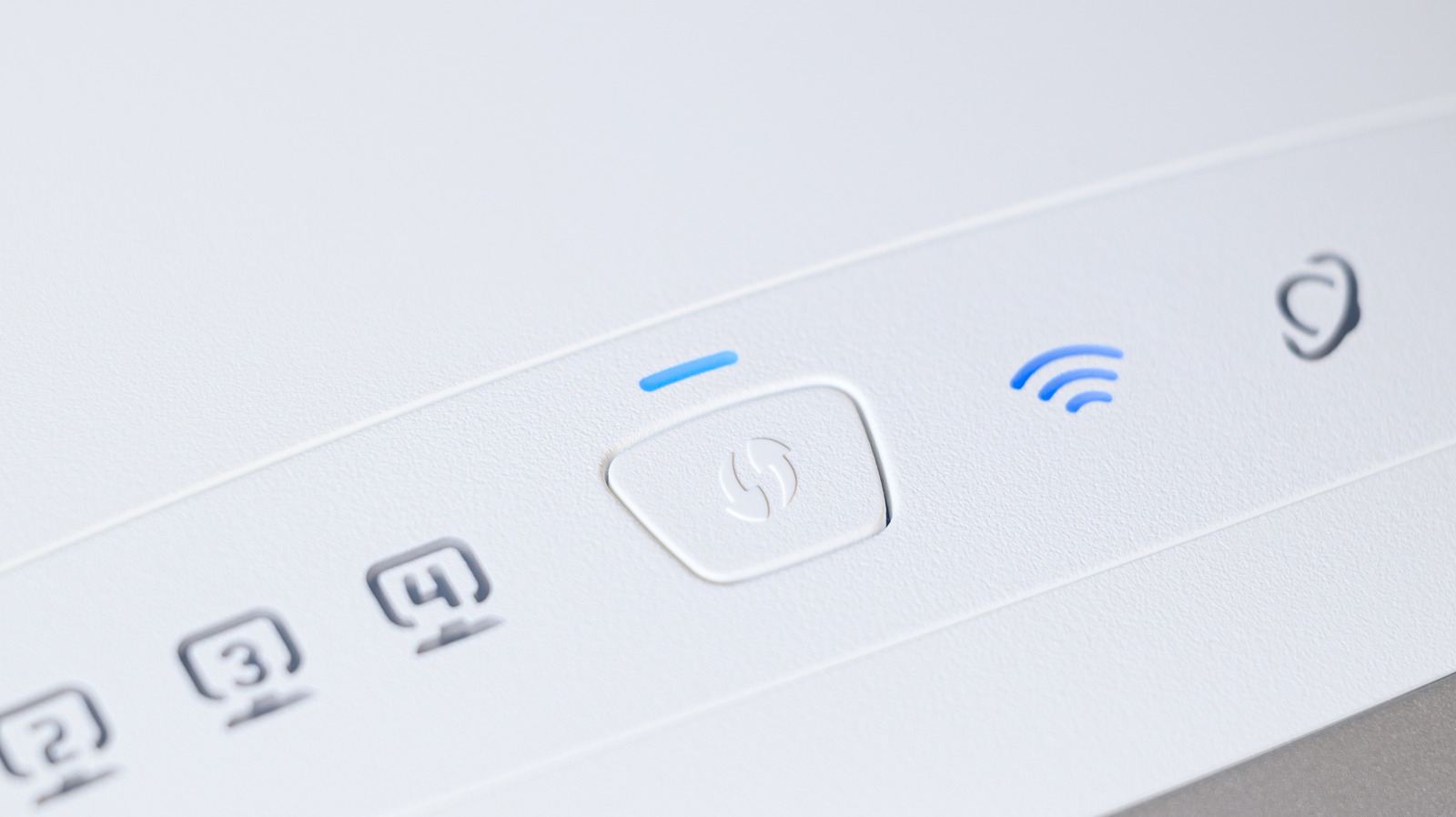
A WPS button refers to the Wi-Fi Protected Setup button on a router or Wi-Fi extender. On your router, you’ll see a WPS button (sometimes labeled with two arrows curving) that you can press. Alternatively, it could appear as a small, visible button that’s slightly larger than a pinhole on the back, where all the cables connect. The button can be located in front, side, or behind the router, depending on configuration and brand.
It’s not a button you’ll interact with much, due to its specific functionality. You also likely won’t need to touch it during a new router setup unless you want to conveniently add new devices to your local network. The WPS button is similar to a quick-sharing function: pressing it opens your network to nearby devices to your router, allowing you to connect seamlessly without entering a password.
This process only lasts from 30 seconds to two minutes, so it’s meant to be done quickly. You can use WPS in one of four ways: pushing down a button, entering an 8-digit PIN, plugging in a USB flash drive (rare), or using NFC.
When should you consider using your router’s WPS button
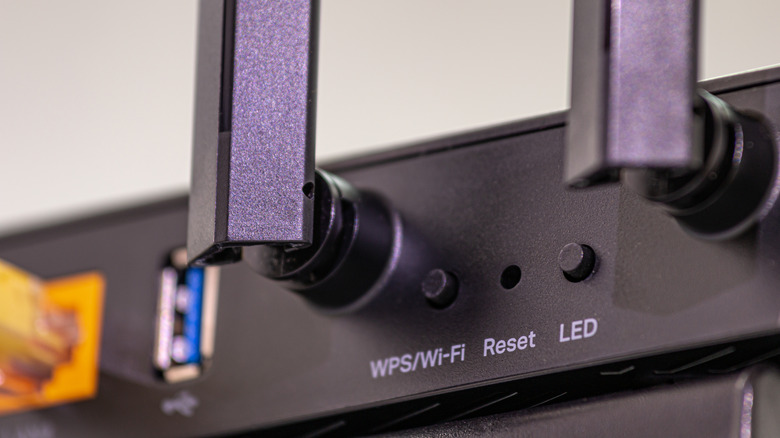
WPS offers a lot of convenience by letting you connect a bunch of WPS-supported devices to your home network without having to type in your Wi-Fi password each time. But it introduces security vulnerabilities, even if the window of opportunity to use this feature is rather short; it only takes a few seconds for anyone to gain unauthorized access, especially if you use the PIN method instead of the physical push button.
That’s why it’s usually recommended to keep this feature disabled after use. You’ll also want to be mindful of which devices you use WPS with, in case you get exploited by freeloading or unauthorized access in your home. Remember that it only takes one visit from a stranger to access your network via WPS and start intercepting unencrypted data and targeting your other devices on your network.
However, the WPS button isn’t a terrible idea to use under certain circumstances, for example, you can’t get your printer to connect to your Chromebook, and you’ve exhausted all the methods for registering it on your network. You can push the WPS button on your router to connect to the same network your Chromebook is on. The router’s WPS function is also relatively fine to use if you have a trusted guest over and don’t want to give up your Wi-Fi password for their device. But even if you’re a hospitable host, you’ll probably still want to check back later to see if they’re still connected.