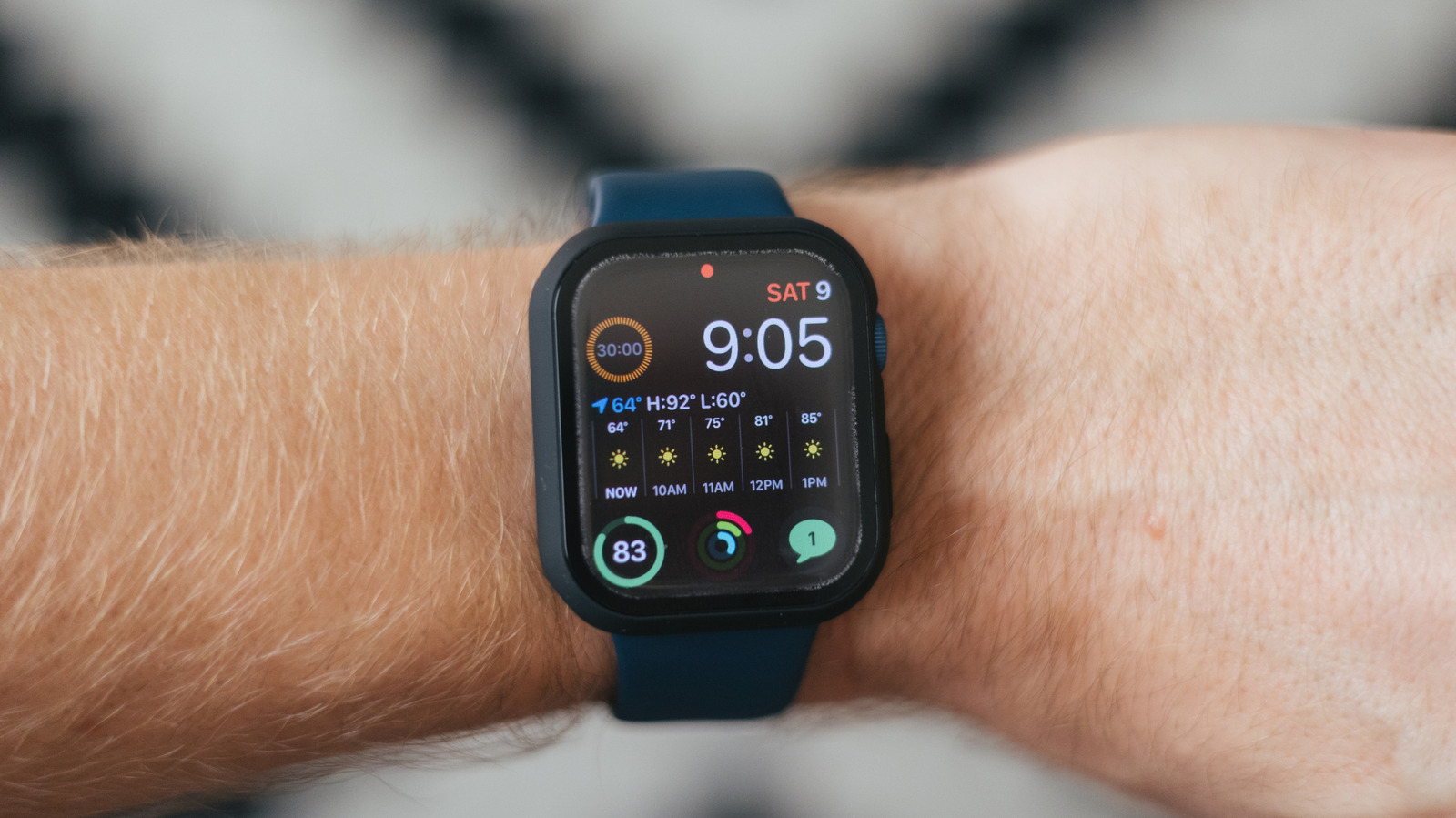
If you’ve recently purchased your first Apple Watch and you’re still getting used to a wearable computer that acts as an iPhone companion, you may be wondering what that red dot that keeps appearing at the top of the display is. That’s the Notifications Indicator, a visual hint that you have received notifications from the apps installed on your Apple Watch and iPhone that may need your attention. The dot disappears if you deal with the notifications, and appears again, provided a different indicator (a status icon) doesn’t cover it, like a more persistent Airplane mode indicator. Whether you’re on your first Apple Watch or you’re a seasoned Apple Watch user, you may also be wondering whether there’s a way to get rid of the red dot at the top of your Apple Watch screen so it doesn’t interfere with the watch face design.
You can disable the Notifications Indicator so it doesn’t appear on your Apple Watch without losing access to notifications. On the Apple Watch, go to the Settings app > Notifications > Notifications Indicator, and turn it off. On the iPhone, go to the Watch app > My Watch > Notifications, and toggle off the same Notifications Indicator feature. However, there are some things to keep in mind if you do this.
The better way to deal with the red dot
You won’t lose access to notifications on the Apple Watch if you disable the red dot, as you can still see them in the Notifications Center by swiping down on the top edge of the Apple Watch. You’ll see all the unread notifications appear on the screen. On that note, there’s a better way to get rid of the red dot, without eliminating it completely: You can minimize the number of notifications that reach your smartwatch, so only the important ones come through.
The iPhone relays all the notifications you may receive during the day, including messages, calls, social media content, news apps, texts from other apps (like WhatsApp and Signal), and anything else that can receive notifications on the handset. You’ll deal with those notifications when you feel like it, but all unread notifications will ping your Apple Watch the moment they arrive. The red dot will appear at the top of the screen until you read or dismiss the notifications. Since disabling the red dot does not make notifications go away, your watch will still buzz you when they come in.
Instead of getting rid of the Notification Indicator, you can leave it on and deal with the real problem. Not all notifications are essential or urgent. The unimportant ones should not reach your wrist. Go to the Apple Watch app on your iPhone > My Watch > Notifications and manage notifications for each app installed on the Apple Watch. Choose the “Allow Notifications” setting for essential apps, like messages and calls. Most apps can be blocked from notifying you on the Apple Watch by choosing the “Notifications Off” setting. Finally, the “Send to Notification Center” will prevent notifications from bothering you.
Don’t forget about Focus modes
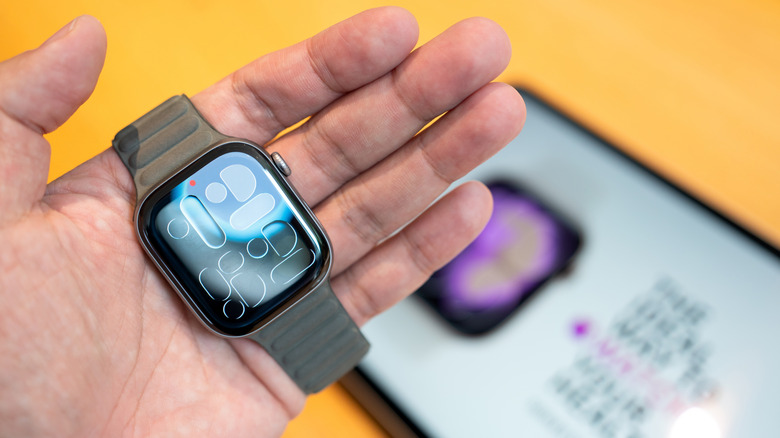
After you’ve customized Apple Watch notifications for all the apps installed on the wearable, the red dot should appear a lot less than before. That’s why it’s worth leaving the Notifications Indicator enabled if you choose this route, as it’ll offer you a visual reminder that you have essential notifications to deal with. But you can further reduce the interruptions by enabling Focus modes on the Apple Watch. By default, the Apple Watch has Do Not Disturb, Personal, Sleep, and Work Focus modes. To enable one, you can press the side button to bring the Control Center into view. Tap the moon icon (Focus mode), tap one of the available choices, and select the duration. Focus mode reduces distractions by showing even fewer notifications on the Apple Watch. The Focus mode is mirrored on the iPhone as well.
You can customize a Focus mode specifically tailored for the Apple Watch, but you’ll have to do so from the Settings app on your iPhone. In there, you can choose the Focus type and then choose which apps and people can reach you while the custom Focus mode is enabled. The Focus mode will appear on the Apple Watch, and you can enable it every time you want fewer notifications. If the Notifications Indicator is enabled, it’ll still show up on the screen but only briefly. That’s because Focus mode will display a moon crescent (or custom) icon while it’s enabled. Swiping down at the top of the screen will still let you access notifications.