By using this site, you agree to the Privacy Policy and Terms of Use.
Accept
World of SoftwareWorld of SoftwareWorld of Software
  • News
  • Software
  • Mobile
  • Computing
  • Gaming
  • Videos
  • More
    • Gadget
    • Web Stories
    • Trending
    • Press Release
Search
  • Privacy
  • Terms
  • Advertise
  • Contact
Copyright © All Rights Reserved. World of Software.
Reading: What Those Three Dots On The Top Of iPad Apps Are For – BGR
Share
Sign In
Notification Show More
Font ResizerAa
World of SoftwareWorld of Software
Font ResizerAa
  • Software
  • Mobile
  • Computing
  • Gadget
  • Gaming
  • Videos
Search
  • News
  • Software
  • Mobile
  • Computing
  • Gaming
  • Videos
  • More
    • Gadget
    • Web Stories
    • Trending
    • Press Release
Have an existing account? Sign In
Follow US
  • Privacy
  • Terms
  • Advertise
  • Contact
Copyright © All Rights Reserved. World of Software.
World of Software > News > What Those Three Dots On The Top Of iPad Apps Are For – BGR
News

What Those Three Dots On The Top Of iPad Apps Are For – BGR

News Room
Last updated: 2026/04/05 at 9:01 PM
News Room Published 5 April 2026
Share
What Those Three Dots On The Top Of iPad Apps Are For – BGR
SHARE


Asad Kashif/BGR

iPads have always been powerful devices, but there were always some things that put them a level below MacBooks in terms of productivity. iPad users got access to iPadOS 26 in late 2025, which came with many new productivity features that put your iPad one step closer to replacing your laptop.

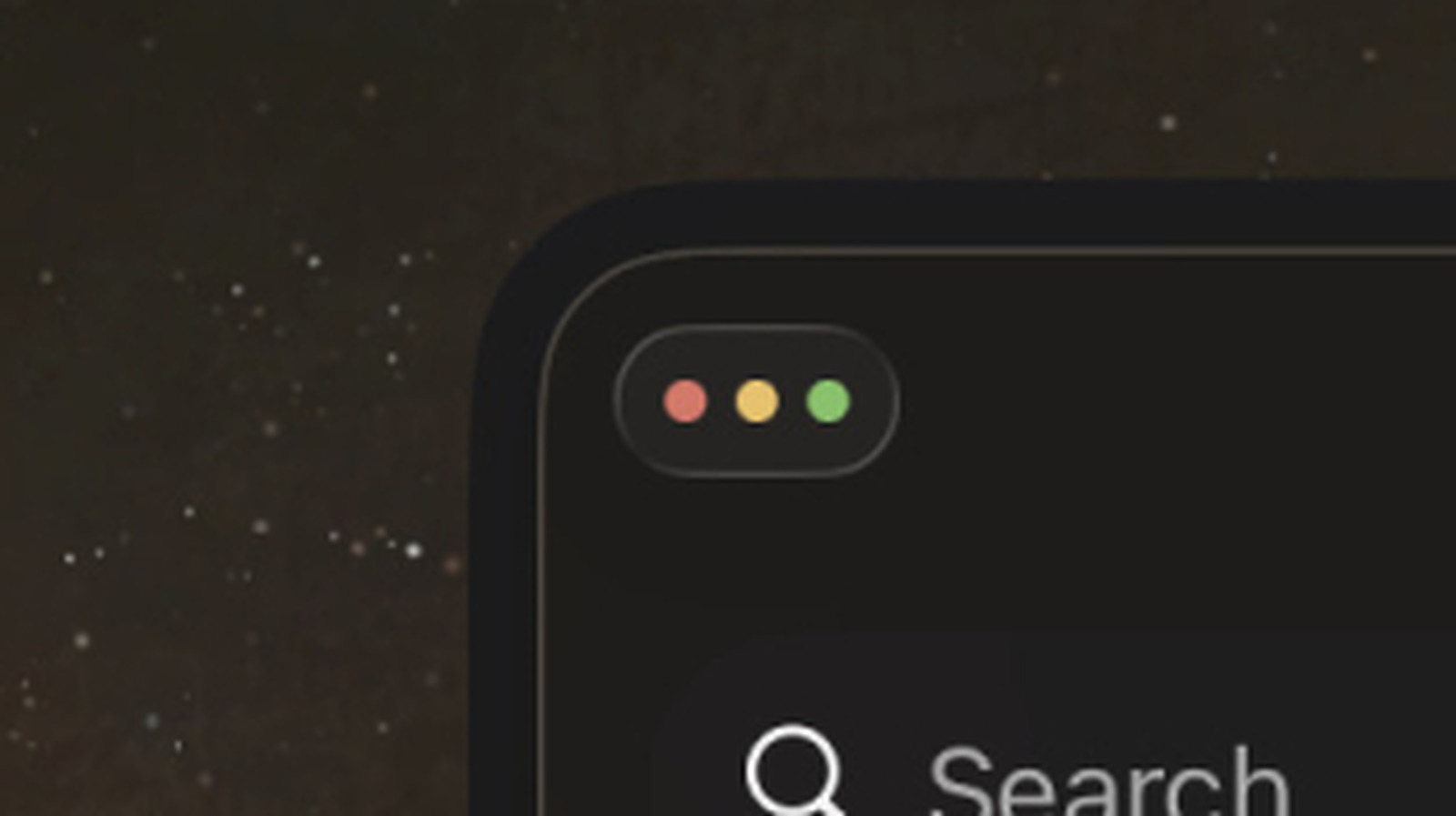
One of these features is the addition of the window control traffic light-colored buttons that have been on Macs for years now. These three dots can be seen on top of an iPad app when it’s not in full-screen mode. Tapping the three minimized buttons scales them up, and you can then tap each button to control your app window in one of three ways.

The three traffic light buttons behave the same way they would on a Mac and are very straightforward. The green button located on the right focuses the app and enables full-screen mode for it, whereas the red button located on the left closes the app. The yellow button in the middle minimizes the app, but it functions the same way as closing an app normally on an iPad, since it remains active in the background

Layout configurations
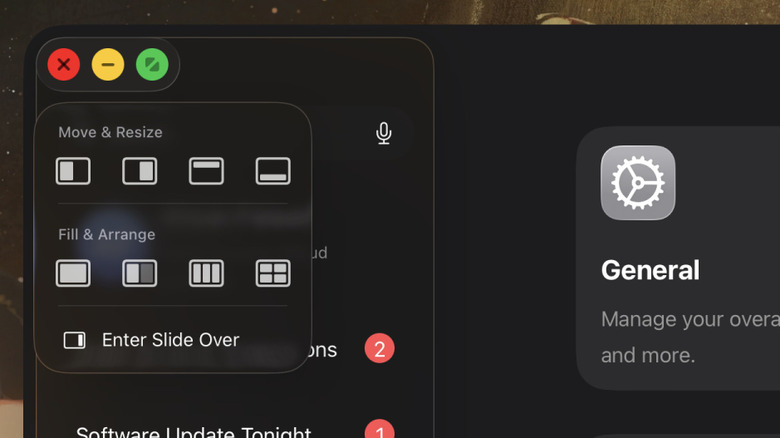

A zoomed-in screenshot of an iPad screen showing the three dots focused and the layout configuration menu open
Asad Kashif/BGR

Apart from the base activations of the three buttons on top of your iPad apps, you can also hold down the green full-screen button to open up a layout configuration menu. Here, you can choose from a number of ways to resize, move, and arrange your app windows on your screen. This works regardless of if you have Windowed Apps or Stage Play activated.

The options under Move & Resize snap your app to part of your screen. This can be to the left, the right, the top, or the bottom. Flicking the app in either direction when focused does the same thing. Fill & Arrange does something similar, where you can choose to symmetrically align either two, three, or four active windows on the screen at once.

If there’s a specific app that you want to keep displayed on top of other apps, you can also select the Enter Slide Over option. Once you’ve done this, your chosen app will have a glass border around it, and you can move it around your screen without any other app window blocking it.

How to turn on the three dot menu, Windowed Apps, and Stage Play
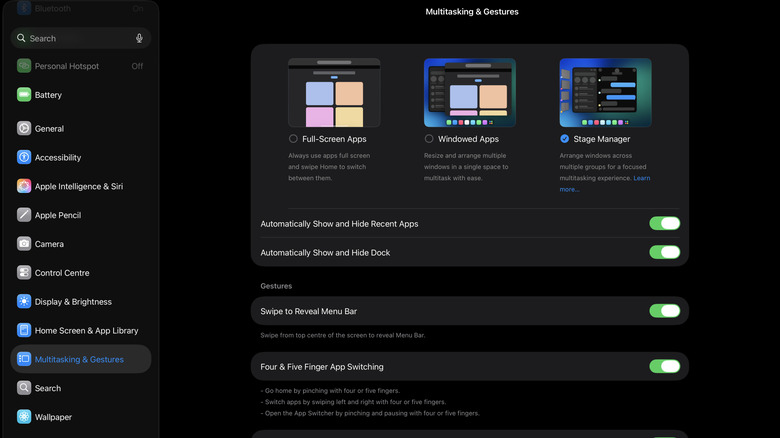

A screenshot of iPad settings in iPadOS 26 showing Windowed Apps and Stage Manager inside Multitasking and Gestures
Asad Kashif/BGR

If you can’t see the three dots on top of your iPad apps, you should know that these buttons aren’t activated by default. They only show up when an app’s not in full-screen, the default mode for apps on your iPad. In order to use the Mac menu or the layout features on your iPad, you need to activate either Windowed Apps or Stage Manager, depending on your preference. 

The way to do either is the same: go to your iPad settings, scroll down to Multitasking & Gestures, and then select your desired option from there. After you’ve done so, you will see the three colored dots on top of all your iPad apps when you resize the app window.

There’s an alternative, quicker method of switching between these modes as well. You can swipe down from the top right side of your screen to open the Control Center. Here, you can find the option to turn either Windowed Apps or Stage Manager on or off instantly. To switch from one to the other, you can hold down the button, which will open a menu letting you choose between them.


Sign Up For Daily Newsletter

Be keep up! Get the latest breaking news delivered straight to your inbox.
By signing up, you agree to our Terms of Use and acknowledge the data practices in our Privacy Policy. You may unsubscribe at any time.
Share This Article
Facebook Twitter Email Print
Share
What do you think?
Love0
Sad0
Happy0
Sleepy0
Angry0
Dead0
Wink0
Previous Article Samsung is selling every Galaxy Tab S11 model at an outstanding 0 discount all of a sudden Samsung is selling every Galaxy Tab S11 model at an outstanding $150 discount all of a sudden
Next Article DeepSeek upgrades V3 model with more parameters, open-source shift · TechNode DeepSeek upgrades V3 model with more parameters, open-source shift · TechNode
Leave a comment

Leave a Reply Cancel reply

Your email address will not be published. Required fields are marked *

Stay Connected

248.1k Like
69.1k Follow
134k Pin
54.3k Follow

Latest News

How To Run a Successful Instagram Stories Takeover
Computing
Police Are Using Cookies To Catch Criminals – Here’s How – BGR
News
Ant Group cuts AI costs by 20% using Chinese chips · TechNode
Computing
LG’s canceled rollable just embarrassed 2026 phones in a teardown video
News

You Might also Like

Police Are Using Cookies To Catch Criminals – Here’s How – BGR
News

Police Are Using Cookies To Catch Criminals – Here’s How – BGR

3 Min Read
LG’s canceled rollable just embarrassed 2026 phones in a teardown video
News

LG’s canceled rollable just embarrassed 2026 phones in a teardown video

4 Min Read
Inside Capital One’s shift to a ‘serverless-first’ operating model –  News
News

Inside Capital One’s shift to a ‘serverless-first’ operating model – News

8 Min Read
Here’s What Every Different Keyboard Switch Color Actually Means – BGR
News

Here’s What Every Different Keyboard Switch Color Actually Means – BGR

6 Min Read
//

World of Software is your one-stop website for the latest tech news and updates, follow us now to get the news that matters to you.

Quick Link

  • Privacy Policy
  • Terms of use
  • Advertise
  • Contact

Topics

  • Computing
  • Software
  • Press Release
  • Trending

Sign Up for Our Newsletter

Subscribe to our newsletter to get our newest articles instantly!

World of SoftwareWorld of Software
Follow US
Copyright © All Rights Reserved. World of Software.
Welcome Back!

Sign in to your account

Lost your password?