Cell phones have come a long way since they first made their public debut. From calling functionality to SMS to smartphone apps, your phone can now do almost everything a larger PC might. You can use it to unlock your garage, order your groceries, hail a taxi, and even watch over your pets while you’re away. But there’s one other function your phone can do that you might find surprisingly handy: control your computer.
Yes, you can actually operate your computer from your mobile device — and the reverse is true as well: You can also control your Android phone via your PC — including most Android phones. This is possible either via remote control or local control. With remote control, the connection relies on the internet, so you’ll be able to access your PC or Mac from anywhere. On the other hand, local control means your devices are required to be on the same Wi-Fi network to stay connected.
Both types of control are supported on devices still playing host to earlier versions ofAndroid, making it one of the best ways to repurpose an old Android device. Here’s a step-by-step guide to get you started on using your Android phone to control your computer, with the help of Chrome Remote Desktop (for remote control) and Unified Remote (for local control).
Share your computer screen remotely via Chrome Remote Desktop

Chrome Remote Desktop is one of the most essential Android apps to install if you want to control your PC or Mac from your mobile. It works by mirroring your computer screen on your Android phone, so you can leverage your PC or Mac’s power when you’re in another room — or even out of the house. As long as your computer is powered on and connected to the internet, you can access it remotely. Here’s how to set up Chrome Remote Desktop on your Windows or macOS computer:
- Go to Google Chrome.
- Visit remotedesktop.google.com/access.
- Log in to your Google account if you haven’t already.
- Hit the download button for Set up remote access.
- Install the Chrome Remote Desktop Chrome extension from the new window.
- Navigate back to the Chrome Remote Desktop browser tab, click Accept & Install.
- Run the Chrome Remote Desktop Host installer to install it.
- Type a name for your computer.
- Click Next.
- Create a PIN with six or more digits.
- Press Start to finish setup.
- When prompted, enable the permissions required by Chrome Remote Desktop Host.
From here, your computer should now be ready for remote access. To control it from your Android phone, here’s what you need to do:
- Download Chrome Remote Desktop from the Play Store.
- Open the app.
- Use the same Google account to sign in.
- On the home screen, select your computer to access it.
- Type the PIN you created during the computer setup.
- Tap the arrow to start the connection.
After a short while, your computer screen will appear on your phone, and you can now interact with it. You can zoom in as you normally do, open your desktop apps and files, and use the keyboard, which conveniently comes complete with a Windows key and/or function keys.
Turn your Android phone into a local controller with Unified Remote
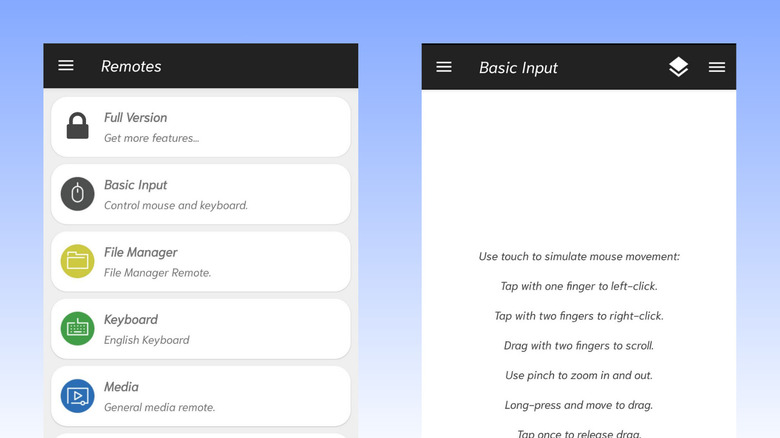
So, you want to control your computer from your Android phone while in the same room, but don’t necessarily need screen sharing. In that case, Unified Remote might be a better solution. This app integrates several computer functionalities into one — mouse, keyboard, power button, file manager, media controller, and even command prompt. It works only within your local network, meaning your Android phone and computer must always be on the same Wi-Fi, or connected via Bluetooth, for this to work. Otherwise, the app won’t function at all.
Besides being multi-purpose, Unified Remote is also a cross-platform app. It’s available on Windows, macOS, and Android, among other platforms, so it should be pretty easy to set up. Follow these steps to get started:
- Connect your phone and computer to the same Wi-Fi network.
- Install Unified Remote on your Android phone, and Unified Remote Server on your computer.
- On your Android app, press “I’ve installed the server” to continue.
- (Optional) Enable Bluetooth if you also want to pair your devices via Bluetooth.
- Hit “Let’s get started” to proceed to the home page.
- To use your Android phone for mouse control:
- Choose Basic Input from the menu.
- Give the app the necessary permissions.
- Do the gestures shown on screen. For instance, tap with two fingers to right-click on the computer, or press and hold to highlight items/text.
- To use your Android phone to type on your computer:
- Select Keyboard from the Remotes section.
- Produce type on your computer with the on-screen keys provided.
- Use keyboard shortcuts as you usually do (e.g., Ctrl + C to copy, Ctrl + A to select all).
- Open the Start menu with the Win key (on Windows).
It’s important to note, though, that since Unified Remote works wirelessly, there might be some delay between actions made on your smartphone and the result on your computer.