

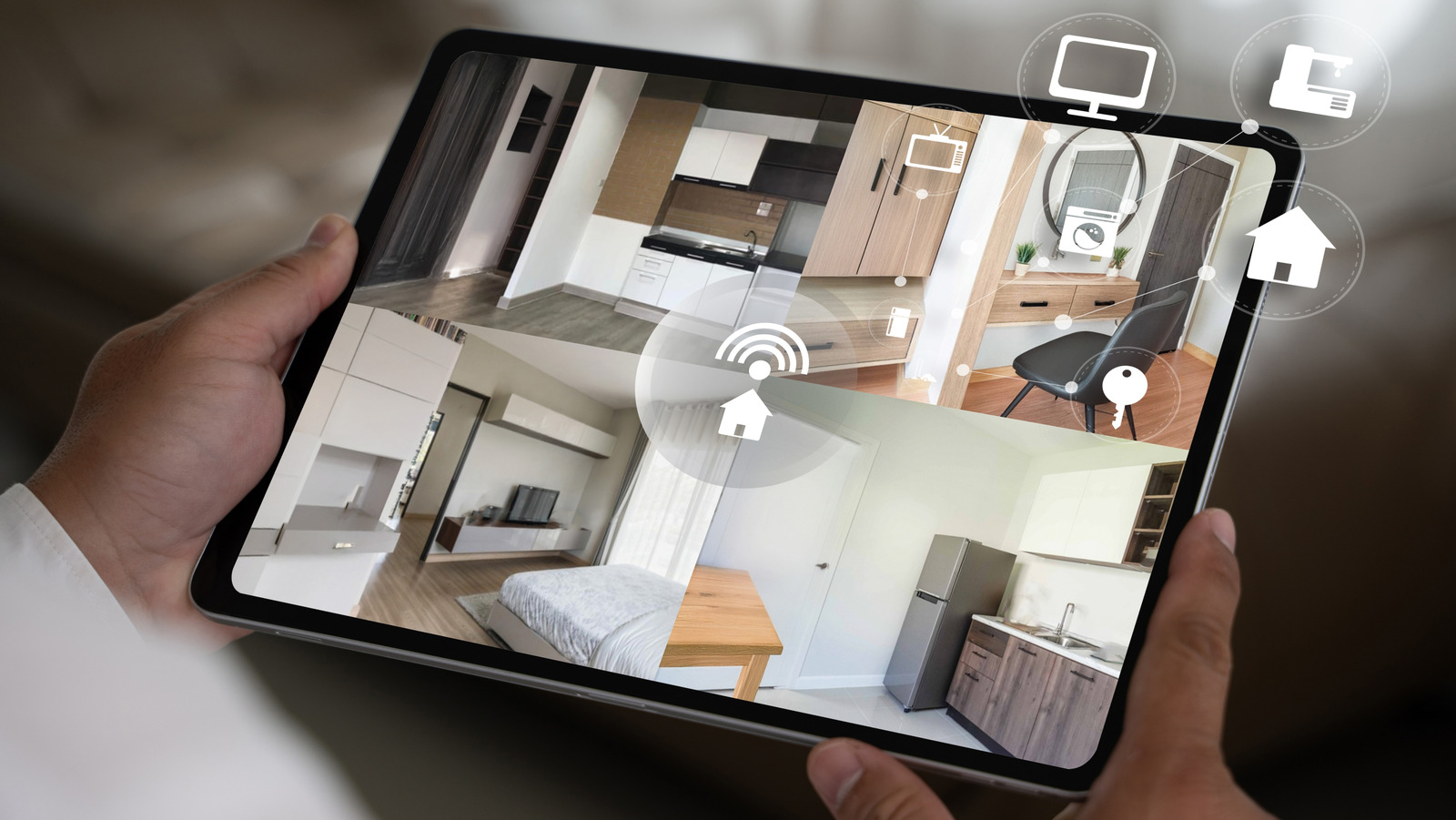
The idea of a home security system can be very appealing to protect your belongings, your pets, and yourself. The cost, however, can be quite daunting. For example, a Ring Alarm 14-piece home security kit can retail at $329, and a SimpliSafe eight-piece kit at $239. That doesn’t have to dissuade you from keeping your home secure, though, thanks to a simple DIY trick using webcams. Since webcams are so unobtrusive — most people would never consider they’re being used for security — they’re an excellent affordable alternative to other nearly invisible smart home security devices.
By connecting your webcams to your computer and then using software specifically for this purpose, you can have a quick home security setup that doesn’t cost hundreds of dollars. This is a great way to take advantage of any old, extra webcams you have lying around; even if you need to purchase one or two, it will still result in cost savings thanks to how relatively inexpensive webcams have become. This means that one of the greatest gadgets for remote workers, lauded for its easy USB connectivity, can now double as a makeshift security solution.
There are some limitations, of course. Your computer will have to remain on for this DIY home security system to work, as that is what captures and records your webcam footage. This does limit your applications to more short-term solutions, especially if you don’t want to keep your computer running constantly. By the same token, this can definitely help bring you some peace of mind, especially since setup won’t take you very long at all.
How to set up your webcam security system

Getting your DIY security cam system up and running is relatively straightforward. First, gather the webcams you intend to use, either through repurposing existing ones or purchasing some inexpensive units that you like. Make sure they’re all compatible with your computer before proceeding to the next step. Second, you will need to choose a webcam security software. Options like Alfred, iSpy, and Security Eye are all free and offer good baseline functionality — but more on them later. For now, choose a platform of your choice and then follow its download and installation instructions.
Next, decide where you are going to place your webcams. You may want to point them at entrances to your home to see who comes in or out. You can also consider capturing central rooms like the living room or angle the webcam so it can see multiple areas at once. Conversely, you may have specific things you want to monitor, such as your pets’ favorite spots, or around your valuables like a safe or a jewelry box. Get them all set up and you are ready for the final step — but remember that every webcam in your security system will need to be connected to a computer.
Finally, check each video feed to ensure your webcam is positioned correctly and that it can monitor everything you want it to. Ensure all connections with the computer and the software are running smoothly. Don’t afraid to run some tests to ensure everything’s functioning as you want it to. With that, you’ve unlocked your own DIY security camera network without having to break the bank.
Software options for your security system

There are a lot of software options for your webcam security system, so it’s worth taking the time to ensure what you pick is the best for your needs. Since using webcams can represent some hardware vulnerabilities, it’s important to protect your home from hackers to enhance your digital security. Thankfully, provided you take other steps like updating your webcam firmware and changing your default passwords, there’s enough baked-in security in even free software options we discussed earlier to keep you safe.
For your webcam system, Alfred is compatible with your computer, your Android smartphone, and your Apple iPhone. Alfred can even be run on spare phones as well as webcams, giving you even more options for your security. iSpy, another good option, is available for Windows, macOS, and Linux. It has compatibility with Amazon Alexa and Home Assist as well as AI integrations for platforms like Claude and Gemini. You can set it up to provide notifications to your phone, email, or your desktop so you know if there is a security issue you need to respond to quickly.
Meanwhile, Security Eye is only designed for Windows, but this includes Windows 11. Security Eye can take snapshots of suspicious activity, has a motion detector feature, and also provides notifications. This platform has an additional feature where you can set up specific recording schedules, such as starting it when you leave for work in the morning and ending it when you return home, to give you a more hands-off experience.



![This new Anker 13-in-1 docking station is great at home and on the go [Hands-on] – 9to5Mac](https://i0.wp.com/9to5mac.com/wp-content/uploads/sites/6/2026/01/Untitled-53.jpg?resize=1200%2C628&quality=82&strip=all&ssl=1 "This new Anker 13-in-1 docking station is great at home and on the go [Hands-on] – 9to5Mac")

