We may receive a commission on purchases made from links.
Upgrading your devices to the latest models often presents mixed feelings. On one hand, you’re excited to enjoy the newest state-of-the-art features. On the other, there’s a nagging guilt around placing your old tech in a drawer or closet, likely to collect dust.
If you have an Android tablet and want to avoid neglecting your otherwise usable device, there are plenty of ways you can repurpose it (including turning it into a head unit, or dashboard screen, for your vehicle). One of the other things you might do with your old Android tablet is turn it into a digital picture frame. Yes, you actually don’t need to buy an expensive frame to display your family photos or solo vacation selfies. Old tablets can often serve this purpose perfectly.
To convert your old Android tablet into a digital picture frame, all you need is a photo slideshow app (which should support, and be supported by, older Android versions) and some mounting hardware. Here’s how to DIY your own digital picture frame by using an older Android tablet.
Step 1: Set up your Android tablet with a photo slideshow app
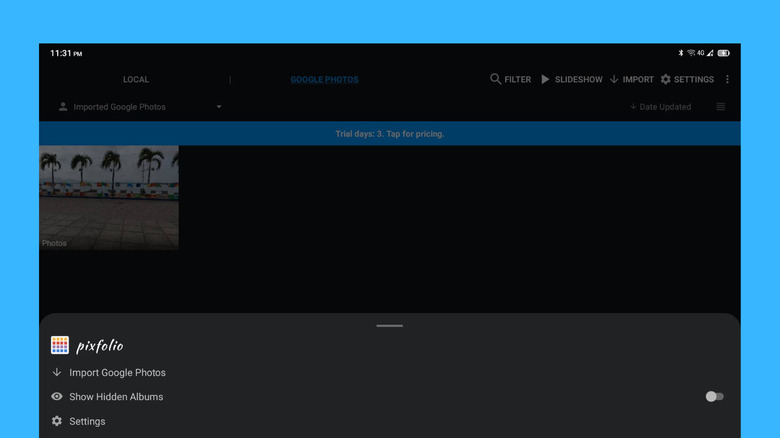
For this DIY project, you’ll have to install a photo slideshow app on your Android tablet. A user-friendly and highly customizable option is PixFolio, compatible with at least Android 5.0. It’s free for three days and then requires a purchase (either a monthly subscription or lifetime fee). But it’s one of those Android apps that are actually worth the price. Here’s how to use PixFolio to turn your old Android tablet into a digital picture frame:
- Download PixFolio.
- Launch the app.
- Tap Connect.
- Select your Google account.
- Press Continue.
- Mark the box for “See selected photos and videos from Google Photos” to connect PixFolio and your Google Photos.
- Hit Continue.
- Tap Next on the Welcome screen.
- Press Next to import your Google Photos to the Photos folder.
- On your computer, go to snapwoodapps.com/import.
- Type the code shown on your Android app.
- Click Submit.
- Choose up to 2,000 pictures and videos to display.
- Hit Done.
- Wait for the import process to finish on your tablet.
Once all your photos and videos are imported to PixFolio, you can proceed with setting up how the slideshow will look:
- In the app, choose whether or not to auto-crop photos to fill the screen.
- Select a photo background for unfilled spaces to Blur or Black.
- Press Next.
- Change the duration per photo.
- Choose a transition animation.
- Set whether to mute or unmute videos.
- Hit Next again.
- Add a slideshow widget (time, time and weather, time and photo info), or select None to show only the picture or video.
- Tap Finish to save your settings.
- Press the Slideshow button at the top to start the slideshow.
Your Android tablet should now start displaying your photos and videos in full-screen mode. Rotate the device when needed.
Step 2: Mount your Android tablet
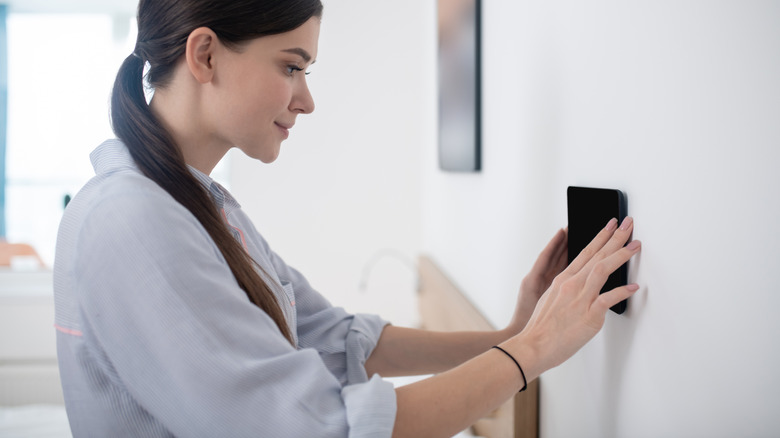
Now, you’re ready to display your Android tablet-turned-digital picture frame. Like traditional frames, you can place it nearly anywhere in your home. You can hang it on a wall, leave it on a side table, or rest it on a shelf. If you prefer the tablet on a wall, there are plenty of wall mounts to choose from on Amazon. Try the Dockem Koala Tablet Wall Mount for a fixed installation, or the Lucrave Aluminium Extendable Tablet Wall Mount Holder for a more versatile setup. For table placements, the tablet can go on any compatible stand. Just make sure it fits your room’s overall aesthetic.
But before you actually go about installing your DIY digital picture frame, there are a couple considerations to keep in mind. For one, see whether your installation location is close to a power outlet. Your tablet needs continuous power if you want it on 24/7, so it’s more convenient if a socket is nearby. Also, check that the charging wire won’t be bent when plugged in to the installed tablet. If the location is some distance from an outlet, though, you’ll have to remove the tablet for recharging every now and then.
Another thing to consider is heat and ventilation in the mounting location. The chosen spot should be away from direct sunlight and heat sources like space heaters or stovetops. Enclosed spaces with poor airflow are also less than ideal. It’s important to decide on an orientation, too, especially when opting for fixed wall mounts. Go with the orientation common to most of your photos and videos. Or, just pick a mount that you can rotate — or which can support the tablet in both landscape and portrait orientations.