By using this site, you agree to the Privacy Policy and Terms of Use.
Accept
World of SoftwareWorld of SoftwareWorld of Software
  • News
  • Software
  • Mobile
  • Computing
  • Gaming
  • Videos
  • More
    • Gadget
    • Web Stories
    • Trending
    • Press Release
Search
  • Privacy
  • Terms
  • Advertise
  • Contact
Copyright © All Rights Reserved. World of Software.
Reading: You Can Turn Your Old PC Into A TV Gaming Console With This One Trick – BGR
Share
Sign In
Notification Show More
Font ResizerAa
World of SoftwareWorld of Software
Font ResizerAa
  • Software
  • Mobile
  • Computing
  • Gadget
  • Gaming
  • Videos
Search
  • News
  • Software
  • Mobile
  • Computing
  • Gaming
  • Videos
  • More
    • Gadget
    • Web Stories
    • Trending
    • Press Release
Have an existing account? Sign In
Follow US
  • Privacy
  • Terms
  • Advertise
  • Contact
Copyright © All Rights Reserved. World of Software.
World of Software > News > You Can Turn Your Old PC Into A TV Gaming Console With This One Trick – BGR
News

You Can Turn Your Old PC Into A TV Gaming Console With This One Trick – BGR

News Room
Last updated: 2025/12/07 at 11:53 PM
News Room Published 7 December 2025
Share
You Can Turn Your Old PC Into A TV Gaming Console With This One Trick – BGR
SHARE


DC Studio/Shutterstock

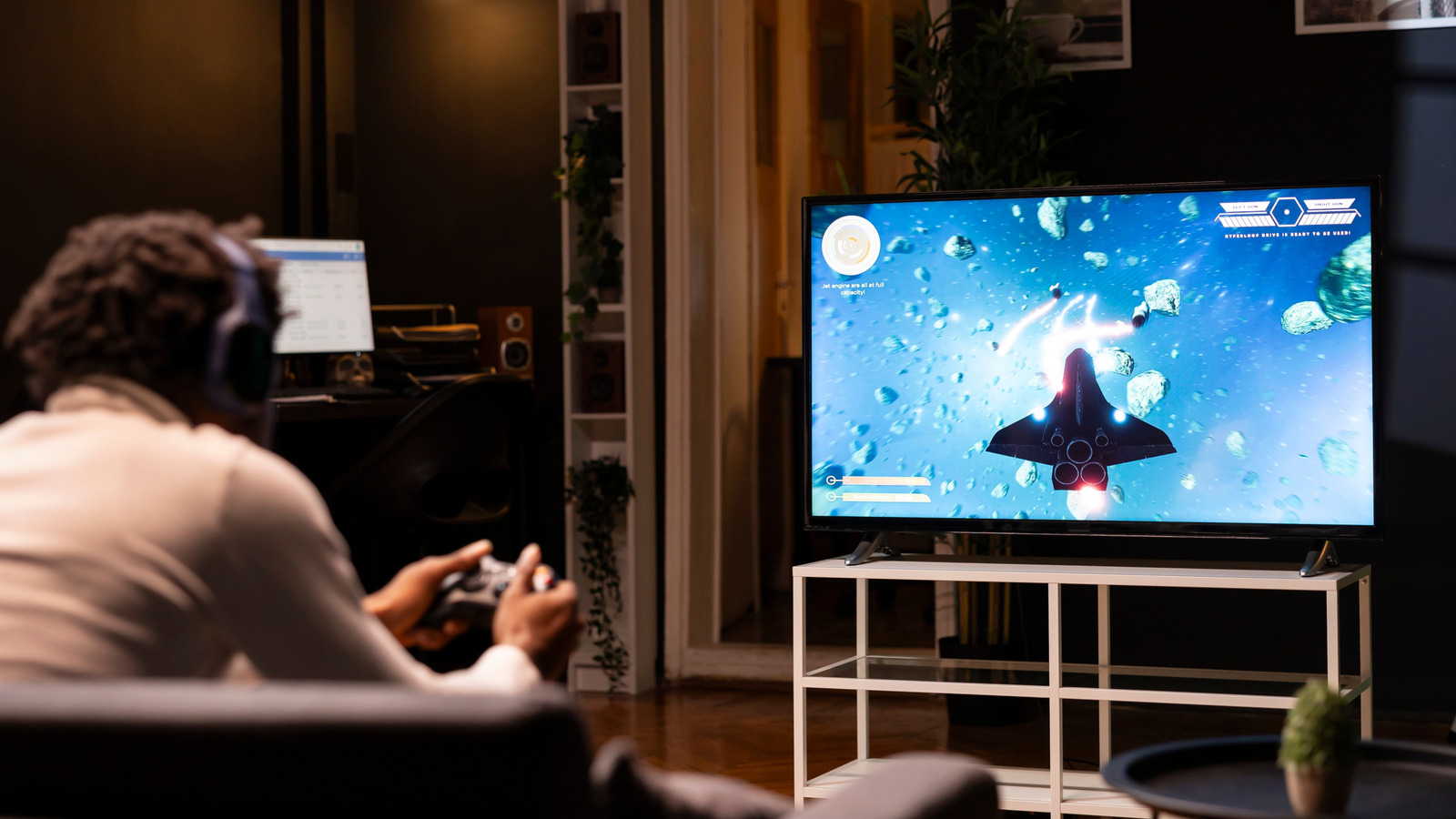
Valve has recently announced a new Steam Machine, and this small PC looks like it’s going to be the talk of 2026. But what if you have an older PC or one of those fun little mini-PCs and want to have a similar experience on your TV? You might be surprised that it’s fairly easy to take a spare PC and turn it into an impressive TV-based gaming console. While older machines might not be able to play those fancy AAA titles released this year, computers with outdated parts like a Ryzen 5 processor and a dedicated graphics card like GeForce GTX 1650 would make for a great retro or indie gaming console.

This trick will work on any computer running Windows 10 or macOS 12 and up, as well as on the most up-to-date versions of Ubuntu. This is all possible thanks to Steam’s built-in Big Picture Mode. Valve has designed Big Picture Mode to be used with a TV while supporting several game controllers. This allows users to enjoy their Steam library from the comfort of their own couch. I myself have an ACEMAGICIAN AMR5 mini gaming PC that I picked up a few years back to use exactly for this purpose, and all it requires is a couple of clicks to enable.

Setting up Big Picture Mode

Desktop showing Steam Settings window on the Interface menu
Jorge Luis/BGR

Setting up Big Picture mode is a simple process that should only take a couple of minutes. 

  1. Launch Steam
  2. Log in to your account.
  3. Click the TV icon located on the upper right of the screen, next to your username.

You can now navigate the interface using a gaming controller. To exit Big Picture Mode, simply hit the Exit Big Picture icon in the top right of the screen or hit Alt + Enter on a keyboard.

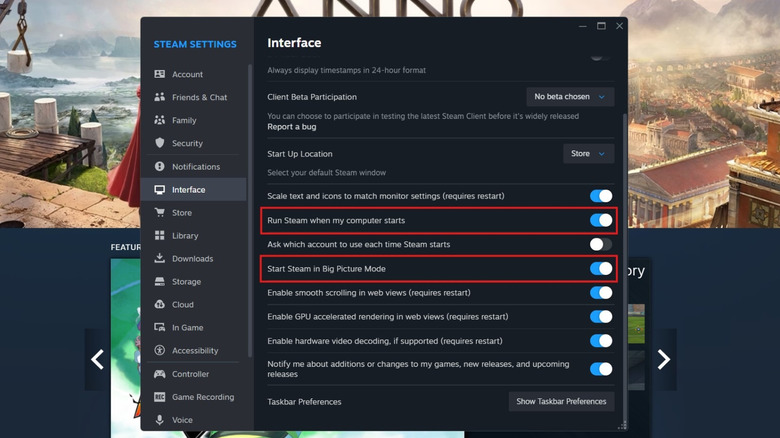
If you don’t want to go through the hassle of opening Steam and selecting Big Picture Mode every time you want to access your library of games, you can instruct Steam to load into Big Picture Mode automatically when launched. With Steam open and logged into your account:

  1. Select Steam from the top menu.
  2. Click Settings.
  3. Select Interface on the sidebar.
  4. Enable Run Steam when my computer starts.
  5. Turn on Start Steam in Big Picture mode.

This will then instruct Steam to always launch into Big Picture Mode and give you a more home video game console-like experience.

Turning your PC into a Steam Machine

Steam's Big Picture Mode menu showing games recently played.
Jorge Luis/BGR

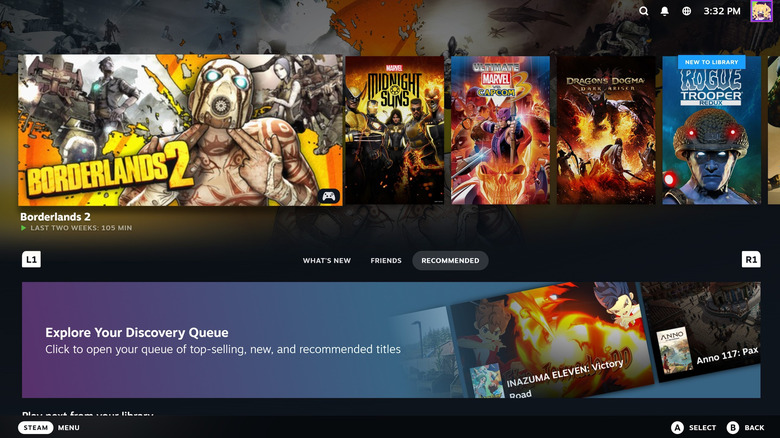
But what makes Steam’s Big Picture Mode a benefit when you can simply use Steam on that extra PC like normal? Big Picture Mode was designed to make the gaming experience better on larger screens, such as televisions. The mode takes the Steam interface and allows you to navigate it sitting on the couch with a traditional video game controller instead of solely relying on a mouse and keyboard.

Valve has implemented a robust list of compatible controllers, including those from major gaming consoles, such as the official Xbox 360, One, and Series X|S joysticks. Official PlayStation 4 and 5 controllers are also supported, as well as Nintendo Switch Pro controllers. Many popular third-party offerings from established brands may also work, but Valve doesn’t provide official support for them.

Steam makes it easy to know which games can be played with a controller by showing a Full Controller Support icon. Games that require some level of keyboard and mouse functionality with be marked with a Partial Controller Support icon, so keeping a wireless keyboard like the slim and sleek Keychron K3 and an ergonomic Keychron M5 Bluetooth mouse nearby will help make your Big Picture Mode gaming experience a better one. Only the Steam Controller in Big Picture Mode provides complete controller support for every video game on the platform, including those not made for joysticks.



Sign Up For Daily Newsletter

Be keep up! Get the latest breaking news delivered straight to your inbox.
By signing up, you agree to our Terms of Use and acknowledge the data practices in our Privacy Policy. You may unsubscribe at any time.
Share This Article
Facebook Twitter Email Print
Share
What do you think?
Love0
Sad0
Happy0
Sleepy0
Angry0
Dead0
Wink0
Previous Article Save 60% Off JBL Tune Flex Earbuds With This Sweet Cyber Week Deal Save 60% Off JBL Tune Flex Earbuds With This Sweet Cyber Week Deal
Next Article These four Apple products could launch as soon as next month – 9to5Mac These four Apple products could launch as soon as next month – 9to5Mac
Leave a comment

Leave a Reply Cancel reply

Your email address will not be published. Required fields are marked *

Stay Connected

248.1k Like
69.1k Follow
134k Pin
54.3k Follow

Latest News

Don’t Speak the Language? How to Use Google Translate or Gemini to Translate
News
Elon Musk’s Grok 4.1 vs Anthropic’s Claude 4.5 Sonnet — here’s the AI model that’s actually smarter  
News
Comet C/2025 K1 (ATLAS) Has Split Into Three Pieces – BGR
News
Today's NYT Connections: Sports Edition Hints, Answers for Dec. 8 #441
News

You Might also Like

Don’t Speak the Language? How to Use Google Translate or Gemini to Translate
News

Don’t Speak the Language? How to Use Google Translate or Gemini to Translate

11 Min Read
Elon Musk’s Grok 4.1 vs Anthropic’s Claude 4.5 Sonnet — here’s the AI model that’s actually smarter  
News

Elon Musk’s Grok 4.1 vs Anthropic’s Claude 4.5 Sonnet — here’s the AI model that’s actually smarter  

8 Min Read
Comet C/2025 K1 (ATLAS) Has Split Into Three Pieces – BGR
News

Comet C/2025 K1 (ATLAS) Has Split Into Three Pieces – BGR

5 Min Read
Today's NYT Connections: Sports Edition Hints, Answers for Dec. 8 #441
News

Today's NYT Connections: Sports Edition Hints, Answers for Dec. 8 #441

3 Min Read
//

World of Software is your one-stop website for the latest tech news and updates, follow us now to get the news that matters to you.

Quick Link

  • Privacy Policy
  • Terms of use
  • Advertise
  • Contact

Topics

  • Computing
  • Software
  • Press Release
  • Trending

Sign Up for Our Newsletter

Subscribe to our newsletter to get our newest articles instantly!

World of SoftwareWorld of Software
Follow US
Copyright © All Rights Reserved. World of Software.
Welcome Back!

Sign in to your account

Lost your password?