Calvin Wankhede / Android Authority
Don’t want to miss the best from Android Authority?


One big complaint when traveling is that hotels, cruises, and airlines often charge for internet on a per-device basis. The first and second devices are usually provided with free Wi-Fi, but you have to start paying if you want to connect additional devices. Even when I travel alone, I frequently end up with four personal devices (two phones, a laptop, and a tablet), so I have to ration the internet connection among them. The situation worsens if I am traveling with family and friends.
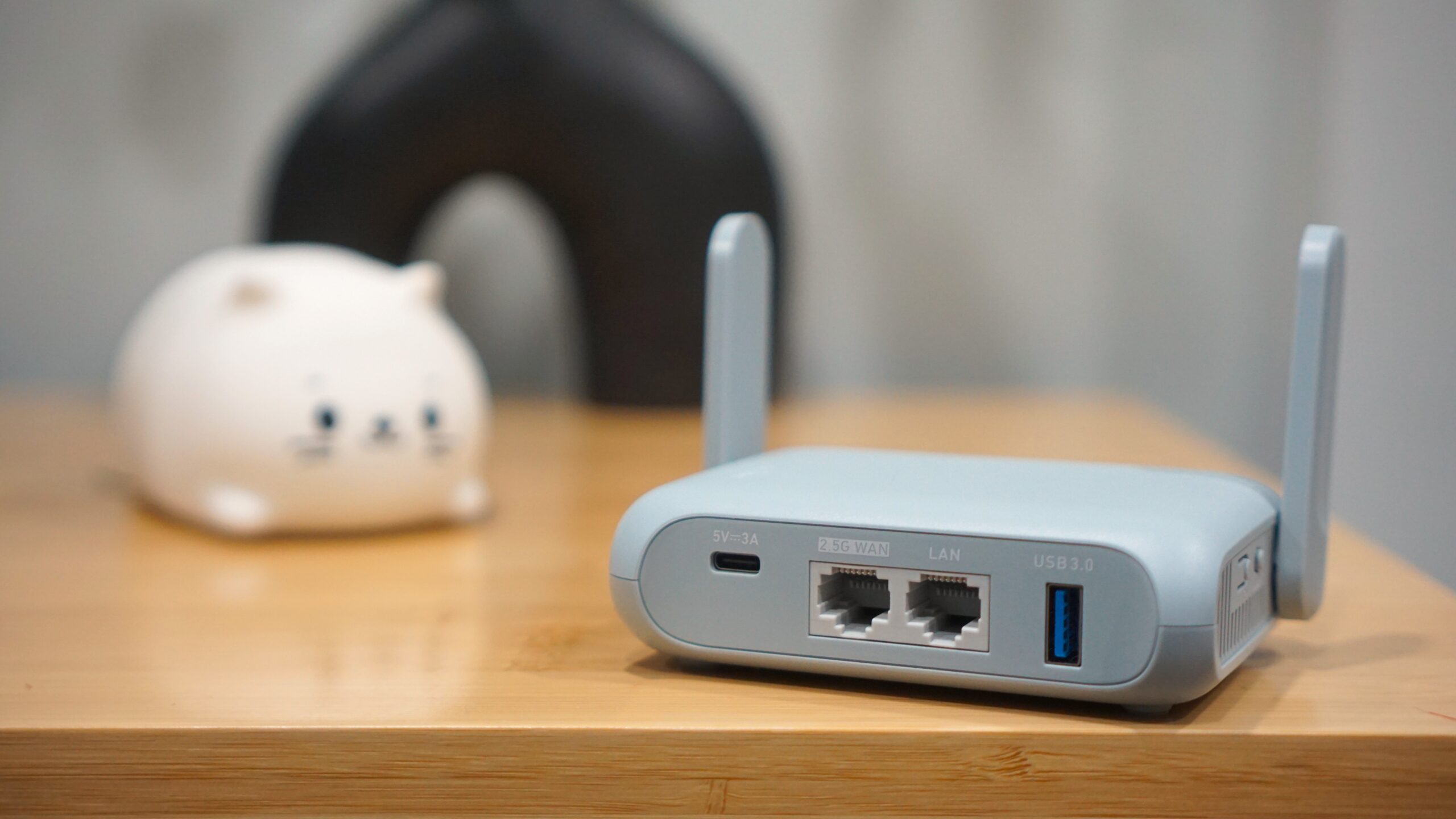
A travel router slots into this use case by allowing you to use only one connection with Wi-Fi and have all your personal devices connect to the travel router.
A travel router also helps you deal with a captive portal screen (the login screen that appears when you connect to public Wi-Fi) only once, rather than having to deal with it on a per-device basis. If you have more than a couple of devices, this can get tiresome very quickly. Some devices cannot handle captive portals at all, so they are often stuck without internet if you don’t rely on a travel router.
If you own a recent Android flagship, chances are you can already use it as a makeshift travel router for the above use cases through Wi-Fi sharing functionality.
As Kaushik Gopal reminds all of us, your Android phone can connect to a Wi-Fi network and then doubles up as a hotspot for your other devices to connect to and share that same Wi-Fi network. This differs from your regular hotspot connection, where you share your mobile data connection; in this case, you are sharing/repeating a Wi-Fi connection.
Using Wi-Fi sharing on Android, you can bypass per-device connection limits. You also have to deal with captive portal login screens only once. Wi-Fi sharing also helps re-enable local discovery on public networks — your connected devices can now “see” each other on your phone’s Wi-Fi network.
How to use Wi-Fi sharing on Android
To use Wi-Fi sharing on Android, you will need a relatively newer Android device, though the feature itself is not new. There are older phones/lower-end phones that may not support the feature, as the Wi-Fi hardware may not support concurrent Access Point and Station Mode, so they will be unable to act as both a client and a hotspot simultaneously. I’ve tested the feature on the OnePlus 13, Xiaomi 15 Ultra, and Pixel 9 Pro XL, and the option is available on all of them.
- Connect your primary phone/tablet to the host Wi-Fi network:
- Firstly, connect your Android phone/tablet to the Wi-Fi network that you want to share.
- Next, you want to deal with the captive portal/login screen to connect to the internet.
- Check if your phone/tablet has a working internet connection through the Wi-Fi at this stage.
- Enable Wi-Fi hotspot on your primary phone/tablet:
- On your connected phone/tablet, go to Settings > Hotspot and Tethering> Wi-Fi Hotspot, and turn it on. The exact path and name might differ, but this is the regular hotspot toggle, so it should be easy to find.
-
- If your phone/tablet does not support Wi-Fi sharing, toggling the hotspot will either disable Wi-Fi, or the option to toggle the hotspot will be unavailable/greyed out when you are connected to Wi-Fi.
- Connect all your secondary devices to your primary phone/tablet:
- You now need to connect all your extra devices to your primary phone/tablet’s hotspot rather than the host Wi-Fi network.
- Optional: Disable cellular data on your primary phone/tablet. This will ensure that all your connected devices use the internet through the host Wi-Fi, and you won’t end up with a surprisingly large phone bill simply because the primary phone randomly disconnected from the host Wi-Fi.
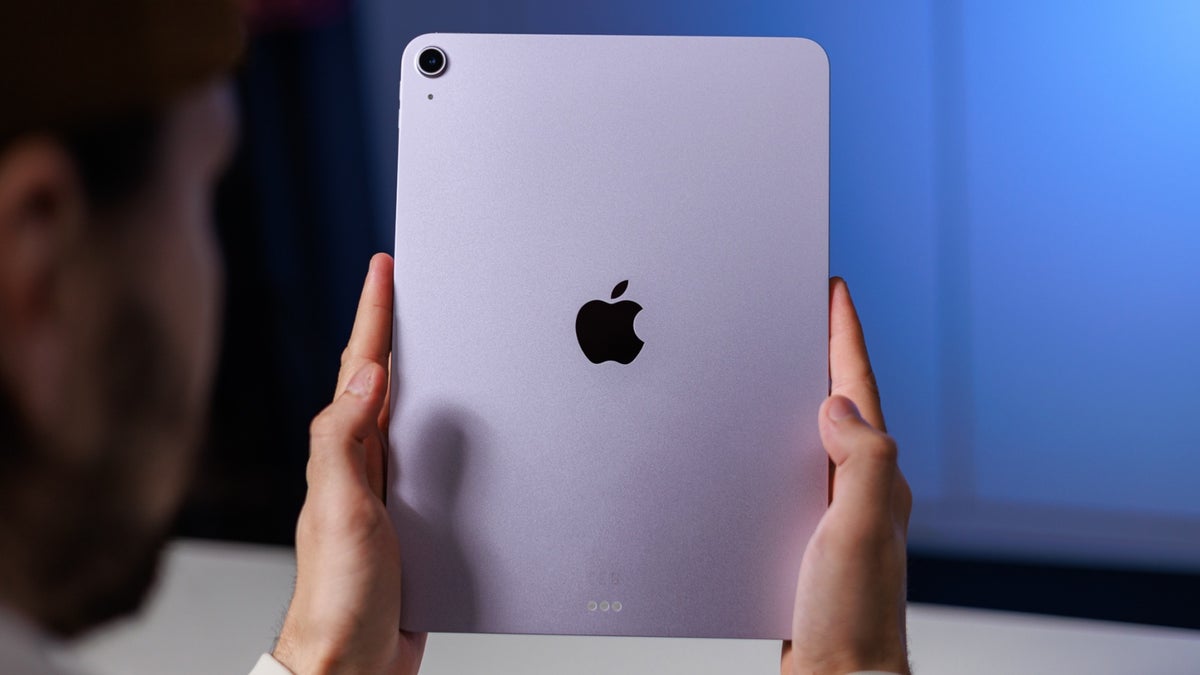
Note that Wi-Fi sharing is not available on iPhones and iPads; when you enable hotspot on them, Wi-Fi is automatically disconnected and disabled, so they cannot serve as the primary connection device. You can still connect an iPhone or iPad to an Android device hotspot.
Travel routers still serve the needs for VPN connections and beyond. While you can set up a VPN on your Android phone for use with Wi-Fi sharing, it is a bit more complicated than using travel routers. Travel routers also have Ethernet ports, which can help you establish a better, possibly faster internet connection if your hotel room has an Ethernet port and you have an Ethernet cable. However, for the basic needs of bypassing per-device limitations and navigating around captive portals, your Android phone will do just fine.
Thank you for being part of our community. Read our Comment Policy before posting.