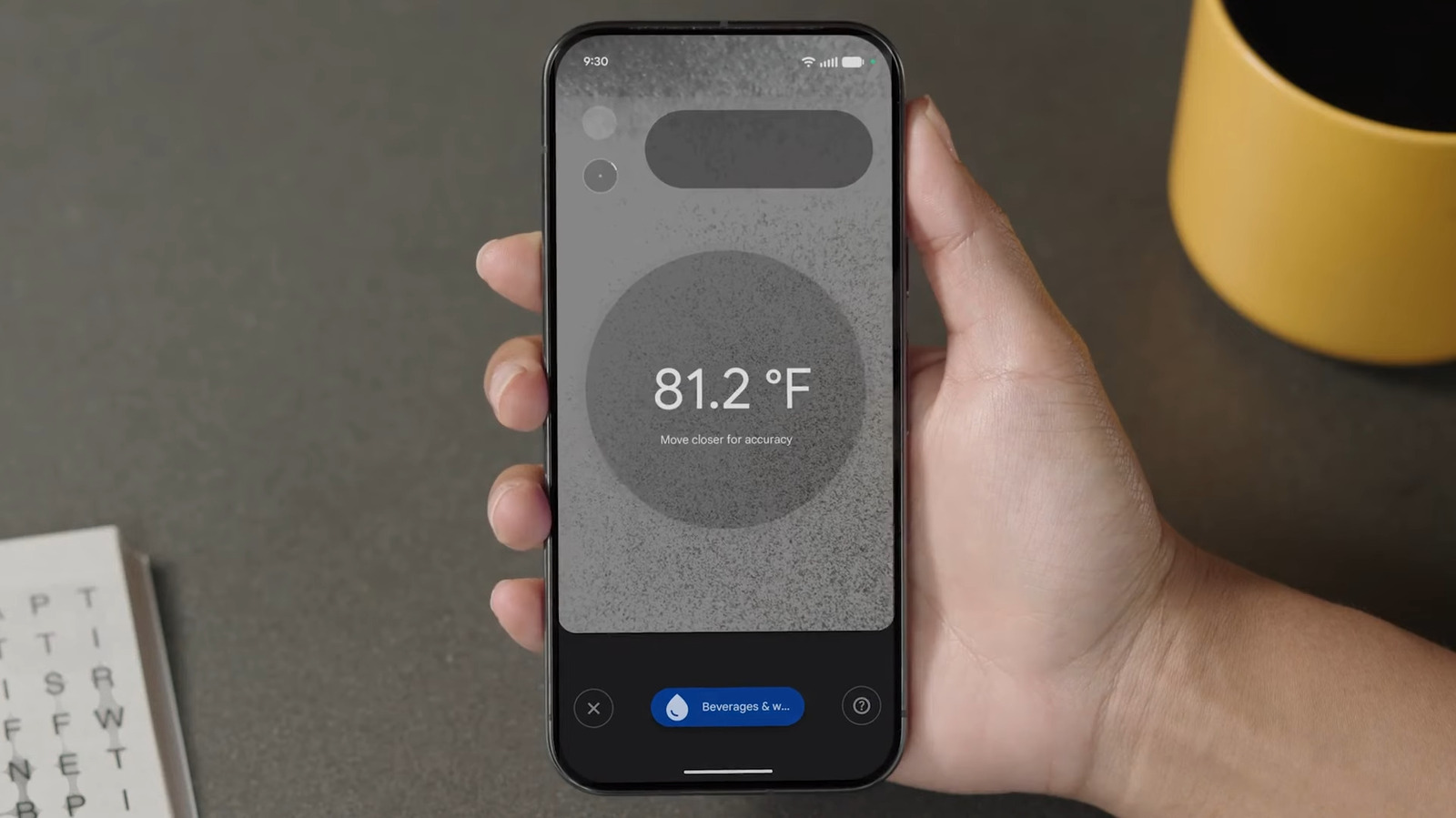
Digital thermometers are one of many underrated and cheap gadgets to have on hand. They’re generally reliable and undoubtedly essential when you’re monitoring ill individuals. But what if you only want to do a quick fever check, or see how hot your desktop computer is? Whipping out the thermometer every time can be quite inconvenient, especially if you’re out of the house and forgot to pack one.
Fortunately, you can now measure the temperatures of objects — as well as body temp — on demand. All you need is a gadget that typically never leaves your sight: your phone, specifically a Google Pixel Pro. If you have a Pixel 8 Pro, Pixel 9 Pro, Pixel 9 Pro XL, Pixel 10 Pro, or Pixel 10 Pro XL, you might have noticed an extra sensor on the camera bar at the back. That’s the temperature sensor, which pairs with a pre-installed Google app fittingly called Thermometer.
The Pixel’s Thermometer app can come in handy for casual use, or when you’re in a pinch. And while it won’t replace traditional thermometers for medical use (including this one from QuickCare), it’s still a convenient tool to have. We’ll walk you through how to take temperature readings with your Pixel phone and how to troubleshoot the app if you run into any issues.
How to use your Google Pixel’s temperature sensor
The Pixel’s Thermometer app is pretty intuitive and straightforward, so it should be easy to get the hang of it. Here’s how you can start measuring temperatures with your Pixel phone:
- Launch the Thermometer app.
- When prompted, tap Allow to give the app permission to use the built-in infrared temperature sensor and camera.
- Press “While using the app” to enable photo and recording access.
To take the temperature reading of an object:
- Go to Object temperature.
- Hit Continue.
- Finish the tutorial.
- To activate the thermometer, choose one of the materials under Routine measurements, or press the plus icon at the bottom.
- Hold the temperature sensor (typically below the flash) roughly two inches above the object you’re measuring, or until you see a Tap to capture message in the middle of the screen. Make sure not to let the object touch the sensor.
- Tap the center circle to take the temperature reading.
To measure human body temperature:
- Select Body temperature.
- On the “Connect Thermometer to other apps” screen, press Not now.
- Choose Continue to proceed.
- Change the Measurement settings, or press Next to keep the defaults.
- Go through the quick tutorial.
- Tap the Age range in the upper-right corner.
- Choose the appropriate age group of the person being measured.
- Make sure the person’s forehead and temple aren’t wet or covered by hair or head accessories.
- Position the Pixel’s camera bar close to the middle of the forehead until you feel a vibration.
- Hit the Tap to measure button.
- Move the phone from the forehead to the temple within four seconds.
After getting the temperature, you can then opt to save, retake, or even delete it (for object temperature only). Simply select the action you want to do from the options on the bottom of the screen.
How to troubleshoot the Google Pixel’s Thermometer app
When using the Thermometer app to measure object temperatures, you might come across two error messages. The first one is “Temperature sensor unavailable.” Google recommends contacting customer support, but some users managed to fix this error by booting the Android phone into safe mode and updating the app. A “Not available” message, on the other hand, means the measurement is way below or above the range that Google Pixel supports — between -5°F (-20°C) and 392°F (200°C). The error can also pop up when the material doesn’t give off heat that well (low emissivity), making it hard for the sensor to read.
When measuring body temperature with your Google Pixel, look out for these six errors:
- Forehead temperature out of range: The reading is below or above the supported range, which often happens when transitioning from a hot/cold environment to room temperature. Before trying again, rest at room temperature for ten minutes or more.
- Sensor out of range: The Pixel’s temperature sensor is blocked or too far. Remove your phone case and obstructions on the person’s head. Then, hold your phone closer to the forehead.
- Unable to start measurement: The sensor might not be in position. Make sure the camera bar is pointed in the middle of the forehead.
- Measurement failed: The app can’t properly measure the temperature. Clean the sensor and the person’s forehead and temple. Follow the correct steps for taking body temperature.
- Temperature sensor is too warm/cold: The sensor is beyond its operating temperatures. Unplug from the charger if you’re using one, and leave your phone at room temperature for at least ten minutes.
- Temperature sensor unavailable: The app can’t detect the temperature sensor. Reach out to customer support.
If you don’t see the option to take body temperature in the app at all, your country is likely unsupported. Check this list to see where it’s available.