Zoomik / Shutterstock.com
For many users, battery life is still one of the most important features of a smartphone. Even if your model doesn’t have a huge battery, you can get more runtime with the right settings and a few simple measures. We present 13 practical tips.
Note: Depending on the smartphone and Android version, the names and menus may vary slightly. For this article we use a Samsung Galaxy S25 Ultra with Android 16 as an example. However, most manufacturers use a similar navigation structure. If you can’t find a setting straight away, simply use the search function in the smartphone settings.
Adaptive brightness, screen timeout and always-on display
Denise Bergert
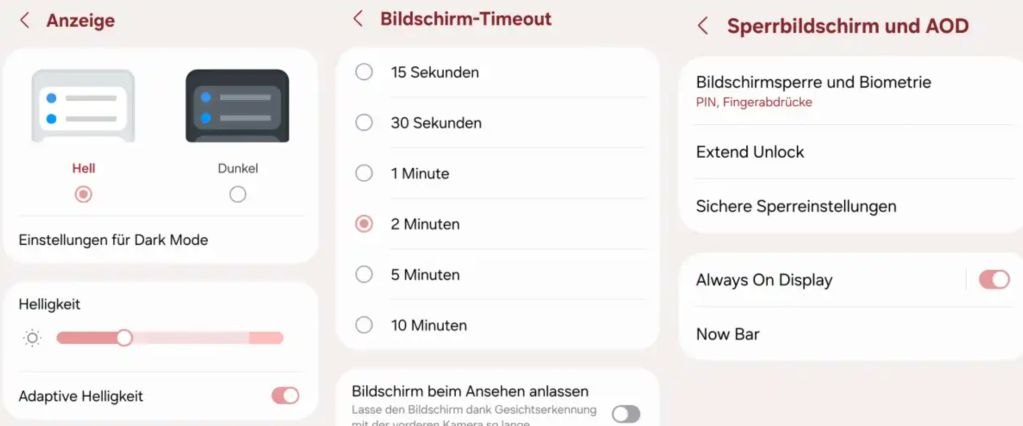
- Your smartphone’s display is one of the biggest power guzzlers. Turning down the brightness can save you a lot of energy. You can adjust the brightness manually or the function “Adaptive brightness” activate, which adapts the screen to the current lighting conditions. You can find the option in Settings “Advertisement”.
- You can also shorten the amount of time the screen automatically turns off when you’re not using your smartphone. The shorter the display remains active, the less energy it uses. The option “Screen timeout” can be found in the settings “Advertisement”. However, you don’t have to wait for the display to turn off by itself. One press of the on/off button is enough to lock the screen immediately.
- The function „Always-On-Display“ ensures that the screen permanently displays the time and date. This is practical, but also uses unnecessary electricity. You can select the option under “Lock screen and AOD” deactivate.
Dark mode and screen saver
Denise Bergert
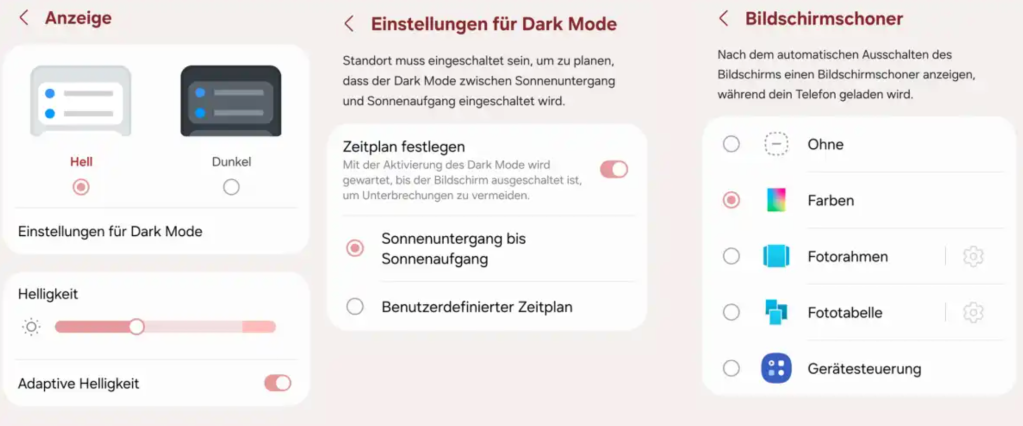
- Many smartphones offer a dark mode respectively “Dark Mode”. Instead of a light background with dark text, the smartphone displays a dark background with light text. This saves energy and is easy on the eyes. If you don’t want to use the mode permanently, you can only activate it at night. You can find the option in Settings “Advertisement” and “Dark Mode”.
- If you want to save electricity, you should “Advertisement” that too “Screensaver” deactivate. It prevents the display from turning off completely.
Reduce refresh rate
Denise Bergert
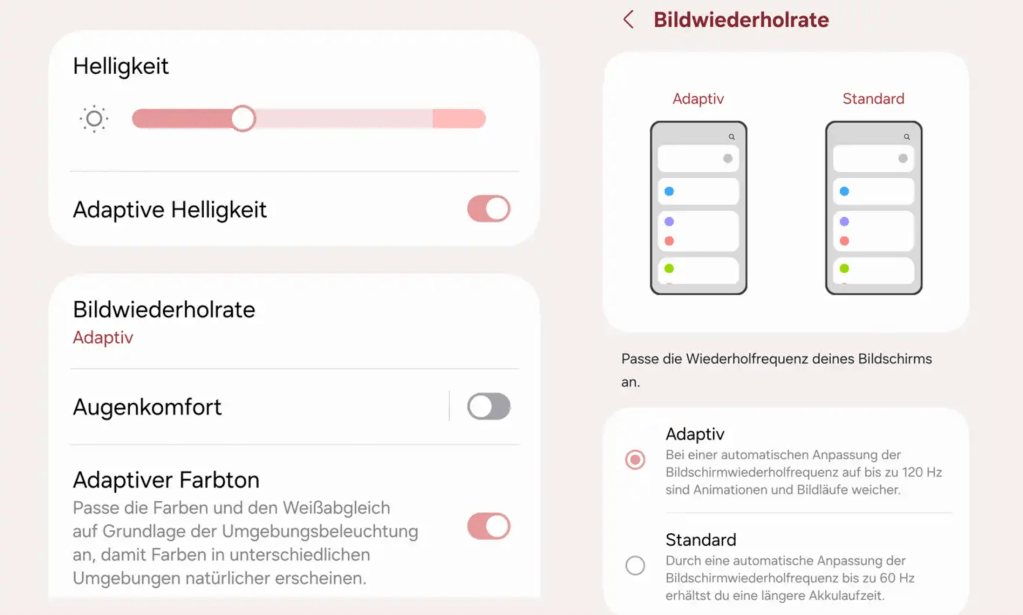
- A high one Refresh rate ensures a smoother display, but also increases power consumption. If you want to save battery, you can reduce the refresh rate. Alternatively, many current smartphones can use an adaptive refresh rate, which automatically switches between low and high frame rates depending on the content, thus reducing energy consumption. You can find the corresponding option in the settings “Advertisement” and “Refresh rate”.
Deactivate Bluetooth, NFC and GPS specifically
Denise Bergert
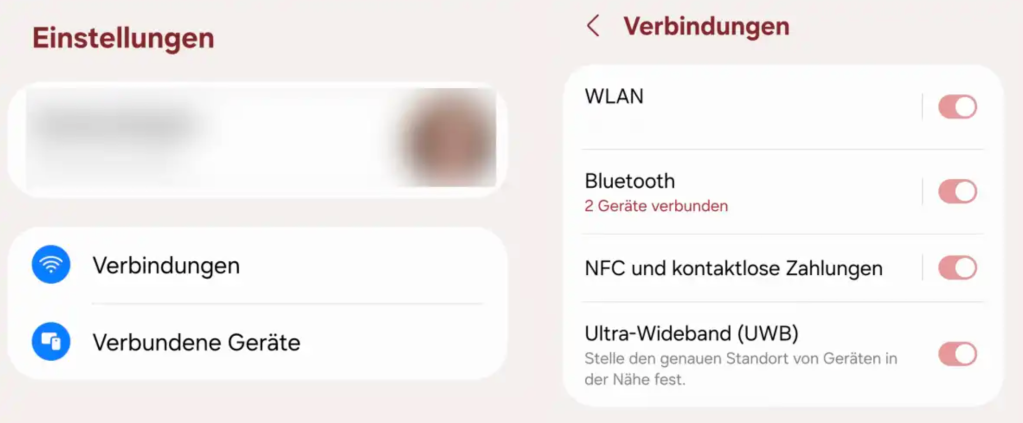
- Wireless features like Bluetooth, GPS and NFC also require energy. If you are not currently using it, you should deactivate it. The corresponding options can be found in the settings under “Connections”. Here you can switch off Bluetooth, NFC or Ultra Wideband (UWB).
Detect power-hungry apps
Denise Bergert
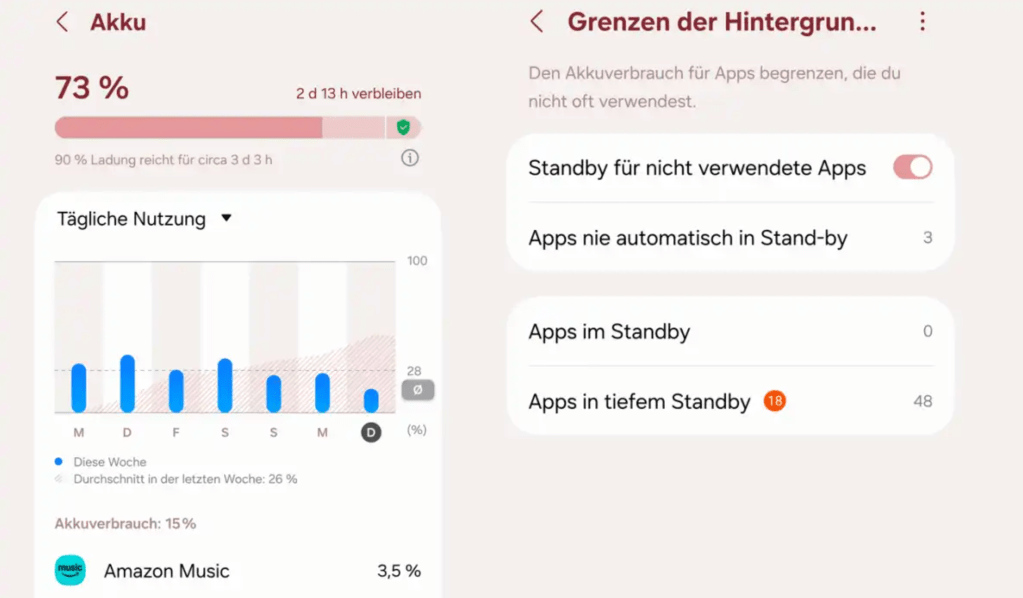
- Apps also consume energy. In the battery settings you can see which applications require a particularly large amount of power. Tap an app for more information. In many cases you can also restrict background activity there. The app then no longer remains active when you are not using it, which can noticeably improve battery life. Alternatively, it’s worth uninstalling apps you don’t need. You can find the overview in the settings under “battery” and “Limits on background use”.
Power saving mode, system updates and reboot
Denise Bergert
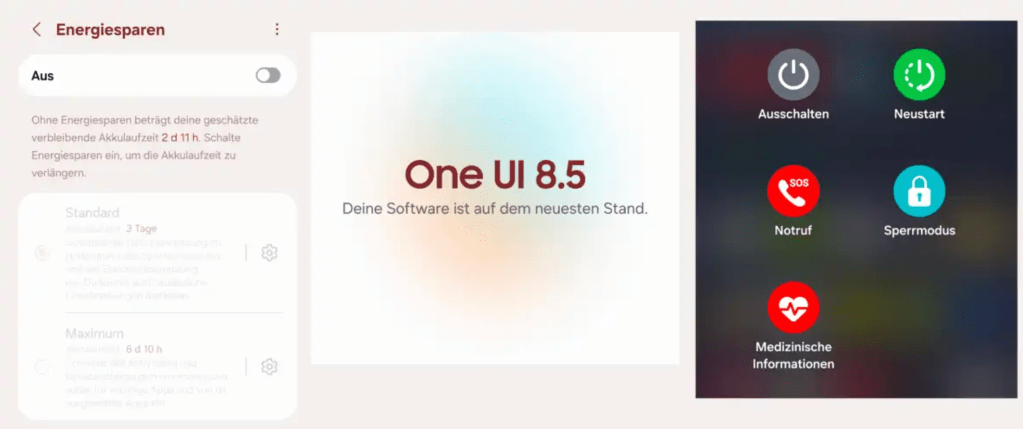
- Many smartphones have one “Energy Saving Mode”. It extends battery life by limiting certain functions and reducing performance. You can often choose between a normal mode and a particularly strict mode that only allows the most important functions. The option to automatically activate the energy saving mode is also practical, for example when the battery level drops to 20 percent. You can find the corresponding option in the settings “battery” and “Energy Saving Mode”.
- Regular updates increase security and can also improve system performance. Therefore, always keep your smartphone up to date and install all available updates. It’s also worth restarting about once a week.
This article first appeared at our sister publication PC för Alla and has been translated and localized from Swedish.