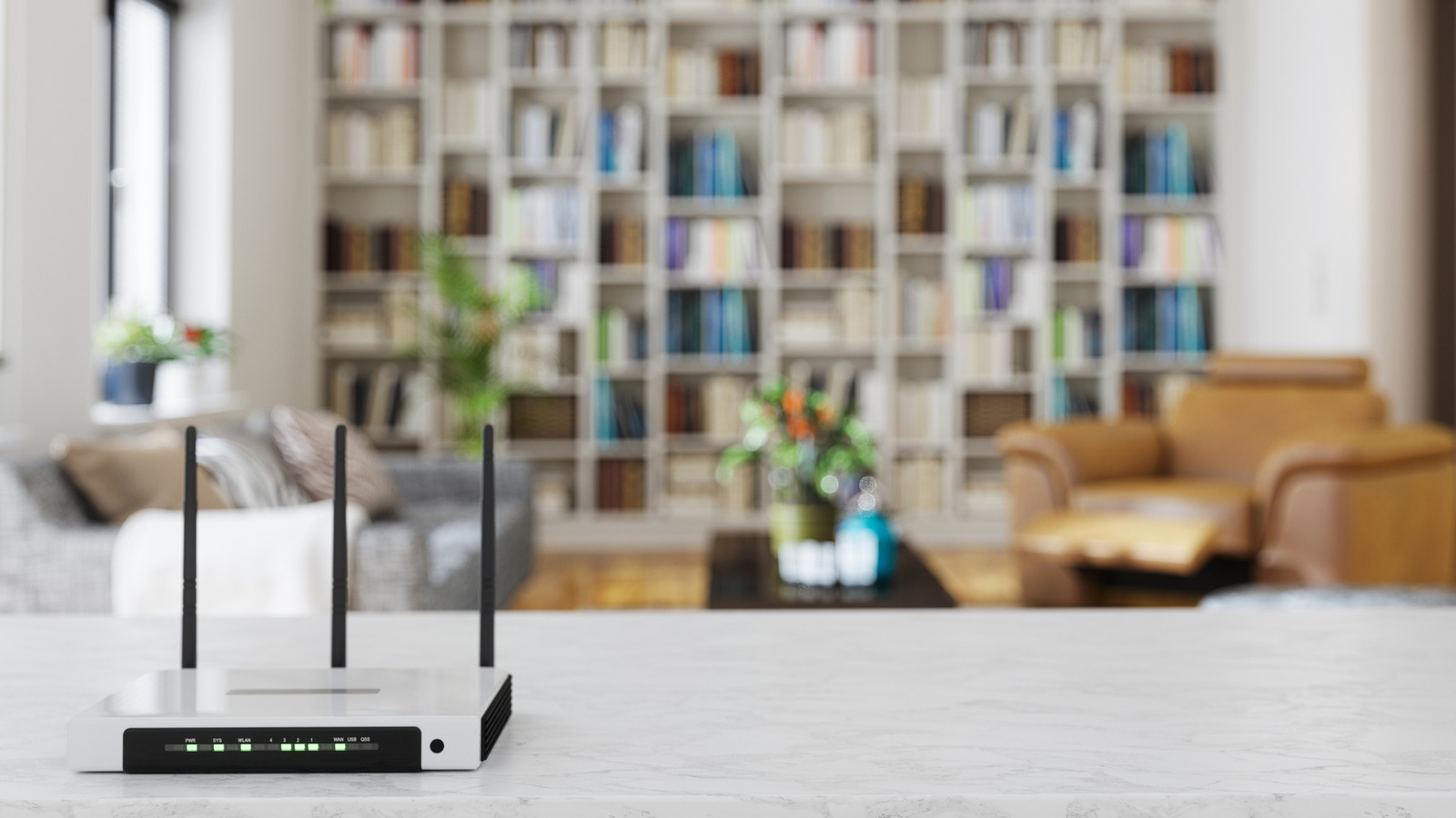
A surprising number of people have no idea that their wireless router, which serves as a gateway to the internet through a modem — sometimes the two devices are even combined — also provides support for a variety of other tasks. For example, did you know that you can take an older router like a Linksys, install custom firmware and turn it into an extender or repeater? That basically allows you to extend the wireless range of your network to a larger area of your property and may help deal with connection dropout issues in areas where the signal is weak.
But there’s a lot more that your home router can do that you probably don’t know about. We’re not merely talking about the old routers that you have lying around here, although those would work excellently for various activities, too. The focus of this particular guide is newer routers, hopefully with faster speeds, and that you’ve upgraded — you don’t want to be using a 2.4GHz router these days because almost everything requires higher bandwidth, from smartphones to game consoles. That said, most of the options discussed can be configured on just about any router made within the last decade or so.
1. Add and share a network drive
While it depends on this functionality, it differs from router brand to brand; for the most part, it’s a pretty common feature. Basically, you can set up shared devices on your local network, like an external or accessible drive, to be shared across all devices using it. That would allow you to, say, set up a shared media library of photos, videos or content that you can browse from any computer, mobile device or tablet accessible on your network. You could use it to transfer files. To watch said content remotely, set up a pseudo media server, or simply back up important data from any of your devices.
In some cases, routers even include a built-in USB port for this particular scenario, which would allow you to plug in a variety of storage devices from flash drives to external or portable drives. Most TP-Link routers include a USB port or some variation of shared storage. You can actually buy routers with network storage built in from brands like WD (Western Digital), Linksys, D-Link, Asus, and Netgear. Either way, you should be able to reference your router’s user manual to see if this feature is supported or find the information at the brand’s website. But if you’d rather check manually, log in to the admin panel for your router and look for an option like “Shared Drive,” or “File Sharing,” and explore further. Some of the cheaper routers do not include a USB port, but you should avoid them anyway, according to Consumer Reports.
2. Add and share a network printer
Speaking of shared devices, another communication option that makes things a lot easier is adding a shared printer accessible to your entire network. Most routers support this feature, as well, allowing you to print from any device connected to your network. No more rushing to the primary family desktop in the office or den to get your prints done; you can do it right from a laptop or phone in another room.
Now, the weird caveat here is that if your printer already connects to Wi-Fi and supports wireless connections, you can still do this, but it may not even be necessary. Most printers that have Wi-Fi built-in already support remote printing and file sharing natively. They connect right to your home’s local Wi-Fi through an access point and should be visible and accessible on the network as-is.
Instead, this method works best for wired printers that may not come with Wi-Fi access. As long as the router you’re using supports the network printer function, you can plug the printer right into a USB port on your router. Some older routers may allow you to connect a printer for network sharing via LAN through an Ethernet connection. Ultimately, it should be pretty straightforward, and if you’re having trouble getting it set up, you can always refer to the manufacturer’s or brand’s website or the user manuals for your devices.
3. Create a smart home-friendly guest network
Routers often come with two wireless configurations, two separate bands, including 2.4GHz, which has long been the standard, and the faster, upgraded 5GHz. The issue with this is that most older devices and a large majority of smart home devices only support the 2.4GHz band. Connecting a bunch of gadgets to a single network, forcing it to use both bands, can slow down your network’s bandwidth. In fact, that’s why switching bands can sometimes help improve slow Wi-Fi speeds. But most routers come with a unique way to separate these wireless channels. You can create a guest network, a separate, easily accessible network meant for guests and alternate devices.
The guest network is isolated — this is called network segmentation — so any gadgets that use this channel are not connected to network drives or shared access on your main connection. It’s meant to be a usable network for guests connecting with outside devices, versus a more secure option, so keep that in mind. You’re not making smart home devices more secure, just improving performance for your core network and improving the security of your primary network. Some proponents think this is a good idea, and it’s smart to isolate IoT equipment; others disagree. Regardless of the pros and cons, just know that you can do it if you want to. In fact, some ISP-provided routers automatically set up two networks across the separate bands, and these are usually called dual-band routers.
4. Host a private VPN (virtual private network) for your family
You can always subscribe to an active VPN service through popular providers and use connection apps on your various devices to encrypt and protect your network data. But if your wireless router supports the WireGuard or OpenVPN protocols, and some do, you can actually establish a network-wide VPN for your family and your home network. You can even self-host your own private VPN. That means all devices that connect through the protected router are effectively covered — game consoles, mobile devices, handhelds, tablets, smart TVs and smart devices, you name it.
There is a big difference, however, between routers that include built-in VPN client support and those that require custom firmware to set it up. On some devices from brands like Linksys, Netgear, TP-Link, and Ubiquiti, the VPN support is either nonexistent out of the box or lacking advanced features. If that’s so, you can install custom firmware such as DD-WRT or OpenWrt to add or improve functionality.
One of the huge benefits of configuring a VPN through your router is that most providers set a device limit for connections, similar to how streaming apps are now cutting down on account sharing. You authorize a certain number of devices at a time and have to disconnect them to add more. But a router counts as one device and still provides network-wide protection and coverage.
5. Build custom network parental controls to protect your family
If you have younger children living in your home, providing them access to the internet can be frightening. It’s not necessarily because they’ll do something wrong, but more to do with what they might stumble across, encounter, or who they might interact with. Luckily, most routers include built-in settings to protect your family and promote safe browsing habits. Nest, TP-Link, Netgear, Linksys, many of the popular brands include controls baked into the administrative panel — the backend of your router.
You can do things like set browsing or activity times, restrict specific websites, pause Wi-Fi access as needed, and sometimes fine-tune granular rules based on your family’s browsing habits. Using parental controls in this way also affords them a little extra freedom, allowing them to build healthier habits overall while still keeping them safe from some of the more nefarious corners of the connected world.