We may receive a commission on purchases made from links.
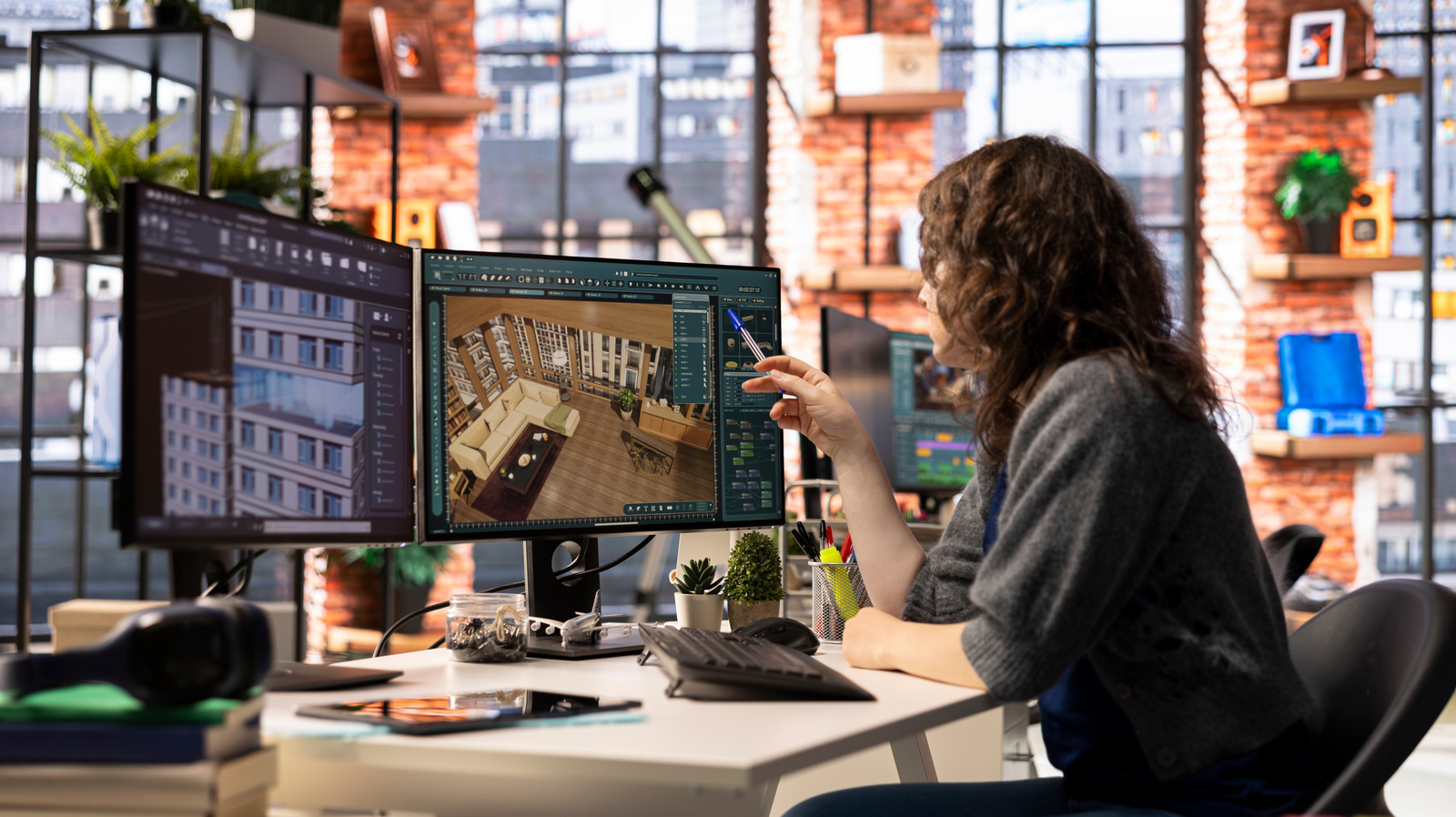
A dual-monitor setup is a great way to bolster your productivity and overall control over your home or office computer setup. Having an extra screen instead of switching windows or using a split screen is handy, especially if you need to use a full screen for a game or specialized software. Before you commit wholly to a dual-monitor setup, though, there are a few tips and tricks you should be aware of, such as using the right stand, setting proper configurations, and using software utilities.
An optimally configured dual-monitor setup is great for comfort, convenience, and productivity, but one that’s incorrectly configured might cause more headaches than it should prevent. For the most part, achieving that optimal setup isn’t difficult, as it requires only a couple of accessories, a few tweaks to your computer’s settings, and, if you want it, a little extra control with the help of a third-party utility.
Use a dual stand for optimal positioning and comfort
Creating a dual-monitor setup isn’t quite as simple as getting a second monitor and simply setting it down next to your main one. For one thing, unless the monitors are identical, their shape and size will likely be different, which can make it awkward to swap between them and limit the ways you can place them on the desk. To improve how you position your monitors, as well as help to prevent deskwork-induced back pain, you should hook them up to a dual-monitor stand.
A dual stand allows you to set both monitors to their ideal position and elevation for your seating, ensuring you can see the screens in full without needing to crane or bend your neck. A simple stand that just holds both monitors up and places them side by side should suffice, though it would be even better if you got a dual stand with articulating arms so you can freely adjust the position of both monitors. You can get an articulated dual stand like the HUANUO Dual Monitor Stand from Amazon if you need one.
Rearrange displays in your settings
When you plug two monitors into your computer, it will try to configure them for seamless continuity. In other words, an ideal dual-monitor setup allows your mouse cursor to move from the left monitor to the right monitor with little visible lag or positional confusion. But if your monitors are of two very different makes, models, and brands, your computer might not be able to handle this configuration process all on its own. Luckily, that’s an easy fix.
If you’re on Windows 11, just right-click on your desktop and click Display Settings. If you have multiple monitors plugged in, you’ll find the Arrange Multiple Displays option ready for you in the window that opens. In this menu, you can drag and drop the display icons to set up your preferred positioning. You can designate one monitor as the right and one as the left, or try other configurations like having one monitor be vertical or placing one display on top of another to mirror them. You can also change their heights if one monitor is smaller than the other to preserve cursor continuity. Mac users can find similar settings in the Displays section of their System Settings.
Remember to match your resolutions
While we’re on the subject of display settings, it’s also helpful to match the resolutions between your two monitors, if they’re different. If you have a fancy 4K work monitor next to a relatively simpler 1080p screen, the windows you open on each will have different sizes and picture qualities, which can be a little distracting. You can’t force a 1080p monitor to display at 4K quality, and it would be a waste to make a 4K monitor display at 1080p. The optimal compromise is to adjust your window scaling.
If you open your Display Settings in Windows 11, you’ll find what you need in the Scale & layout options. On your higher-resolution monitor, increase the scaling percentage until the windows on both monitors are roughly the same size. This way, if you move a window between displays, it won’t drastically change in size or shape. You can accomplish a similar tweak in Macs by opening your System Settings, clicking Displays, and entering the Advanced options, where you can tweak other monitor settings like display resolution.
Learn your shortcuts for window placement
When you have dual monitors, it can become a little more unwieldy to corral and place your active windows. If you just open programs and leave windows all over the place, you’ll quickly lose track of important work apps and clients. Thankfully, both Windows and Mac pack a handful of keyboard shortcuts you can use to quickly and easily take control of an unruly workspace.
On Windows 10 and 11, if you hold the Windows key and tap the left or right arrow once, you will snap the active window to either side of your active display; tapping twice will move the window to the other monitor. You can also transfer a window to the second screen without snapping it by holding Shift and the Windows key, then tapping left or right. Holding the Windows key and using the up or down arrows will maximize or minimize your current window, while holding Windows, Shift, and the up and down arrows will expand or shrink your window vertically.
If you’re on a Mac, hold Control and press the up arrow on your keyboard to open Mission Control, where you can freely position or minimize windows across both displays. You can also press Command-M to minimize your current active window and Control-F4 to move focus between the current active window or the next open window.
Download a software utility for extra control
If you’re finding your baseline degree of control over your dual-monitor setup insufficient, it may be time to try out an extra software utility. Various third parties have developed utilities that add shortcuts and customizations that would be cumbersome to set up manually.
One such utility you can try is Dual Monitor Tools, a free open-source software package for Windows that offers quick access to various fixes and tweaks. Dual Monitor Tools has various modules dedicated to features such as adjusting dead space between monitors, restricting cursor movement, adding shortcuts for launching programs on specific monitors, and more.
Another utility option is DisplayFusion, available either on its website or through Steam. This software allows you to better customize your dual-monitor setup for your needs, with features like virtual monitor splitting, multi-monitor taskbars, and inactive monitor fading. DisplayFusion requires a one-time purchase to use and offers a 30-day trial on its website.