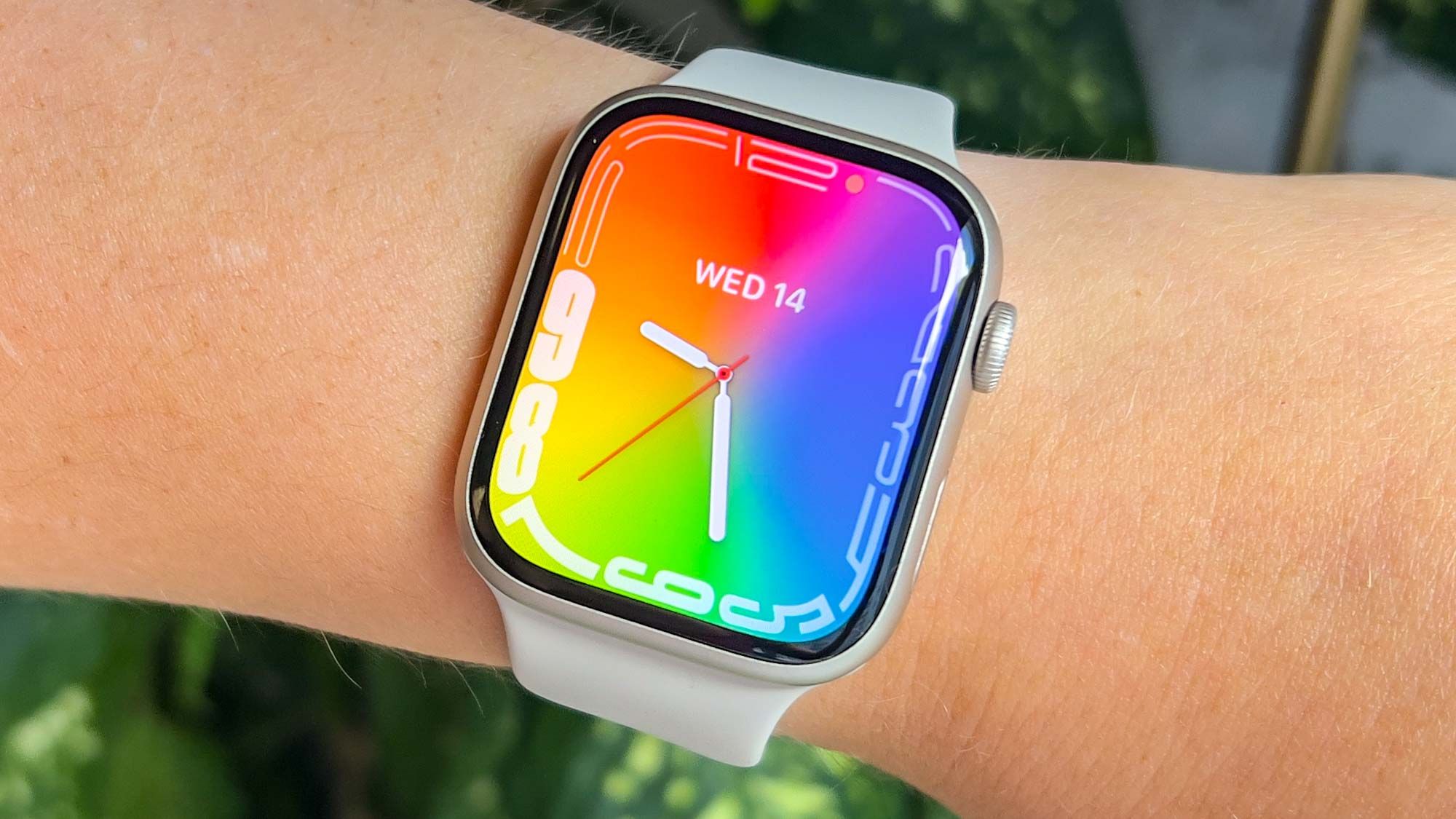
If, like me, your Apple Watch dies by mid-afternoon even though Apple claims it lasts all day, you’ve come to the right place. This happens because several default settings prioritize convenience over battery conservation.
The issue is that Apple’s default settings are built to showcase every feature the watch has to offer, not to conserve power. That means your watch is working harder than it needs to, all day long, without you realising it.
Article continues below
1. Disable these ASAP
These settings make your Apple Watch screen light up every time you move your wrist or accidentally brush the Digital Crown. On watches with always-on displays, the screen brightens from its dim resting state constantly throughout the day. Each time the screen wakes, it drains battery.
Open Settings on your Apple Watch, tap Display & Brightness, scroll to the bottom, and toggle off both “Wake on Wrist Raise” and “Wake on Crown Rotation.” Your screen stays dim until you deliberately tap it to wake.
You still see the time and complications in the dim always-on state, but the screen doesn’t brighten automatically when you move.
2. Lower screen brightness to minimum

Apple Watch ships with brightness set around two-thirds of maximum. The screen auto-adjusts based on ambient light, but you can force it to stay at the lowest setting permanently. A dimmer screen uses less power, and the difference becomes significant over a full day and night of wear, especially if you check your watch frequently.
Open Settings, tap Display & Brightness, and drag the Brightness slider all the way to the left to one bar. Your screen stays dim in all lighting conditions instead of automatically brightening in sunlight or dark rooms.
Be mindful that the screen can be hard to read outdoors in direct sunlight, but indoor visibility is fine. It’s an easy trade-off if you spend most of your time indoors or don’t need maximum brightness constantly.
3. Use a simple, dark watch face

Complicated watch faces with photos, animations, or constantly updating complications drain battery faster than simple faces with minimal elements.
Press and hold your current watch face, swipe to browse available faces, and select a simple one. Activity Digital shows only your activity rings on a black background. X-Large displays only large numbers for the time. Both are minimal and battery-efficient.
Avoid photo faces, Memoji faces, or faces with four or more active complications that update constantly. You lose visual customization and quick access to multiple complications with simpler faces, but you gain battery life depending on how complex your previous face was and how often you check your watch.
4. Turn off always on display

The always-on display keeps your watch face visible at all times, even when your wrist is down. It dims significantly when not in use, but it’s still drawing power continuously to keep pixels lit. Disabling always-on makes your screen go completely black when you’re not actively looking at it, and it’s the biggest battery saving change you can make.
Open Settings, tap Display & Brightness, and toggle off “Always On.” Your watch screen goes black when your wrist is down or the watch is idle. You need to raise your wrist or tap the screen to see the time or any information.
5. Enable Low Power Mode
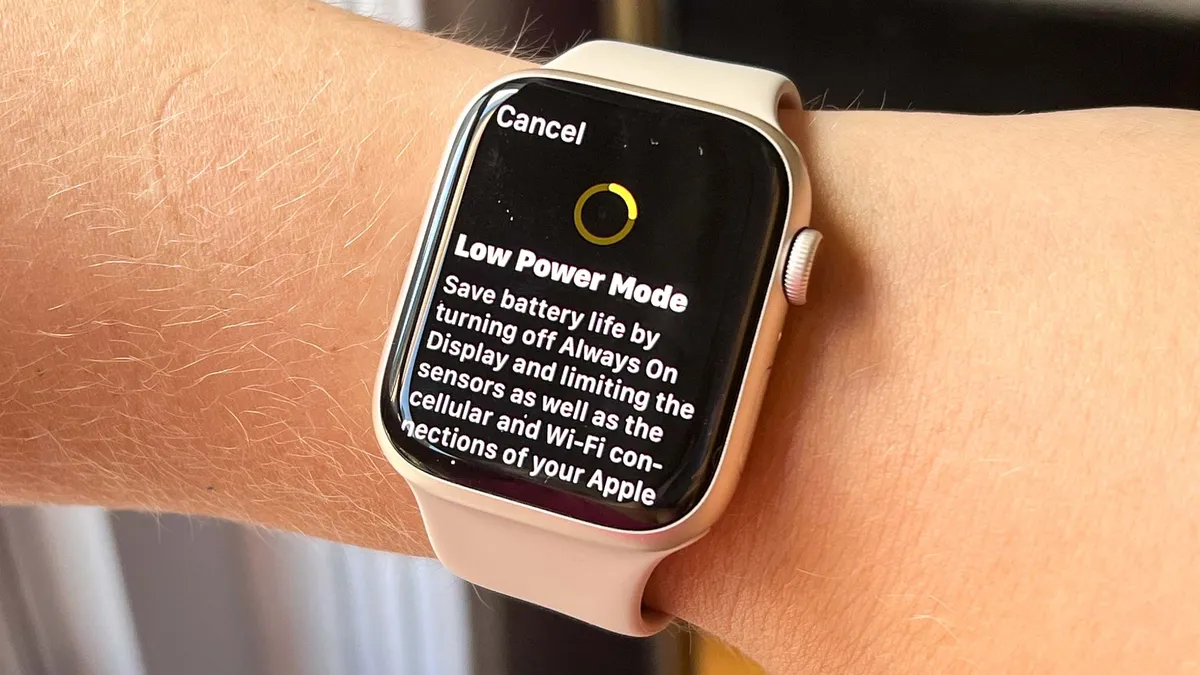
Low Power Mode is Apple Watch’s emergency battery extension. It disables several features simultaneously to maximize remaining battery life when you’re away from a charger.
Press the side button to open Control Center, tap the battery percentage button, then tap “Low Power Mode” and confirm when prompted. Enable this when your battery hits 15-20%, and you know you won’t reach a charger for several more hours.
You can toggle it off anytime through Control Center when you’re near a charger again. Think of this as a last-resort option to stretch remaining battery, not a setting to leave on permanently.

Follow Tom’s Guide on Google News and add us as a preferred source to get our up-to-date news, analysis, and reviews in your feeds.