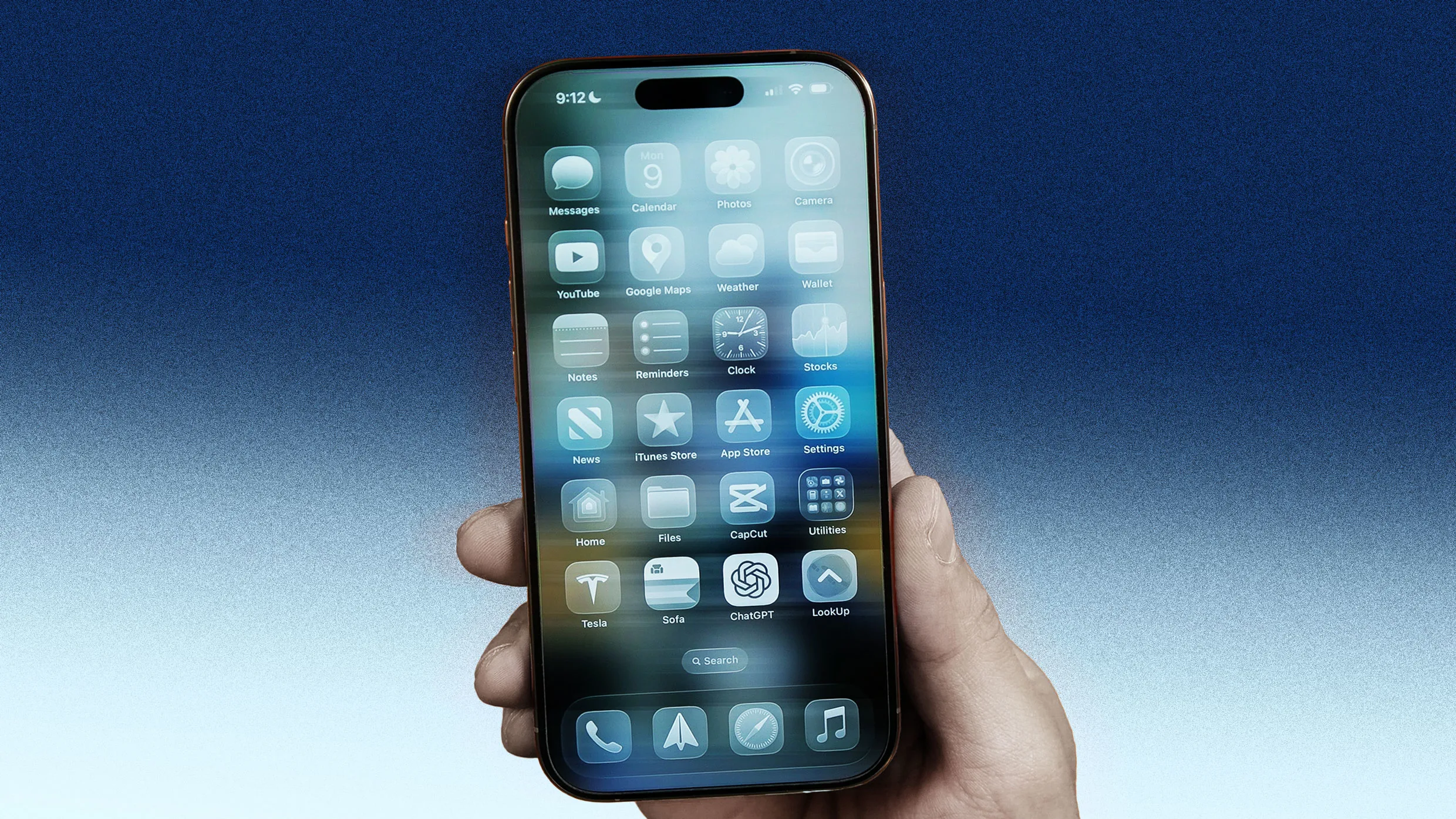
Apple’s iOS 26 has been available for nearly six months now, but it’s still one of the company’s least well-received software updates for the iPhone.
Primarily, people have criticized the new Liquid Glass user interface design, which Apple now lets you tone down. But iOS 26 also changed the way many apps function on the iPhone, disrupting a user’s muscle memory and expectations, leading to many to pine for the way the iPhone functioned on iOS 18.
Yet while you can’t revert to iOS 18 once you’ve upgraded to iOS 26, you can make some simple tweaks that will make your iOS 26 iPhone function as it did before. Here’s how.
1. Give Safari the layout it used to have, before iOS 26
After Liquid Glass, one of the most frequent complaints I’ve heard about iOS 26 relates to the Safari app. In iOS 26, Apple changed Safari’s default interface, giving it a new “compact” design that hides important buttons, including bookmarks and tabs.
In iOS 26, you now have to tap a new three-dots button next to the new compact URL bar to reveal the buttons that let you access your bookmarks, tabs, and other functions. This change both disrupts muscle memory and requires you to tap more just to access the browser’s basic features.
Thankfully, you can ditch the new iOS 26 Safari layout and revert to the layout Safari had in iOS 18 by doing the following:
- Open the Settings app.
- Tap Apps.
- Tap Safari.
- Under the “Tabs” section, tap Bottom.
Doing this again places the important bookmarks and tabs buttons directly on a toolbar at the bottom of Safari.