Rita El Khoury / Android Authority
In the age of AI chatbots and video shorts, browsing the good ol’ web may have become a bit of an archaic activity, but I’d like to believe there are still people out there, like me, who enjoy reading articles written by real humans. The issue that I face, though, is that some of these articles are poorly formatted and filled with ads or unnecessary elements (yes, I do see the irony). So much so that I lose track of what I’m supposed to read.
There have been countless extensions and services that have tried to fix this, from Readability to Instapaper and Pocket, but you don’t need any of these today. Chrome has a built-in reader function that will strip away all the fluff and let you read a clean version of an article. Since I started using it more actively, it’s become my favorite Chrome trick ever.
What’s your favorite Chrome trick?
0 votes
First things first: How to turn on Reading Mode
Reading Mode is still in a bit of an experimental stage in Chrome, so some users might see it and others not. So before I talk about what makes it great, I’ll explain how you can get it.
On mobile, Reading Mode manifests itself in one of two ways when you’re browsing articles: It can pop up sometimes as a special icon right next to the URL address bar, but it’s more reliably found as Show Reading mode under the ⋮ overflow menu of Chrome mobile.
If you see any of these options, you’re good to go — and remember to test on articles like this one, not on empty pages. If you don’t see it, you’ll have to manually enable it. Go to chrome://flags and search for “reader” (mobile). You’ll find a bunch of flags that are all set to Default. Under this “default” preference, Chrome will essentially roll a dice and decide who gets to A/B test an in-development feature like this one.
In my experience, you need to turn on two of these flags on Chrome to make it work: Set Reader Mode triggering to All articles, and Reader Mode improvements to Enabled. Now tap on Relaunch in the bottom right corner to restart Chrome with all of these changes. When that’s done, you should see the Reading Mode options in the overflow menu of any article.
On desktops, Reading Mode should be available out of the box; you can right-click anywhere on an article page and look for Open in Reading mode. But you can always trigger it to pop up next to the URL bar by going to chrome://flags and setting Reading Mode Omnibox Chip to Enabled, then relaunching the browser.
Reading Mode makes the entire web nicer

Rita El Khoury / Android Authority
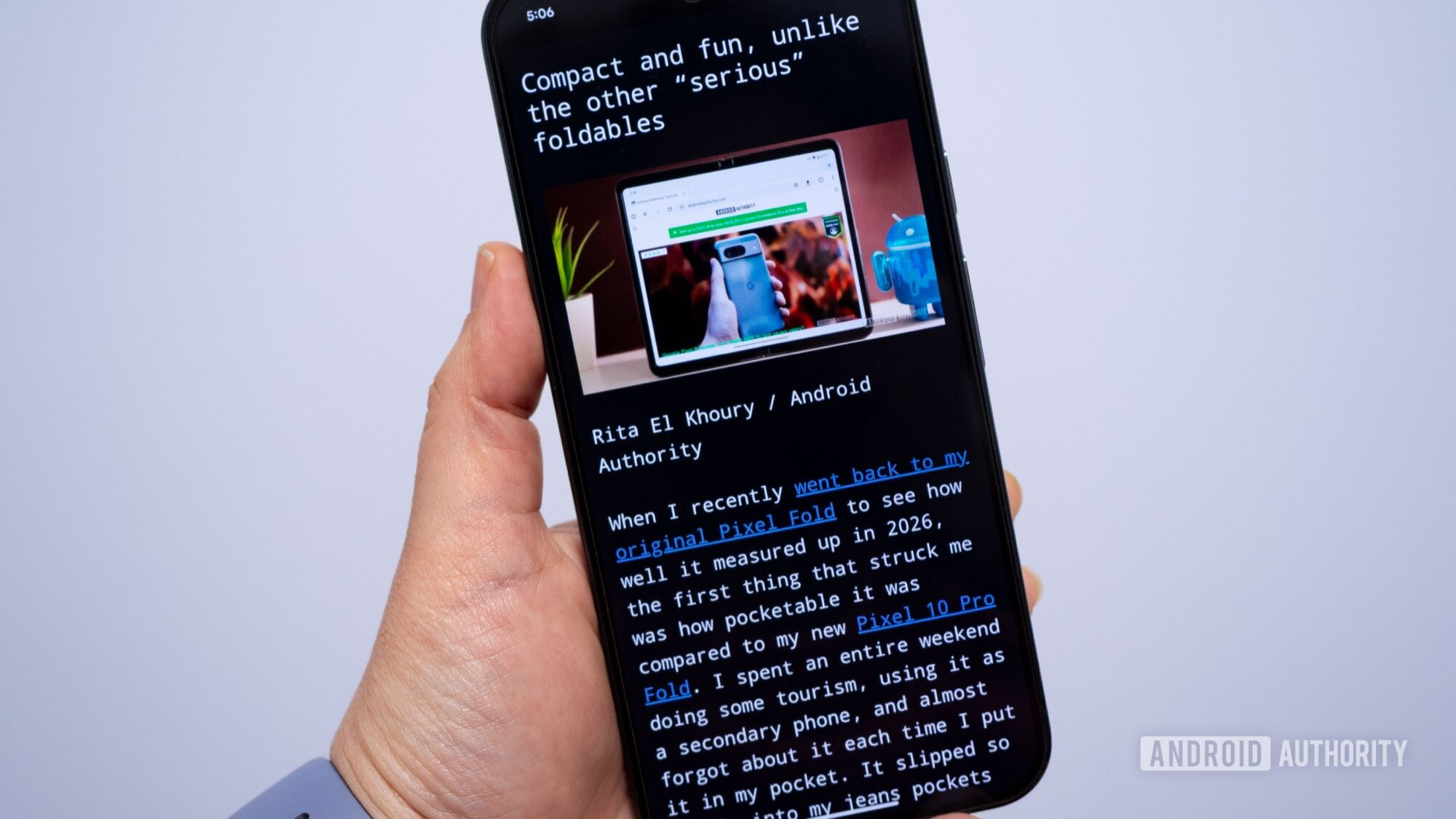
Now that you know how to trigger it, go ahead and test Reading Mode on a bunch of articles. I’m sure you’ll love it. Every article sheds the extra fluff and becomes a clean, readable series of paragraphs and images (though images are a bit hit-and-miss on desktop these days). I find it’s such a nicer way to read that keeps me focused on what I’m reading without confusing my short attention span. It also makes it easier to skip ahead to the parts I care about or go back to re-read the parts I want to double-check.
But the perks of Chrome’s Reading Mode don’t stop there. You can change the font to suit your style, enlarge the font to make pages more readable, and even change the background to beige or black.
On Chrome for desktops, there are way more customization options, including more fonts, more color styles, and different line and character spacings. I like the light blue background option, as well as some of the high contrast ones, and the auto mode that automatically follows my browser’s settings.

Rita El Khoury / Android Authority
On top of all of this, Reading Mode brings a listening feature that can read articles aloud to you, with controllable speed. On phones, you’ll find this under the ⋮ overflow menu > Listen to this page, and you even get to choose between an AI-generated podcast-style overview of the article or a word-by-word read of the article.
From now on, if there’s one trick you should keep in mind while browsing, it’s that you can enjoy your articles in a better-suited layout. This has become my go-to Chrome tool over the last few months, and I only imagine I’ll be using it more over the next few years.
Don’t want to miss the best from Android Authority?


Thank you for being part of our community. Read our Comment Policy before posting.