Joe Maring / Android Authority
Real-time location sharing is a core feature of any popular messaging app, but for years, it has not been available in Google Messages. However, that’s finally changing.
Ready to get started? Here’s what you need to know.
Are you going to use real-time location sharing in Google Messages?
0 votes
What you need to access Google Messages’ real-time location sharing

Joe Maring / Android Authority
Although we first spotted real-time location sharing in Google Messages back in February, it wasn’t until late March that the feature actually began rolling out to users. At the time of publication, the feature is rolling out widely to the Messages app.
A couple of my Android Authority colleagues spotted real-time location sharing in the beta version of the Google Messages app, specifically version 20260313_00_RC00.phone.openbeta. However, you don’t have to be enrolled in the Messages beta to use it.
Real-time location sharing is available on two of my Android phones, including version messages.android_20260306_02_RC03.phone_dynamic
com.google.android.apps.messaging on a Google Pixel phone and version messages.android_20260310_00_RC00.phone_samsung_dynamic on a Samsung Galaxy phone.
How to use real-time location sharing in Google Messages

Joe Maring / Android Authority
Ready to start using real-time location sharing? The good news is that it really couldn’t be easier. Grab your Android phone, open Google Messages, and follow these steps:
- Open a message thread or start a conversation with the person you want to share your location with.
- Tap the + icon in the bottom left corner.
- Tap Real-time Location.
- Tap Send.
- The first time you share your location, read the terms and tap I accept.
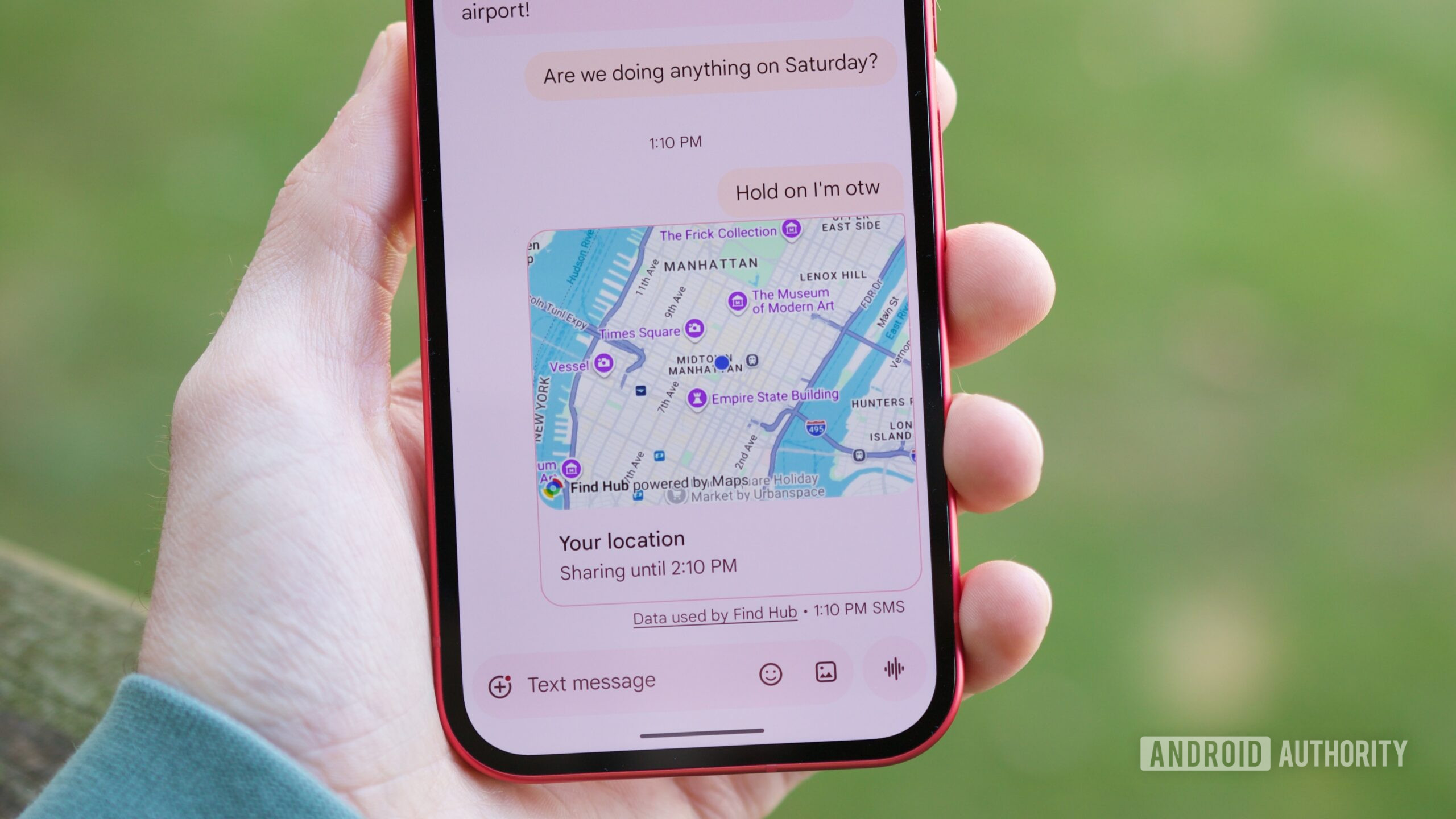
After sharing your location, it’s displayed as a message in the conversation, including a preview of where you are and how long your location is being shared for. Additionally, you’ll see a persistent banner at the top of the conversation that also indicates how long the sharing will last.
If you tap either the message or the banner, you’ll see a larger preview of your real-time location, a shortcut to copy the link to share it with someone else, and a Stop button to stop sharing immediately. Once you stop sharing, either manually or once the designated sharing time ends, the banner disappears, and the location-sharing message removes the map and reads “Location share ended.”

Joe Maring / Android Authority
Furthermore, before you send your location, you can customize how long you want to share it for. It’s set to one hour by default, but you can also change it to “Today only” or create a custom duration for however long (or short) you’d like.
And that’s all there is to it! You can use real-time location sharing in individual conversations and in group chats, and there’s no limit on how often you can use the feature. There’s really no difference compared to real-time location sharing in iMessage, Telegram, or other messaging apps, but it’s still great to finally have it in Google Messages.
Don’t want to miss the best from Android Authority?


Thank you for being part of our community. Read our Comment Policy before posting.