Rita El Khoury / Android Authority
Music is incredibly subjective, and what I consider “bad” might be awesome for you. My husband, for example, loves listening to covers and random indie artists trying to play or sing a known tune. Me? I hate that. Give me the original, e basta. Even an official remix annoys me. We should be able to tailor preferences like these in music streaming services, but for some reason, Spotify, YouTube Music, Apple Music, and others just want us to trust the algorithm. Fine.
I’ve been using Spotify since 2008, and I’ve learned a trick or two, so I know what to do — and, more importantly, what not to do — to steer the algorithm to my liking. By applying these tricks religiously, I avoid a lot of poor recommendations from Spotify and random “bad” songs (to my liking) from playing when I have my guard down. Here’s my secret recipe to do this.
What do you do when you get a poor Spotify recommendation?
159 votes
Use private sessions to avoid spoiling your taste profile
Rita El Khoury / Android Authority
Before we get to how you can adjust Spotify to your liking, let’s talk about how you can avoid ruining things. So let’s say your friend just sent you a song or album to check out, you’re throwing a small party and having people play music from your phone, or you’re just in the mood for some questionable music on your own. You shouldn’t mess your Spotify algorithm and recommendations because of that; you’ve spent years building your profile not to have your child’s fart music obsessions on top of your home page.
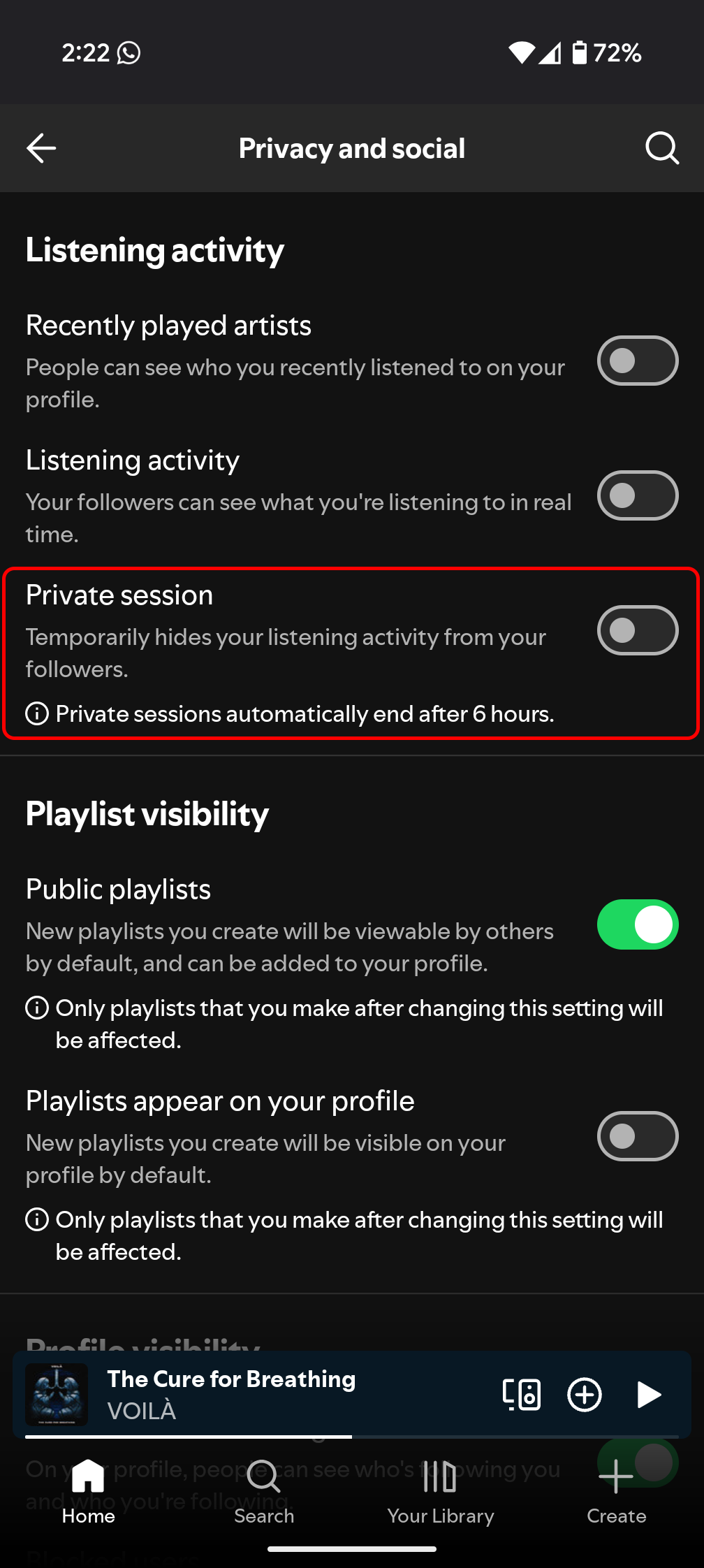
The mobile app, desktop app, and browser app all have a “Private session” feature that lasts six hours and lets you listen to anything without it registering in your history or taste profile. Go to Settings and privacy > Privacy and social and turn on the Private session mode. Now, feel free to listen to Frozen’s soundtrack with your kid for the 15,780th time.
Exclude playlists or songs from your taste profile
A few years ago, I tried to foster a dog for a bit, as a first step before adopting her. Nala was very anxious, terrified by any man, including my husband, and not a good fit for a newbie dog owner like me. But in the process, I discovered that her favorite thing in the world was listening to calming dog music. After a few days of playing her these playlists, my Spotify was filled with music for dogs, and it took me weeks trying to re-teach the algorithm that I don’t listen to dog music. It also hurt to see those recommendations weeks after I’d made the tough decision to stop the fostering process. (Don’t worry, she immediately went to an adopting couple that had experience with anxious dogs.)
I wish the option to Exclude from your taste profile existed then, because I would’ve simply tapped ⋮ on the playlist page, chosen that, and avoided it and similar music from popping up everywhere on Spotify. This should tell Spotify to ignore this playlist and its songs, no matter how often you listen to it. It can be a great option when friends share playlists you don’t want to listen to again, or when you outgrow a playlist you were previously addicted to. If you have kids, it’s also an excellent way to avoid the Disney music inundation.
Oh, and you can also exclude tracks from your taste profile — perfect for that one song you love to hate. The option is available under the three-dot ⋮ menu of all songs. Sadly, this isn’t available for albums, but if you need to, you can either exclude all songs one by one or create a playlist with all of an album’s songs and exclude the playlist.
Block artists you don’t want to listen to anymore

Rita El Khoury / Android Authority
Spotify tends to get over-excited when you listen to a song or two from an artist, and it starts suggesting their music everywhere. Release Radar, Discover Weekly, radio, daily playlists, the home page… You make the mistake of listening to someone once because your friend can’t shut up about them, or Google Assistant/Gemini misunderstands you once and plays music you didn’t intend, and suddenly that’s all Spotify wants you to listen to. In my case, this has happened a lot when I was checking out artists who had nearby concerts planned to see if it was worth buying tickets.
It irks me that I can’t go back and delete this from my listening history (upvote and comment here if you’re annoyed by this, too), but I can at least tell Spotify to completely ignore an artist. Just go to the artist’s page for the last time, tap the three dots ⋮ next to the Follow button, and tap Don’t play this artist. This completely erases them from your Spotify. Recommendations, radio stations, and existing playlists; they’ll disappear or be greyed out on all of them.
Hide bad songs in albums or playlists you can’t edit
Sometimes, you find the perfect playlist or album, but there’s one or two songs in there that just annoy you. They keep popping up, and you have to manually skip them. It could be Release Radar or Discover Weekly suggesting something awful, for example. For me, this keeps happening with Sanremo’s yearly playlist; I adore Italian music, but there’s always one song that just doesn’t do anything for me. Luckily, there’s a way to avoid it.
Tap the three dots ⋮ next to the song’s title and then Hide in this playlist or Hide in this album. This greys out the song and skips it, no matter how often I shuffle or play the full playlist. It’s as if it’s not there.
Better yet, if you don’t want to keep hiding songs in playlists or albums, I suggest you just copy the songs you like into a playlist that you control and edit. That saves you from continuously curating a playlist you have no control over.
Turn off Smart Shuffle if you know exactly what you want to listen to
Spotify is usually good at finding similar songs and playing them along with the artist, album, or playlist you’re listening to. But there are times when I just do not want. Just give me the music I chose and curated — nothing else. I don’t want radios, nor do I want recommendations. In those situations, I like turning off Smart Shuffle. Just tap the starry shuffle icon to switch to the normal shuffle mode, which will skip recommendations.
If you don’t want this smart shuffle mode to ever pop up, you can turn it off. Go to Settings and privacy > Playback > Include Smart Shuffle in play modes, and turn it off. You won’t ever see that mode on your device.
Be basic: Play your music on repeat

Rita El Khoury / Android Authority
Spotify offers three modes for listening to an artist, playlist, or album: repeat once, repeat all, or don’t repeat. By default, it will always revert to the third one, which means that when it’s done playing the music you chose, it’ll continue with its own suggestions or “radio.” This can be fun sometimes if you’re in the mood for it, but sometimes, I just want my own music on loop. Keep the algorithms and recommendations away. To do this, it’s as simple as tapping the repeat button on the now playing page until it shows a looping arrow (without the number one, which will only loop the current song). Now you’re safe from the random radio experience.
Disable explicit content if you don’t want that

Rita El Khoury / Android Authority
I’m no prude, and I enjoy a lot of explicit songs, but sometimes, the content is too crude for my own liking, especially in certain genres. You might be more sensitive to this and want to avoid it, and in that case, the best way to do it is to block Spotify from playing explicit content. This can be indispensable if you have kids who use your account.
To do this, go to Settings and privacy > Content and display and turn off Allow explicit content. The setting also affects podcasts and audiobooks, not just music.
Be very diligent about your likes and personal library
If it sounds like common sense, it’s because it is. Spotify, like any other algorithm-centric service, learns from your behavior. Every click, every play, every interaction tells Spotify you’re interested in something, but the algorithm can’t differentiate if that’s good interest or bad interest. A lot of it is mysterious alchemy, with a witch mixing and matching your listening history into a large cauldron and spitting out a cursed potion, but you’re still in control of some of it.
I’m very meticulous about all the signals I send to Spotify — what I click on, what I like, what I play; it’s all very deliberate.
I treat Spotify the same way I treat YouTube, Twitter, and my Google Discover feed: I am very diligent about what I click on, what I like, and which signals I send to the algorithm. I only like songs I actually really enjoy, I only follow playlists and artists I’m genuinely interested in and who have many songs I already like, and I only add playlists I want to listen to. I don’t just skip songs I don’t like, no, I’m meticulous about excluding and hiding them.
By being meticulous about the positive and negative signals I send to Spotify, I’ve managed to curate over the years a service that understands me and rarely suggests music that’s not to my taste. I’ve discovered a lot of excellent artists thanks to Spotify’s radio — Amaranthe, Connor Price, Voilà, The Faim, David Bisbal, CNCO, Electric Callboy, Faouzia, Sebastian Yatra, and others — and I love the platform for that, but I’ve also stumbled on music I’m not interested in at all, especially a lot of AI-generated stuff lately. I would still love a settings filter that lets me skip all covers, remixes, radio edits, and random retakes, but even without that, I’m able to limit the number of bad, to my taste, music that comes up because of all these tips above.
Don’t want to miss the best from Android Authority?


Thank you for being part of our community. Read our Comment Policy before posting.