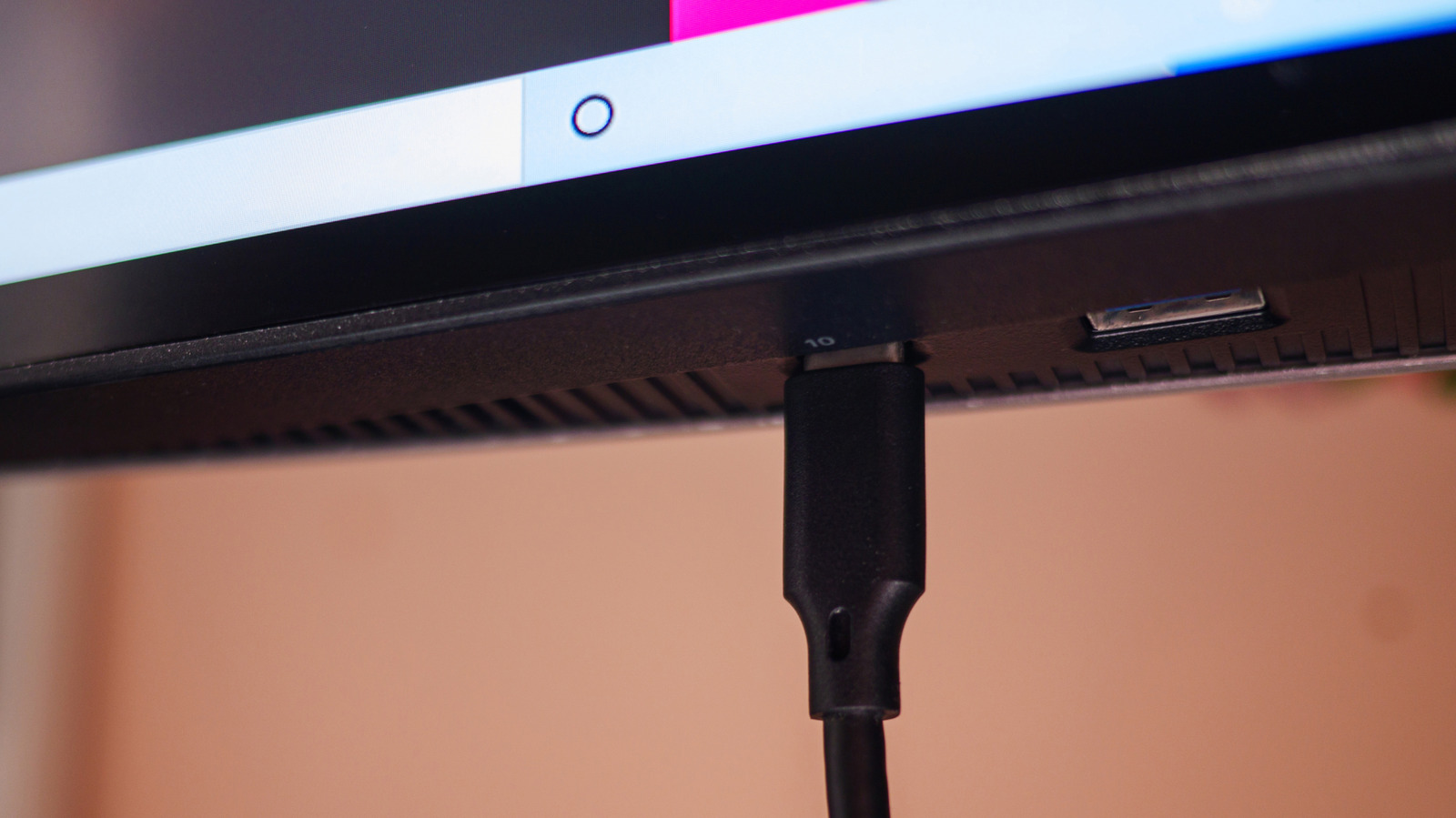
Many computer and gaming monitors now come with USB ports built in to plug in extra devices, whether you need to charge them or power up various gadgets. Some more advanced monitors even have a KVM switch built in, which allows you to connect peripherals like mice and keyboards. There are a lot of devices that can make use of those extra ports, especially some really weird USB gadgets like miniature toys, dynamic light bars, and more. But not everything should be plugged into those USB ports on your monitor or display. The standard USB ports, above all, aren’t really designed for data use or digital data transfers, often exclusively supplying power and in low capacities.
Just like there are gadgets you should never plug into your TV’s USB ports, there is a similar category of devices you should refrain from plugging into a monitor or external display. It’s worth noting this is not necessarily because of concerns from a damage or risk standpoint. Modern and quality USB devices often come with protections like overcharge protection to prevent failures when plugged into the wrong ports. That said, it’s still good to avoid plugging in certain devices, and those are what this article will focus on.
1. High-speed data drives and flash drives
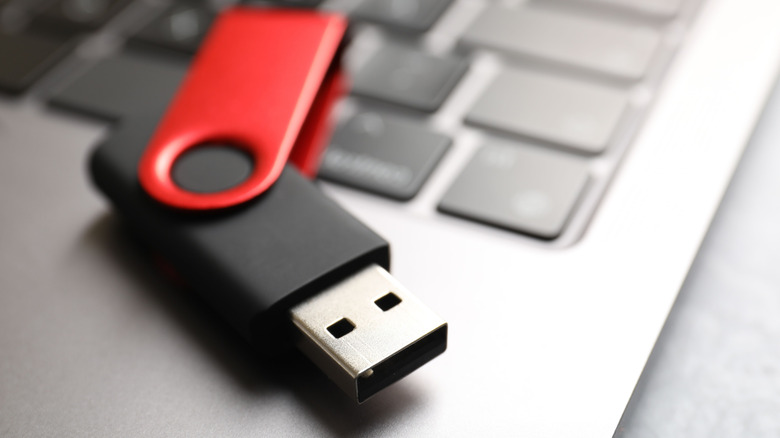
With older monitors, unless the monitor comes with an upstream USB-B cable or you have one plugged in, the built-in USB ports won’t communicate with your computer in most cases. That means it would be pretty much useless to plug in a flash drive or hard drive expecting it to sync with your PC. But even in monitors that do offer something like this, the speed of the drive may end up limited to the point where it’s better not to connect a high-speed data device at all through this method. If you want to use a drive, you’re best off plugging directly into your laptop or desktop versus via the monitor’s USB ports.
This largely has to do with the different types of USB ports that exist, or rather, the different USB versions. If your monitor only has a USB 2.0 port, but the drive you have is USB 3.2, you’re only going to achieve the bandwidth or speeds from the older version, which is lower. Of course, that all depends on the USB ports available in your monitor. Some newer models have USB 3.2 and above, including USB Type-C ports. It’s still probably best to plug the drives directly into your computer, though. If you don’t really care about transfer speeds, then have at it.
2. USB Hubs
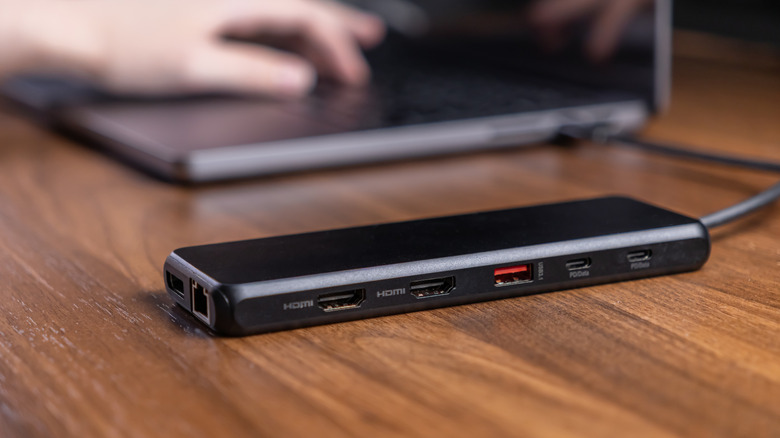
Again, it really depends on the type of USB ports in the monitor. But most don’t support high-power delivery through USB Type-A. USB Type-A is limited to 2.5 watts and 5 volts versus 100 watts and 20 volts, or higher, for USB-C. The standard, in general, doesn’t support PD, which is why a majority of USB hubs are powered — you have to plug them into an outlet separately for a reliable power source. So, the point is, you really don’t want to be plugging in lots of extra devices through a USB hub that is then connected to USB ports on a monitor because there’s likely not enough power to cover everything. If you just keep plugging things into a hub and fill all the ports, you’re using them wrong for sure. They have limits on both power draw and bandwidth when they support data streams. The same is true of the USB ports on your monitor.
For some low-power USB gadgets, like fans or lighting, if they don’t require much wattage, they should work fine, but once you get into the higher requirements, there’s a chance the gear might not work or run into other issues. You may end up having to unplug certain devices to get them to work, if at all. You can avoid this by paying attention to the power requirements of the USB gadget itself and ensuring you understand the power output of the monitor’s ports.
Moreover, if it’s a multi-functional hub with HDMI or DisplayPort, the extra ports probably won’t work, either.
3. USB to HDMI and other visual adapters
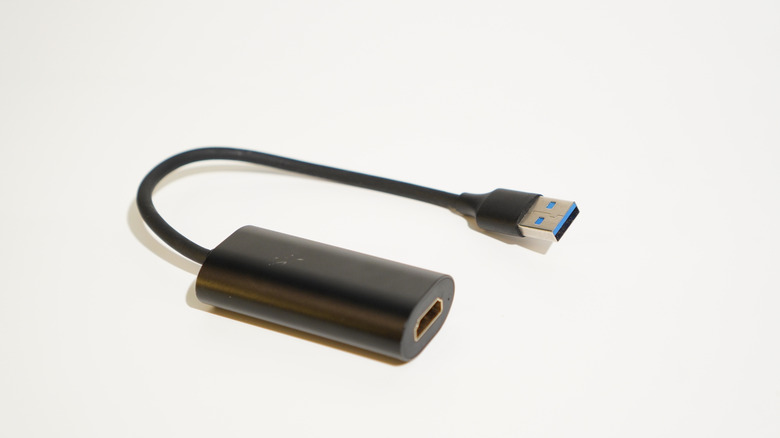
If you have a laptop or a mobile device and you want to connect them to a monitor or TV, a lot of times you use a special adapter, whether USB-C to HDMI, or some variation of a DisplayPort adapter. Unfortunately, the USB ports on a monitor rarely offer video support, which means they cannot send video signals to your computer through an external USB connection. That would prevent any and all visual devices from working, including these types of adapters.
The exception, which seems to be the case in most scenarios here, is if your monitor has a USB-C port. Type-C is much more capable overall in terms of data transfers, speeds, and power delivery. Now, not all USB-C ports support video out, so bear that in mind. You can actually shop for monitors that include this functionality, so if it’s something you know you want, take some time to seek out a model that works for you before upgrading, replacing, or buying a new display.
On the other side of the argument, there are some pretty cool USB gadgets you can plug into the USB ports on your monitor, if you want to.