By using this site, you agree to the Privacy Policy and Terms of Use.
Accept
World of SoftwareWorld of SoftwareWorld of Software
  • News
  • Software
  • Mobile
  • Computing
  • Gaming
  • Videos
  • More
    • Gadget
    • Web Stories
    • Trending
    • Press Release
Search
  • Privacy
  • Terms
  • Advertise
  • Contact
Copyright © All Rights Reserved. World of Software.
Reading: Google Pixels just got a voicemail feature I’ve wanted for months — here’s how to use it
Share
Sign In
Notification Show More
Font ResizerAa
World of SoftwareWorld of Software
Font ResizerAa
  • Software
  • Mobile
  • Computing
  • Gadget
  • Gaming
  • Videos
Search
  • News
  • Software
  • Mobile
  • Computing
  • Gaming
  • Videos
  • More
    • Gadget
    • Web Stories
    • Trending
    • Press Release
Have an existing account? Sign In
Follow US
  • Privacy
  • Terms
  • Advertise
  • Contact
Copyright © All Rights Reserved. World of Software.
World of Software > News > Google Pixels just got a voicemail feature I’ve wanted for months — here’s how to use it
News

Google Pixels just got a voicemail feature I’ve wanted for months — here’s how to use it

News Room
Last updated: 2026/04/12 at 5:30 AM
News Room Published 12 April 2026
Share
Google Pixels just got a voicemail feature I’ve wanted for months — here’s how to use it
SHARE

Joe Maring / Android Authority

Ever since it debuted on the Pixel 10 series last August, Take a Message has quickly become one of my favorite recent Pixel features. Essentially Google’s modern take on the voicemail box, Take a Message answers missed calls for you, shows real-time transcriptions, and makes those transcripts easy to read after the fact on the Phone app’s Home page. It’s great.

However, there’s just been one problem with the feature. Take a Message greets callers with a standard “The person you have called is not available, please leave a message after the tone,” with no option to create a custom greeting. Thankfully, that’s no longer the case.

Do you use Take a Message on your Pixel?

2 votes

What you need to access custom greetings for Take a Message

The Google Pixel 10a in its Berry color.

Joe Maring / Android Authority

First things first, you’ll need a Pixel phone that supports Take a Message. As of April 2026, this requires a Pixel 6 or newer, with the full list being as follows:

  • Pixel 6/6 Pro
  • Pixel 6a
  • Pixel 7/7 Pro
  • Pixel 7a
  • Pixel Fold
  • Pixel 8/8 Pro
  • Pixel 8a
  • Pixel 9/9 Pro/9 Pro XL/9 Pro Fold
  • Pixel 9a
  • Pixel 10/10 Pro/10 Pro XL/10 Pro Fold
  • Pixel 10a

Next, you need the latest version of the Google Phone app. We spotted custom Take a Message greetings in version 217 of the Google Phone beta, though it’s also reported to be live in version 216. Importantly, at the time of publication, custom greetings appear to be available only in the beta version of Google Phone. If you haven’t already joined the beta, you can do so for free.

If you have a compatible Pixel, have joined the Google Phone beta, and have the app updated to the latest available version, you’re ready to get started.

How to create a custom Take a Message greeting

Pop-up for creating a custom Take a Message recording in the Google Phone app.

Joe Maring / Android Authority

Assuming you have all the above handled, you should see a pop-up for Take a Message at the very top of the Phone app (the one shown in the photo above). Just tap Try it out, and you’ll be guided through setting up your custom greeting.

If you don’t see this pop-up or accidentally dismissed it, you can also find custom Take a Message greetings by following these steps:

  1. Tap the three lines in the top-left corner of the Phone app.
  2. Tap Settings.
  3. Tap Take a Message.
  4. Tap Manage greetings.

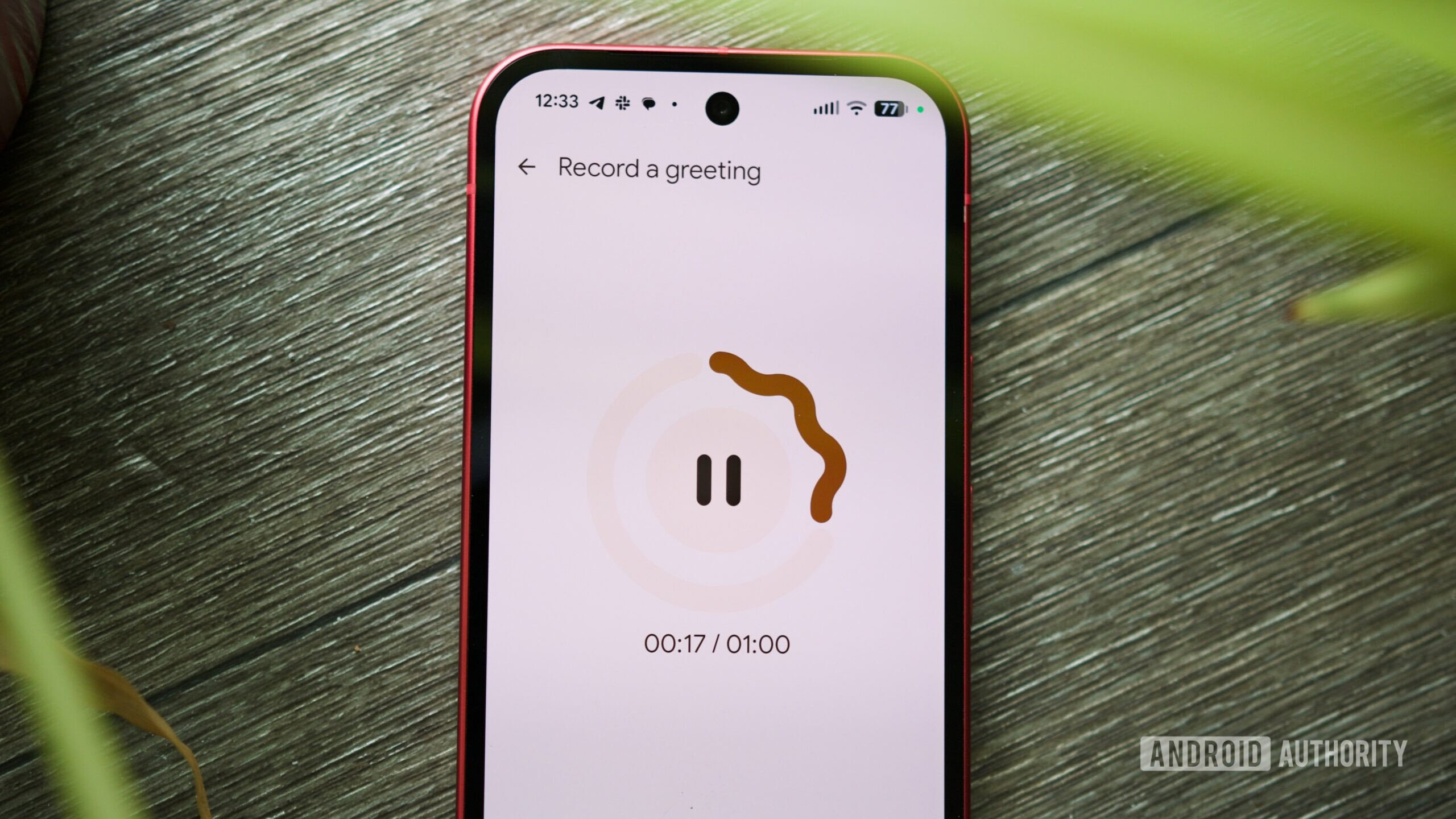
Whether you follow this path or access it via the pop-up, the Greetings page shows your “Standard greeting” (the default) at the top. To record your own custom greeting, tap the circular microphone button near the bottom of the page. You’ll see a three-second countdown before it starts recording, and then you’re free to record your custom greeting, with a maximum recording time of one minute. Conveniently, you can tap the pause button at any point to temporarily pause your recording and then pick up where you left off. While paused, you can tap Restart to start over again or Save to finish your recording.

You can have multiple custom greetings saved and swap them in and out whenever you’d like. If you tap the three dots on a custom greeting, you’ll see additional options to set it as the default, rename it, and delete it.

And that’s all there is to it! This is something I wish Take a Message had shipped with originally, but it’s still great to finally see it in action.

Don’t want to miss the best from Android Authority?

google preferred source badge light@2xgoogle preferred source badge dark@2x

Thank you for being part of our community. Read our Comment Policy before posting.

Sign Up For Daily Newsletter

Be keep up! Get the latest breaking news delivered straight to your inbox.
By signing up, you agree to our Terms of Use and acknowledge the data practices in our Privacy Policy. You may unsubscribe at any time.
Share This Article
Facebook Twitter Email Print
Share
What do you think?
Love0
Sad0
Happy0
Sleepy0
Angry0
Dead0
Wink0
Previous Article Best Portable Music Player 2026: Enjoy high-quality audio on the go Best Portable Music Player 2026: Enjoy high-quality audio on the go
Next Article BEYOND Expo x TechNode Networking Night: Thailand Edition spark innovation and connection · TechNode BEYOND Expo x TechNode Networking Night: Thailand Edition spark innovation and connection · TechNode
Leave a comment

Leave a Reply Cancel reply

Your email address will not be published. Required fields are marked *

Stay Connected

248.1k Like
69.1k Follow
134k Pin
54.3k Follow

Latest News

Chinese smartphones face new hurdle for sales in the US
News
Resident Evil Star Milla Jovovich Shipped an AI Memory System. Devs Shredded Its Benchmarks | HackerNoon
Computing
5G From the Sky: New Internet Infrastructure Takes Flight
News
Global AI model race raises concerns of waste, China targets five foundational AI models by 2028 · TechNode
Computing

You Might also Like

Chinese smartphones face new hurdle for sales in the US
News

Chinese smartphones face new hurdle for sales in the US

3 Min Read
5G From the Sky: New Internet Infrastructure Takes Flight
News

5G From the Sky: New Internet Infrastructure Takes Flight

2 Min Read
Corsair Vanguard Air 99 Wireless Review:  A Command Center Disguised as a Keyboard
News

Corsair Vanguard Air 99 Wireless Review: A Command Center Disguised as a Keyboard

6 Min Read
Indie App Spotlight: ‘PackGoat’ intelligently helps you pack for trips in an easy manner – 9to5Mac
News

Indie App Spotlight: ‘PackGoat’ intelligently helps you pack for trips in an easy manner – 9to5Mac

2 Min Read
//

World of Software is your one-stop website for the latest tech news and updates, follow us now to get the news that matters to you.

Quick Link

  • Privacy Policy
  • Terms of use
  • Advertise
  • Contact

Topics

  • Computing
  • Software
  • Press Release
  • Trending

Sign Up for Our Newsletter

Subscribe to our newsletter to get our newest articles instantly!

World of SoftwareWorld of Software
Follow US
Copyright © All Rights Reserved. World of Software.
Welcome Back!

Sign in to your account

Lost your password?