« Ah, if I had known “. If you say this sentence, it is probably already too late. Your PC no longer starts, your session is inaccessible, or you simply don’t remember your connection password, and you have no idea how to get out of this situation? Don’t wait for this disaster scenario to hit you.
By taking precautions now, you could avoid having to call a repairer, or completely reinstall Windows 11 to get your PC back up and running, losing all your precious data. How ? Quite simply by always having a USB emergency key on hand. There are several solutions including all the tools necessary to troubleshoot a broken PC. This is the case, for example, with Medicat USB.
A complete toolkit in a USB stick
Concretely, Médicat is a free and open source tool which allows you to create a bootable USB troubleshooting key using which you can carry out certain common troubleshooting operations in the event of a major problem with Windows.
It thus brings together a collection of software using which you can carry out diagnostics on your hardware, recover data or manage partitions, resolve problems with forgotten passwords, or even save data even if you can no longer start Windows.
Medicat includes several dozen tools, including solutions such as Acronis True Image, AOMEI Bakcupper, EasUS Data Recovery Wizard, Macrium Reflect, MiniTool Power Data Recovery, Rescuezilla, Boot Repair Disk, EasyEUFI, Super GRUB2 Disk, Memtest86, Ultimate Boot CD, SystemRescue, Mini Windows 10, DiskGenius, Paragon Hard Disk Manager, Parted Magic, ShedOS, and many more. still others.
To create your Medicat Rescue Key, you will need a USB drive with at least 32 GB of storage space. Furthermore, it is preferable to opt for a USB 3.0 compatible device.
1. Download Medicat USB
Start by opening your web browser and going to download Medicat. This free utility allows you to create a bootable USB flash drive for your PC.
You can, among other things, use it to reset the forgotten password for your session, remove possible malware that has blocked your machine, partition your disk or carry out maintenance operations on it, or even make a backup of your PC’s data even if you cannot start Windows.
2. Start the Medicat installation
The Medicat installation file that you have just downloaded is normally in .bat format. This is a batch file that will automatically open the command prompt to run a script.
Insert your USB stick into your PC, make a right click on the medicat_installer.bat file and chooseRun as administrator.
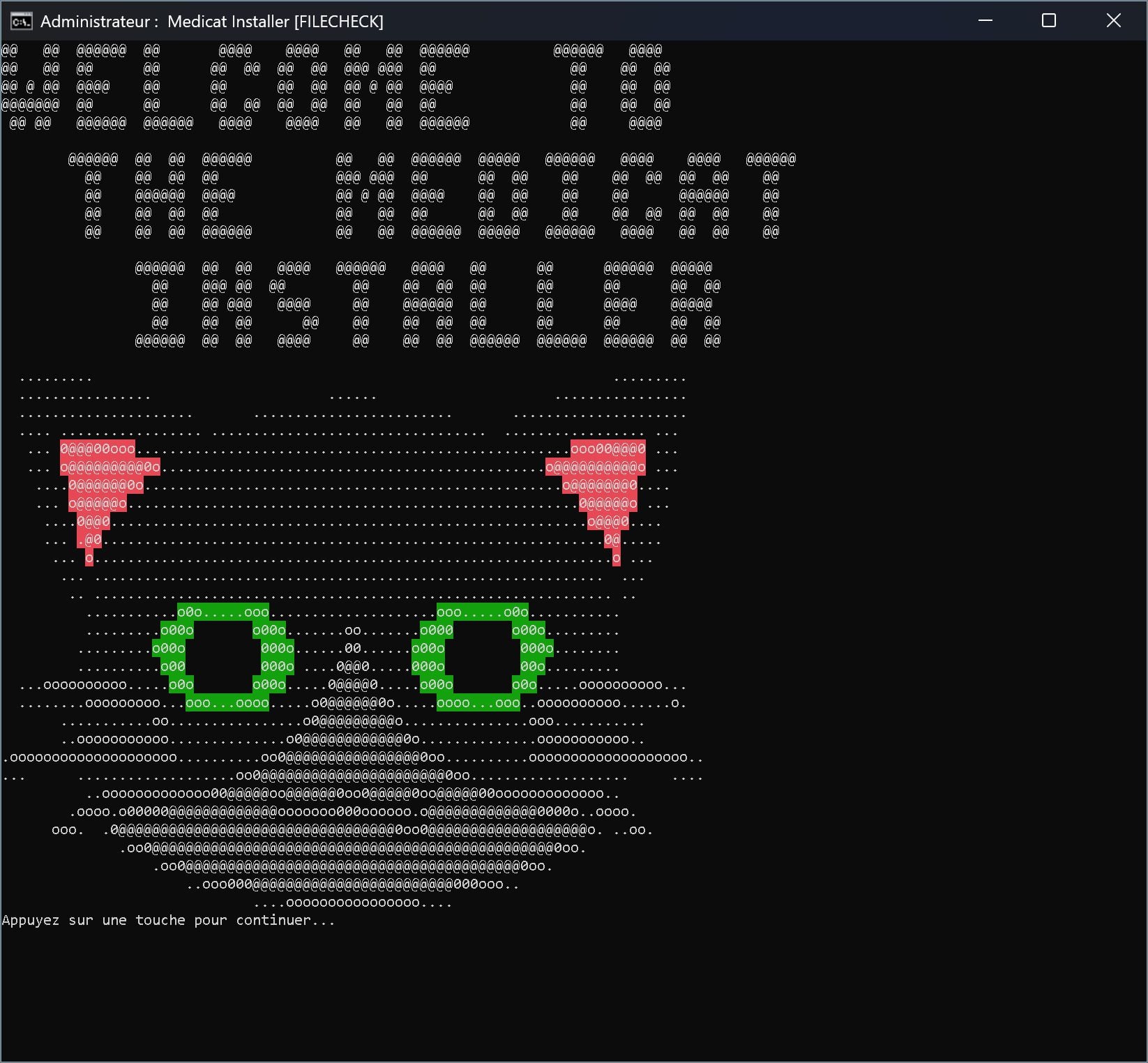
A warning window indicating in English that “ Medicat could trigger your antirivus because of the way certain tools work » should then be displayed. Press any key of the keyboard for Accept and continue.
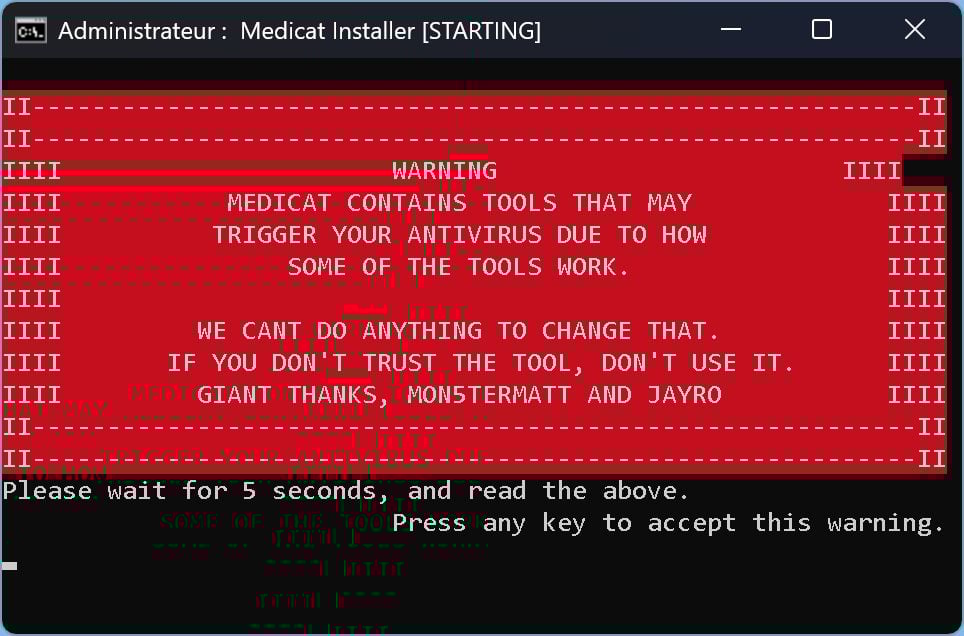
The Medicat installation window should then open. Press a key to continue installing the tool on your USB key.
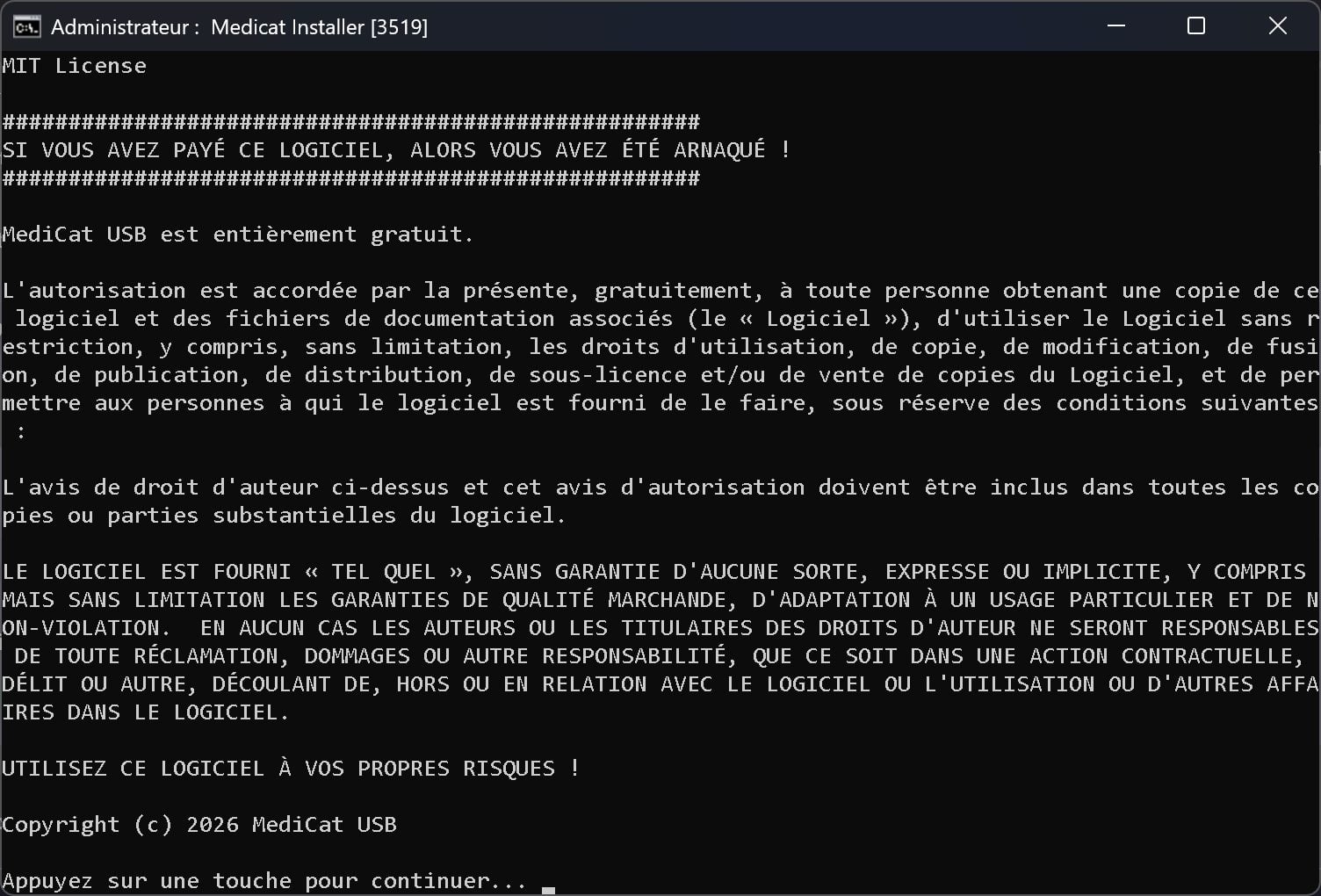
The Medicat license agreement is then displayed. After careful reading of it, press a key on your keyboard to continue.
3. Select your USB key
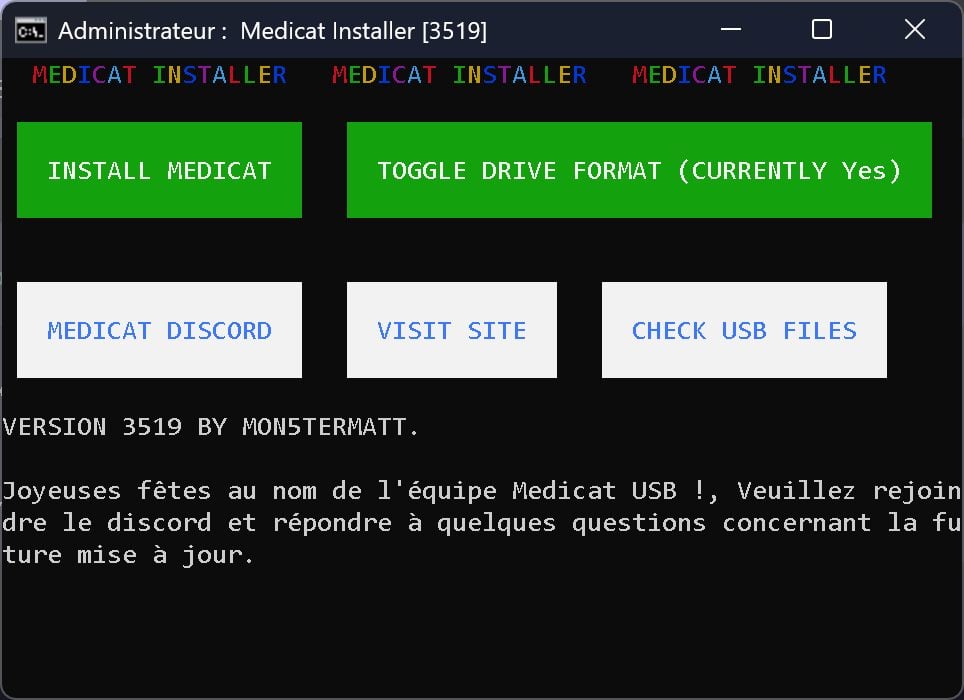
It is in the next step that you can proceed with the installation of Medicat on your USB key. To do this, click on the button Install Medicat.
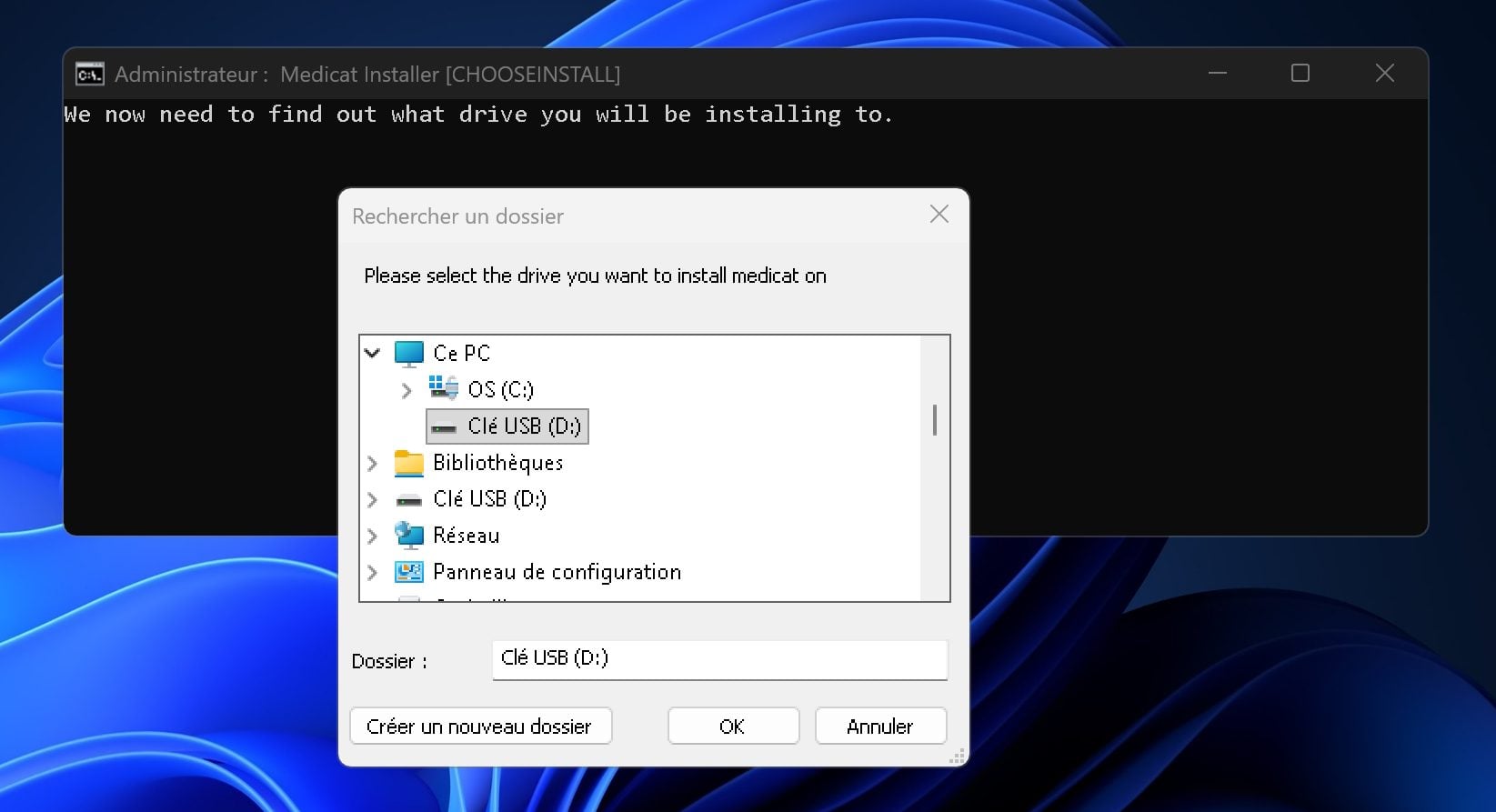
A dialog box then opens with the tree structure of your PC. Use this to navigate through folders on your PC. Deploy This PC, select your USB key and click OK.
The Medicat installation module then asks you to confirm that this is the USB key you want to use. This warning is displayed because the contents of the key will be completely deleted. So remember to save the content carefully beforehand. Then press the button Enter of the keyboard.
You will then be prompted to select the partition format of your USB drive. By default, the utility uses GPT. Click on Yes.
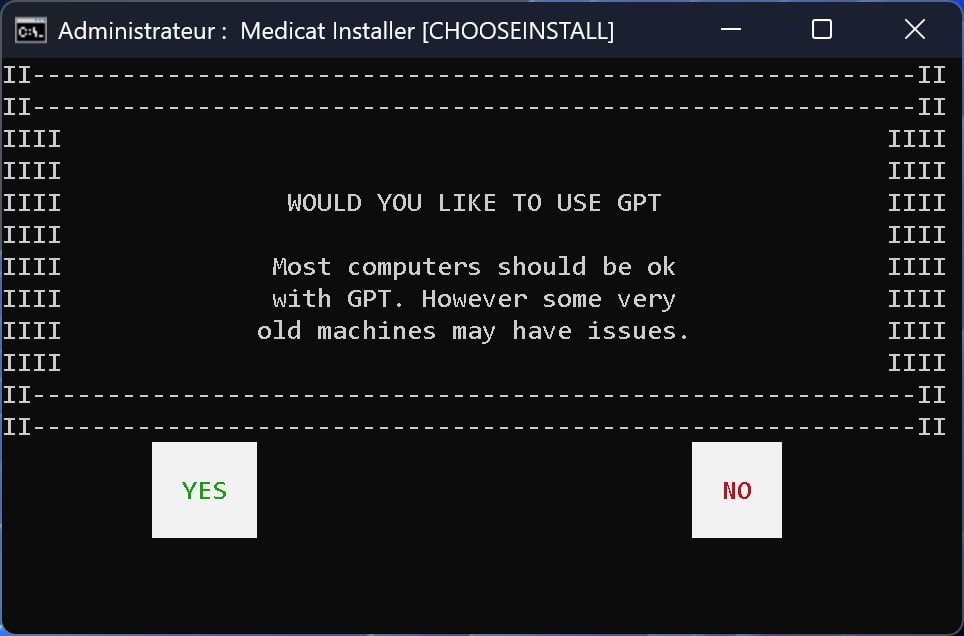
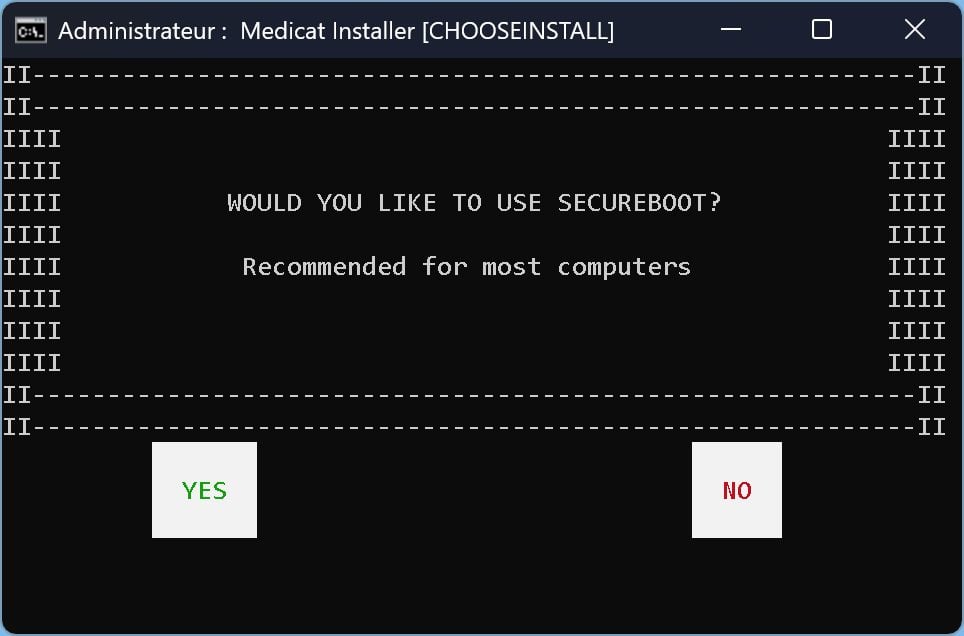
The Medicat installer then asks you if you want to use Secureboot. Click on Yes to confirm.
Medicat will then automatically carry out certain operations, such as installing Ventoy, to create your USB key. A File Explorer window Windows will then open. Shut up.
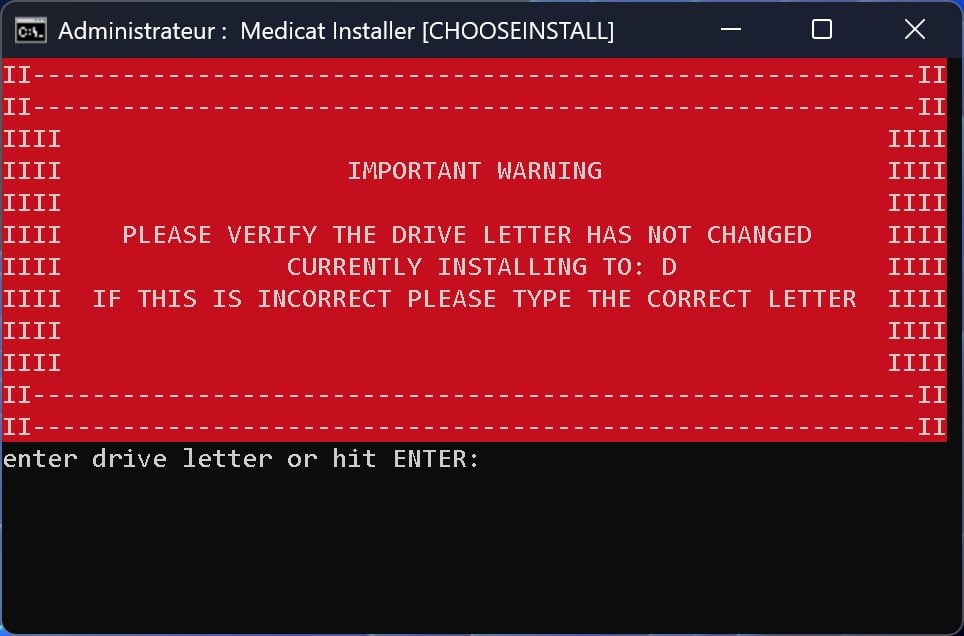
The installer then asks you to check the drive letter corresponding to your USB key (D in our case). Do the check, enter the drive letter in the window or press directly Enter to validate.
4. Download the files
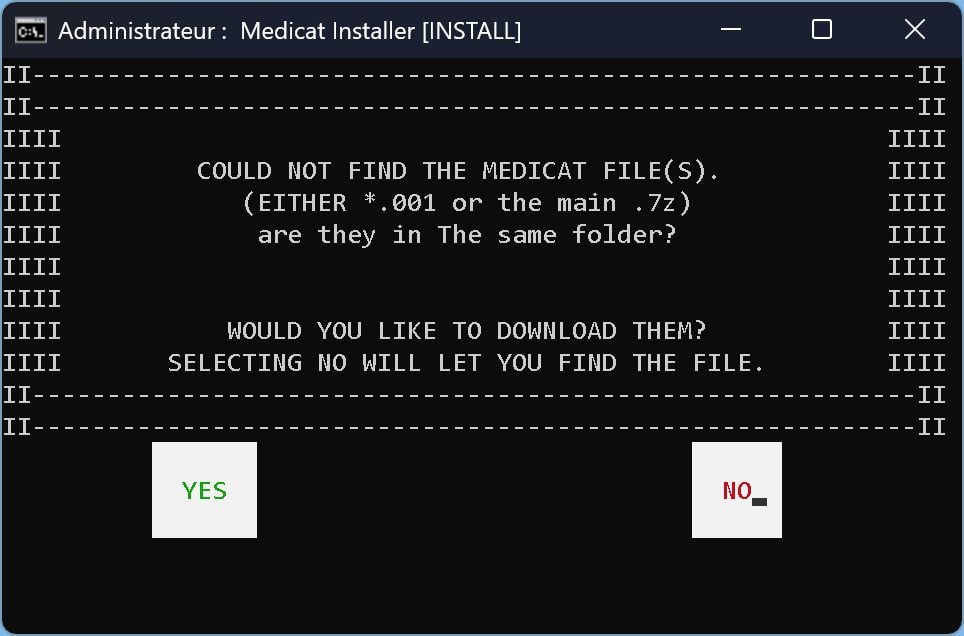
The installation module will then ask you to download the files necessary for installing Medicat onto your USB key. Click on Yes.
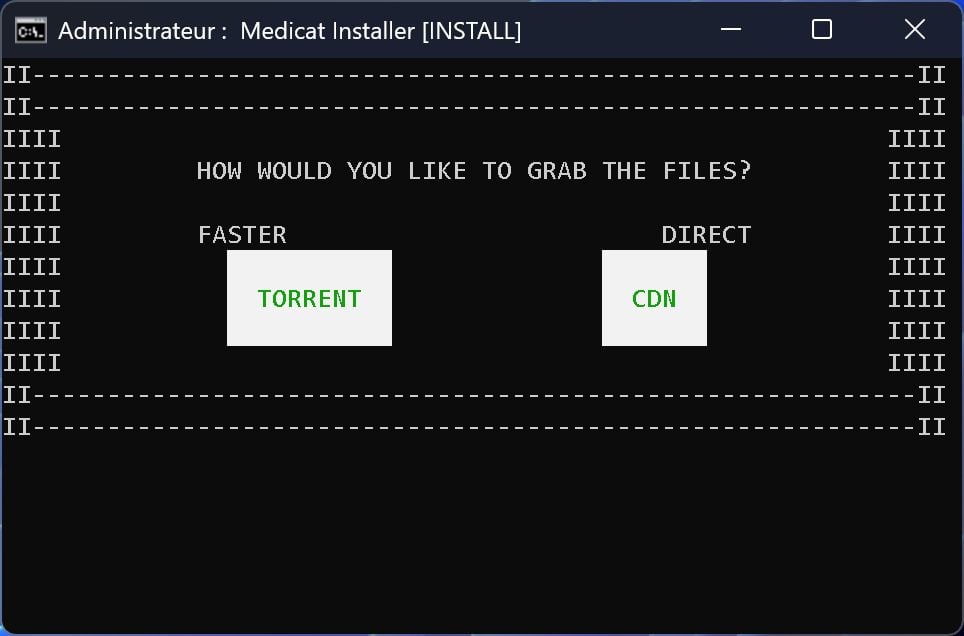
You will be prompted to choose the download method. Click on CDN to download them directly and wait a few moments for the download to complete.
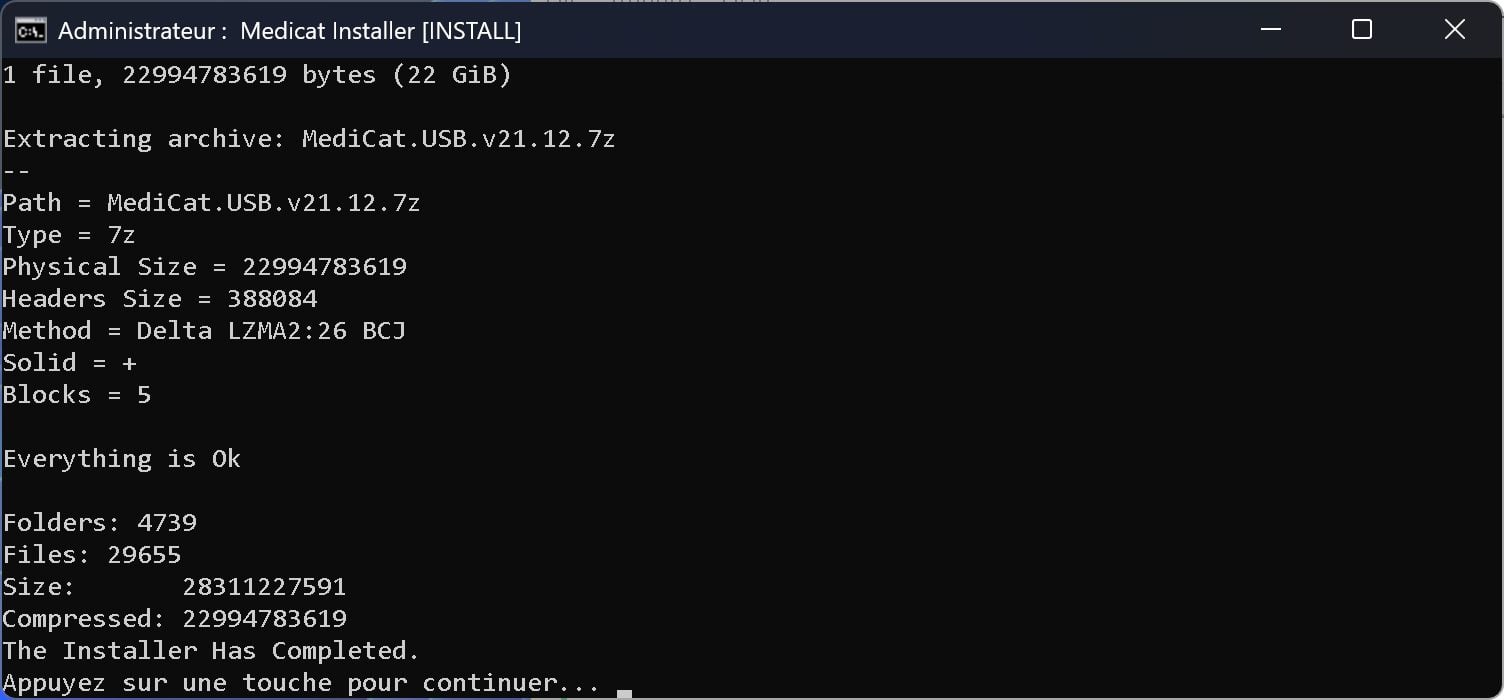
For a few minutes, or even a few additional seconds, Medicat Installer will check the downloaded files. The operation may take more or less time depending on the power of your machine (you have plenty of time to go have a coffee). The message The Installer has completed should be displayed. Press the key Enter.
Either way, you’ll have to wait a little longer. A new window Checking will indeed open to check if all the tools are correctly installed on your USB key.
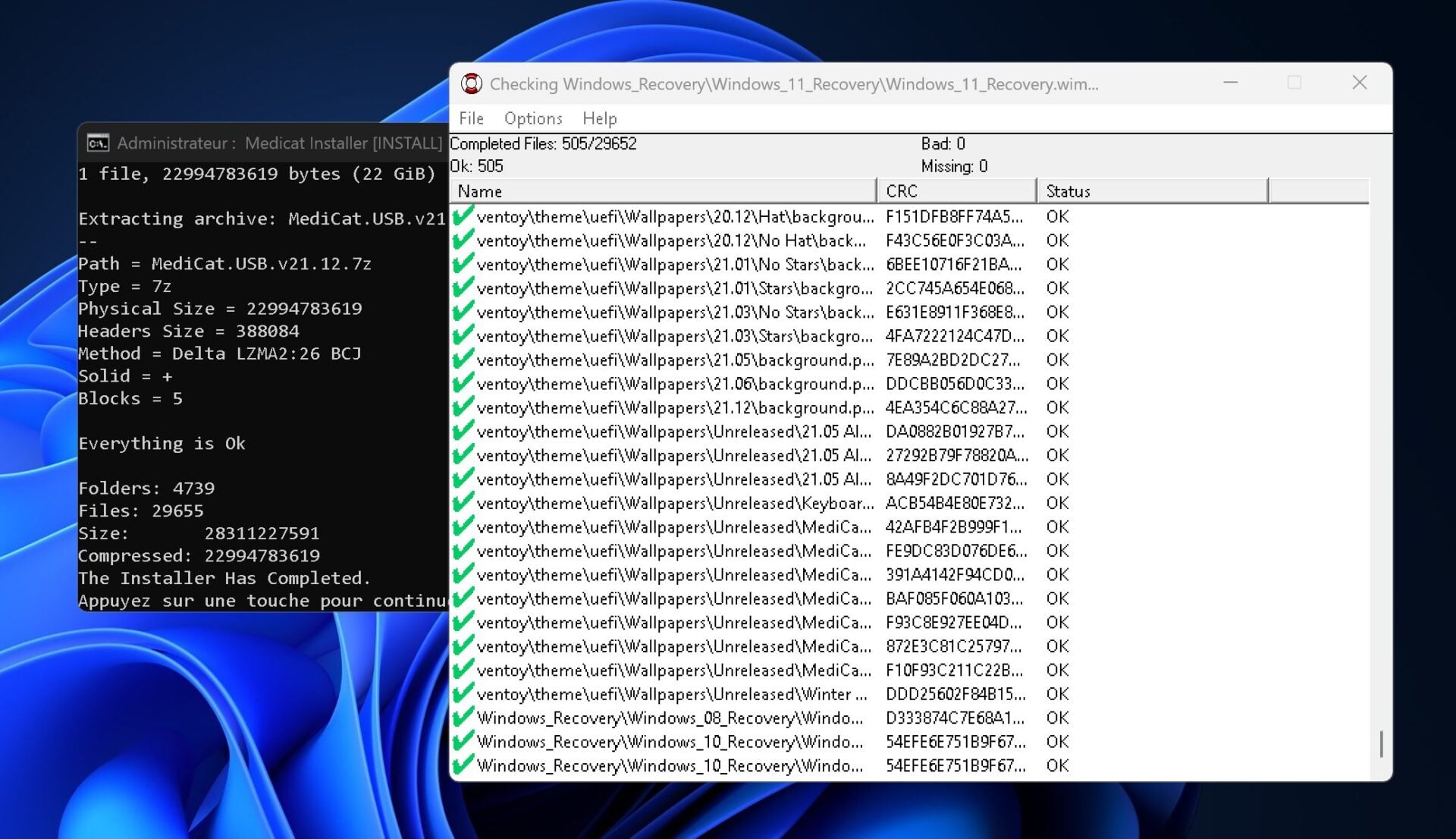
Again the verification process takes some time. Be patient until the verification is complete (this step is optional)
5. Use Medicat on a booting PC
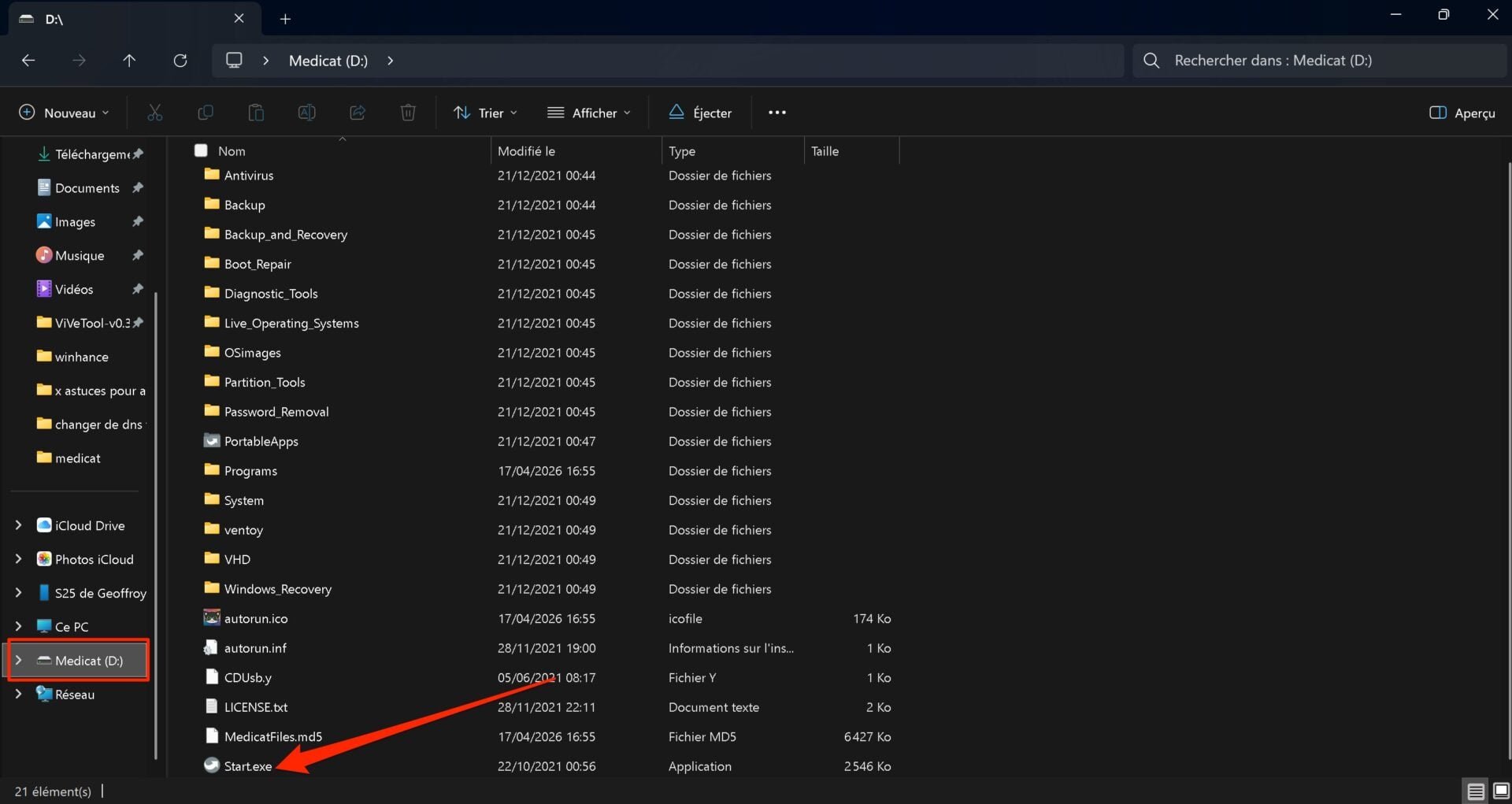
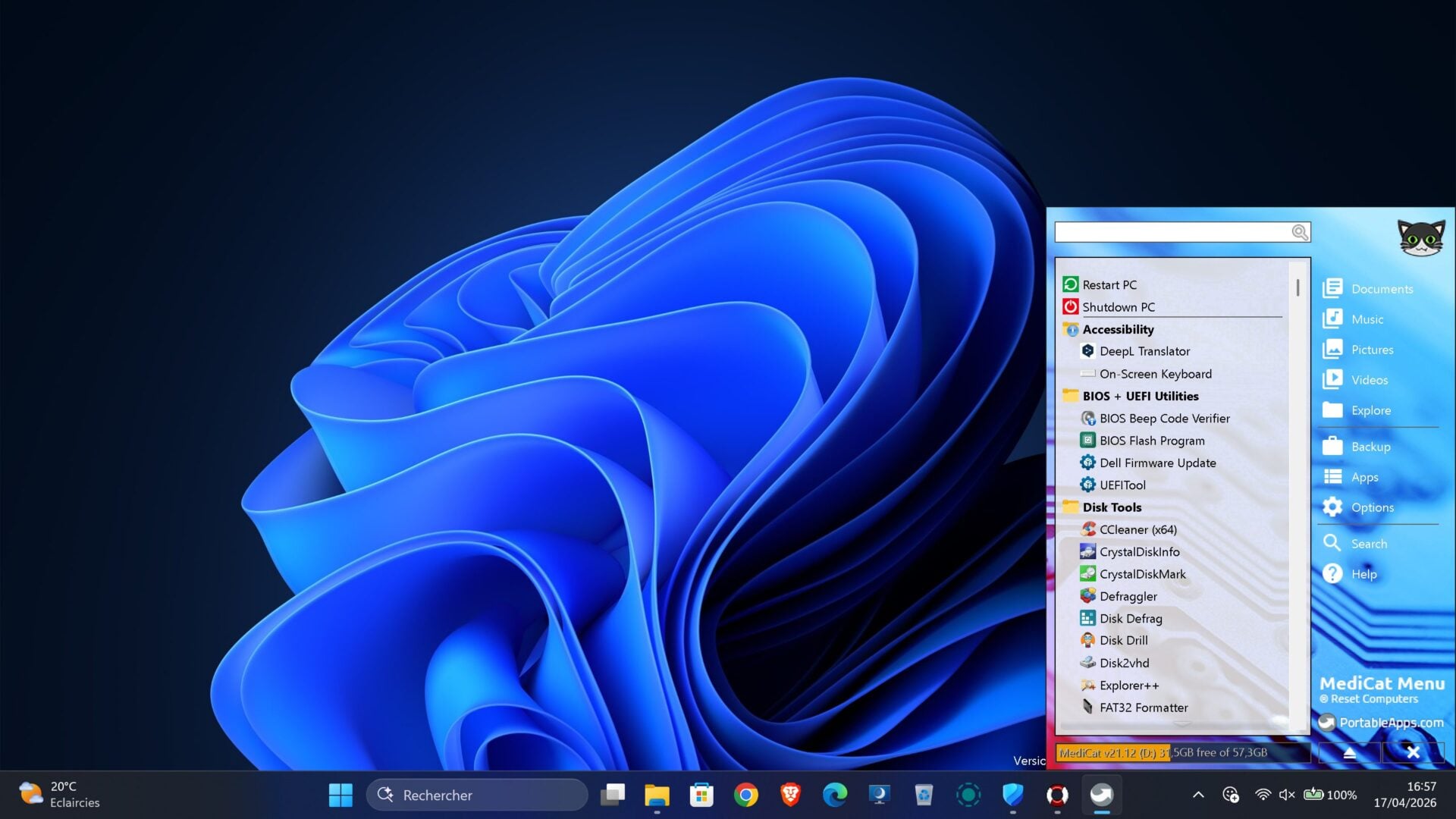
If your PC boots but is experiencing bugs, you can use Medicat directly by connecting the USB key to it. In theFile Explorersimply enter the content of the USB key and click Start.exe.
L’Medicat GUI will then open at the bottom right of the screen. You will then be able to access the dozens of utilities on board the key to run them in the hope of solving your problem. You can, for example, run an antivirus scan, carry out certain maintenance operations on your storage, etc.
6. Boot to Medicat if your PC no longer boots
If you unfortunately have to use your Medicat key to troubleshoot your PC, you will first need to find out how to boot your machine from the USB key. To do this, you may need to access your machine’s BIOS/UEFI to change the boot order, choosing the USB port first.
Recent PCs generally include a specific menu which allows you to select the boot device just after being turned on. On Asus machines for example, you have to press the key Escape on the keyboard to display it right after startup. If you do not know which key to press to access the BIOS / UEFI or boot menu of your PC, refer to the manual or the manufacturer’s website.
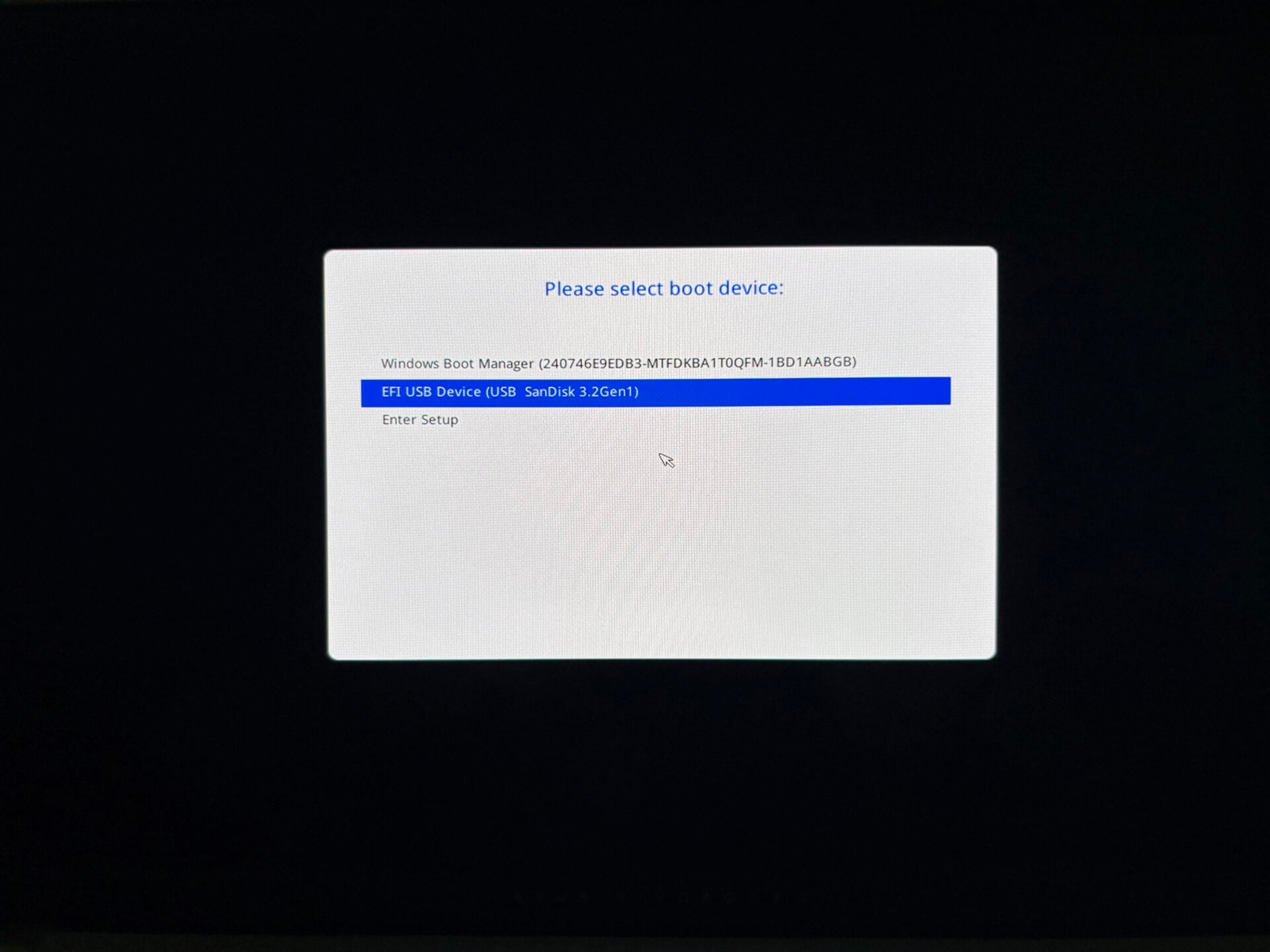
Be careful though, if you encounter an error when trying to boot from the Medicat USB key, don’t panic. To overcome this blockage, you simply need to temporarily deactivate Secure Boot in the BIOS/UEFI of your machine.
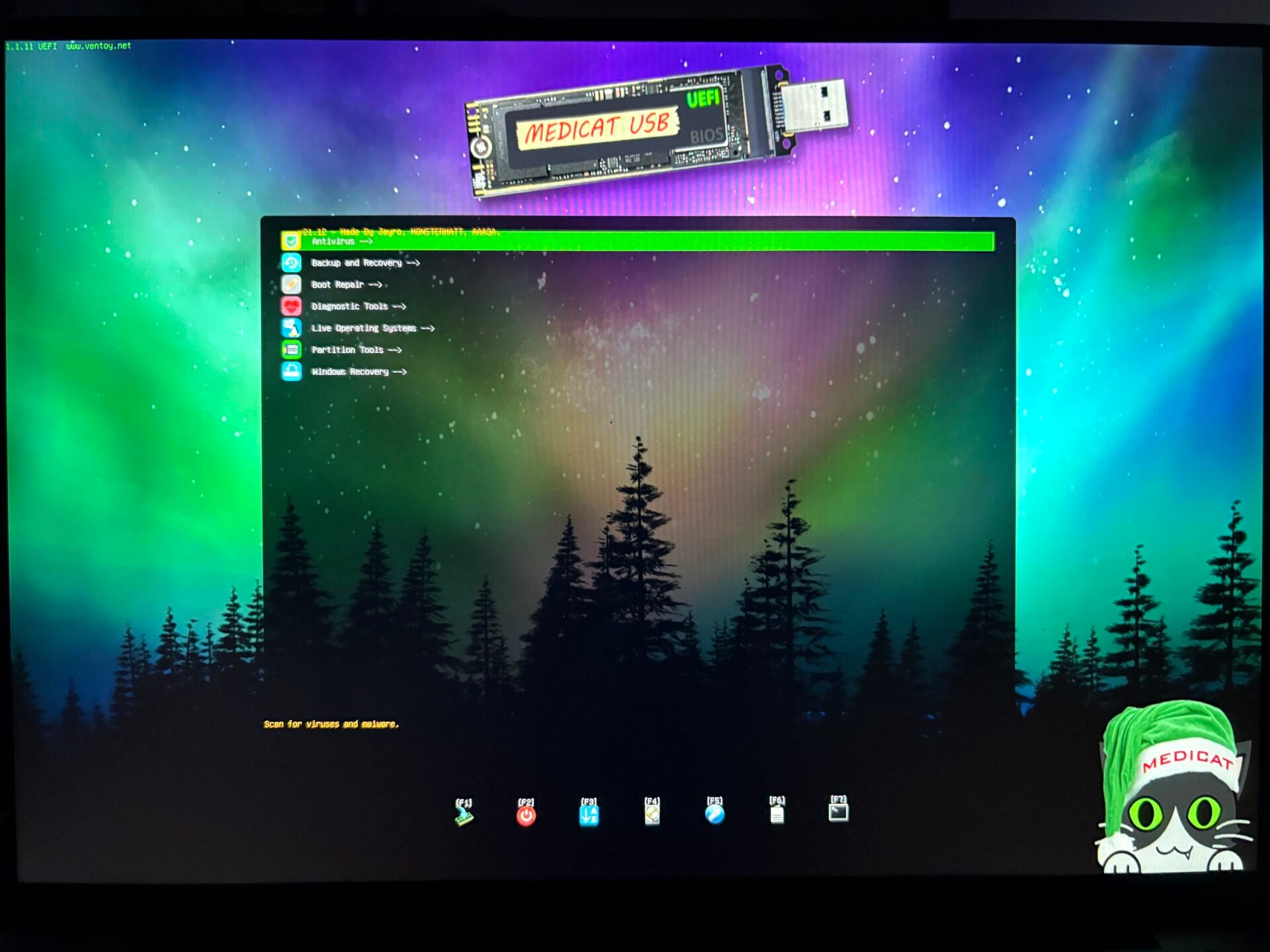
Once all these prerequisites have been met, the Medicat interface should appear. You will be able to navigate the utility interface by exploring the tools by category. You can even run a lite Live version of Windows 10 through which you can access the contents of your PC’s storage (to save your data in the event of a problem), or to reset your session password.
👉🏻 Follow tech news in real time: add 01net to your sources on Google, and subscribe to our WhatsApp channel.