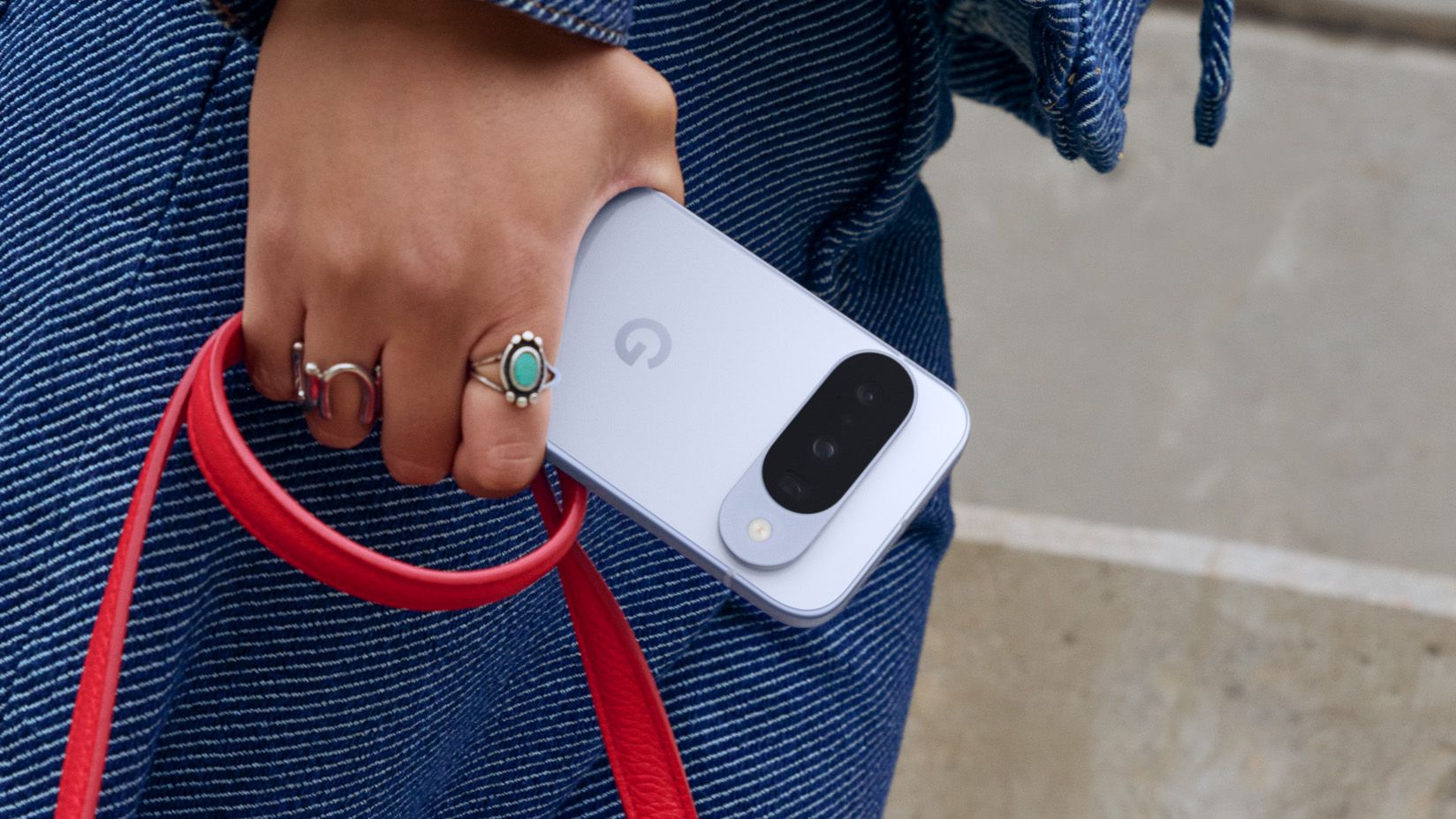
Google today announced a new set of theft protection tools aimed at helping Android phone owners if their device goes missing or is stolen. “We’re committed to providing multi-layered defenses that help protect you before, during, and after a theft attempt,” Google’s Android security team wrote in the announcement blog.
The trio of updates not only makes it harder for a bad actor to unlock your phone but also protects your information in important apps like banking or chat apps.
Expansion of Identity Check
Google introduced its Identity Check feature with Android 15, though it was exclusive to Pixel phones and some Samsung Galaxy devices until Android 16 last year.
If you’re unfamiliar, Identity Check marks certain locations as “trusted places” like your home or workplace. But outside of those spaces, certain features will ask you to verify your identity before giving you access. These checks are done via biometric security.
Now, the tool covers any feature or app that uses a Biometric prompt like banking apps and the Google Password Manager.
You do need to enable it. Search for Identity Check in the Android settings menu and follow the prompts.
More Remote Lock control
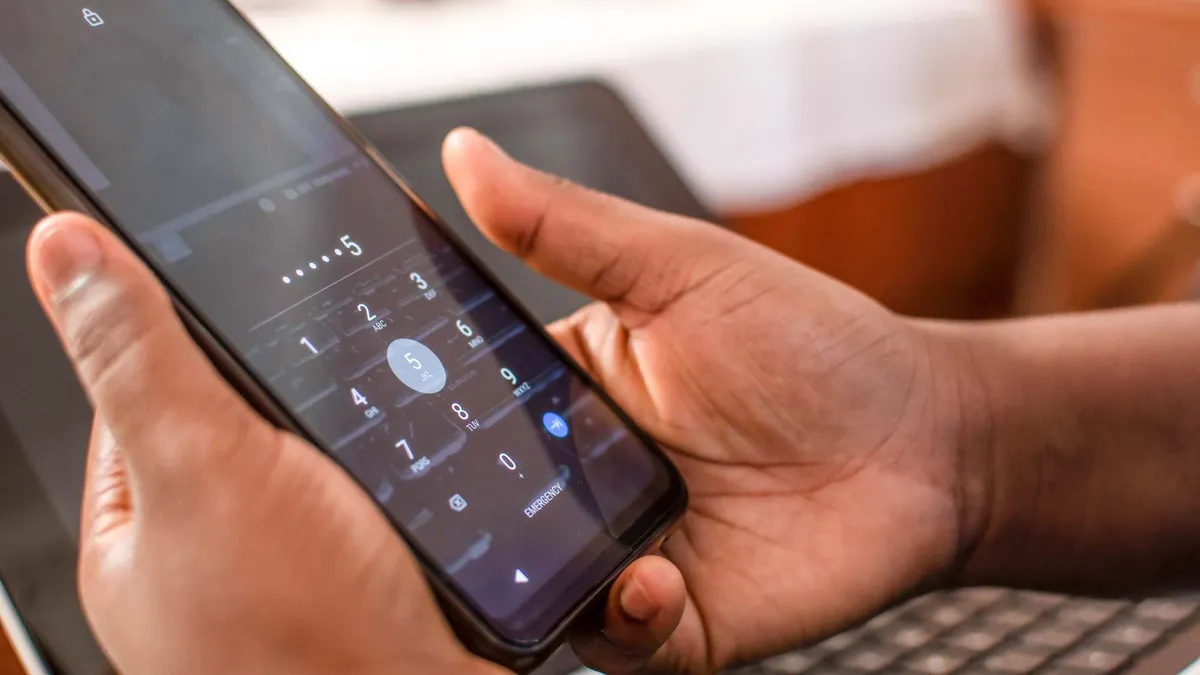
Remote Lock lets you lock your lost or stolen Android device from a web browser. The upgraded version now features a new optional security question/challenge.
It’s meant to ensure that only you, the owner, can initiate a remote lock.
You can lock your device by going to this Remote Lock page and entering your phone number. However, you do need to have remote lock on and your missing device needs to be online.
Upgraded screen locks
Google has improved protection to prevent screen lock guessing. The lockout time after failed attempts has been increased, though the blog did not say how much longer.
To make sure that you aren’t locked out by mistake or suffer from the idle fingers of a curious child, Google says “identical incorrect guesses no longer count toward your retry limit.”
Additionally, Google has updated the Failed Authentication lock tool — what automatically locks your screen after excessive failed attempts. It now has a dedicated enable/disable toggle in the settings menu.

Follow Tom’s Guide on Google News and add us as a preferred source to get our up-to-date news, analysis, and reviews in your feeds.