

By using this site, you agree to the Privacy Policy and Terms of Use.
Accept
World of SoftwareWorld of SoftwareWorld of Software
  • News
  • Software
  • Mobile
  • Computing
  • Gaming
  • Videos
  • More
    • Gadget
    • Web Stories
    • Trending
    • Press Release
Search
  • Privacy
  • Terms
  • Advertise
  • Contact
Copyright © All Rights Reserved. World of Software.
Reading: Does Your 4K TV Look Grainy? Try This – BGR
Share
Sign In
Notification Show More
Font ResizerAa
World of SoftwareWorld of Software
Font ResizerAa
  • Software
  • Mobile
  • Computing
  • Gadget
  • Gaming
  • Videos
Search
  • News
  • Software
  • Mobile
  • Computing
  • Gaming
  • Videos
  • More
    • Gadget
    • Web Stories
    • Trending
    • Press Release
Have an existing account? Sign In
Follow US
  • Privacy
  • Terms
  • Advertise
  • Contact
Copyright © All Rights Reserved. World of Software.
World of Software > News > Does Your 4K TV Look Grainy? Try This – BGR
News

Does Your 4K TV Look Grainy? Try This – BGR

News Room
Last updated: 2026/01/19 at 8:55 PM
News Room Published 19 January 2026
Share
Does Your 4K TV Look Grainy? Try This – BGR
SHARE


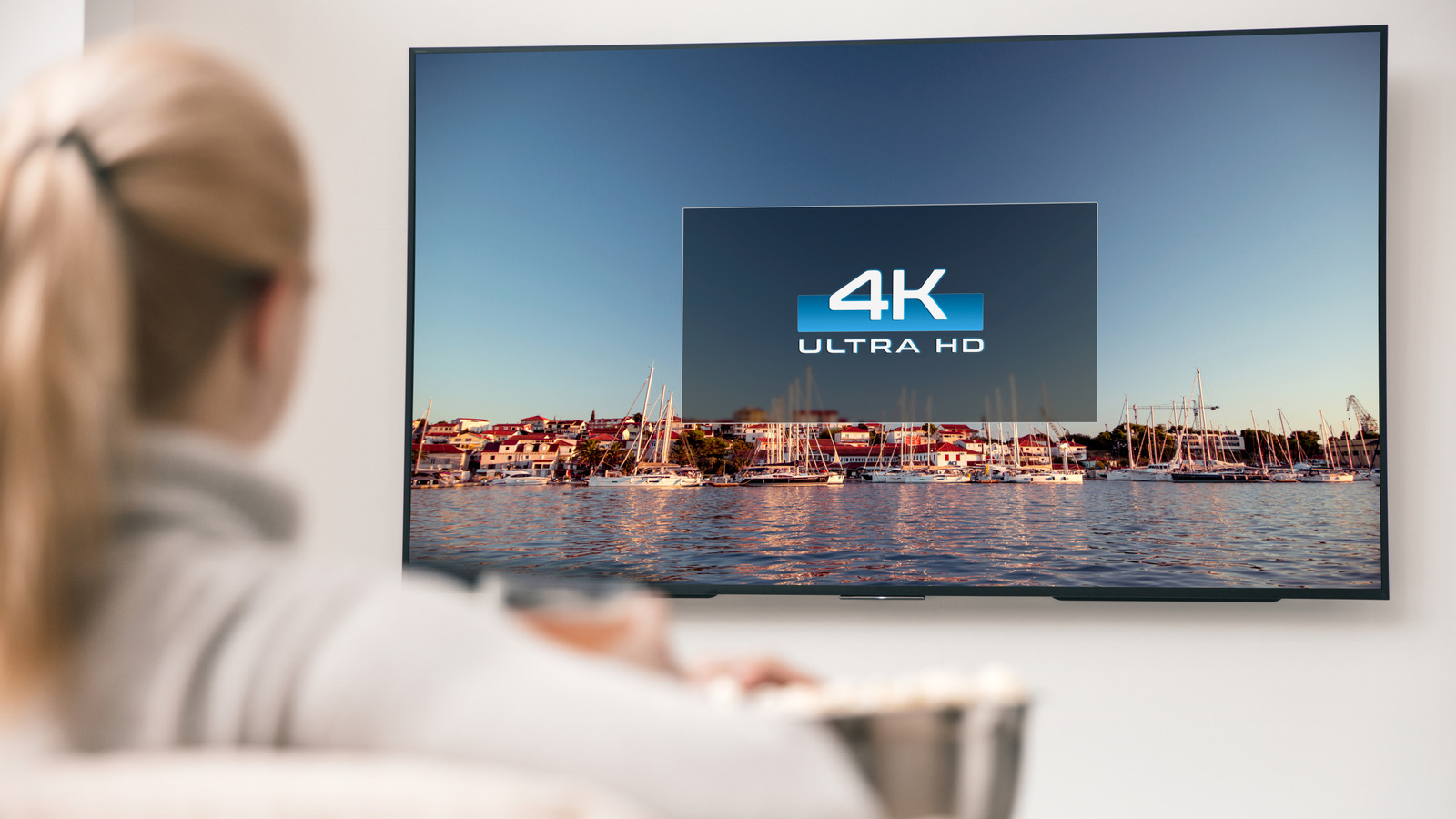
Baloon111/Getty Images

You’ve done your research. You grab one of the best smart TVs on the market, you install it with all the right cables attached, and you’re all excited to see the high-quality visuals. Except, you turn on the set, and it’s blurry, grainy, or pixelated. What gives? A 4K TV should look incredible, vivid, detailed, and clear. But sometimes, the default settings on a TV can interfere. If you’re noticing your TV is blurry or grainy, try checking these settings.

First, hidden under Settings > Picture or something similar, you’ll want to make sure sharpness is turned down. That’s because sharpness actually comes with a feature called “edge enhancement” when it’s cranked all the way up. It seems like this would help with details, but edge enhancement creates a thin line or halo around the edges of items. That can add grainy noise or distortion in the image, especially at a high resolution. If you insist on adjusting the sharpness, fine tune it to match what you’re watching, and turn it down until the media isn’t showing those glowing or distorted edges.

Another setting you’ll want to turn off is Motion Smoothing. This is also sometimes called Motion Plus, TruMotion, Auto Motion, or MotionFlow on various brands. It creates extra frames to give the illusion of a higher frame rate, since most movies are shot at 24 frames-per-second versus your 60 frames-per-second or 120 frames-per-second-capable TV. It ends up making things look choppy and unrealistic at higher resolutions, which can also make things seem extra blurry or grainy during action scenes.

What other TV settings can interfere with the picture?


TV remote control in hand aimed at powered-on TV set.
Peter Dazeley/Getty Images

The first thing to understand is that every TV model and every brand has a different default configuration and a different settings menu, sometimes with unique options. Moreover, the same bulk of excellent TV settings that would boost picture quality normally can also make it worse depending on the media, format, and content. Motion Smoothing is a great example. It’s best used for real-life content like news broadcasts, but not great for sports, video games, or fast action scenes. The Filmmaker Mode on most smart TVs will actually turn off motion smoothing altogether.

Another setting to disable is your TV’s Eco Mode, which is designed to keep the set in a low-performance, low-energy usage mode that’s more environmentally-friendly. It also significantly reduces power consumption, ruining your TVs brightness levels and making the picture look washed out and blurry.

If possible, disable noise reduction modes or turn down levels if enabled, avoid using the default Dynamic or Vivid presets for picture quality, and disable Overscan if it’s on. These settings all adjust or modify picture quality in some way which could tone down or limit the visuals — Vivid or Dynamic presets often crank up the sharpness and turn on some of those settings you don’t want. Of course, it’s always best to adjust these settings to a level that matches what you prefer, you may like the way the picture quality looks with some of these on and that’s okay.


Sign Up For Daily Newsletter

Be keep up! Get the latest breaking news delivered straight to your inbox.
By signing up, you agree to our Terms of Use and acknowledge the data practices in our Privacy Policy. You may unsubscribe at any time.
Share This Article
Facebook Twitter Email Print
Share
What do you think?
Love0
Sad0
Happy0
Sleepy0
Angry0
Dead0
Wink0
Previous Article X.Org Server May Create A New Selective Git Branch With Hopes Of A New Release This Year X.Org Server May Create A New Selective Git Branch With Hopes Of A New Release This Year
Next Article Release schedule for the main video games of 2026 Release schedule for the main video games of 2026
Leave a comment

Leave a Reply Cancel reply

Your email address will not be published. Required fields are marked *

Stay Connected

248.1k Like
69.1k Follow
134k Pin
54.3k Follow

Latest News

4 Cheap Gadgets And Tools From Costco To Add To Your DIY Collection – BGR
News
Google starts to rollout new voice search UI on Android
News
OnePlus 13 update expands bypass charging and upgrades photo editing
News
Today's NYT Connections Hints, Answers for Jan. 20 #954
News

You Might also Like

4 Cheap Gadgets And Tools From Costco To Add To Your DIY Collection – BGR
News

4 Cheap Gadgets And Tools From Costco To Add To Your DIY Collection – BGR

8 Min Read
Google starts to rollout new voice search UI on Android
News

Google starts to rollout new voice search UI on Android

4 Min Read
OnePlus 13 update expands bypass charging and upgrades photo editing
News

OnePlus 13 update expands bypass charging and upgrades photo editing

3 Min Read
Today's NYT Connections Hints, Answers for Jan. 20 #954
News

Today's NYT Connections Hints, Answers for Jan. 20 #954

3 Min Read
//

World of Software is your one-stop website for the latest tech news and updates, follow us now to get the news that matters to you.

Quick Link

  • Privacy Policy
  • Terms of use
  • Advertise
  • Contact

Topics

  • Computing
  • Software
  • Press Release
  • Trending

Sign Up for Our Newsletter

Subscribe to our newsletter to get our newest articles instantly!

World of SoftwareWorld of Software
Follow US
Copyright © All Rights Reserved. World of Software.
Welcome Back!

Sign in to your account

Lost your password?