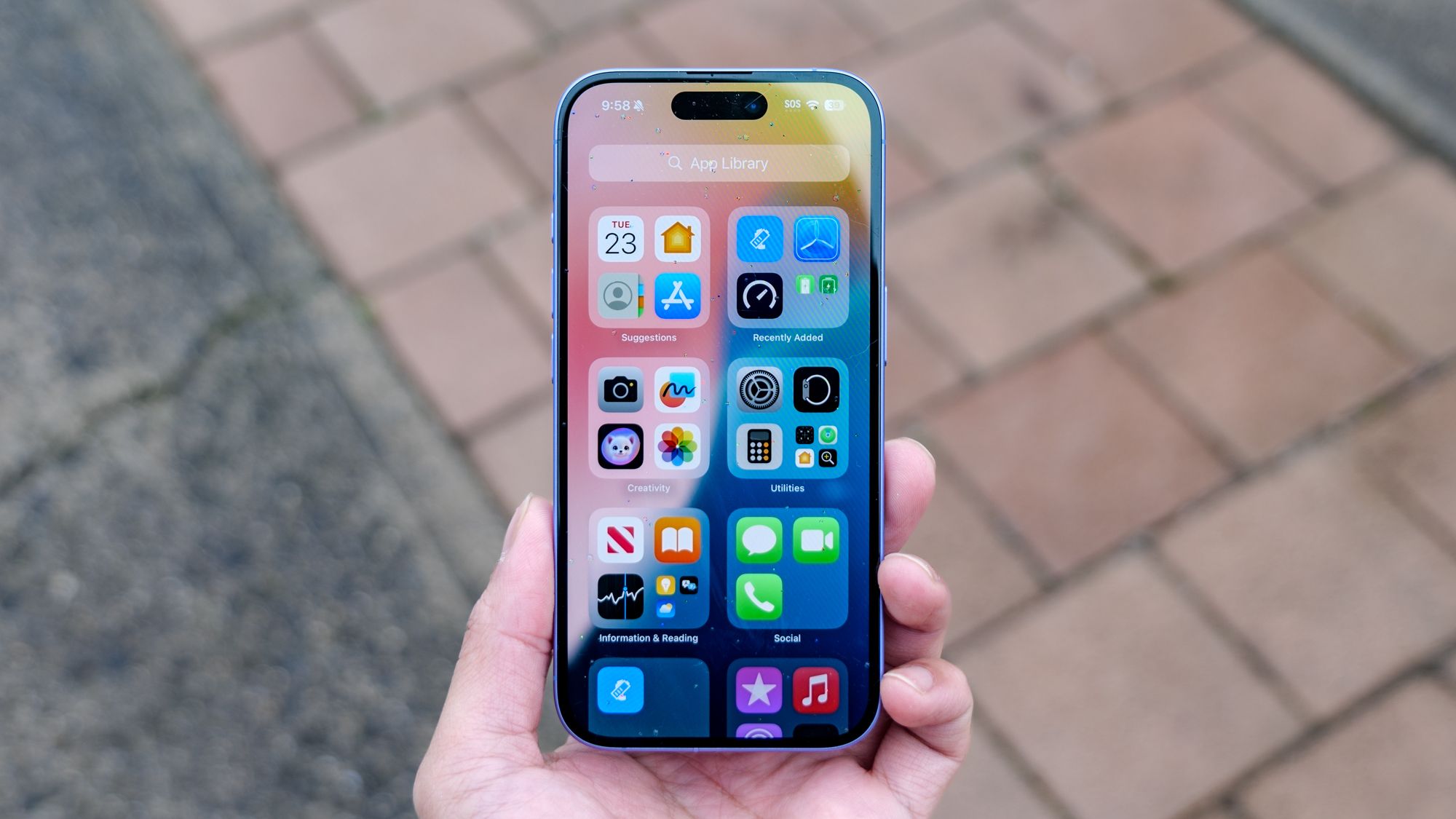
The new iPhone 17 lineup has been one of the most popular releases for Apple in several years. In fact, I’d go far to say they’re some of the best iPhones ever. The cameras in them are super powerful, the displays look better than ever, and, of course, they’re incredibly user friendly. The latter is a blessing and a curse for iPhone users. How’s that you might be asking?
Well, navigating through iOS 26 is so simple and intuitive that it keeps many users from ever exploring what is possible within the software. Exploration that further unlocks the usefulness of the phone. Hidden features are abundant within iOS 26, and I’m here to help you uncover some of the iOS 26 features you should try first.
I’ll walk you through the hidden gems within iOS 26, how each will make your life easier, and how to activate them. From the intuitive features within your call log, to simple phone navigations you didn’t even know were available, here are all the iOS 26 tips and tricks you should know about.
iOS 26 tips: Set reminder to call someone back
If you swipe left on a missed call, you’ll see a blue clock icon. Click it and a short menu appears to quickly set a call-back reminder for you. If you select “remind me later,” you’ll be taken to the reminder app and the call “person” back is auto-filled in the name of the reminder.
iOS 26 tips: Hidden camera app menu
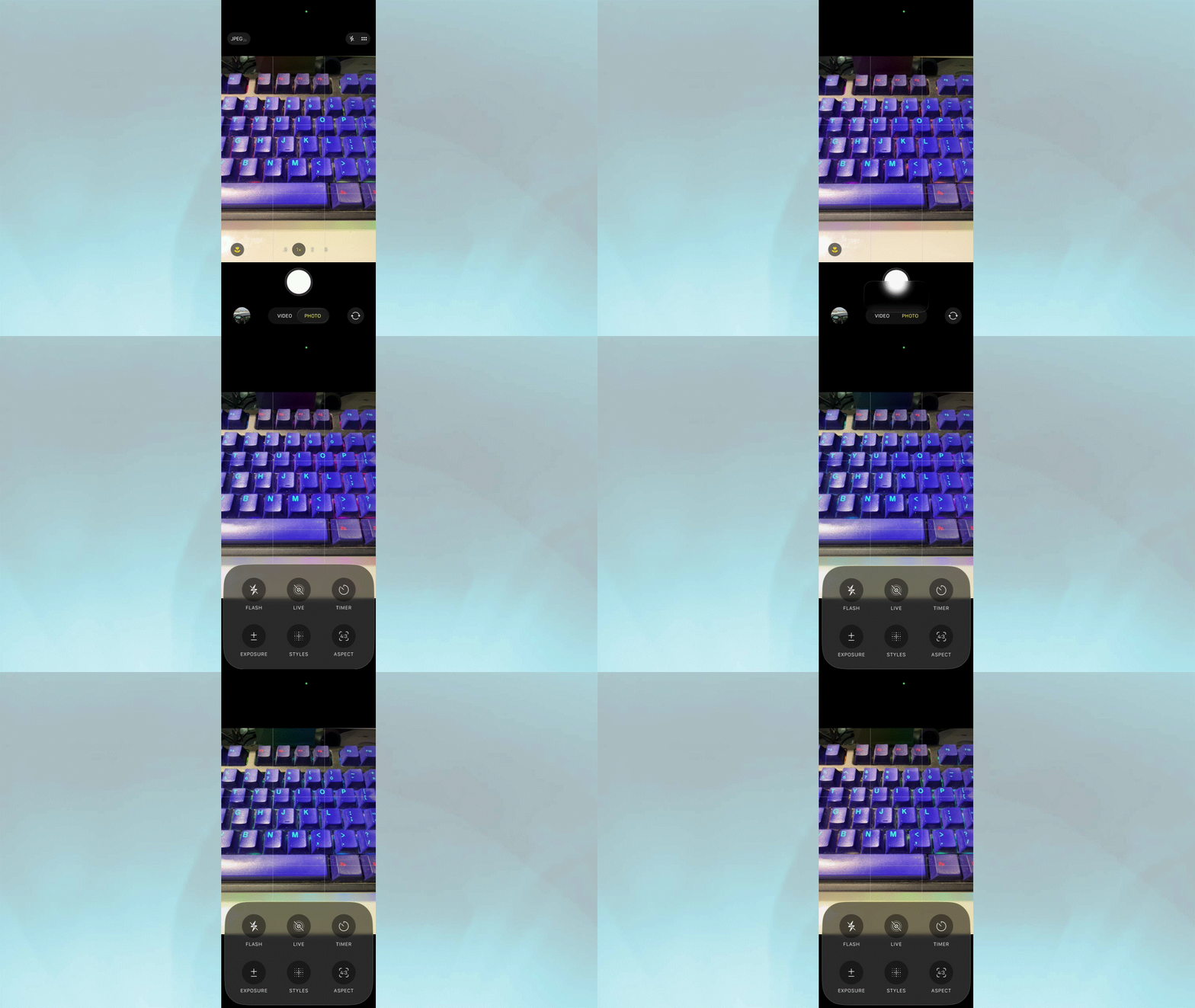
In the camera app, you can reach the menu options by clicking the top right button with the stacked little dots. But when I’m holding my phone, especially with one hand, reaching that can be a bit inconvenient.
Instead, you can open the same menu just by swiping up on the black part of the camera — around the shutter area to be exact. It’s a quick and simple way to access your menu.
iOS 26 tips: Disable swipe to open camera
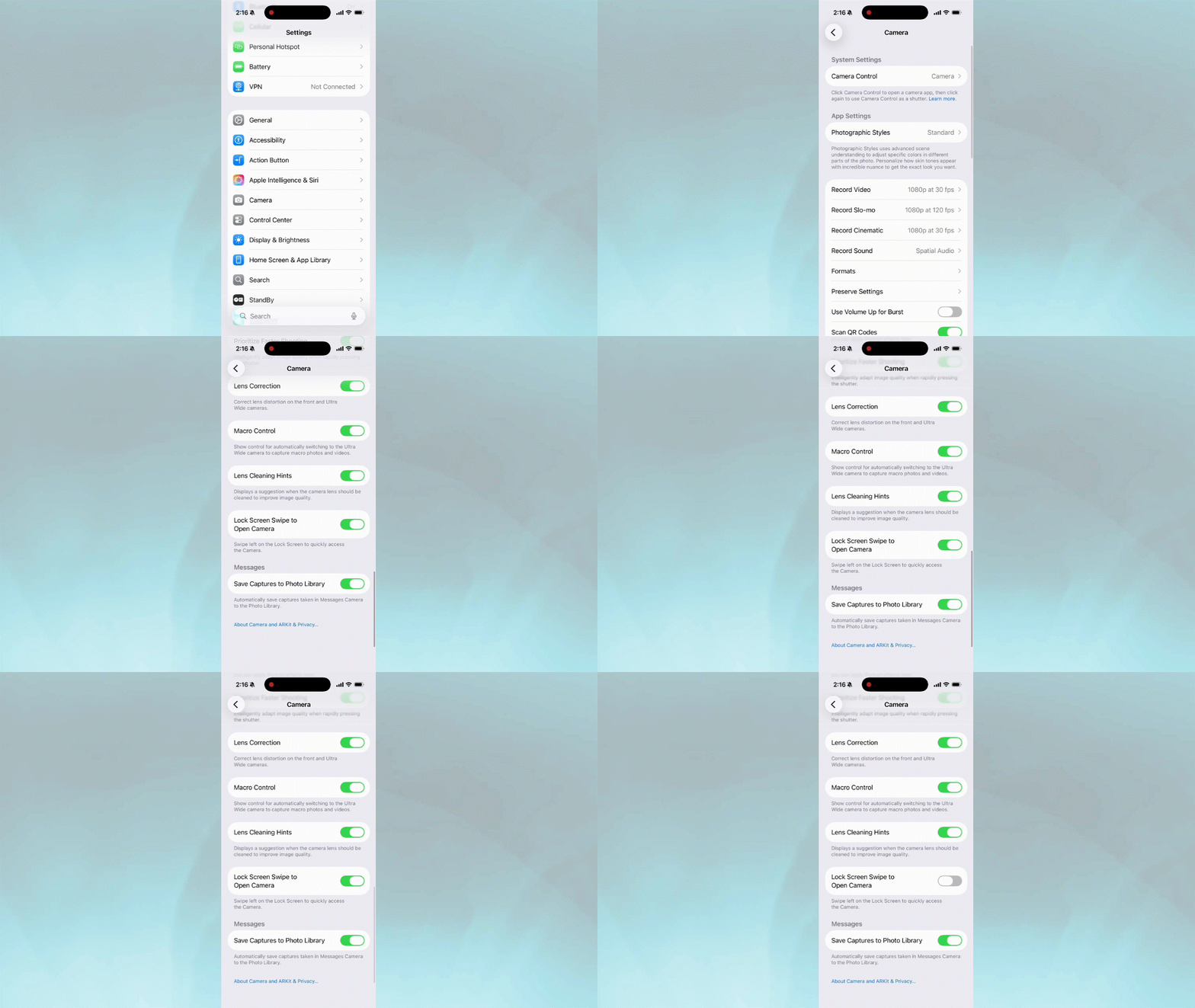
Of course, with any iOS upgrade, not all features are met with applause. One that drives many users crazy (as well as myself) is the camera app opening with a left swipe on the home screen. This is especially annoying when you’re trying to clear your notifications.
To turn this feature off, open up your settings, go to camera, then scroll all the way to the bottom and toggle off the “lock screen swipe to open camera” option.
iOS 26 tips: Call history

Instead of going through your entire call log history, you can now see your call history for a single contact.
Click on a the contact you want to look up. You’ll notice the new “call history” tab. Click on it to pull up your entire call history with that specific contact.
iOS 26 tips: Turn off saving photos taken inside iMessage
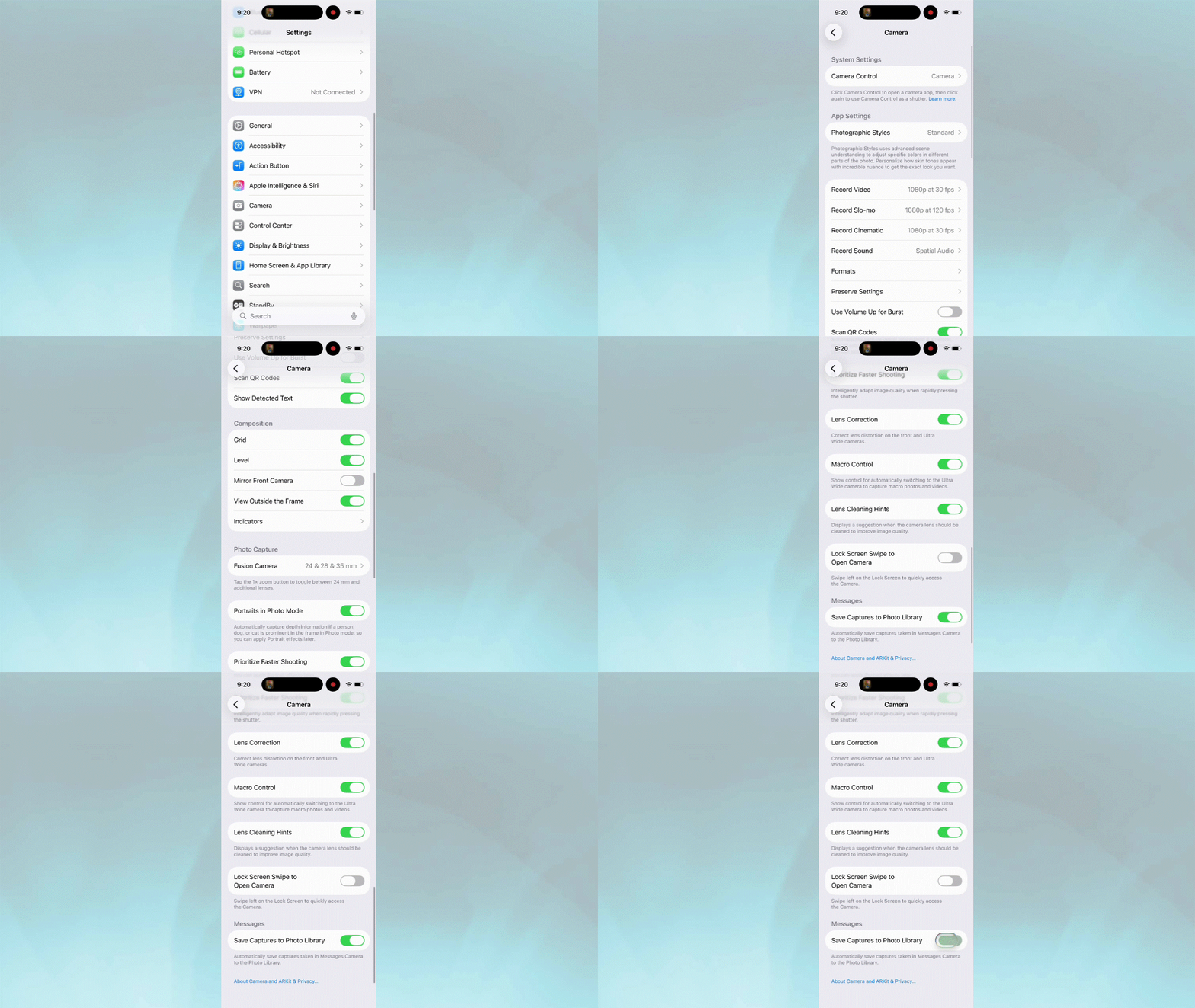
You don’t need to, nor do you want to save every single photo that you take. Especially when you take photos within the message app. Often, those photos are for quick things like when you go to the store and you’ve already forgotten which can of soup you’re supposed to buy, and you need to text your significant other a photo, or two.
Luckily, you don’t have to save those photos anymore. In settings, go to camera, and scroll all the way down to the bottom of the menu items. You’ll see the item “save captures to photo library.” Toggle that off and your phone will no longer save photos you take inside of the messaging app.
iOS 26 tips : How to open up and close your tabs in Safari quickly
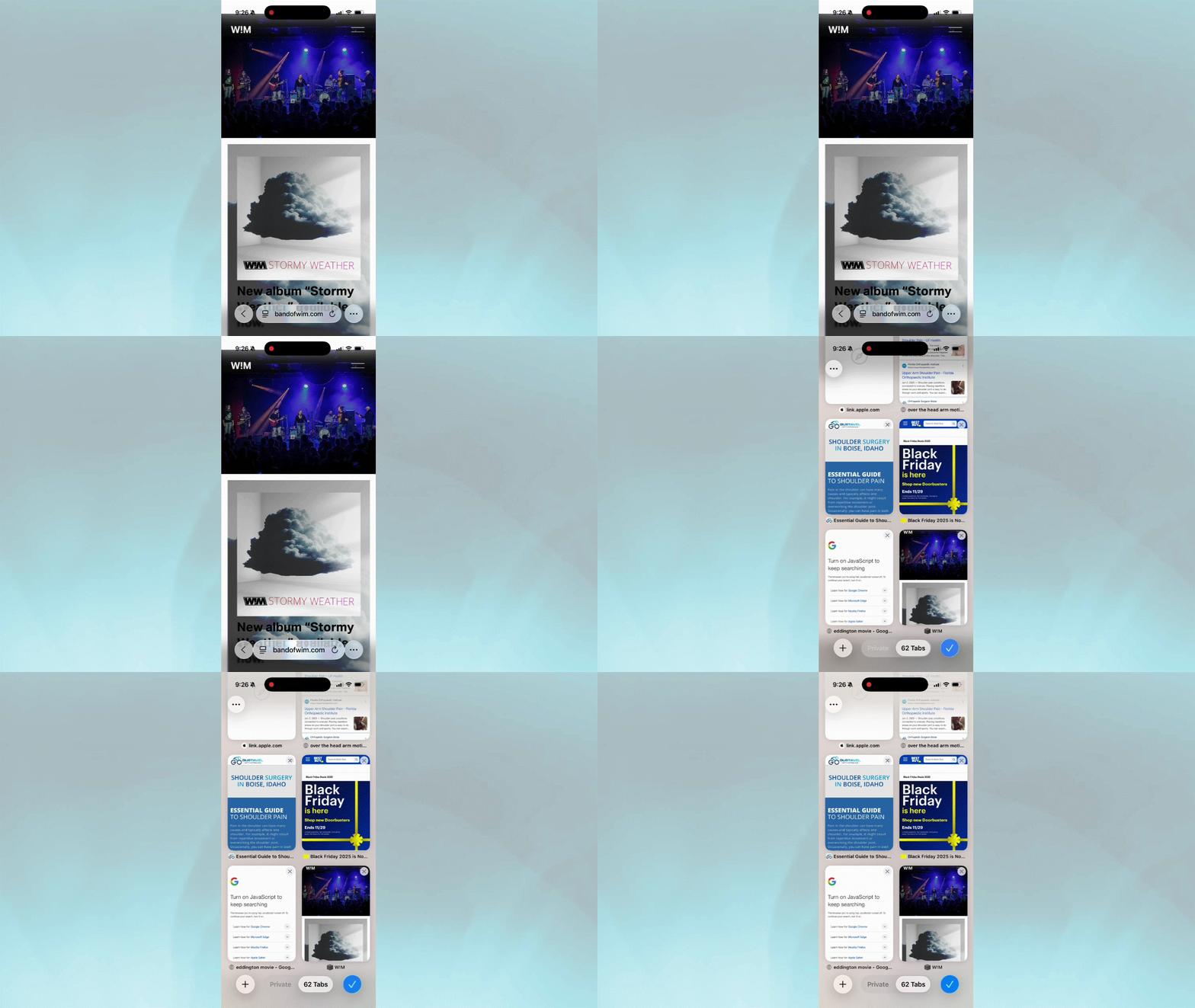
In iOS 26, the layout of Safari has changed, and many users have complained that getting to all your open tabs is more difficult now. To get there using the menu, you click the three dots in the bottom right corner. When the menu comes up, you select “all tabs.”
Or, you could take this shortcut instead: swipe up on the search bar, and all of your open tabs will appear.
iOS 26 tips and tricks: Set reminders to Action Button
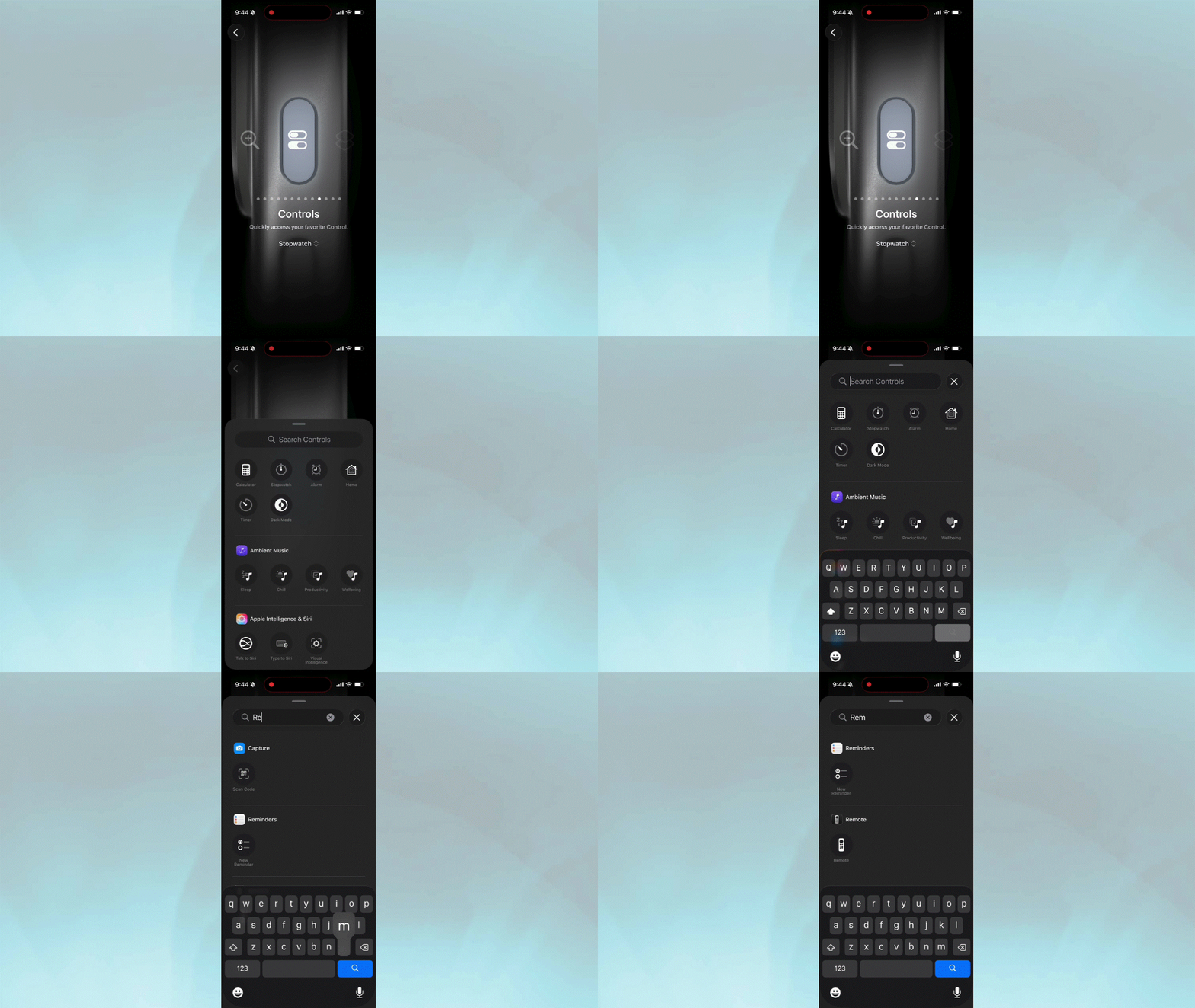
In my iOS camera tips article, I mentioned how to assign a specific camera setting to the action button. With iOS 26, however, the action button can also be used to quickly pull up the reminders app. If you’re as forgetful as me, this is a smart way to utilize the action button.
To do this, go to settings and click on the action button menu item. Then scroll over to “controls.” Click on choose a control. In the search bar, type in reminders and click on it when it appears.
Now, when you press the action button, the option to add a new reminder appears.
iOS 26 tips: Local capture your video chat
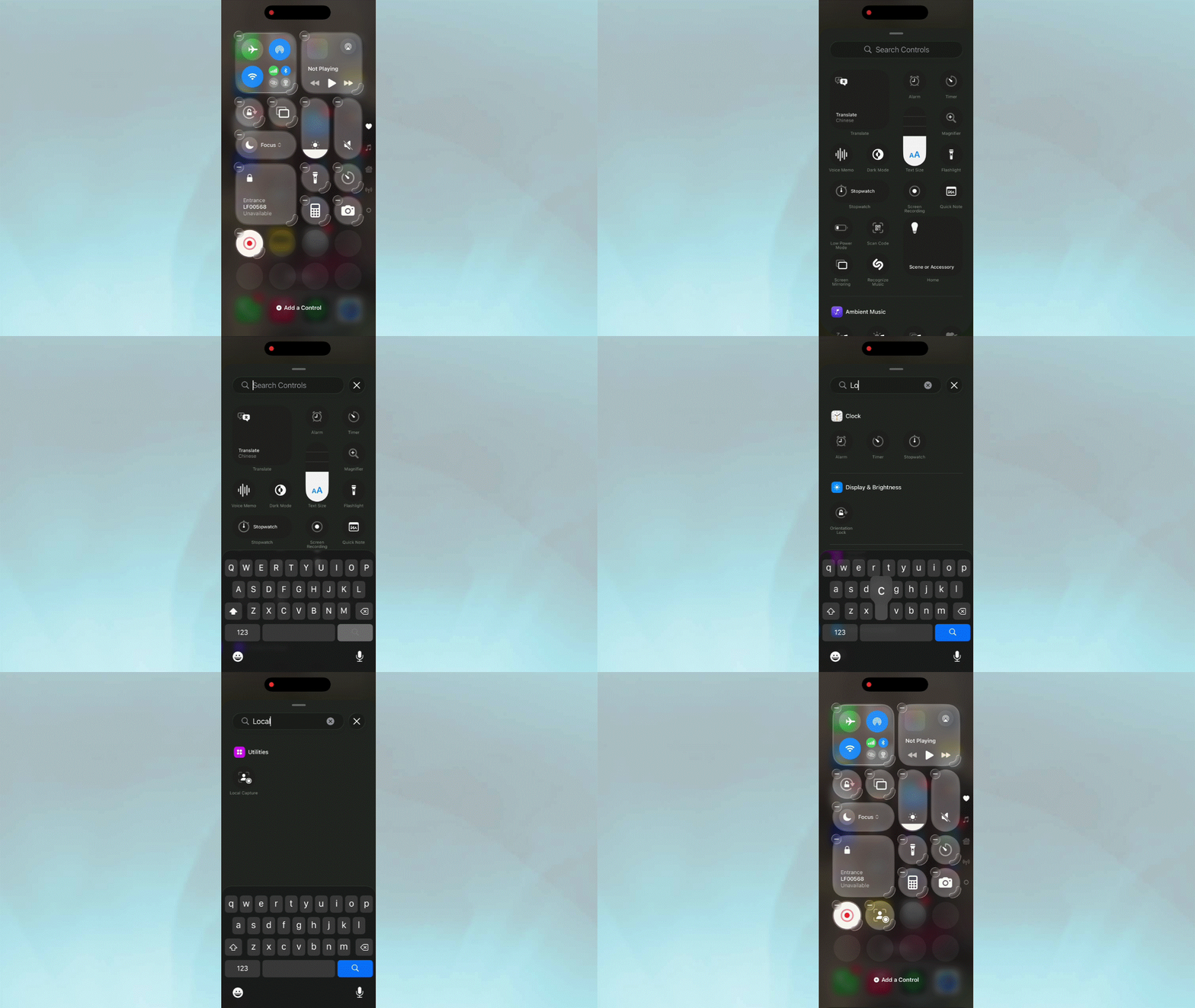
If you want to record your side of a phone call or video chat, which can be really helpful for things like video editing, you can with a new feature called “Local Capture.”
To turn this on, open your command center. Press and hold the bottom of the command center to pull up options to add more widgets. Type in local capture into the search bar and then click on the icon to add it to your command center. Now when you activate this feature, it will record your audio and video.
Bonus tip: if you press and hold the local capture widget, you can toggle on “audio only” to only capture audio instead of video.
iOS 26 tips: Apple Intelligence detects concerts
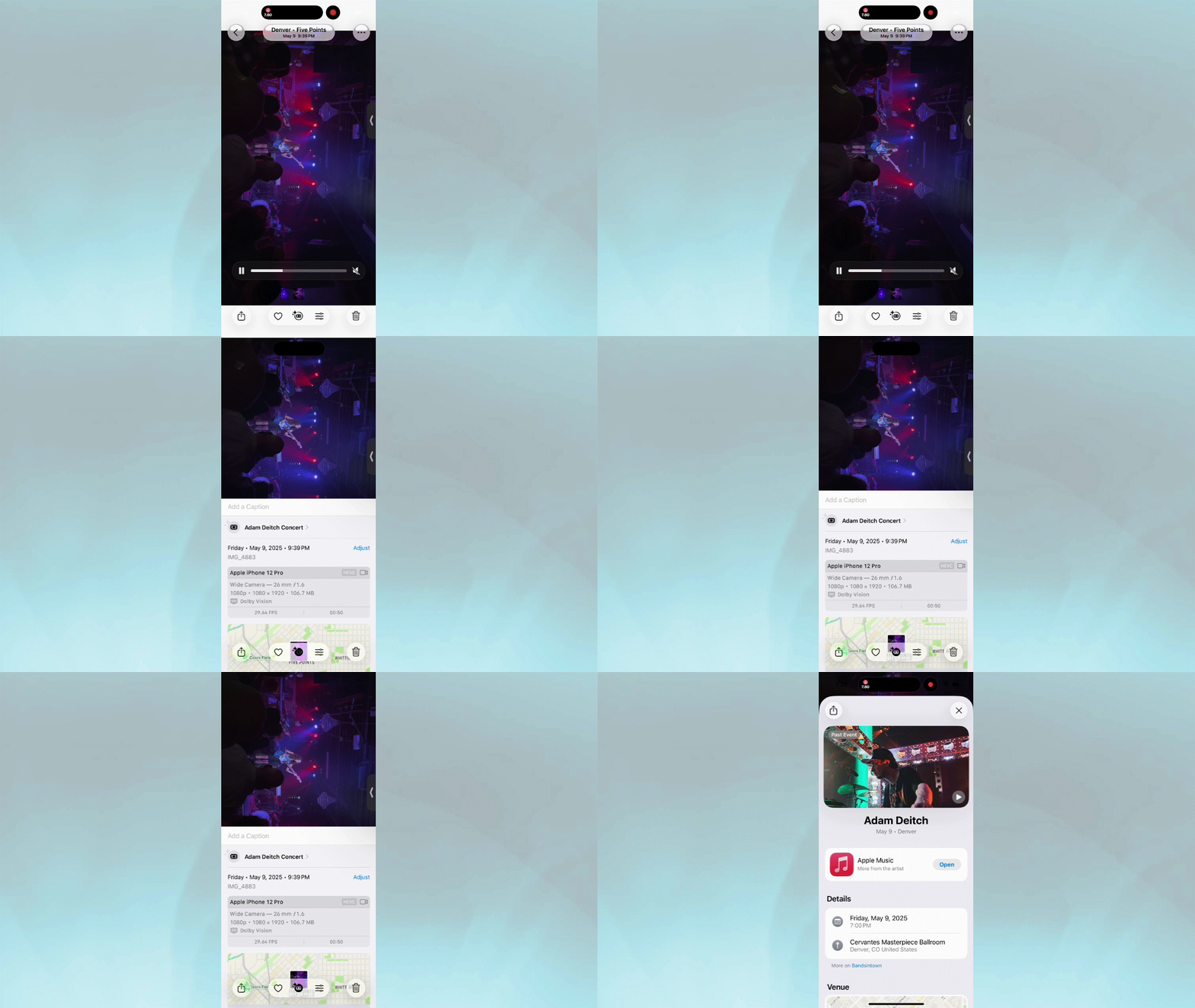
You may have noticed that in the photos app, you can type in “dog” and all your saved photos of your fur baby will be sorted accordingly. Well, Apple Intelligence turbo charges the photos app by also recognizing concerts.
What’s more, you can swipe up on a photo of a concert and it will tell you who the performer or band is, and even pull up their music on Apple Music.
iOS 26 tips: Keep the audio with your headphones
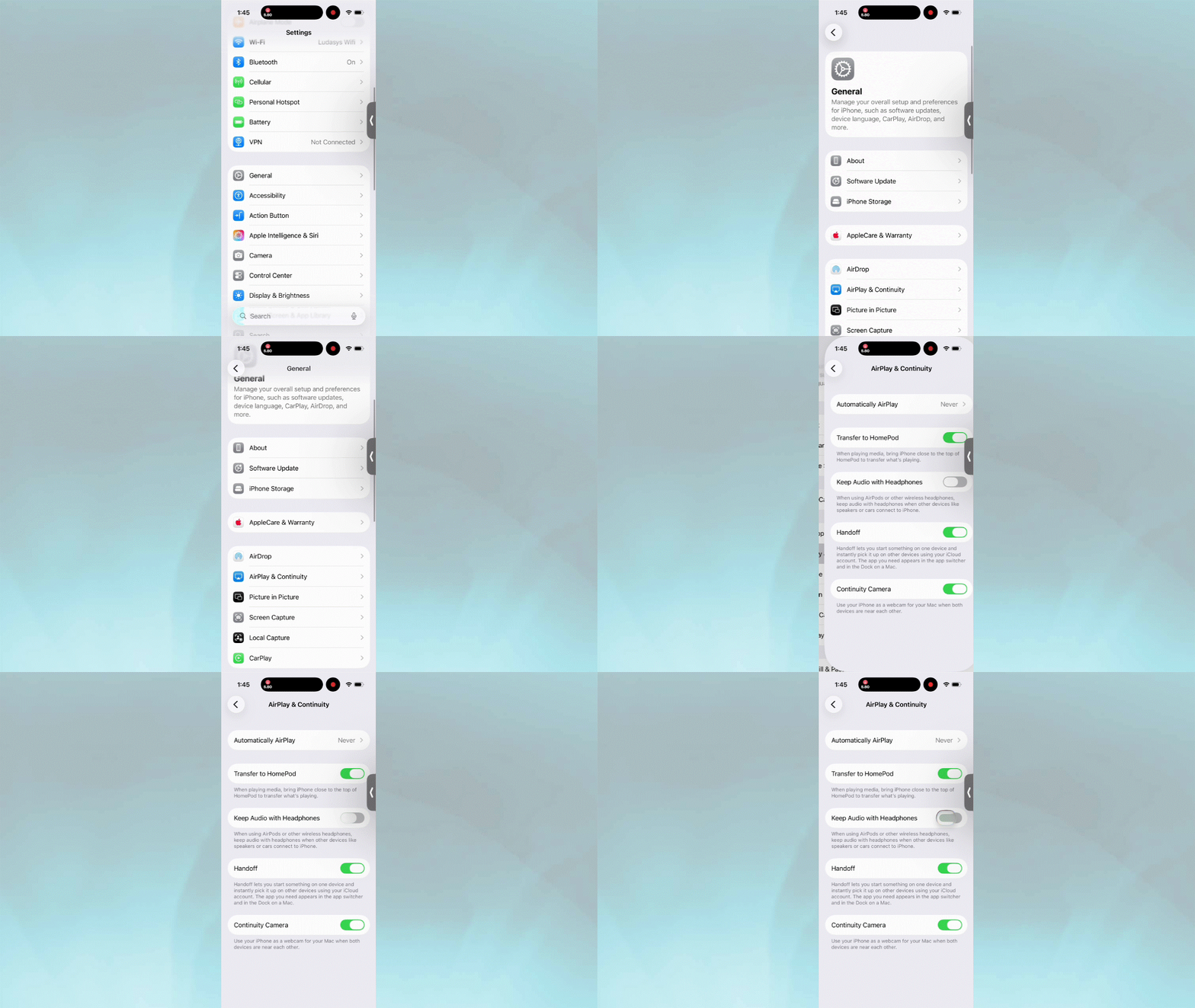
Sometimes, you don’t want your audio jumping from one Bluetooth device to another. To prevent this, you can go to your settings > general > airplay and continuity, and toggle on “keep audio with headphones.” This will keep your audio from jumping to any device you’ve previously connected to automatically.

Follow Tom’s Guide on Google News and add us as a preferred source to get our up-to-date news, analysis, and reviews in your feeds.