Rita El Khoury / Android Authority
Android 16’s first major update made me fall back in love with Quick Settings. After Android 12 took away the smaller toggles and switched to the large pill-shaped buttons in the name of Material You, I started using Quick Settings less and less. See, any time a button is hidden away from my eyes and requires more than one or two swipes or taps, I just forget it exists. And this is what happened for me with Quick Settings on Android 12 to 15; I set up the ones I used the most up front and forgot about the rest.
Android 16 QPR1 brought the ability to collapse each large pill into half its size and thus fit more toggles on one screen, and that’s what I immediately did. I now had more space to try new things with Quick Settings, like launch apps or start actions inside apps, but I blanked out for a while, not finding the right way to use the extra space. That is, until I realized that the action I needed the most is to control my smart home in general, and my standing desk in particular.
What do you use Android 16’s Quick Settings toggles for?
91 votes
Where Google Home failed me, Home Assistant won

Rita El Khoury / Android Authority
My first thought went to Google Home. The app provides a lot of ways to access it on Android, one of which is a Quick Settings tile that opens a screen with my favorite devices. That shortcut never clicked for me, though, because it was similar to having the app icon on my home screen; I still had to wait for it to open a menu and then control my devices. Plus, now that I had more space in Quick Settings with Android 16, I wished there were a way to add separate tiles for the devices I need most, not just one shortcut to all of my Home favorites, but that’s not a feature Google Home offers.
Enter Home Assistant, the open-source, really complicated but extremely powerful smart home platform that I adopted earlier this year. While tinkering with my Pixel’s Quick Settings a few weeks ago, I realized there were 12 fully customizable tiles from the Home Assistant app available to add — precisely what I wanted but couldn’t get from the Google Home app.
Google Home offers many ways to launch your favorites panel, but few ways to quickly control each device separately.
Basically, I had 12 blank buttons that would let me run any scene or any automation, or toggle any device in my home. What I needed manual controls for first was my Ikea Idasen desk because it doesn’t come with preset heights and has an absolutely horrific default Bluetooth app. Even though I’d already added it to my Home Assistant setup to replace that app, I couldn’t automate it because I don’t have a precise sit-stand schedule, so I had to dig into the app to control it each time. Easy toggles would make the process as frictionless as possible and help me switch my desk more often.
Adding the two Home Assistant tiles to trigger the standing desk scene and sitting desk scenes was a walk in the park. I dragged them to my Quick Settings, tapped on them, and that opened up a menu where I could choose title, subtitle, assign an action, and pick one of the hundreds of mdi icons that come with Home Assistant out of the box. Two seconds, and it was all done.
Of course, the prerequisites took me months to get here. I had to have a standing desk, a Home Assistant setup, and I had to connect the desk to my Home Assistant (I used a regular TP-Link Bluetooth dongle I had lying around, not a proxy). I also had to figure out how to make specific scenes for my desk to bring it to an exact height. That was all already done, so when it came time to add a toggle, I just tapped a few buttons, and it was done. And now I have two buttons that put my desk up or down, right from the notification drop-down menu of my phone. No more fiddling around with the exact height on the desk’s controller, no more using that hopeless Linak Desk Control app over finicky Bluetooth, and no more delving into Home Assistant to find the exact scene to trigger.

Rita El Khoury / Android Authority
After that, I started looking at all my other smart home scenes and devices and wondering which one I should add next. I have 38 more slots I can use (turns out Home Assistant offers 40 tiles in total, not just 12), and Android 16 with its smaller tiles makes it easier to cram a lot of these on one to two screens. Perfect for me.
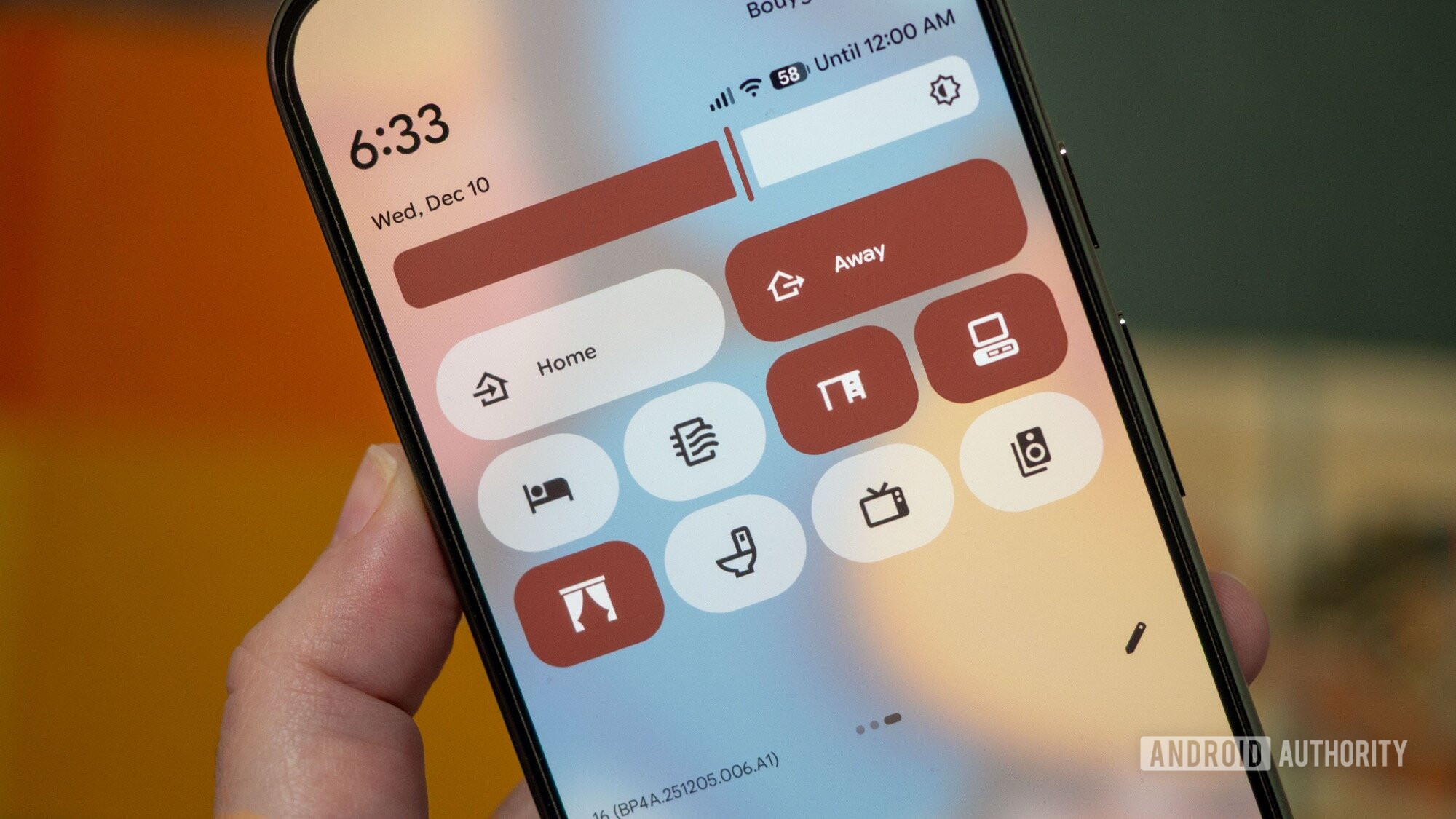
I started out wanting quick buttons to control my sit-stand desk and ended up with a complete smart home panel in my Quick Settings.
I’ve added buttons to trigger my home and away scenes, a toggle for my Roborock bathroom cleaning scene that I manually start after taking a shower, a button to control my curtains, another to completely turn off my Samsung Frame Pro TV, and more. I’m still testing which ones I use more often so I can move them to my first Quick Settings screen, but the desk sit-stand controllers are already there.
I don’t know why Google doesn’t offer customizable tiles like these for the Home app. As much as I love Google Home’s favorites panel, I don’t need 20 ways to access it on my phone (lock screen, screen saver, home screen widget, Quick Settings); I just wish one of these brought individual controls instead of a general way to access Home favorites, and I think Quick Settings would be the perfect place for it. That’s what I’d want from Google Home, but if Google doesn’t implement it, there’s a workaround that does. One more time, Home Assistant is saving me from Google’s limitations.
Don’t want to miss the best from Android Authority?


Thank you for being part of our community. Read our Comment Policy before posting.