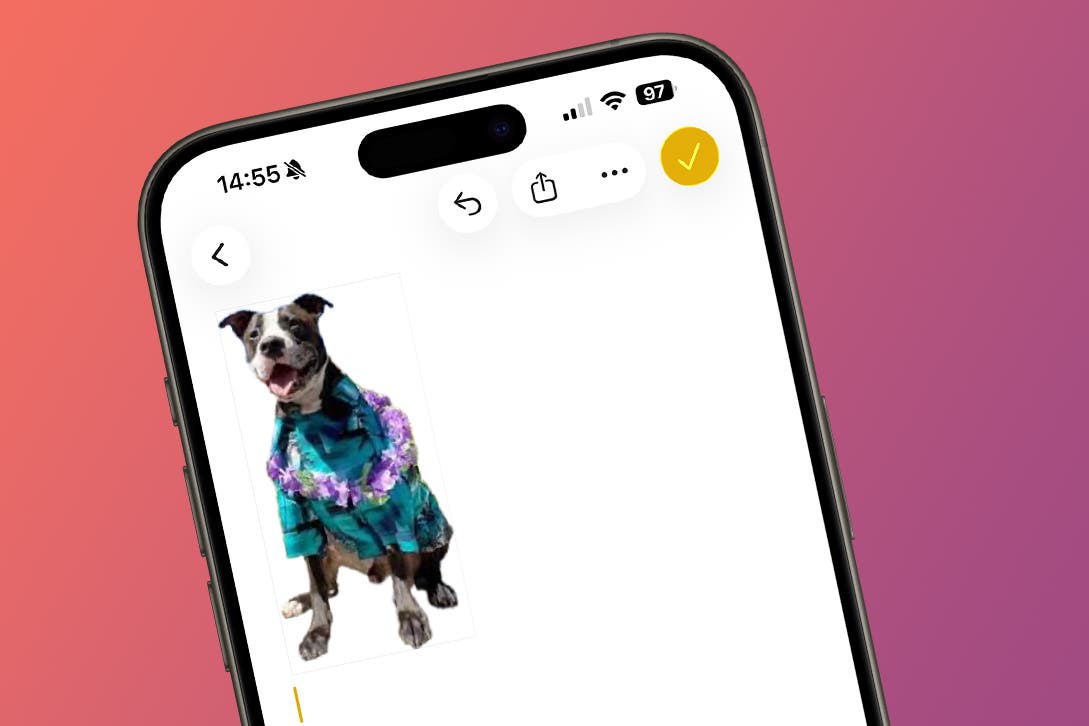
Your iPhone has a hidden feature that can be used to isolate images and copy the subject from apps like Safari, then paste the subject into other apps. The best part is, you never have to download the full image! I’ll teach you how to isolate the subject of photos and copy them to the Universal Clipboard. The subject can then be pasted into certain apps or shared via Handoff to nearby Apple devices.
Why You’ll Love This Tip
- Save the subject of a photo without downloading the entire image.
- Learn how to remove image background by isolating the subject and copying it to the Universal Clipboard.
- Cutout image subjects from images in apps including Photos, Safari, Preview, etc.
How To Remove Object From Picture iPhone To Paste or Share
System Requirements
This tip was performed on an iPhone 17 Pro Max running iOS 26.3. Find out how to update to the latest version of iOS.
The sticker making feature can also be used to isolate and copy a subject or person “cut out” and then paste it in another app or Apple device. This can be used to save just the subject of a photo in Safari or another app without downloading the full image. Don’t forget to check out our free Tip of the Day for more neat iPhone tricks. For this example I will show you how to cut an image out of a picture in Safari and paste it into the Notes app.
- Navigate to an image or photo in Safari that has a clear subject and long-press the photo until a menu pops up.
- Tap Copy Subject. The menu will disappear once the subject is copied without confirmation.
![Tap Copy Subject. The menu will disappear once the subject is copied without confirmation.]()
- Open the Notes app.
![Open the Notes app.]()
- Create a new note or open an existing note.
![Create a new note or open an existing note.]()
- Long-press the text field.
![Long-press the text field.]()
- Select Paste.
![Select Paste.]()


Pro Tip
Lifting photo subjects can be done from various native Apple apps. It can then be pasted into any app that you can show, save, or share images like Notes, Messages, Mail, and even third-party apps such as WhatsApp and Facebook Messenger.
And that’s how to cut a person out of a picture and paste it elsewhere! I like to paste the cutout pictures in the Notes app to save me time when writing detailed notes without having to screenshot or download images that clutter up my Photos app. You also don’t need to worry about saving a photo from an unknown website. If you have Handoff set up, the subject will be copied to your Universal Clipboard and pasted to nearby Apple devices.
Now you know how to cut and paste photos on iPhones running iOS 16 or later from one app to another. Apple doesn’t have a complete list of apps that you can copy from or paste to, so the best way to find out if it’s possible is to test it out yourself.
More On: Isolating Image Subjects
- How to Add Stickers
- Create Photo Stickers
- How to Make Stickers Move