By using this site, you agree to the Privacy Policy and Terms of Use.
Accept
World of SoftwareWorld of SoftwareWorld of Software
  • News
  • Software
  • Mobile
  • Computing
  • Gaming
  • Videos
  • More
    • Gadget
    • Web Stories
    • Trending
    • Press Release
Search
  • Privacy
  • Terms
  • Advertise
  • Contact
Copyright © All Rights Reserved. World of Software.
Reading: How To Restart Your Steam Deck Without Using The Power Button – BGR
Share
Sign In
Notification Show More
Font ResizerAa
World of SoftwareWorld of Software
Font ResizerAa
  • Software
  • Mobile
  • Computing
  • Gadget
  • Gaming
  • Videos
Search
  • News
  • Software
  • Mobile
  • Computing
  • Gaming
  • Videos
  • More
    • Gadget
    • Web Stories
    • Trending
    • Press Release
Have an existing account? Sign In
Follow US
  • Privacy
  • Terms
  • Advertise
  • Contact
Copyright © All Rights Reserved. World of Software.
World of Software > News > How To Restart Your Steam Deck Without Using The Power Button – BGR
News

How To Restart Your Steam Deck Without Using The Power Button – BGR

News Room
Last updated: 2025/10/19 at 4:44 PM
News Room Published 19 October 2025
Share
How To Restart Your Steam Deck Without Using The Power Button – BGR
SHARE


Mr.Mikla/Shutterstock

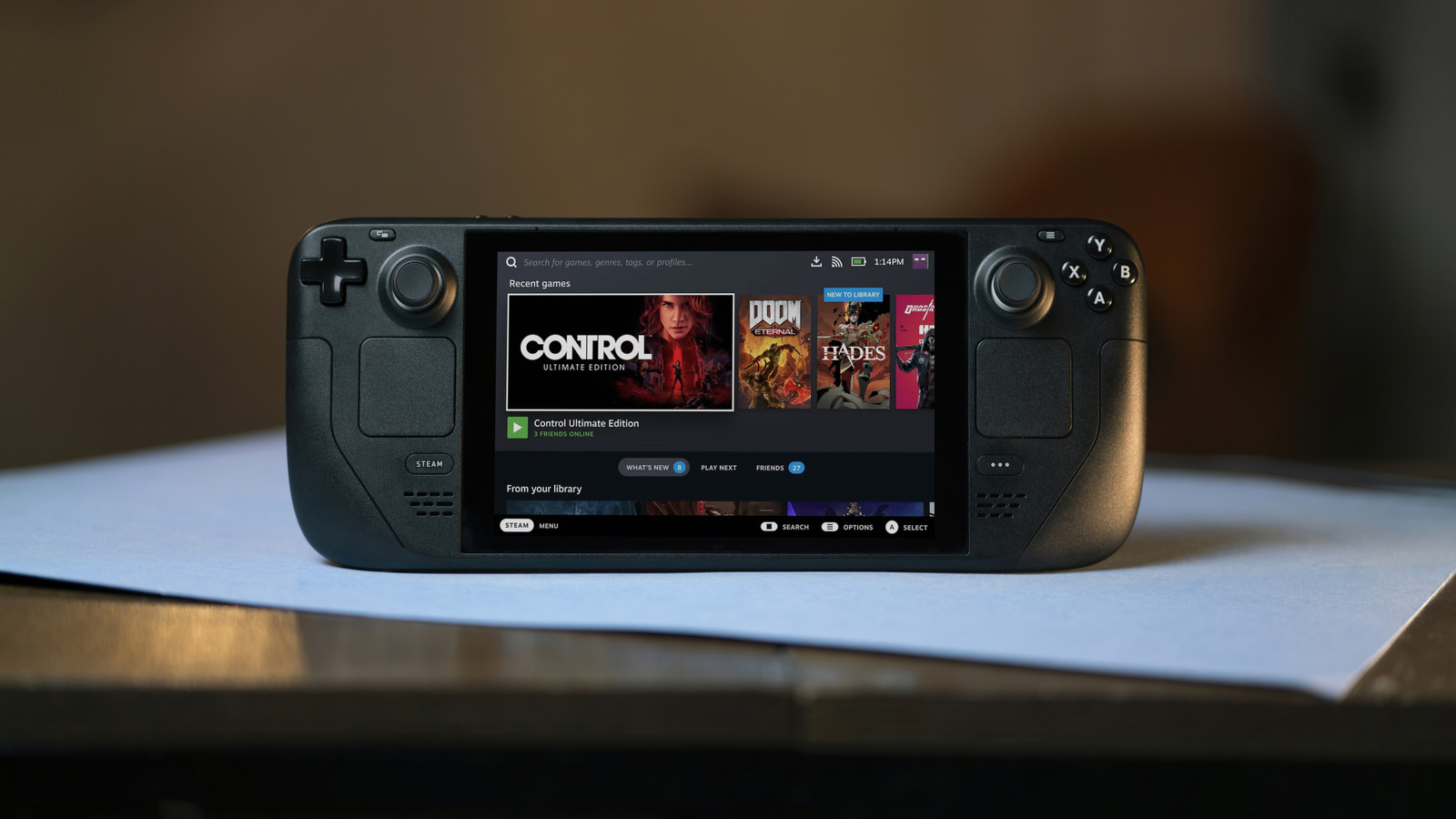
On the top of every Steam Deck is a power button. If you press it once, it will turn the screen on or off and put it into rest mode. If you hold that button, it will turn off or turn on the system. However, what if you want an easier way to reboot the Deck without engaging that physical button? The fastest way to restart is to hit the Steam button, then scroll down to Power > Restart. Alternatively, if you’re on the home screen of the Deck, with your recent games visible, you can just press the B button (back) to bring up the system menu. 

Knowing how the Steam Deck was designed to be accessible, with many built-in options to help extend your Steam Deck’s battery, for example, it’s no surprise that there are several ways to access the power menu. For another option, from within most Steam-related screens and with no game open, tap Steam Menu in the bottom bar using the touchscreen. That will open the system menu, where you can navigate to the power options and choose Restart. 

If you have a controller plugged into the Steam Deck, such as while docked, or when you have it propped up and connected to a wireless controller, you can press the middle button on your gamepad to bring up the menu. On a PlayStation controller, that’s the PlayStation button, while on an Xbox controller, that’s the Xbox media button. Most generic or third-party controllers have a similar button, as well.

What to do if you do need to use your Steam Deck’s power button
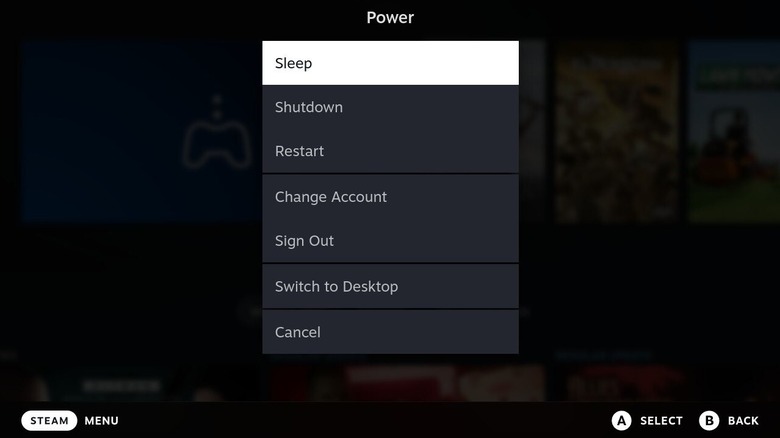

Steam Deck power options menu from within game mode.
Briley Kenney / BGR

Most of the power menu shortcuts should work from within any screen or menu, and while using game mode. This includes apps that allow you to play non-Steam games like Heroic Launcher. Yet even with the system menu and the power options universally available, you may find the deck unresponsive at times — meaning you can’t even power it down using these shortcuts.

If you ever run into a situation where your Steam Deck is powered on but inactive or inaccessible, such as when a game freezes, you can hold down the power button for four seconds (LED Deck) or seven seconds (OLED Deck) to force a restart. That can really come in handy when you’re tinkering with the Deck, trying out some of the unique settings, or adjusting system-level settings that could be ruining your Steam Deck experience. 

Every once in a while, a game might cause a crash or freeze the deck, or changing something can have unintended consequences. Either way, now you know how to get quick access to those power and restart functions when you need them most and how to power down the Deck when it seems like nothing is happening.



Sign Up For Daily Newsletter

Be keep up! Get the latest breaking news delivered straight to your inbox.
By signing up, you agree to our Terms of Use and acknowledge the data practices in our Privacy Policy. You may unsubscribe at any time.
Share This Article
Facebook Twitter Email Print
Share
What do you think?
Love0
Sad0
Happy0
Sleepy0
Angry0
Dead0
Wink0
Previous Article Bose QuietComfort Ultra 2 review: the most comfortable noise cancelling headphones Bose QuietComfort Ultra 2 review: the most comfortable noise cancelling headphones
Next Article 11 Best Workspace Software Tools for 2025 | 11 Best Workspace Software Tools for 2025 |
Leave a comment

Leave a Reply Cancel reply

Your email address will not be published. Required fields are marked *

Stay Connected

248.1k Like
69.1k Follow
134k Pin
54.3k Follow

Latest News

Hollywood Legend Turned Startup Investor Jeffrey Katzenberg On Where He’s Placing His AI Bets
News
The TechBeat: Why DataOps Is Becoming Everyone’s Job—and How to Excel at It (12/8/2025) | HackerNoon
Computing
FCA unveils measures to strengthen the UK’s ‘investment culture’ – UKTN
News
iPhone 18 Pro Leak Adds New Evidence for Under-Display Face ID
News

You Might also Like

Hollywood Legend Turned Startup Investor Jeffrey Katzenberg On Where He’s Placing His AI Bets
News

Hollywood Legend Turned Startup Investor Jeffrey Katzenberg On Where He’s Placing His AI Bets

16 Min Read
FCA unveils measures to strengthen the UK’s ‘investment culture’ – UKTN
News

FCA unveils measures to strengthen the UK’s ‘investment culture’ – UKTN

2 Min Read
iPhone 18 Pro Leak Adds New Evidence for Under-Display Face ID
News

iPhone 18 Pro Leak Adds New Evidence for Under-Display Face ID

9 Min Read
OnePlus Removes AI Writing Feature to Fix It After Censorship Claims
News

OnePlus Removes AI Writing Feature to Fix It After Censorship Claims

4 Min Read
//

World of Software is your one-stop website for the latest tech news and updates, follow us now to get the news that matters to you.

Quick Link

  • Privacy Policy
  • Terms of use
  • Advertise
  • Contact

Topics

  • Computing
  • Software
  • Press Release
  • Trending

Sign Up for Our Newsletter

Subscribe to our newsletter to get our newest articles instantly!

World of SoftwareWorld of Software
Follow US
Copyright © All Rights Reserved. World of Software.
Welcome Back!

Sign in to your account

Lost your password?