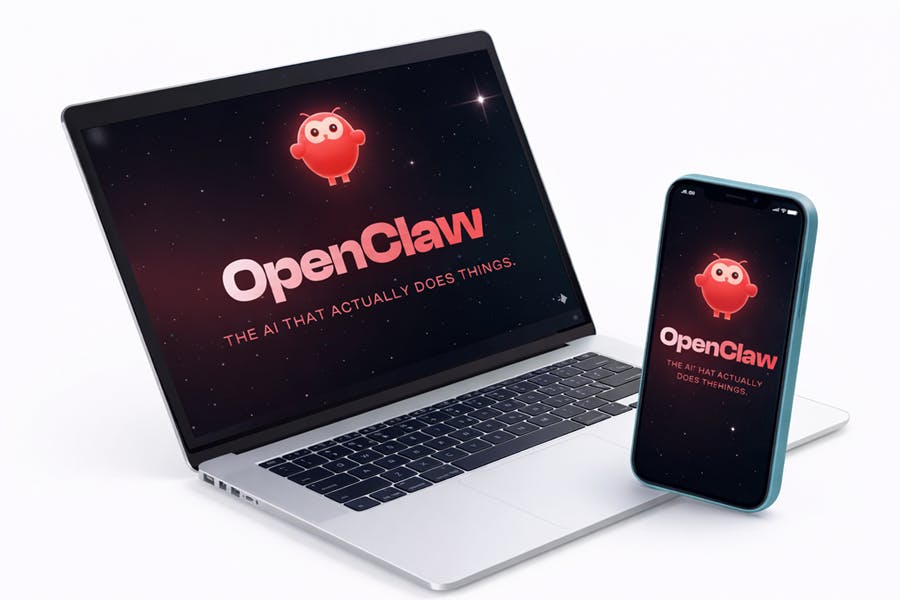
OpenClaw is an open‑source AI assistant you run on your own machine. It works inside the chat apps you use and can learn your habits. People in early 2026 paid attention because it runs on your device and you can extend it as needed. It also has a lobster mascot.
What makes OpenClaw different?
OpenClaw works more like a coworker than another chat window. Three features make it stand apart:
- Full system access. Unlike typical chatbots, OpenClaw isn’t confined to a browser tab. It runs as a service on your computer. It can read and write files, run shell commands and execute scripts. It can organize your photo library, refactor code or set up cron jobs without your direct oversight.
- Persistent memory. During onboarding it asks for your name, time zone and a few preferences. OpenClaw remembers conversations, notices patterns in your behaviour and builds context over time. Users compare its memory to keeping daily notes in Obsidian. The assistant stores its memory as plain Markdown files on disk.
- Proactive heartbeat. OpenClaw can wake up by itself to run background tasks. Its “heartbeat” can check your inbox, send morning summaries or run automations without a prompt. This feature makes it more like a background service than a simple program.
It can control browsers, fill out forms and collect data from websites. It supports many messaging channels, such as Telegram, WhatsApp, Discord, Slack and iMessage. You can chat in the app you like. A community builds skills and plugins. The assistant can even generate new skills to tackle tasks.
Before you install
OpenClaw has deep access to your computer, so it’s best to set it up on a dedicated machine or a virtual private server. You’ll need:
- Supported operating system: macOS, Linux, or Windows via WSL 2. A Raspberry Pi or a spare Mac mini can host it.
- Node.js ≥ 22: The installer will install Node if it’s missing.
- API keys: You need credentials for a large language model provider such as Anthropic or OpenAI. If you want web searches, get a Brave Search API key.
Quick install
The simplest way to get started is with the official installer script. It installs all dependencies, sets up the CLI and runs the onboarding wizard:
# On macOS or Linux
curl -fsSL https://openclaw.ai/install.sh | bash

# On Windows (PowerShell)
iwr -useb https://openclaw.ai/install.ps1 | iex
The script installs Node if it’s missing. It downloads OpenClaw and runs the onboarding wizard. After it finishes, check the CLI with openclaw doctor. View the gateway status with openclaw status or openclaw health.
Alternative install methods
If you prefer to do things yourself or want to work on the code, there are other options:
- Global npm install: If you already have Node installed, run
npm install -g openclaw@latest. If thesharpdependency fails because of a globallibvips, useSHARP_IGNORE_GLOBAL_LIBVIPS=1 npm install -g openclaw@latest. After installing, runopenclaw onboard --install-daemon. - From source: Clone the repository, install dependencies, build the UI and run the onboarding wizard:
  git clone https://github.com/openclaw/openclaw.git
  cd openclaw
  pnpm install
  pnpm ui:build # installs UI dependencies on first run
  pnpm build
  pnpm run openclaw onboard
This method suits developers who want to work with OpenClaw’s internals.
Onboarding your lobster
Once OpenClaw is installed, run the onboarding wizard. Type:
openclaw onboard
Run the wizard to configure the assistant. It guides you through creating a local gateway and setting up your workspace. It connects messaging channels and installs system services. There are two paths:
- QuickStart: Picks sensible defaults. It uses a local gateway bound to
localhost, a default workspace folder, port 18789 and an auto‑generated auth token. It does not use Tailscale and uses an allow‑list for new contacts. - Advanced: Lets you customise more. You can set the workspace location, network binding, daemon installation and choose which channels and skills to enable.
What does the wizard configure?
During onboarding you’ll be prompted for:
- Model provider and authentication: choose an Anthropic API key, an OpenAI Codex subscription, a plain OpenAI API key or another provider such as Moonshot or MiniMax.
- Workspace location: by default it stores files under
~/.openclaw/workspace. This folder holds configuration files, memory notes and skills. - Gateway settings: choose the port. Decide if the gateway binds to
localhostor a specific IP. Decide whether to expose it via Tailscale. Even on loopback, keep an auth token so clients must authenticate. - Messaging channels: connect Telegram, WhatsApp, Discord, Google Chat, Signal or iMessage by providing bot tokens or scanning QR codes. Unknown senders get a pairing code; approve them with
openclaw pairing approve <channel> <code>. - Daemon installation: on macOS it installs a
LaunchAgent; on Linux or WSL 2 it installs asystemduser unit so the assistant keeps running when you log out. - Skills: the wizard can install some skills without extra steps. You can add more later via
openclaw skills install <package>.
If you skip onboarding (for example by passing the --no-onboard flag), you can run openclaw onboard --install-daemon at any time.
Configuring web tools and search
OpenClaw has built‑in tools for browsing and web search. To enable Brave Search, run:
openclaw configure --section web
Then paste your Brave Search API key. Without a key, the agent falls back to a basic web fetch tool.
Talking to your assistant
Once the gateway is running, you can chat with your lobster in several ways:
- Control UI: To chat through a web dashboard, run
openclaw dashboardafter onboarding. It launches a local web interface. - Messaging apps: Connect your chat service during onboarding. After pairing, send messages as you do. OpenClaw supports WhatsApp, Telegram, Discord, Slack, Signal, iMessage and more. If you turn on text‑to‑speech, it can send audio messages.
- Command‑line: Use
openclaw message <channel> <recipient> <message>to send a command oropenclaw browser <url>to have the agent browse a site. There are also commands for viewing memory, installing skills and checking health. See the CLI reference for details.
What can OpenClaw do?
Because OpenClaw has system access and persistent memory, it can handle many tasks. Here are a few ideas to get you started:
- Inbox and calendar management: ask it to monitor your email, triage messages and draft responses. It can reschedule meetings by checking your calendar and sending confirmation messages.
- Daily briefings and reports: set up a morning summary and send it via your chat app with text and audio.
- File organization and backups: have it compare local folders to cloud backups, move files around or clean up your downloads directory.
- Custom automations: use the skills system to build custom workflows. For example, you could create a skill that transcribes voice messages using the Whisper API or set up a cron job that watches an RSS feed and triggers a workflow.
- Code and scripting tasks: it can write and execute scripts, refactor code or set up development environments.
When you need something new, ask the assistant to “install a skill for X” or write one for itself. OpenClaw can search the skills hub and install or create the code.
Stay safe and be mindful of costs
Giving an AI agent access to your machine is risky. Misconfigured gateways or unverified skills may expose sensitive files or API keys. Run the wizard on a machine you control, keep your software updated and pair with known contacts. Start with read‑only permissions and increase them as you gain trust.
OpenClaw is free to download, but it uses paid APIs for model inference, web search and voice features. These costs can add up if you leave the agent running all the time or use large models. Monitor your usage and set limits in your API provider’s dashboard.
OpenClaw is not just another chatbot. It runs on your machine and uses large language models. It keeps a memory of your interactions and can schedule tasks. The install process is short, and the onboarding wizard guides you through configuration. With care and thoughtful use, OpenClaw can be a reliable personal assistant.
Whether you are a developer, a productivity enthusiast or just curious, OpenClaw may interest you. Name your new assistant and avoid running it on the same machine that holds sensitive documents.
References
- OpenClaw Project, “OpenClaw: A personal AI assistant that runs on your machine,” OpenClaw Official Website. https://openclaw.ai/
- OpenClaw Project, “Installation and onboarding documentation,” OpenClaw Docs. https://openclaw.ai/docs
- OpenClaw Project, “Architecture and core features overview,” OpenClaw Documentation. https://openclaw.ai/docs/overview
- OpenClaw Project, “Messaging channels and pairing configuration,” OpenClaw Docs. https://openclaw.ai/docs/channels
- OpenClaw Project, “Skills system and automation framework,” OpenClaw Docs. https://openclaw.ai/docs/skills
- OpenClaw Project, “Gateway, authentication, and security configuration,” OpenClaw Docs. https://openclaw.ai/docs/gateway
- OpenClaw GitHub Repository, “OpenClaw source code and build instructions.” https://github.com/openclaw/openclaw
- Brave Software, “Brave Search API documentation.” https://api.search.brave.com/
- OpenJS Foundation, “Node.js runtime environment.” https://nodejs.org/
- Reddit Community Discussion, “Everyone talks about Clawdbot (OpenClaw), but here’s how it works,” r/LocalLLaMA. https://www.reddit.com/r/LocalLLaMA/