If the image on your shiny new 4K TV looks dim, washed-out, or strangely flat when you try to watch high dynamic range (HDR) movies or fire up your video game console, the problem might not be a mistake you made when you bought it. Instead, it could be your HDMI settings.
Modern TVs promise brighter highlights, deeper contrast, and richer color with HDR, but those improvements only show up when the right HDMI configuration is enabled. However, TVs may ship with these settings disabled by default, even if they fully support HDR. Some manufacturers bury the necessary toggles deep in their menus, labeling them with confusing names like Enhanced format, HDMI signal format, or Enhanced VRR. Sony’s documentation even notes that HDR may not activate unless the correct HDMI input mode is selected. That means a premium streaming device, next-gen console, or high-bandwidth Blu-ray player can end up outputting standard dynamic range without you realizing it. The picture still works, just nowhere near the level you paid for.
To make things even trickier, HDMI ports aren’t always equal. On some TVs, only certain inputs support full-bandwidth 4K HDR at 60 Hz or 120 Hz, and plugging into the wrong one can quietly decrease image quality. So if you’ve been wondering why Dolby Vision looks muted, why games feel less vibrant, or why highlights never really pop, these two overlooked HDMI settings might be the bottleneck hindering your HDR experience.
The two HDMI settings you need to fix
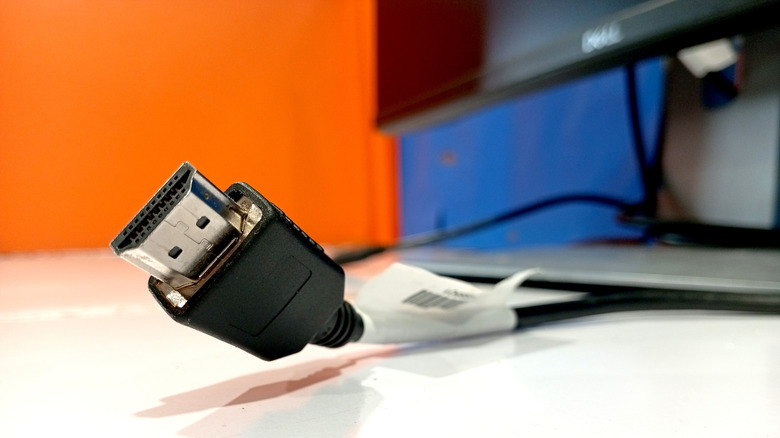
The first culprit quietly sabotaging your HDR images is the HDMI signal format. If it’s left in the Standard mode, your TV may downgrade HDR sources without warning. Switching the mode to a better signal format, often labeled Enhanced, tells the TV to accept higher-bandwidth signals, including 4K HDR with wide color gamut and higher frame rates. If you choose Enhanced on the HDMI port your console, streaming stick, or Blu-ray player is plugged into, you’ll instantly unlock full HDR capabilities.
The second setting to check is the HDMI port your device is connected to, because not all TV inputs support the same features. On many Sony models, only specific HDMI ports handle 4K HDR at 60 Hz or 120 Hz, and only certain ports handle advanced formats such as Dolby Vision, VRR, or ALLM. If your device is connected to a lower-spec port, the TV can’t deliver true HDR, even if the signal format is set correctly. Moving the cable to a compatible port can make an immediate difference in brightness, color depth, and highlight detail. Since every device is different, check your TV manual to learn more about its HDMI ports and which one to use for HDR support.
Once both of these settings are aligned, HDR should finally look the way it’s supposed to: bright where it should shine, dark where it should deepen, and far more cinematic overall. If you’ve been living with dull HDR without realizing it, a quick trip to your HDMI settings might deliver the biggest picture upgrade your TV has ever seen, with no new hardware required.