One quick browse on Amazon, and you’ll find a range of accessories to make the most out of your Apple TV setup. For instance, a Bluetooth keyboard can speed up searching for the name of your favorite show without doing a million remote presses. And some noise-cancelling earbuds are great for private listening when you don’t want to disturb your housemates.
While external devices are indeed handy upgrades, one of the best ways you can enjoy your Apple TV actually comes from a built-in feature: screen savers. Streaming devices and modern TVs often include built-in screen savers to avoid image retention. This takes place when images are burned into the screen when they’re displayed for too long while the TV is idle. Beyond protecting your screen, screen savers also double as an easy way to make your TV blend in with your living space. Instead of looking like an awkward and lifeless black void on the wall, your TV can become a painting featuring gallery-quality art, a digital picture frame displaying your personal memories, and a cinematic display of the world’s best landscapes and cityscapes.
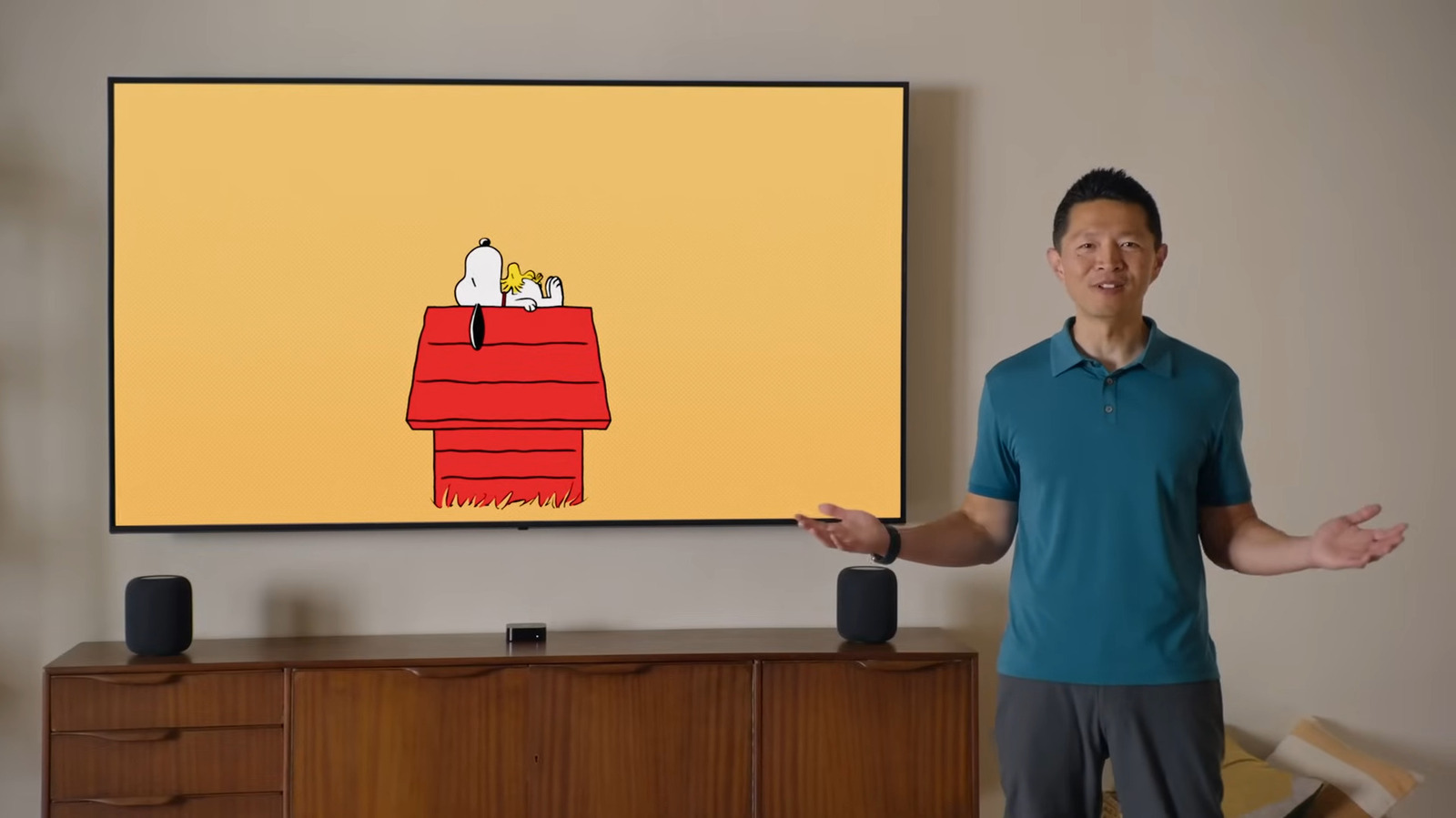
For your Apple TV, you have a choice between four screen saver types: Aerials for videos of location shots, Memories & Slideshows for photos from your iCloud Photo Library, Portraits for digital clocks with your selected images as a background, or Snoopy for themed videos of Peanuts characters Snoopy and Woodstock. The screen saver is customizable and configurable, so it’s easy to make it match your style. Here’s how to set up and use screen savers on your Apple TV.
How to set up screen savers on your Apple TV
By default, Apple TVs have the screen savers turned on. The device will automatically cycle through all available Aerials videos after five minutes of inactivity. You can easily set up your Apple TV’s screen saver to your preferred settings, though. Here’s how:
- Go to Settings.
- Open Screen Saver.
- Change Current Selection to the type of screen saver you want to display.
- Adjust Start After to your preferred delay interval between your last interaction with the TV and when the screen saver shows up.
- Turn off Show During Music and Podcasts to deactivate the screen saver if you have music or a podcast playing.
You can also further customize each of the screen saver types right from the Settings, too:
- Navigate to Settings, then Screen Saver.
- To customize Aerials:
- Under Screen Saver Preferences, click on Aerials.
- Change the Download Frequency (how often Aerial videos are downloaded) to Daily, Weekly, Monthly, or Never.
- Select which of the themes (Cityscape, Earth, Landscape, or Underwater) you want to display.
- To customize Memories & Slideshows:
- Choose Memories & Slideshows.
- Under Your Photos, click on Memories.
- Select All Memories to include everything, or Favorites to use only images added to your favorites.
- Go to Albums to pick specific albums, just your favorite photos, or your recently shared album.
- Under Other, click on Music Albums to use album art from your Apple Music library.
- Whenever available, go to Style and pick which transition style you want.
- To customize Portraits:
- Press Portraits.
- Select which options (People, Pets, Nature, and Cities) to include.
- Change the update frequency to your preferred time interval between portrait transitions.
Keep in mind that for Memories & Slideshows and Portraits, you have to set up iCloud Photos on your Apple TV first.
How to control your Apple TV screen saver
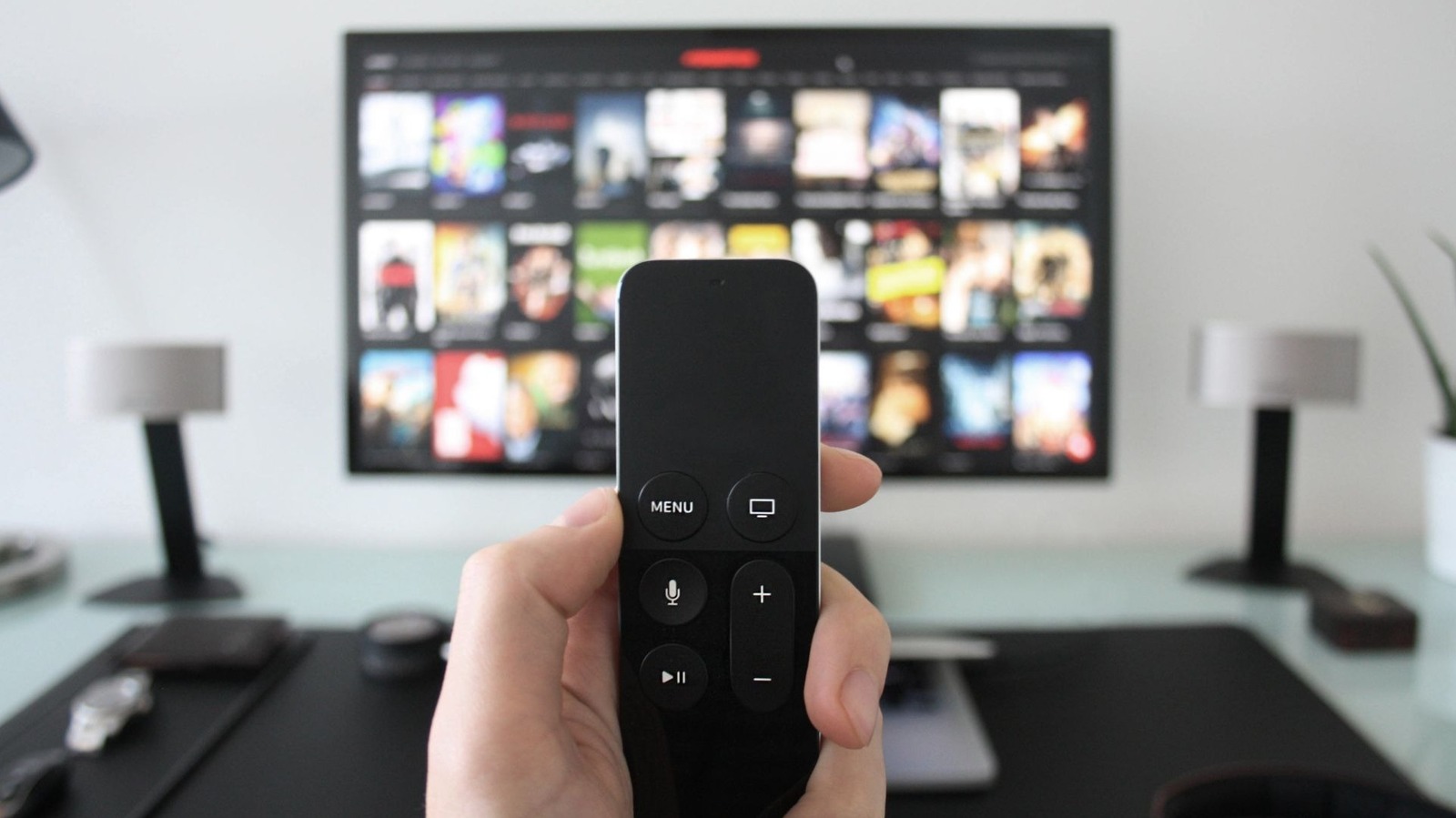
Although you can choose how long the period of inactivity is before the Apple TV screen saver kicks in, you can actually turn it on manually as well. This is one of the helpful Apple TV tricks every user should know. You can activate the screen saver from either the home screen, or in any app. From the home screen, press the back button on your Apple TV remote once, and then long-press on it. From any app, simply hit the back button multiple times. Your chosen screen saver should pop up on the screen. During the screen saver playback, you can still interact with it. Here’s how:
- Hit the up button on your remote to view all the screen saver types and switch to a new one.
- Tap the clickpad on your remote to display information about the screen saver. If it’s an Aerial shot, it will tell you the location. If it’s a Memory, it will say which one is shown.
- Swipe/press right on your remote to jump to the next visual.
- Click the clickpad center to turn off the screen saver.
You can also use your remote to control music playback while screen savers are on. Just hit the left or right button on the clickpad to skip to the previous, or next, song.