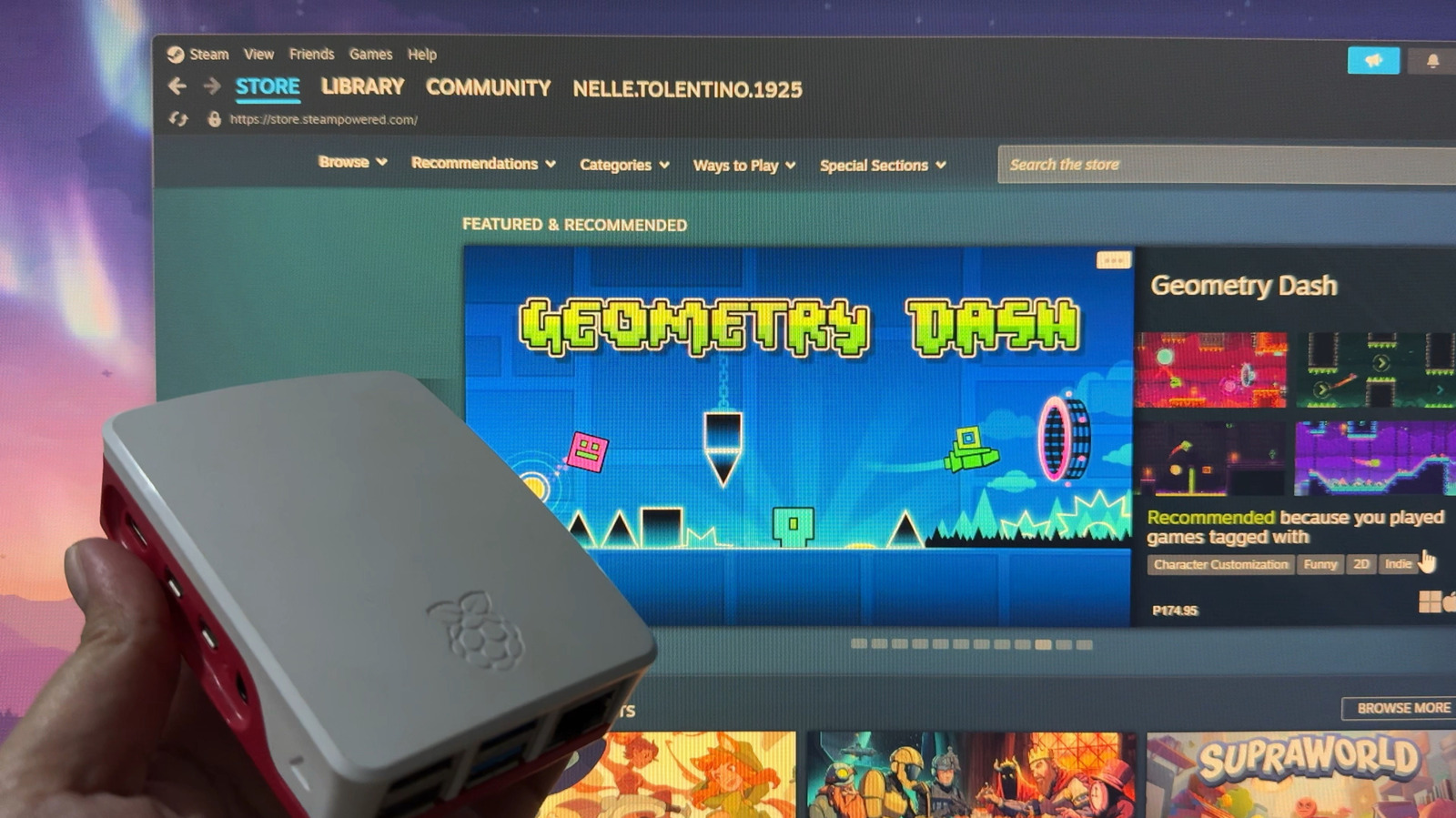
Playing on your PC or Steam Deck might sound like the most natural and efficient way to enjoy the best Steam games. But if you happen to have a Raspberry Pi lying around, you might wonder whether it can run Steam games, too. After all, it’s already capable enough for demanding operations, like emulators for retro games and AI-based experiments. So, can this tiny machine also handle your Steam library?
The short answer is yes — but with some caveats. Your Raspberry Pi can indeed run Steam games, and there are actually a couple of ways to pull this off. However, keep in mind that the Pi isn’t really designed to run Steam games in the same way computers do. While the Pi is packed with PC-like features, it isn’t a full replacement for your laptop or desktop computer. That said, expect to run into occasional input lags, dropped frames, lower than desired graphic settings, and even installation errors. If you’re okay with these limitations and just want to try playing Steam games on the Pi, we’ll walk you through three of the known ways to do so.
Step 0: Install an OS on the Pi
Before you can get started with playing Steam games on your Pi, you need to get it ready with an operating system first. If this is your first time on a Raspberry Pi project, or working with this single-board computer (SBC) in general, here’s a guide on installing an OS:
- Download and install the Raspberry Pi Imager on any computer.
- Plug the Pi’s microSD card to that computer, either directly or with a USB card reader.
- Launch Raspberry Pi Imager.
- In the Device tab, select your Raspberry Pi board from the list.
- Press Next.
- (For Method 1, as seen below) In the OS tab, navigate to Other general-purpose OS, then Ubuntu, then Ubuntu Desktop.
- (For Methods 2 and 3, also seen below) In the OS tab, pick the recommended OS at the very top. Skip the customization options.
- Click Next.
- In the Storage tab, tap your microSD card.
- Hit Next.
- Select Write to proceed.
- In the warning popup, choose “I understand, erase and write.”
A popup will appear once the installation is successful. You can then remove the microSD card from the computer and insert it into your Pi. Before powering it on, connect your display to the HDMI port and plug in any wired peripherals — like a keyboard, mouse, and controller — via USB. When the Pi boots, go through the initial OS setup until you reach the desktop. If you’re using a Bluetooth controller, find the Pi’s Bluetooth settings and add the device. For Method 2, though, you need to check this list to see which controllers are compatible. After setting up the OS and your peripherals, your Pi should now be ready for Steam.
Method 1, Step 1: Configure your Pi for Steam support
The first way you can run Steam games on the Raspberry Pi is by installing the Steam Client app. Newer Raspberry Pi boards like the Pi 5 and Pi 4 support the app, but the installation isn’t as straightforward as it is on computers. Steam doesn’t run natively on ARM systems like Pi, so you’ll need two emulators called Box86 and Box64. These allow you to install x86 and x86_64 Linux programs — such as Steam — directly on the Pi. Because this setup essentially lets you use the app as you would on your PC or Mac, the games will also be installed locally. That means it’s important to have a bigger microSD card — one with at least 64GB — and ideally, an external storage solution. To get started with setting up the Pi for Steam support, follow these steps:
- Boot the Pi.
- Open the Terminal.
- Run the following commands one at a time to install the dependencies required:
- sudo dpkg –add-architecture armhf
- sudo apt-get update && sudo apt-get upgrade -y
- sudo apt install -y gcc-arm-linux-gnueabihf git cmake
- Type the following commands to install Box64:
- git clone https://github.com/ptitSeb/box64
- cd box64
- (if you’re using Raspberry Pi 5) mkdir build; cd build; cmake .. -D RPI5ARM64=1 -D CMAKE_BUILD_TYPE=RelWithDebInfo
- (if you’re on Pi 4) mkdir build; cd build; cmake .. -D RPI4ARM64=1 -D CMAKE_BUILD_TYPE=RelWithDebInfo
- sudo make install
- sudo systemctl restart systemd-binfmt
- Enter the commands below to install Box86:
- cd ~
- git clone https://github.com/ptitSeb/box86
- cd box86
- (for both Pi 5 and Pi 4) mkdir build; cd build; cmake .. -D RPI4ARM64=1 -D CMAKE_BUILD_TYPE=RelWithDebInfo
- sudo make install
- sudo systemctl restart systemd-binfmt
- Install the required drivers with these commands:
- sudo apt install libgdm1:armhf libudev1:armhf libgl1-mesa-dri:armhf libglapi-mesa:armhf libglu1-mesa:armhf libglx-mesa0:armhf mesa-va-drivers:armhf mesa-vdpau-drivers:armhf mesa-vulkan-drivers:armhf libsdl1.2debian:armhf libegl-mesa0:armhf
- sudo apt-get install libc6:armhf -y
- sudo apt install mesa-vulkan-drivers -y
From here, you can move on to getting Steam on your Raspberry Pi.
Method 1, Step 2: Install and set up Steam
With Box86 and Box64 installed, the next step is adding Steam to the Pi. Here’s what you need to do:
- Launch the Files app.
- Navigate to Home, then box86.
- Right-click on the install_steam.sh file.
- Select Run as program.
- When prompted, enter your password and type Y.
- Power off the Pi.
- Unplug it from the wall outlet for a few seconds.
- Turn on the Pi again.
- Sign in with your username and password.
- In the command line, type sudo apt install ubuntu-desktop -y.
- Enter your password again.
- On the login screen, input your password to get into the Pi.
- Launch the Terminal.
- Run this command: steam.
The Steam app should launch after a few seconds. Log in to your account as you normally do. To install a game you already own, head over to the Library tab, pick the game you want to play on the Pi, and hit Install. If, however, the Install button is grayed out, and the page says “Available for Windows,” you need to enable the Proton tool. This lets you install Windows-only games on a Linux OS like Ubuntu. Here’s how to turn Proton on:
- Still in the Library tab, right-click on your game from the left-side panel.
- Choose Properties.
- Go to Compatibility.
- Check the box for “Force the use of a specific Steam Play compatibility tool.”
- Select Proton Experimental from the options.
- Install and play your game again.
If the game takes a while to load, try switching to a lower resolution from the Ubuntu Settings. Keep in mind that the Steam app or the games themselves won’t run as fast as they would on your computer. You might also experience some glitching, which would typically go away once you move the window around.
Method 2: Stream Steam games via Steam Link
The official way to run Steam games on your Raspberry Pi is with Steam Link, available on the Pi starting with the Pi 3. Unlike Method 1, your games aren’t installed locally. Instead, Steam Link streams them over your home network. It does so by connecting the SBC to your PC, which is running the Steam app. That said, your Pi can’t stand on its own. Though, this setup can come in handy when you want to game in the living room with friends but would rather not haul your entire PC setup there. Here’s how to install Steam Link on your Raspberry Pi:
- Turn on the Pi with Raspberry Pi OS.
- Connect to the same network where your PC with Steam is on.
- On your PC, open and log in to Steam.
- On the Pi, launch the Terminal.
- Type sudo apt update && sudo apt install steamlink to update the system and install Steam Link.
- Open Steam Link by typing steamlink.
- Hit Enter to launch Steam Link.
Now that you have Steam Link installed, the next step is to link the Pi to your PC:
- On the Steam Link app, press Get Started.
- Wait for Steam Link to finish scanning your network for a connected computer.
- Select your computer from the results.
- Let Steam Link finish connecting to your computer.
- Take note of the code that appears.
- Check your PC for an “Authorize Device” popup.
- Type in the code shown on your Pi.
- Have Steam Link test the connection between your Pi and PC.
- Hit OK to exit the Network Test Complete popup.
Your PC and Pi are now paired and ready for gaming. Back on your Raspberry Pi, press Start Playing to choose which Steam game to stream. When you’re done gaming, simply exit the current game to go back to the Steam dashboard. Then, go to Power and click on Stop Streaming To raspberrypi.
Method 3: Play Steam games from the Chromium browser with NVIDIA GeForce NOW
Another way to stream Steam games on your Raspberry Pi is with Nvidia GeForce NOW. Instead of streaming the games on your home network, GeForce NOW streams them straight from its servers. So, you’re essentially gaming in the cloud. Unfortunately, the GeForce NOW app isn’t available on the Raspberry Pi. You can, however, access it via the web browser. Here’s how to do so:
- Launch Chromium on the Pi with Raspberry Pi OS installed.
- Visit play.geforcenow.com/mall.
- Click on Get in.
- Select NVIDIA.
- Log in to your NVIDIA account. Or create one if you haven’t already.
- Press Submit to continue.
- Choose your GeForce NOW membership, like the free GeForce NOW tier that shows you ads before you play.
- Hit Play Now.
From here, you can now sync your Steam account to GeForce NOW. Follow this guide:
- On the GeForce Now Games page, select the hamburger menu in the upper left corner.
- Go to Settings.
- Click on Connections.
- Press Connect next to Steam.
- In the new tab that opens, sign in to your Steam account.
- Select Sign In to proceed with connecting your account.
- Still in the Steam tab, navigate to your profile, then Edit Profile, then Privacy Settings.
- Change My profile and Game details to Public. You need these details to be in Public mode to allow the syncing.
- Go back to the GeForce NOW tab.
- Under My Library, click Resync next to Steam.
- Wait for your Steam games to load in the library.
Take note that not all your Steam games will show up on GeForce NOW. Only supported ones will be loaded. Select one of your available games and play away. Try tweaking the game’s settings if you’re experiencing some delay.