We may receive a commission on purchases made from links.
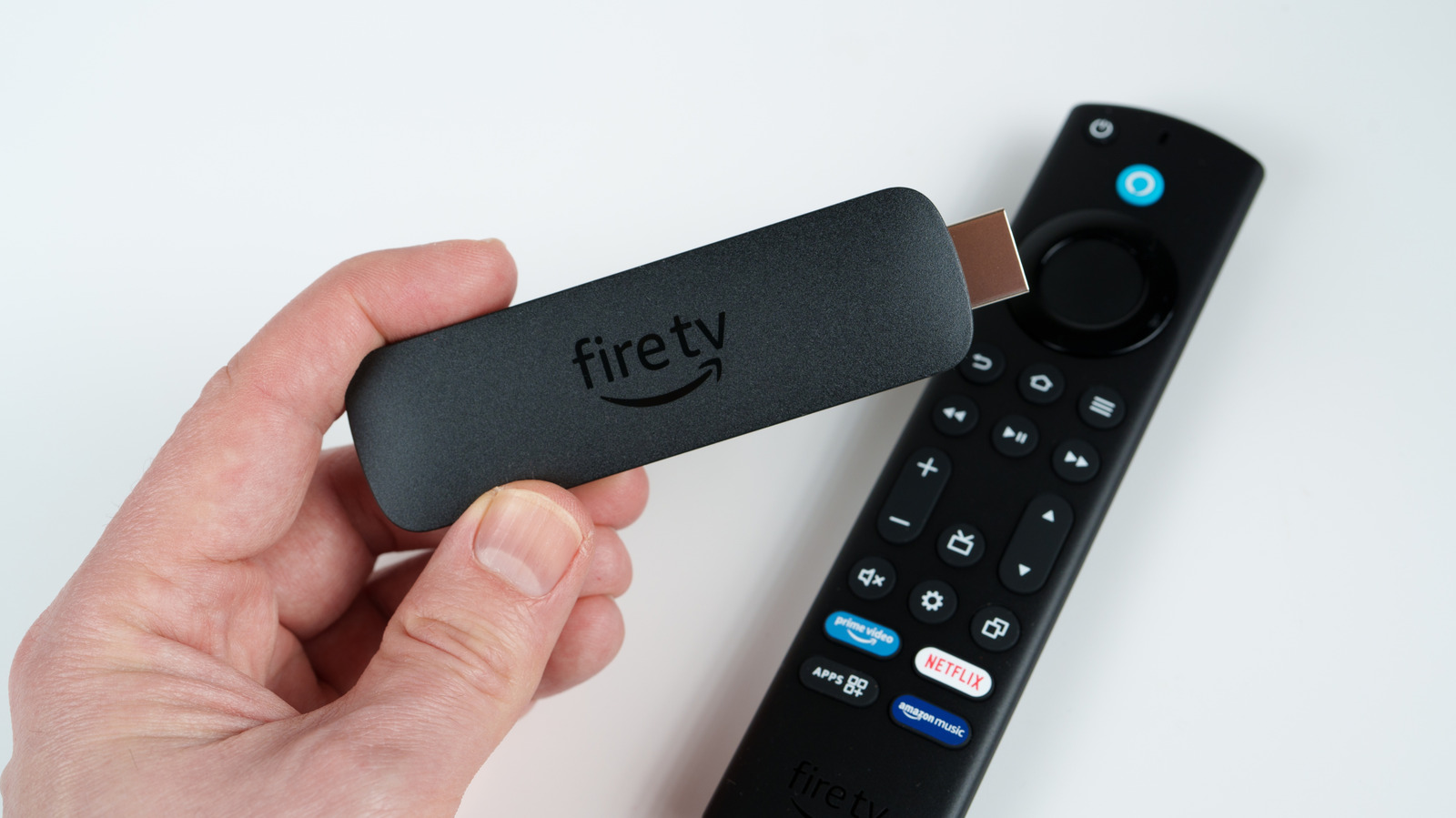
There are numerous streaming devices on the market, and one of the most popular lineups is the Amazon Fire TV Stick. For as little as $35, you can add a Fire TV Stick to any HDMI-ready TV in your home to gain access to top entertainment platforms, including Prime Video, Netflix, Disney+, and more. If you’ve been thinking about buying a Fire TV Stick but you’re still on the fence, you should know that you can actually connect these devices to more than just your living room TV.
As long as you’re plugging a Fire Stick into an HDMI input (not an output), and it’s also plugged into a USB port for power, the device should function, barring a few rare instances. That said, we thought it best to put together a small list of devices — apart from TVs — that you can plug your Fire TV Stick into.
You may already own a number of these devices, or maybe you’ve considered purchasing one or two to add to your everyday workflow or entertainment space. Whatever the scenario may be, we did our best to highlight common products in a home theater or PC setup.
A monitor

Your computer monitor doesn’t always have to be a visual extension of your PC setup. These days, it’s fairly common for monitors to have HDMI inputs, alongside PC-centered ports like DisplayPort, VGA, and USB. If you own a monitor with HDMI inputs (remember, an output port won’t work), or are thinking of investing in a new workstation screen, you should be able to connect a Fire Stick without issue.
Better yet, you may also be able to use one of your monitor’s USB-A ports (if it has one) to power your Fire TV Stick, but make sure the streaming device gets the needed power. If you’re using an older monitor with USB 2.0 tech, the USB ports may not supply enough power, which means the USB power adapter that came with your Fire Stick is your best bet.
Now, don’t forget that HDCP might also put up a fight. If you plan on using your Fire Stick to stream 4K HDR content through apps like Netflix, you’ll want to make sure the HDMI inputs on your monitor are at least HDCP 2.2-compliant; if they’re 2.3-compliant, that’s even better. But if you already own the monitor and know it’s not HDCP-ready — and you don’t feel like buying a new screen — one alternative is to purchase an HDMI splitter with HDCP support. Plug your Fire Stick into the splitter, followed by the splitter to your monitor, and you should be golden.
A projector
Projectors come in all shapes and sizes, and some of the cheapest options cost less than $50 and offer the kind of portability you can get from a Bluetooth speaker. There are also premium home theater projectors on the market for $1,000+ that deliver much better picture quality. Much like the best smart TVs on the market, many projectors are equipped with HDMI and USB inputs, allowing you to connect and power a Fire Stick.
This bodes particularly well for ceiling-mounted projector setups with free HDMI and USB ports. That’s because you won’t have to worry about running an HDMI cable; the Fire Stick has a built-in HDMI connector. Use a ladder or step stool to reach the projector, connect your Fire Stick to the HDMI for audio/video and USB for power, and it should fire right up (if the USB port supplies enough power).
Something to keep in mind: if you’re using a projector in an outdoor setting, your Fire Stick will still need to be connected to a Wi-Fi network to operate. If you’re planning on making it the host device for summer movie nights, we recommend testing the range of your Wi-Fi network before inviting the whole neighborhood over, only to disappoint your audience at the last minute.
A soundbar or AV receiver
Soundbars and AV receivers are audio staples of the modern home theater. Regarding the former, some of the budget soundbars on the market use digital optical audio and HDMI ARC/eARC to connect to your TV. While you won’t be able to plug a Fire Stick into an ARC/eARC port, you will be able to plug it into one of your soundbar’s HDMI inputs if it has any. You’ll then need to run an HDMI cable (make sure it’s HDCP-compliant!) from the soundbar’s ARC/eARC port to the ARC/eARC port on your TV.
The same goes for AV receivers: connect the Fire Stick to one of the HDMI inputs, and run an HDMI cable from the receiver’s HDMI output to any input HDMI on your TV. In this type of setup, your receiver takes care of all the audio and video processing for your Fire Stick (and other connected devices), and routes all video to your TV, projector, or other external display.
An Xbox One
While the Xbox One hasn’t been manufactured since 2020, many folks still use this older console. You can also buy one used on third-party sites like eBay. Unlike newer consoles — such as the PlayStation 5, Xbox Series X/S, or Nintendo Switch 2 – the Xbox One has a dedicated HDMI input. It’s on the back of the system, right next to the HDMI output (labeled “to TV”). You’ll need to activate the port using the OneGuide feature built into the Xbox, and you will only need to do so once.
Simply plug your Fire Stick into the HDMI input, then head to the “My Games & Apps” menu. Launch the OneGuide app, walk through the setup wizard, and you should be good to go. Similar to the HDMI inputs of a soundbar or AV receiver, the Xbox One’s HDMI input makes it easy to hook up additional AV components to your TV or projector.
It’s even more convenient if your TV is wall-mounted, and connecting a Fire Stick would require you to unmount the set. As long as your Xbox One is already wired to the TV, you can use its HDMI input to pass audio and video for everything from streaming devices and cable boxes to other game systems.