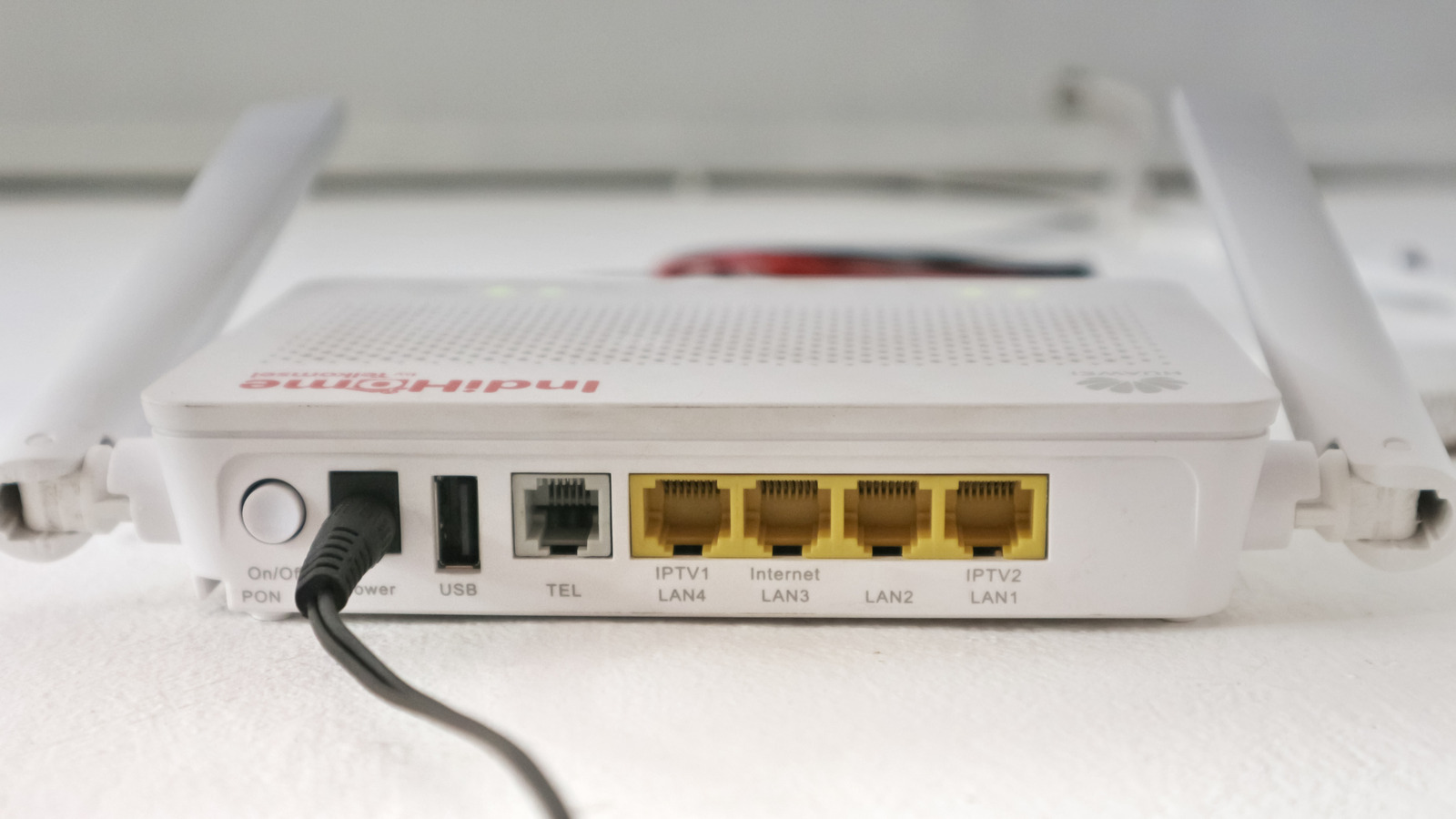
Most modern routers come with one (or more) built-in USB ports. These are often overlooked, since devices like your smartphones, laptops, TVs, and tablets connect wirelessly to the router. Many of you just have a power adapter and LAN cable plugged in, and the setup usually works flawlessly. But with those additional USB ports, you can expand the use cases of your router, from the traditional Wi-Fi setup to one that allows wireless backups, wireless printing, file sharing, and more.
Keep in mind that not every router supports all these features. Some are limited to basic storage sharing and charging devices, while others are capable of handling more advanced tasks. You can quickly verify this by using your router’s manual or checking the router’s admin panel. If it has options like USB Storage, Media Server, or Print Server, your router supports these functionalities, and that unused USB port can be utilized in plenty of creative ways.
Print wirelessly using old printers
If you are planning to upgrade your printer simply because the older one doesn’t support wireless connectivity, the additional USB port on your router can be a lifesaver. It can transform any old, wired printer into a wireless one, allowing devices on the network to print from it. The process is really simple, and you don’t need to invest in any gadget or adapter.
To print wirelessly using a wired printer, connect it to the USB port on your router, go into the admin panel (information on this can be found in the router’s manual), then head to the “Print Server” section and enable the feature. Now, the connected printer should appear. If prompted to install a dedicated printer controller utility, download it from the router manufacturer’s official website and set it up. After that, you can easily print PDFs and documents wirelessly using the utility.
Turn your drive into a NAS
Using the router’s USB port, you can set up a NAS for file storage and sharing at home. The best part is that it doesn’t take a lot of effort or technical expertise. All you need is a USB flash drive or an external HDD/SSD. You can also repurpose an old laptop that’s waiting to be recycled by using its built-in drive. Simply remove it and use a SATA to USB adapter to connect the drive to your router.
After connecting the drive, access the router’s admin panel, head to the “USB Storage” section, and check whether the drive is listed here. If yes, copy its path, and use that to view the network drive on your PC. For easy access, map the network drive, and it should be visible in your PC’s File Explorer at all times.
Remember, while Network Attached Storage (NAS) is a great way to expand storage and facilitate file sharing, it does come with risks. For instance, some routers still rely on the SMBv1 protocol, which isn’t considered safe in modern-day use cases. Besides, file transfer speed on such a NAS isn’t as fast as a dedicated setup because routers don’t have the same processing power. Nevertheless, it’s still a clever use for that unused USB port on your router as long as you are not storing critical files and are limiting access to devices on the network. Moreover, you can use the USB ports on your router to create a home media server and stream content from the NAS.
Back up files for free
If you work with critical files and can’t risk losing them to drive failures or system malfunctions, backups are a smart option. For this, you don’t necessarily need an expensive setup or a subscription to a cloud-based service. Your router’s USB port can help convert any storage device into a backup solution, given it supports the functionality, which many modern models already do.
To back up your files, connect the storage drive to the router’s USB port, go to Backup settings in Windows or Time Machine settings on macOS, and select the drive. You can now set the files to create a backup for, and the backup frequency, whether it’s in real-time, daily, or weekly. The best part is that it does not depend on your internet service. This completely eliminates data consumption, as is the case with cloud-based backups. So, you can even set it up on connections with a data cap. For sensitive files, make sure to enable password access or encrypt the drive if possible.
For seamless internet connectivity
Although internet connectivity has improved significantly in recent times, downtimes are still a common occurrence. When something like this happens, many use their phone for backup internet using the mobile hotspot feature. But what about CCTV cameras and security systems that require constant internet connectivity? They will suffer an outage until the internet is restored. This is where your router’s USB port comes into the picture. You can configure the router to auto-switch to a backup connection so that all devices on the network can seamlessly access the web.
To set it up, connect your phone to the router using a cable, then enable “USB Tethering” mode on the former, and configure the router’s WAN settings to fall back to the USB modem as a data source in case of an outage. In case your router does not support “USB Tethering,” you can use a USB-C to Ethernet connector and subsequently use an Ethernet cable to connect your phone to the router’s WAN port. Next, enable “Ethernet Tethering” on your phone to use its cellular data on the network.
Keep in mind that if you are relying on cellular data as a backup, it could quickly hit the limit and result in additional charges. So, plan the setup accordingly.
Charge your devices
Although not the most creative use of your router’s USB port, charging devices can come in handy in a number of situations. For instance, if you have a small device, like a USB-powered lamp, that requires a constant electrical supply but there isn’t one available, you can connect it to the router’s USB port for power.
Other than that, you can use the USB port to charge smartphones, smartwatches, and tablets. It won’t be as quick as your fast-charging adapter, but it will do well as a backup source. Some modern router models also deliver somewhat faster charging, but they are expensive. If you already have one, utilize it, but there’s generally no point investing in one simply for fast charging capabilities. And among all the uses for your router’s USB port listed above, charging is supported across most models. That’s because it doesn’t utilize any advanced technology, but is a simple, low-output supply that can trickle charge your gadgets or power your devices.