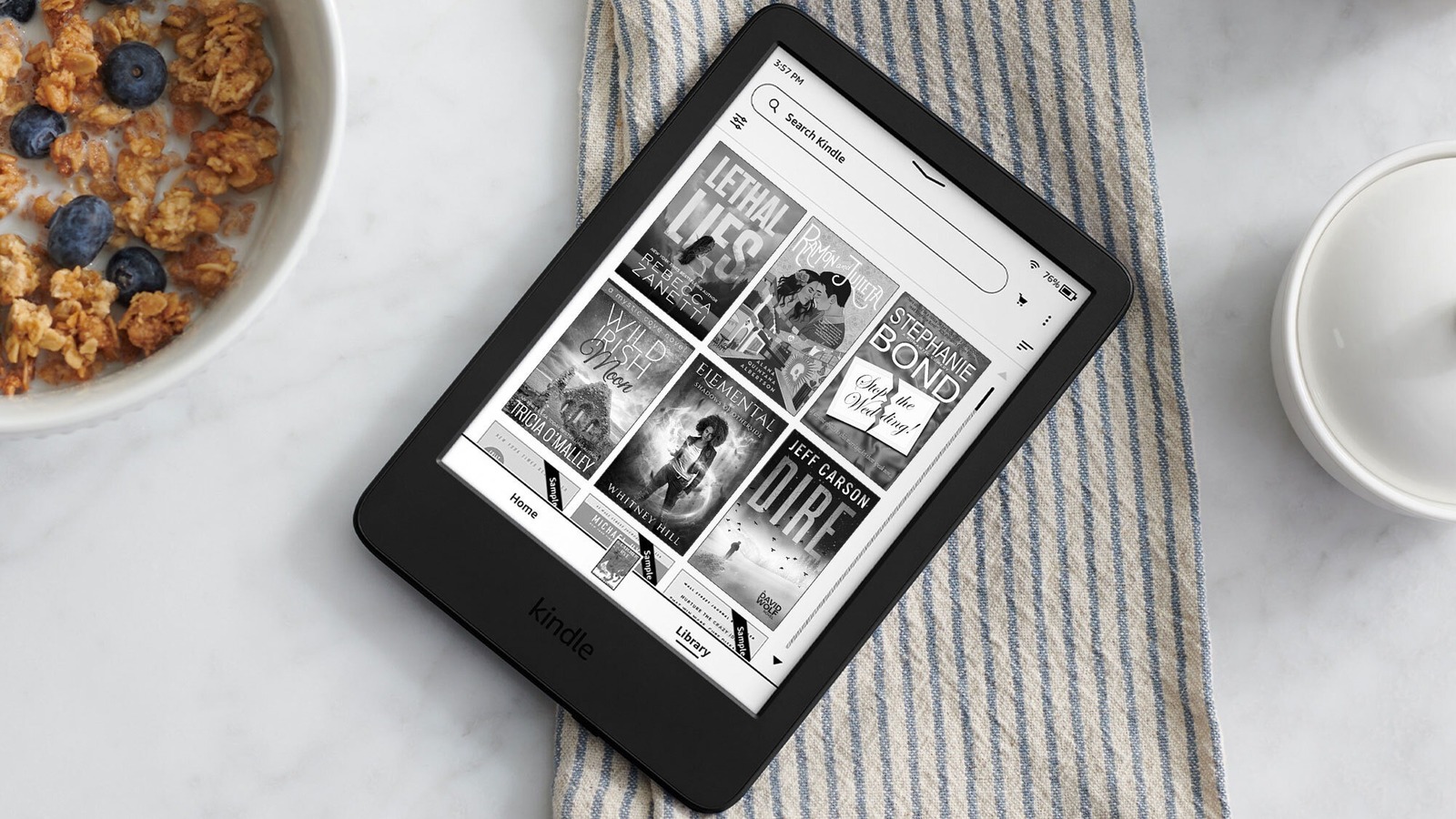
After unboxing your Kindle, there are a couple of standard things to do to customize the e-reader according to your liking. To start off, you can put a case on it. Clear cases, flip cases, and cases with built-in stands are pretty popular. A grip like a strap or PopSocket is a must-have too. While that’s the customization most users focus on, you should also customize the inside — a.k.a. your Kindle settings.
Similar to most of the popular and well-reviewed e-readers on the market, the Kindle can be set up to your needs and preferences. This includes the way your text appears by tweaking the font and font size settings. You can even make your Kindle last longer by changing the power consumption settings and display settings. Additionally, you can fine-tune the little things such as animations and the library screen to customize your Kindle exactly the way you want. Here’s more about a few of these Kindle settings that you should change immediately.
Text appearance settings
The default text settings on Kindle might work for some people, but it can be quite bothersome for others. Sometimes, the font is too hard to read, the size is too small, or the vertical layout just doesn’t sit right. Fortunately, the Kindle lets you easily change how your book text appears. Here’s how to adjust these settings:
- Open any book on your Kindle.
- Tap once on the top part of the book.
- Hit the Aa icon.
- Choose the Font tab.
- Change the Font Family, Bold, Size, and Spacing to your liking.
Besides the preset fonts on your Kindle, you can use any other font too. Just download a free font from sites like Google Fonts, connect your Kindle to your PC via a cable, and then copy the TTF or OTF font file to your Kindle’s “fonts” folder. In terms of resizing the text, there’s also an alternate way to change the size without going into the settings. If you’re inside a book, you can simply pinch in and out on the screen with two fingers.
From the customization settings, there are other things you can tweak too:
- Go to the Layout tab.
- Switch the Orientation to Landscape if you prefer reading on a wider screen, Alignment to left-aligned if you find the justified alignment to be too spaced out, and Margins and Spacing to your preferred sizes.
- Head over to the Themes tab.
- Press Save current settings.
- Enter a name for your custom theme.
- Hit Save.
You can have different custom themes for different purposes. For instance, you might prefer the smallest margin only for long books, so more content can fit into one page. Whenever you want to switch to your other custom themes, simply select it from the Themes tab.
Battery saver settings
If there’s one feature the Kindle is best known for, it’s the impressive battery life. Most models can last a few weeks, and some can even go up to three months on just a single charge. Part of why the Kindle can run this long is its airplane mode. It works similar to your phone’s airplane mode — as soon as you turn it on, your Wi-Fi and Bluetooth connections turn off. Both wireless features can put some serious dent in your battery runtime, so having airplane mode on will make sure you won’t have to charge your Kindle every day.
To enable airplane mode on your Kindle, go to the Home or Library screen and press the down arrow at the top center to open the Quick Actions panel. Then, tap the airplane icon. When not in use, your Kindle can even last for months on airplane mode. I’ve personally experienced this and was surprised when my Paperwhite still had some battery left after at least six months of it collecting dust on my bookshelf. One important thing to keep in mind about airplane mode: with the feature enabled, Sync won’t work as it’s dependent on the internet. If you want to sync your Kindle to your account, simply deactivate airplane mode and connect to your Wi-Fi.
Another Kindle setting you should change immediately to save your battery is Power Saver. This stretches out your runtime more by putting the device to sleep mode that consumes less power. It does so once it detects that you haven’t used your Kindle for several hours. To switch on Power Saver, navigate to All Settings and find Device options. Press the toggle next to Power Saver near the bottom of the page.
Display settings
By design, Kindles are easier on the eyes than tablets, but they still have some clever settings to make the e-ink screen work better for you. The three biggest things are brightness, warmth, and appearance mode (light mode or dark mode). You can find all these in the Quick Actions panel.
To change the brightness and warmth, drag the Brightness and Warmth sliders until you have your preferred level. To switch between light and dark modes, tap the Dark Mode icon. The highest brightness, lowest warmth, and light mode work well when you’re reading outdoors in the daytime. Once night comes, you’d want to tone down the brightness, increase the warmth, and turn on night mode. This prevents eye strain and blue light exposure, especially before bed. All three settings are manually adjustable, but you can opt to schedule the warmth level for convenience. Here’s how:
- In the Quick Actions panel, tap on Schedule at the top of the Warmth slider.
- Toggle on Warmth schedule.
- To let the warmth schedule follow your location’s sunrise and sunset times, select Automatic.
- To set a specified time for the high warmth level to kick in, go to Manual and pick the time.
- At the bottom, choose how warm you want the screen to be.
Before the set schedule, your Kindle screen will gradually increase the warmth until it’s at your desired level. Unfortunately, there’s no automatic schedule for the brightness and appearance mode, so you’ll still have to change them yourself.
Another Kindle display setting you might like to turn on is Page Refresh in the Settings (under the Reading options in Home and Library). It refreshes your screen every page turn to prevent residual text on the screen. The downside, though, is that it makes your screen flash every page.
Library screen appearance settings
The more books you add to your Kindle, the more chaotic your Library screen can get. Lucky for you, Kindle offers some hidden settings you can change to stay on top of your TBR list. Follow these steps to declutter your Library screen:
- Go to the Library screen.
- Press the filters icon in the top left, under the search bar.
- Under Status, pick between Unread and Read. Whichever one you set will be the only type of book that will be displayed in your Library screen.
- Under Type, choose from Books, Samples, Documents, Newsstand, Audible, and Comics.
- Tap anywhere outside the Filters panel to save your selection and go back to the Library screen.
Other than filtering your books, there’s also an option to sort them. Here’s how:
- In the Library screen, click the sort icon in the top right (two arrows pointing up and down).
- Under Sort by, select whether to sort by Most recent, Title, Author’s surname, or Publication date.
- Under Sort by, tap on Ascending or Descending to change the order of your library.
- Under View options, choose All to display all your books or tap Collections to show the collections your books belong to (books that aren’t in any collections get their own collection folder called “Uncollected”).
- Under View options, go with either Grid or List view.
If you’re not into manually adding your books into different collections, Kindle can actually group them by series for you. You have to turn on this setting before it can work, though. Follow this guide:
- Navigate to All Settings.
- Select Device Options > Advanced Options > Home & Library.
- Enable Group series.
The books in the same series will automatically appear in a group in your Library screen.
Navigation settings
There are many affordable gadgets that make reading your Kindle more comfortable. However, if you’re not a fan of extra accessories, you can just change some Kindle settings to make navigating your device quicker and easier. One of these settings — Double Tap — is only available on the Colorsoft Signature Edition and Paperwhite Signature Edition (12th Generation) 2024. These models are fitted with an accelerometer, which can detect taps as input. In turn, you get to double tap the back or sides to turn the page forward in a book or navigate the Home or Library screens. To turn on this double-tap feature, here’s what you need to do:
- In your Home screen, hit the down arrow at the top of the screen.
- Choose All Settings.
- Navigate to Device Options.
- Press the toggle for Double tap to enable it.
From here, open a book and try tapping the back, right, and left side of the Kindle. It should turn the page for you. Double tap can work even with official Amazon cases on, but feel free to try using it with your third-party Kindle case too.
If you’re after a more aesthetic way to navigate your book, enable Page Turn Animations. You can find it in the Aa menu on any book, under More. Simply toggle on Page turn animations at the bottom of the page, and you should see a subtle page turn effect added to your book. It might not be available for every book, though.