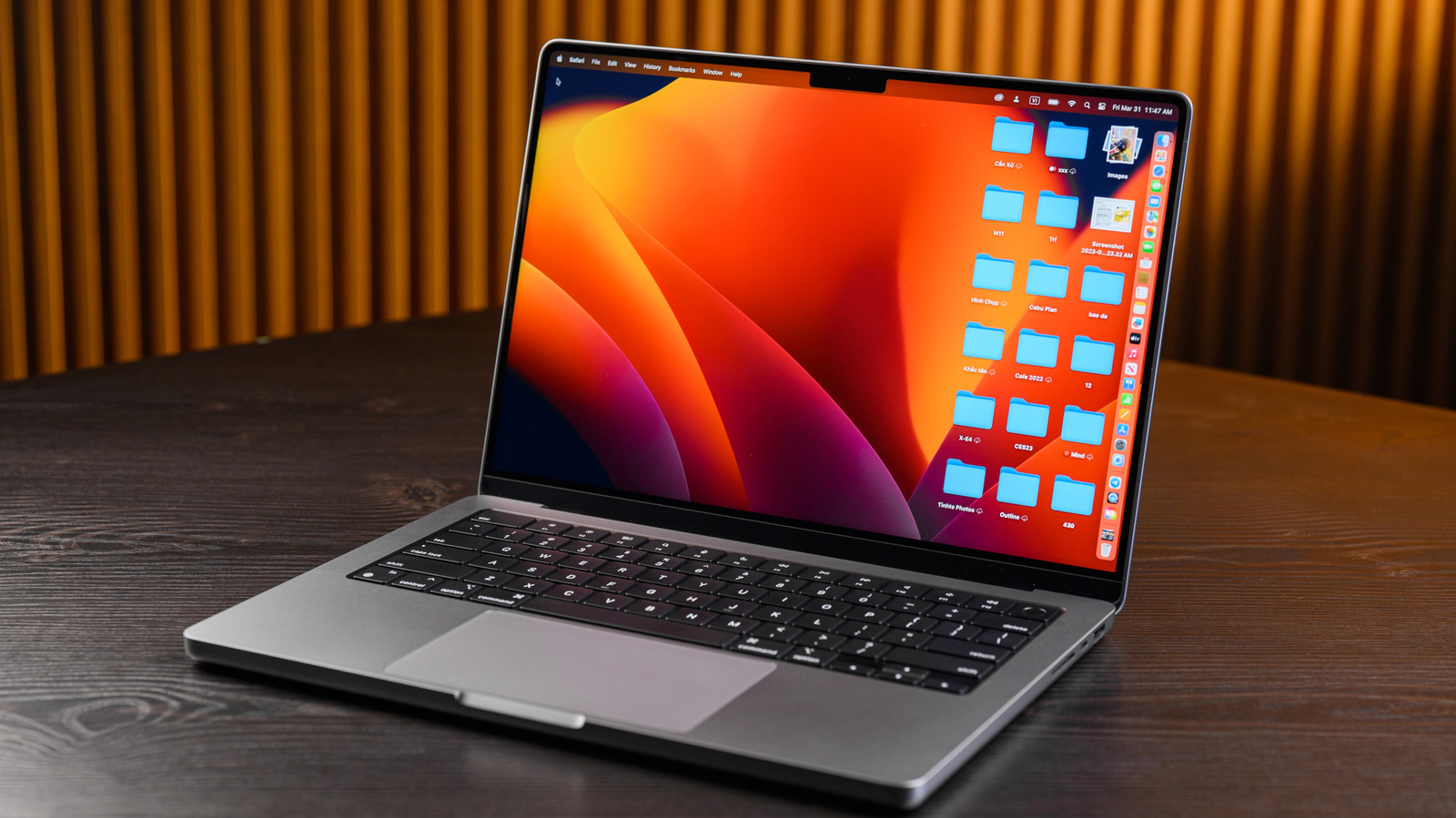
A MacBook is a powerful tool, especially in the age of the Apple Silicon-based M-series machines. Apple markets these devices for their efficiency and great performance-to-energy ratio. This is also true for Apple’s new MacBook Neo that was just announced. However, if you’re noticing that your MacBook is lagging a bit — whether it’s merely showing its age or you give it a lot to do — there are a few things you can do to give it that extra little lift.
While there are ways to spend money to make your MacBook run a little better, there are a lot of ways you can accomplish this just by adjusting a few core settings. Some of these options include optimizing how your Mac starts up, consolidating some of the storage, adjusting some of the visual features that Mac OS gives you, and more. Let’s dive in to give your MacBook the edge it’s been waiting for.
Manage your storage better
One of the most common reasons that any computer, including MacBooks, will run more slowly is if their internal hard drives are too chock full of data. Though the newly announced M5 MacBook Air and Pro come with more storage, modern video and media files can easily fill up these drives before you even realize. So why does this affect performance? In simple terms, a solid-state drive writes new data to empty sections. If there’s already data, it sometimes needs to move data around to make space. The more stuff that’s on your drive, the more times the drive has to do this consolidation process.
Thankfully, Macs have an easy way to review what files are taking up the most space, and in what categories. You’ll find a Storage section in your General Settings screen that shows you the capacity of your Mac. Selecting storage settings will show a page that lists all the categories of files on your Mac and how much space each is taking. Selecting one of these categories takes you to a page that shows all the files and lets you delete anything unneeded right there.
That said, if you want to get more storage on MacBooks, unfortunately it’s a spec selection you have to make when you buy your Mac. Another great alternative is to consider an external flash drive or hard drive, to unload the bulk of your files and keep your MacBook light.
Manage your startup and background processes
Think of your laptop’s RAM and processing power in the same way as you may think of its storage. Because RAM is there for your system to store temporary data while running processes, it also has a capacity and it can also fill up. While Mac computers are broadly considered less problematic in this regard than PCs, macOS still runs its own share of background programs that, if left unchecked, could contribute to performance slowdown.
There are a couple of important ways to get around this. First, it’s good form to get familiar with your MacBook’s built-in Activity Monitor program. This will show you programs or processes that are using a lot of energy or running constantly. It’ll even show you a graph of how much of your RAM or processing is being used at a given time. Keeping those graphs on the lower side can give your computer more headroom to run more smoothly.
Another helpful section in System Settings is your Login Items (located in the General menu). Making sure you aren’t letting too many programs start automatically when you boot your Mac can limit RAM usage until you actually need these programs. Handily enough, this is also the section in settings where you can manually toggle which programs are allowed to run in the background.
Adjust some of the flashier display settings
Apple is known for its approach towards design and user experience, which normally makes your laptop feel modern and friendly as you’re navigating the operating system. However, some users report that this can actually contribute to some slowdown. There are a couple reasons for this.
First, there’s the actual perceived processing power in play here. The latest macOS 26 comes with the company’s Liquid Glass design touches. While opinions are split on whether this looks good, there’s no denying that rendering transparent, glass-like windows and UI features will cost a little bit more processing than just a simple, solid component. You can tone this feature down in the Accessibility settings menu.
Another thing to check while you’re in the Accessibility section is whether your computer is running too many animated flourishes. Turning off animations could take some pressure off your processor, but it’s actually the perceived slowness that might be more apparent to you. Think about it: If you’ve got icons and windows artfully swooping up and down when you minimize or open them, that movement can take time. Removing that animation could make your system feel faster just by offering instant rendering.
Restart or update your device
If all else above fails to give you meaningfully better performance, the catch-all option that’s been around since the dawn of technology is still a great move: Turn it off, then turn it on. Of course, in this case, you should let your Mac restart properly from the Apple menu. This could pull the plug on some sneaky caching or background processes and give you a fresh start with more accessible RAM.
Beyond this, Apple is known for developing a brand new major macOS version every single year. Consider what version you’re on and how it might affect performance. Even outside of the major cycle updates, there are always security and performance patches. It’s good form to regularly check the Software Update section in the General settings menu to make sure your computer doesn’t need some patches. Sometimes a finicky or sluggish program can be fixed with a simple software update to bring your machine up to snuff.