By using this site, you agree to the Privacy Policy and Terms of Use.
Accept
World of SoftwareWorld of SoftwareWorld of Software
  • News
  • Software
  • Mobile
  • Computing
  • Gaming
  • Videos
  • More
    • Gadget
    • Web Stories
    • Trending
    • Press Release
Search
  • Privacy
  • Terms
  • Advertise
  • Contact
Copyright © All Rights Reserved. World of Software.
Reading: Ditch the signature apps — your iPhone has a hidden built-in tool to sign any document
Share
Sign In
Notification Show More
Font ResizerAa
World of SoftwareWorld of Software
Font ResizerAa
  • Software
  • Mobile
  • Computing
  • Gadget
  • Gaming
  • Videos
Search
  • News
  • Software
  • Mobile
  • Computing
  • Gaming
  • Videos
  • More
    • Gadget
    • Web Stories
    • Trending
    • Press Release
Have an existing account? Sign In
Follow US
  • Privacy
  • Terms
  • Advertise
  • Contact
Copyright © All Rights Reserved. World of Software.
World of Software > News > Ditch the signature apps — your iPhone has a hidden built-in tool to sign any document
News

Ditch the signature apps — your iPhone has a hidden built-in tool to sign any document

News Room
Last updated: 2026/03/11 at 4:25 AM
News Room Published 11 March 2026
Share
Ditch the signature apps — your iPhone has a hidden built-in tool to sign any document
SHARE

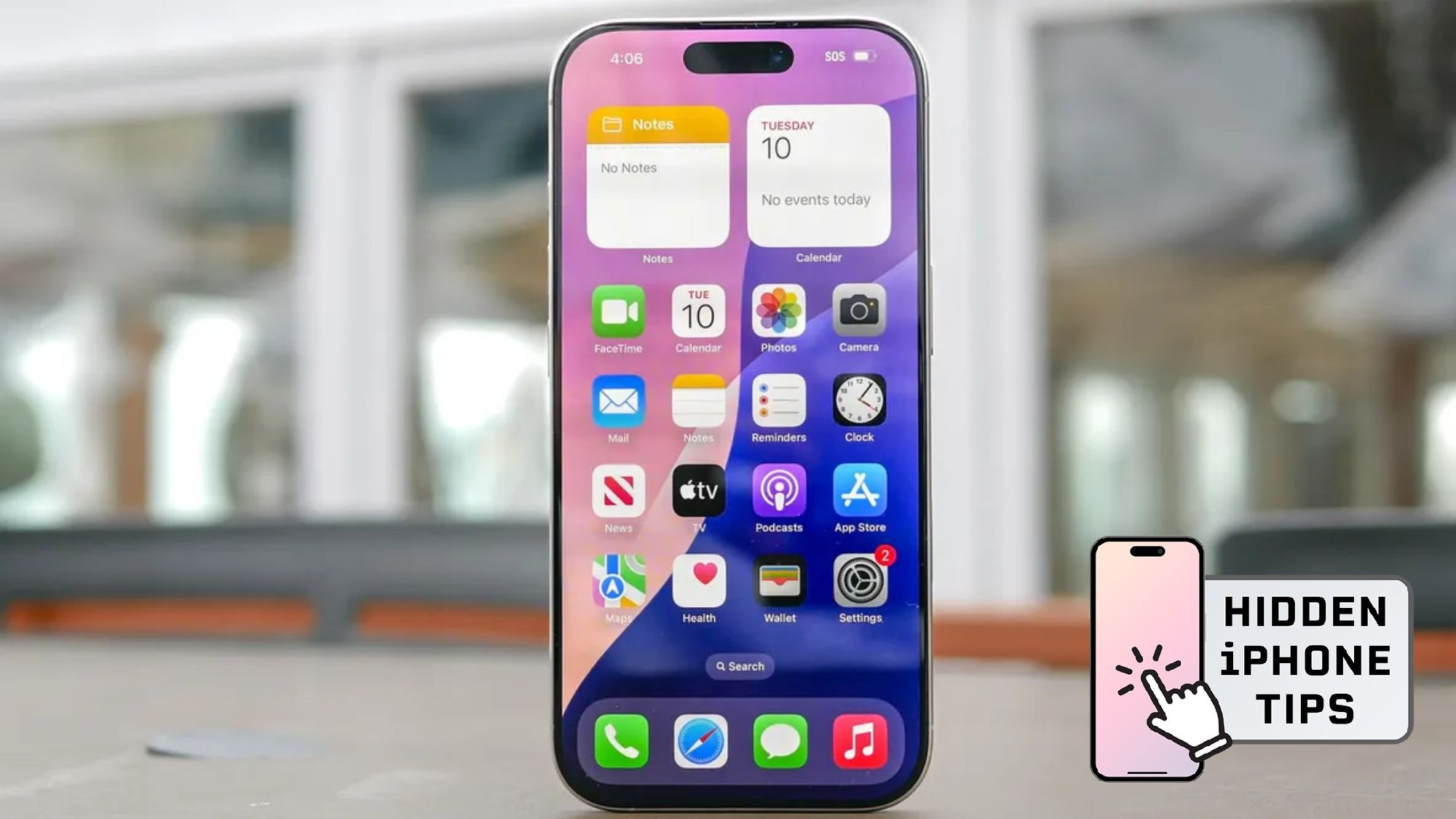
Hidden iPhone tips

(Image credit: Future)

Hi, I’m Kaycee. Welcome to Hidden iPhone Tips, a weekly column where I dig into the best iOS features Apple doesn’t tell you about.

I’m buying my first house, which means I’m drowning in paperwork. For weeks, I downloaded PDFs to my laptop, opened a third-party signature app and signed, re-downloaded and emailed over. It was exhausting.

Then I discovered my iPhone has a built-in signature tool I’d never noticed. It’s hidden inside the Markup feature that appears when you take screenshots. No apps, no subscriptions, or printing required. I can sign any document directly on my phone in seconds. Here’s how it works and why you should ditch whatever signature app you’ve been using.

How to sign documents on iPhone

1. Take a screenshot of the document

Add signature on iPhone

Open the document you need to sign and take a screenshot by pressing the side button and volume up button simultaneously (or home button and side button on older iPhones).

Next, click the Markup icon, the one that looks like a marker inside a circle. When the Markup toolbar appears at the bottom of the screen (with the different pens and pencils), tap the plus (+) button. From the menu that opens, select Signature.

2. Write your signature

Signature signed on iPhone

If you’ve never used this feature before, you’ll see a blank screen prompting you to create a signature. Sign directly on your iPhone screen using your finger. Try to keep it smooth and legible. This signature gets saved for future use.

If you’ve used this before, stored signatures appear. You can select a previously saved signature or tap the plus icon to create a new one. Multiple stored signatures are useful if you need different signature styles for different purposes.

3. Add the signature to your document

Signed signature on document on iPhone

After selecting or creating your signature, it appears on the screenshot as a draggable element. Use your finger to drag it to the appropriate signature line on the document.

Pinch to resize the signature so it fits the signature box properly. Most forms have designated signature areas, so make sure your signature fits within those boundaries without overlapping text or other fields. If you need to rotate the signature, you can use two fingers to twist it.

Once positioned correctly, tap Done in the top-left corner. Your signed document is now saved to Photos as a new screenshot with the signature embedded.

4. Share the signed document

Saving signed document on iPhone

After tapping Done, the signed screenshot saves automatically. Tap the share icon (square with an arrow pointing up) to send it.

You can email it directly, upload it to cloud storage, send it via Messages, or save it to Files. The signed document is a standard image file that works anywhere you’d send a photo.

For professional contexts where image files aren’t ideal, you can convert the screenshot to PDF. Save it to Files first, then use the Files app to convert images to PDFs by selecting the file, three-dot menu, and Convert to PDF.

Why this beats signature apps

Your iPhone’s built-in signature tool is completely free with no limits. Sign unlimited documents without creating accounts, paying subscriptions, or dealing with app interfaces that add unnecessary steps.

Article continues below


You may like

It’s also faster. With signature apps, you download the app, create an account, import the document, add your signature, export it, then share it. With iPhone’s Markup feature, you screenshot, tap, sign, and share. The entire process takes seconds.

Check out more hidden iPhone tips below!


Google

(Image credit: Future)

Follow Tom’s Guide on Google News and add us as a preferred source to get our up-to-date news, analysis, and reviews in your feeds. Make sure to click the Follow button!

More from Tom’s Guide

Get instant access to breaking news, the hottest reviews, great deals and helpful tips.

Sign Up For Daily Newsletter

Be keep up! Get the latest breaking news delivered straight to your inbox.
By signing up, you agree to our Terms of Use and acknowledge the data practices in our Privacy Policy. You may unsubscribe at any time.
Share This Article
Facebook Twitter Email Print
Share
What do you think?
Love0
Sad0
Happy0
Sleepy0
Angry0
Dead0
Wink0
Previous Article Performance & Core Web Vitals for Agentic Website Builders: What to Test After Generation Performance & Core Web Vitals for Agentic Website Builders: What to Test After Generation
Next Article The Best Project Management Software We’ve Tested for 2026 The Best Project Management Software We’ve Tested for 2026
Leave a comment

Leave a Reply Cancel reply

Your email address will not be published. Required fields are marked *

Stay Connected

248.1k Like
69.1k Follow
134k Pin
54.3k Follow

Latest News

NIO’s mini EV firefly now costs only ,128 with battery leasing program · TechNode
NIO’s mini EV firefly now costs only $11,128 with battery leasing program · TechNode
Computing
Best Amazon Spring Sale past-gen tech deals 2026: Apple and Sony on sale
News
Commit Inks Multi-Year AWS Strategic Collaboration Agreement for Partner Greenfield Program Launch
Gadget
The Best Time to Post on TikTok in 2025 |
Computing

You Might also Like

Best Amazon Spring Sale past-gen tech deals 2026: Apple and Sony on sale
News

Best Amazon Spring Sale past-gen tech deals 2026: Apple and Sony on sale

3 Min Read
Think iPhones Are Expensive In The U.S.? India Has It Worse – BGR
News

Think iPhones Are Expensive In The U.S.? India Has It Worse – BGR

7 Min Read
Peter Thiel’s big bet on solar-powered cow collars |  News
News

Peter Thiel’s big bet on solar-powered cow collars | News

8 Min Read
8 things Google’s Whoop competitor needs before I’ll buy it
News

8 things Google’s Whoop competitor needs before I’ll buy it

7 Min Read
//

World of Software is your one-stop website for the latest tech news and updates, follow us now to get the news that matters to you.

Quick Link

  • Privacy Policy
  • Terms of use
  • Advertise
  • Contact

Topics

  • Computing
  • Software
  • Press Release
  • Trending

Sign Up for Our Newsletter

Subscribe to our newsletter to get our newest articles instantly!

World of SoftwareWorld of Software
Follow US
Copyright © All Rights Reserved. World of Software.
Welcome Back!

Sign in to your account

Lost your password?