

It’s now official: Google’s AI Previews and AI Mode are finally available in France. A major development for the search engine, as AI previews were launched globally in 2024 and were until now blocked in France due to regulations in force on neighboring rights.
Google, which has obviously succeeded in unblocking the situation, has just officially opened the floodgates of AI in the results of its search engine. French users will therefore be able to discover a new search results interface giving them the answer to the searches they carry out directly at the top of the search results page.
This effectively means that Google, in its quest to provide an answer as quickly as possible, will no longer encourage you to visit websites offering the answer you are looking for.
If you don’t like the display of automatic responses provided by Google’s AI, and the potential errors or approximations it could create, there are steps you can take to make them disappear. Here are the ones.
1. Change your search engine
Although this is a radical decision, it is undoubtedly the simplest way to avoid having online searches polluted by Google’s AI. There are a multitude of alternative search engines, each with their advantages and disadvantages.
Among the credible alternatives to Google Search, you can, for example, turn to sovereign solutions, developed in Europe, and more respectful of your personal data, such as Qwant (which also offers AI responses), Ecosia or even StartPage.
To read: Google Search is over: 5 European search engines to replace it
2. Install a browser extension
If you want to continue using Google as your daily search engine, you can block AI Previews quite easily by using a browser extension. On Chrome, Edge, Vivaldi, Opera and any other Chromium-based web browser, the Hide Google AI Overviews and Bye Bye Google AI extensions will allow you to hide answers generated by Google’s AI in search results.
If you use Safari from a Mac, rest assured, there is also an extension capable of blocking AI Previews on Apple’s web browser. This is the udm14 for Safari extension which is responsible for automatically redirecting your queries launched in the search engine to the Google Web tab, which only displays Web results. Note that the extension is also iOS compatible and can therefore be used on Safari from the iPhone.
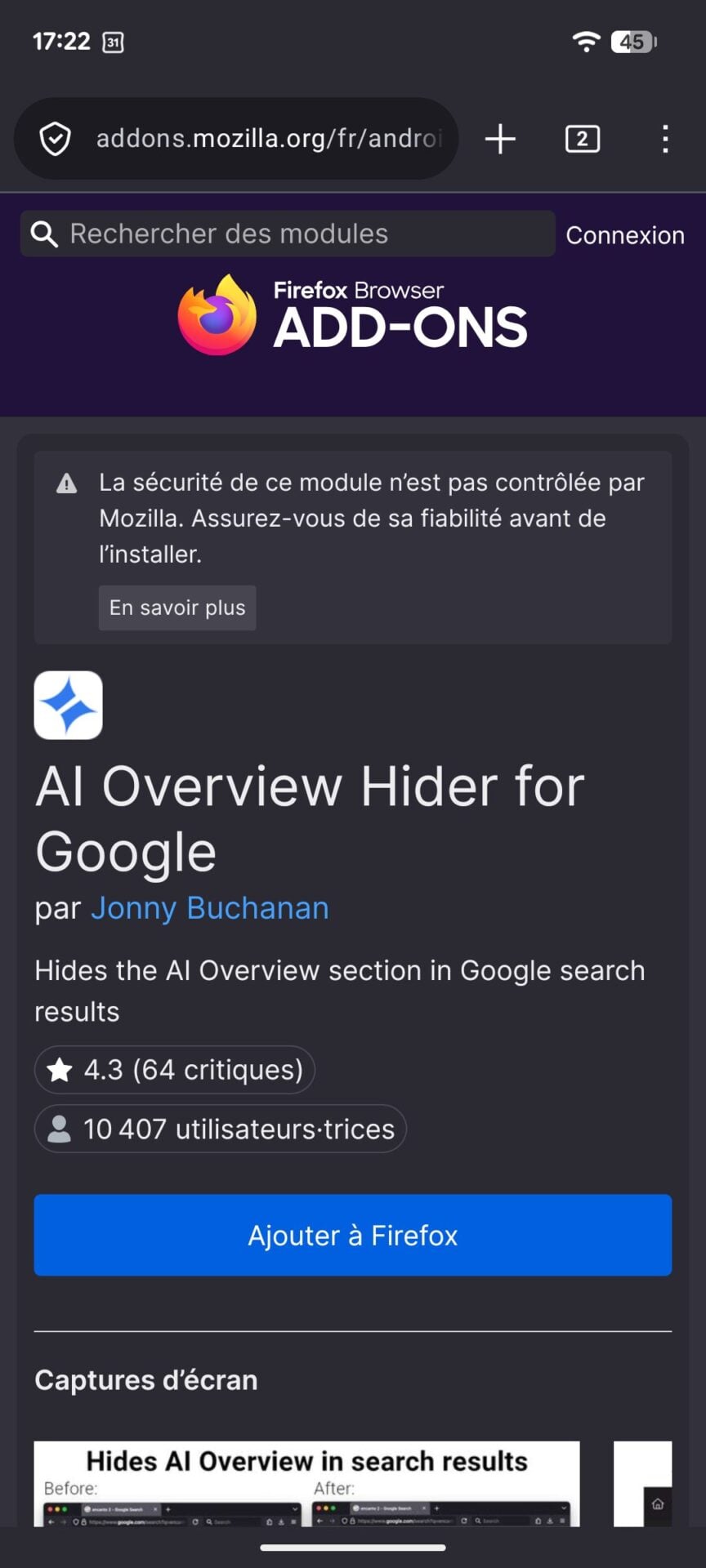
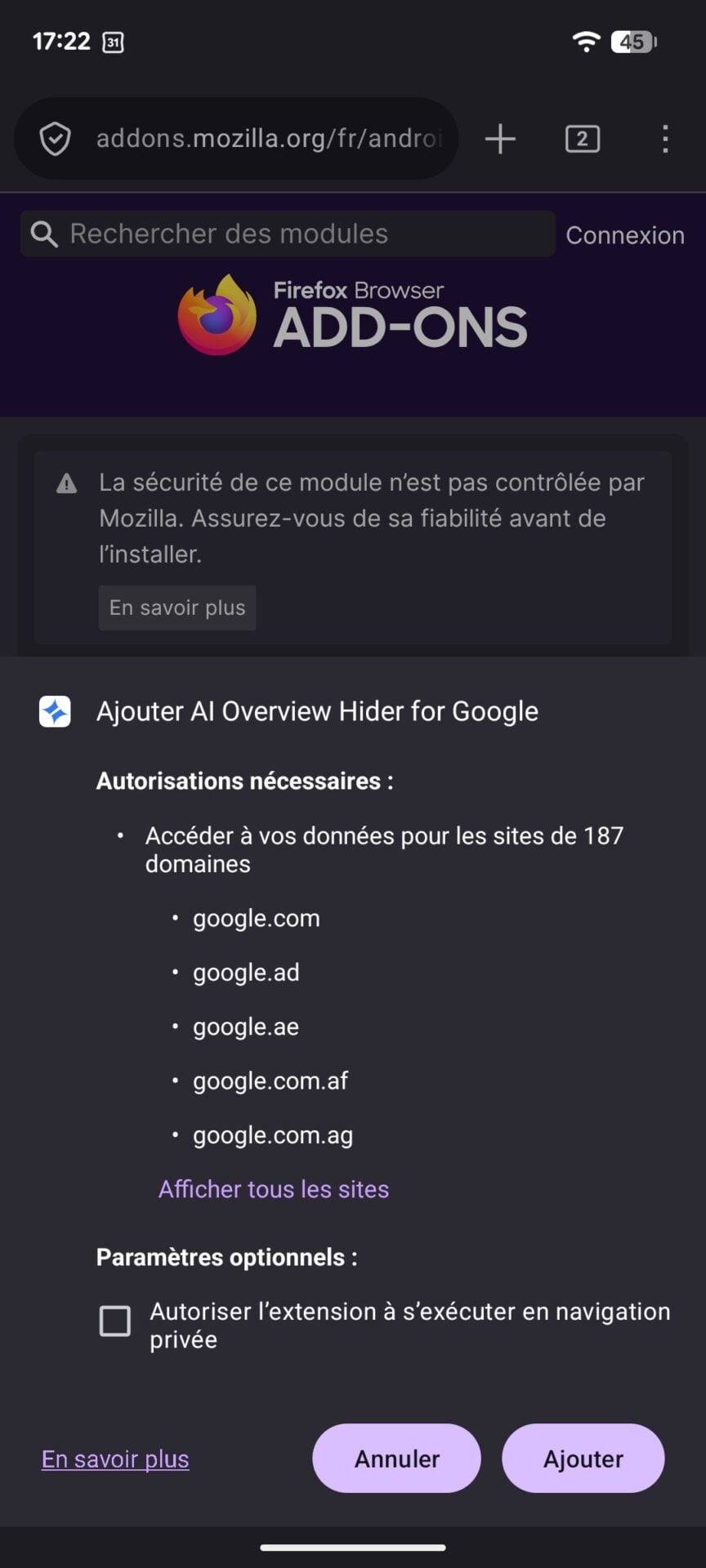
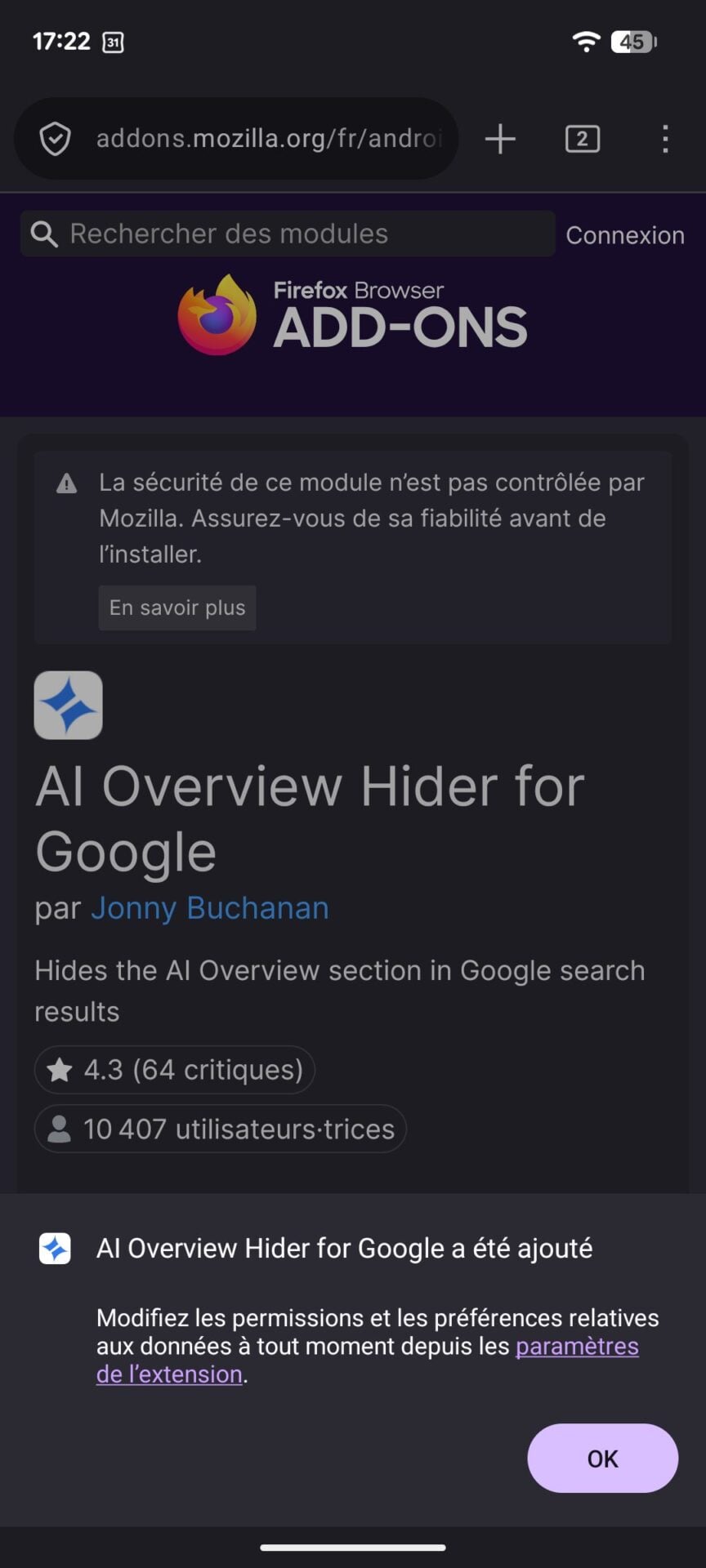
On Android, the best solution is undoubtedly to use the Firefox web browser which you will complete with the AI OverView Hider Extension available both on the Desktop version of Firefox and on its mobile version.
3. Create a shortcut to the search results web tab
As we have just seen, it is possible to bypass Google’s AI Previews by using the Web tab offered in the search results to only display responses from the Web. But rather than having to click on this tab for each new request, it is possible to automatically redirect Google to this tab, if the search engine is configured by default on your desktop web browser.
On Google Chrome
To create this shortcut on Chrome, go to the Settings of the browser and select Search engine in the left column. Then click on the menu Manage search engines and site search.
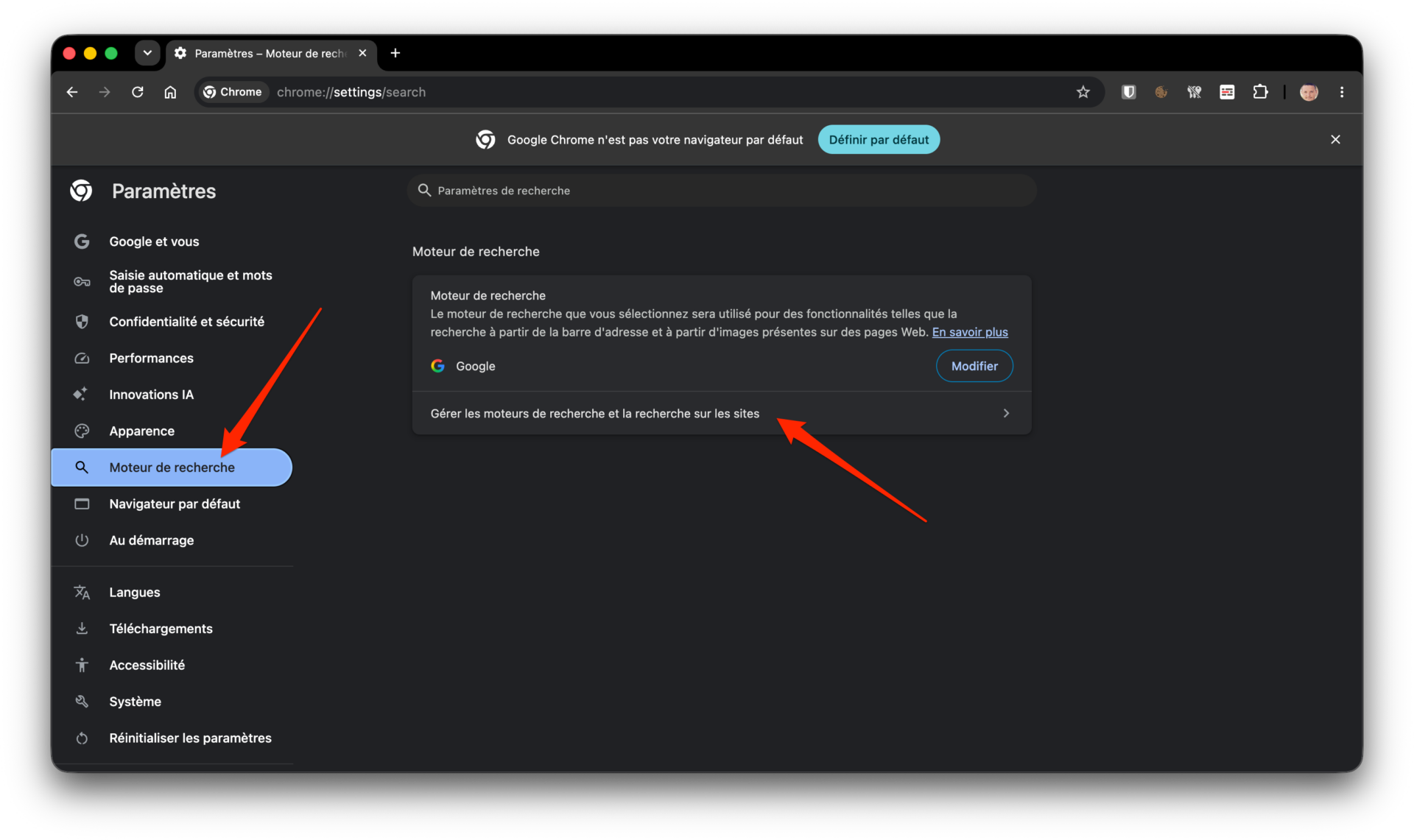
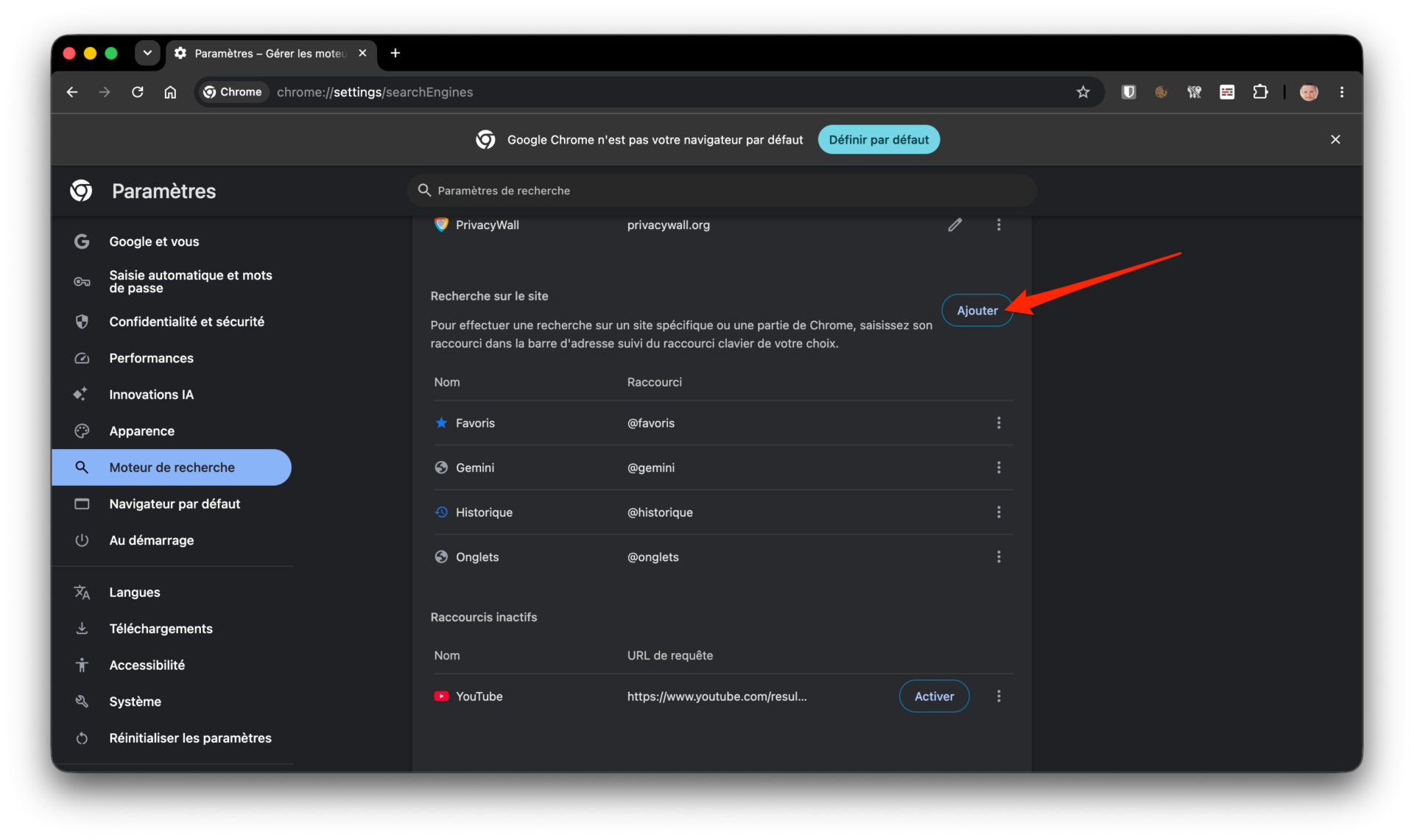
Scroll through the options and then into the category Search on the sitee, click on the button Add.
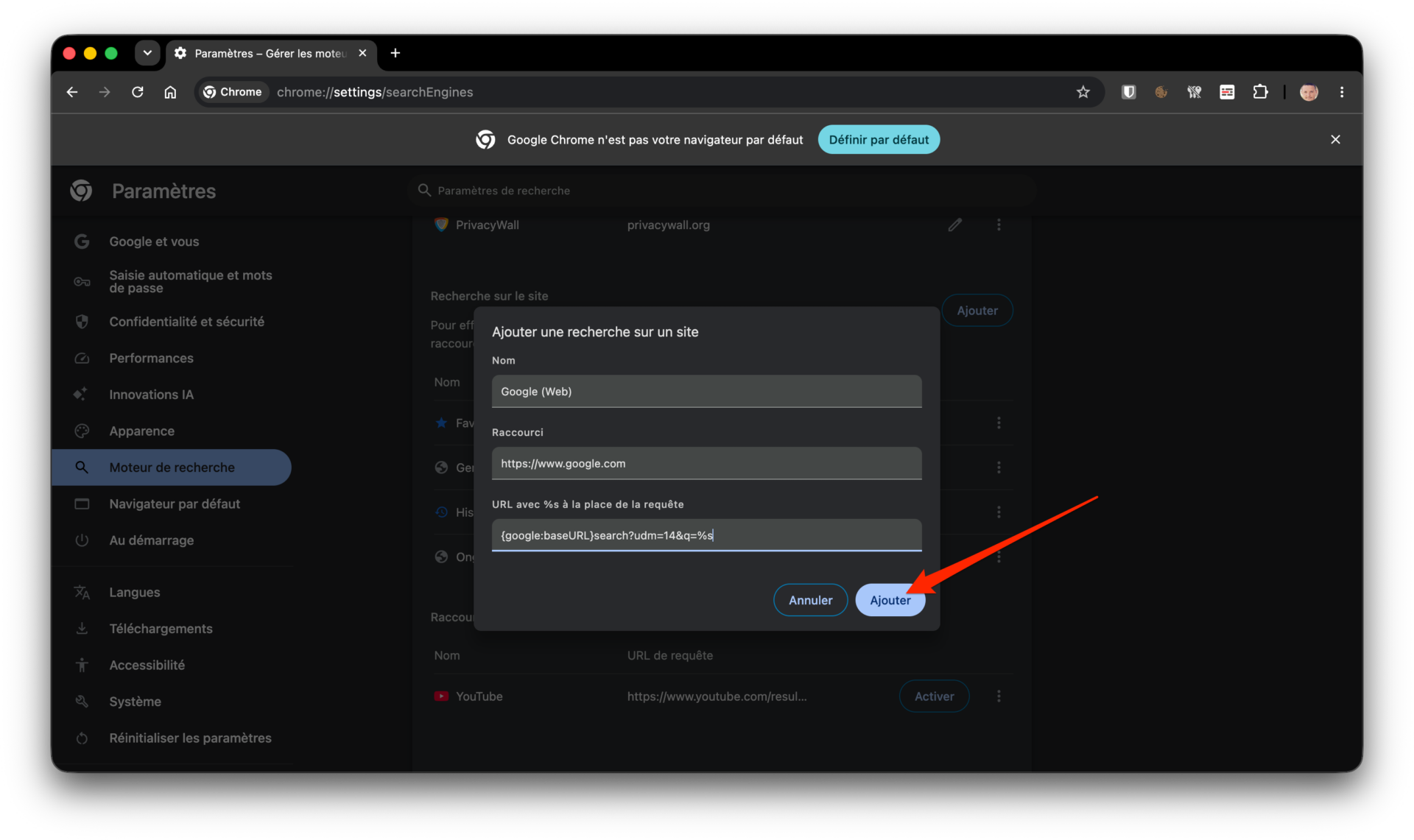
A pop-up opens on the screen. In Nomenter Google (Web)then at the line Shortcutenter https://www.google.com. Finally, in the field URLadd the following command {google:baseURL}search?udm=14&q=%s and click on the button Add to save your changes.
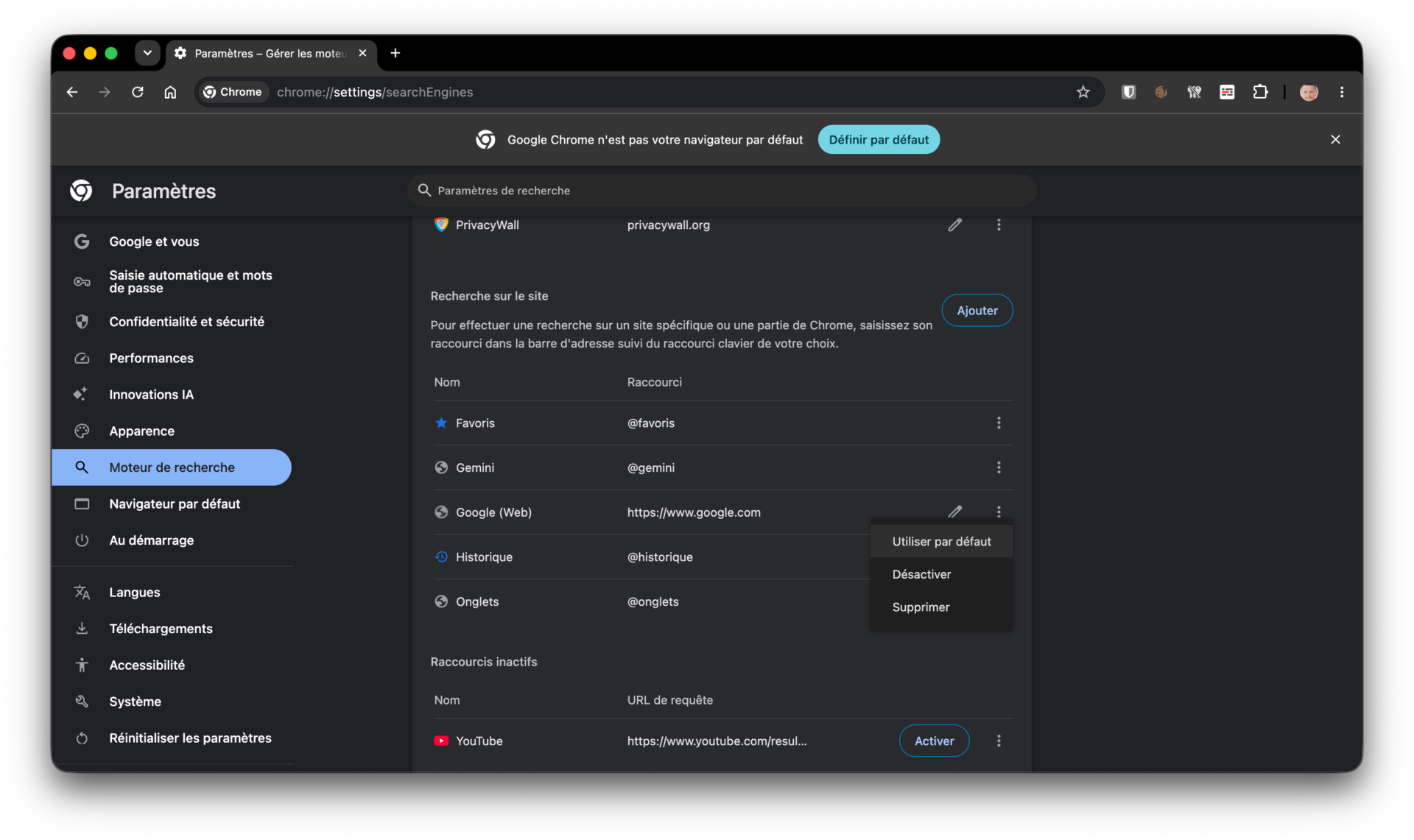
Now that your personalized search module is configured, click on the options button represented by three small dots, then in the window that appears, select Use as default.
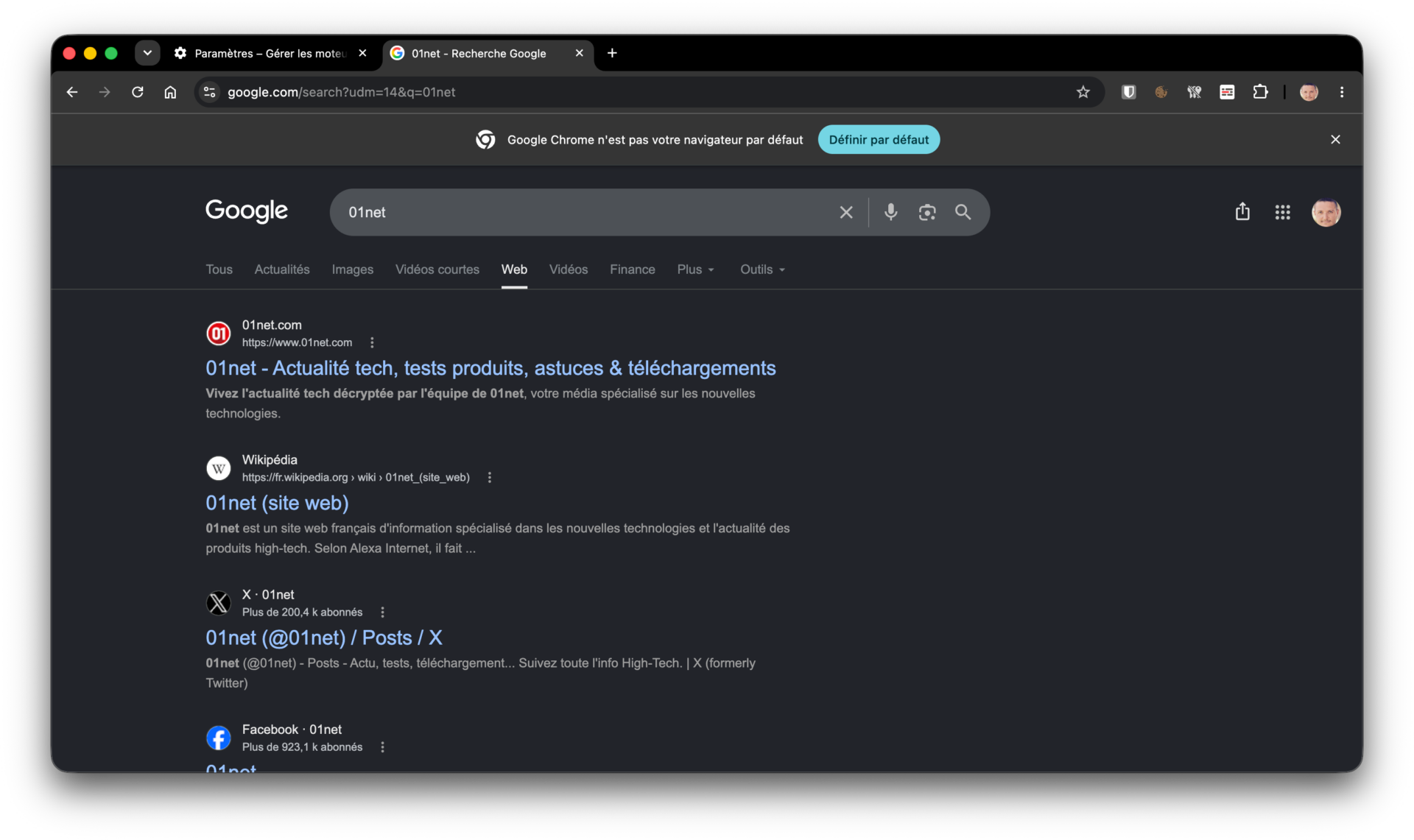
Now, with every query you enter into Chrome’s address bar, your search will automatically be redirected to Google’s Web tab.
Sur Firefox
Mozilla’s web browser offers a system quite similar to that of Chrome in its search engine management module. To create a shortcut to the Web tab of Google search results, go to the Settings from Firefox and select Research in the left column. In the section Additional search enginesclick on the button
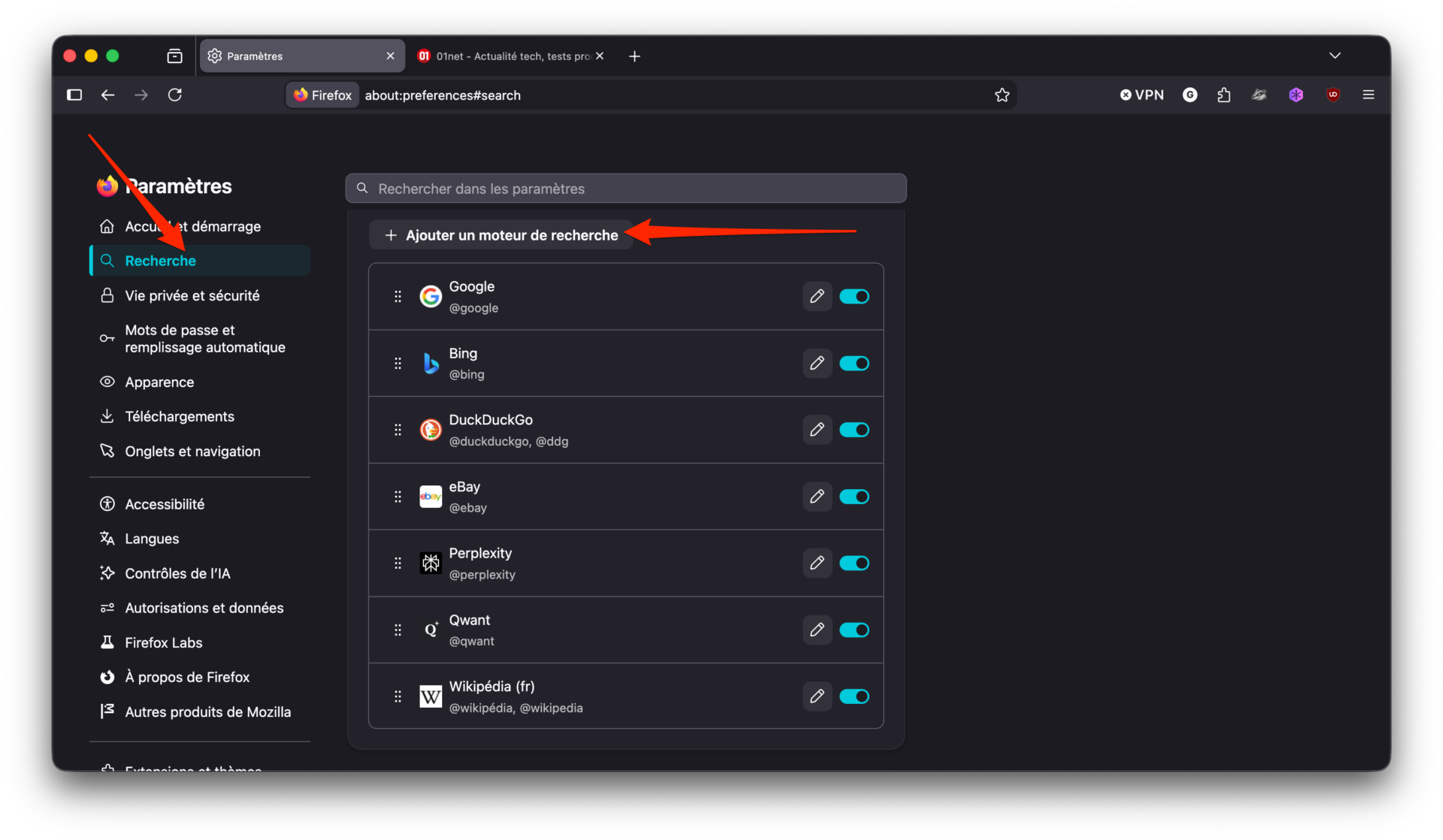
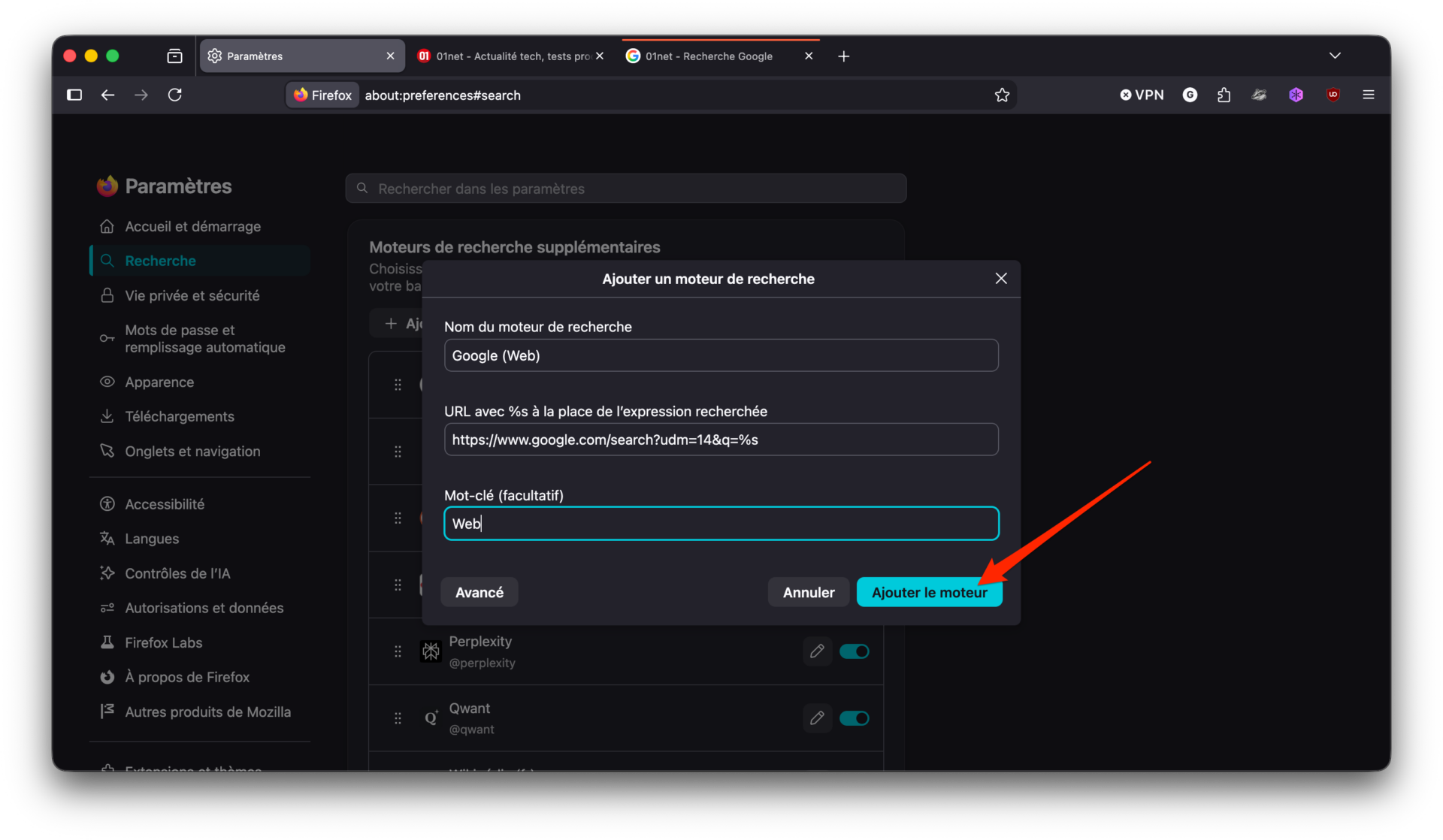
.To the line Search engine name indicate Google (Web)at the line URLcopy and paste the following URL: https://www.google.com/search?udm=14&q=%sand finally to the line keyword simply indicate Web (to identify your modified engine). Finally click on the button Add the engine to save it.
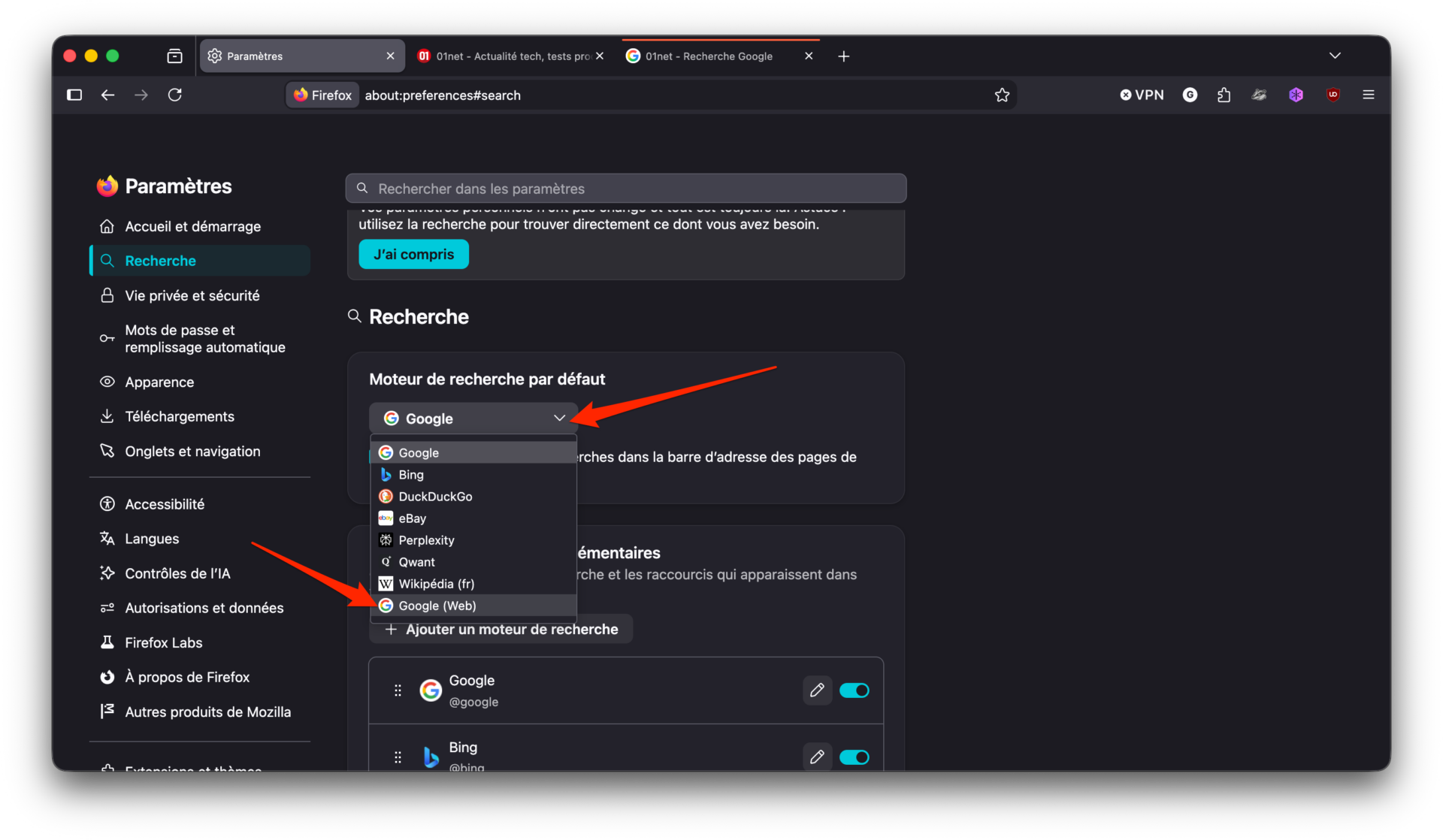
Then go back to Firefox Search Settings, then in the section Default search engineclick on the drop-down menuand select your modified search engine Google (Web) that you have just created.
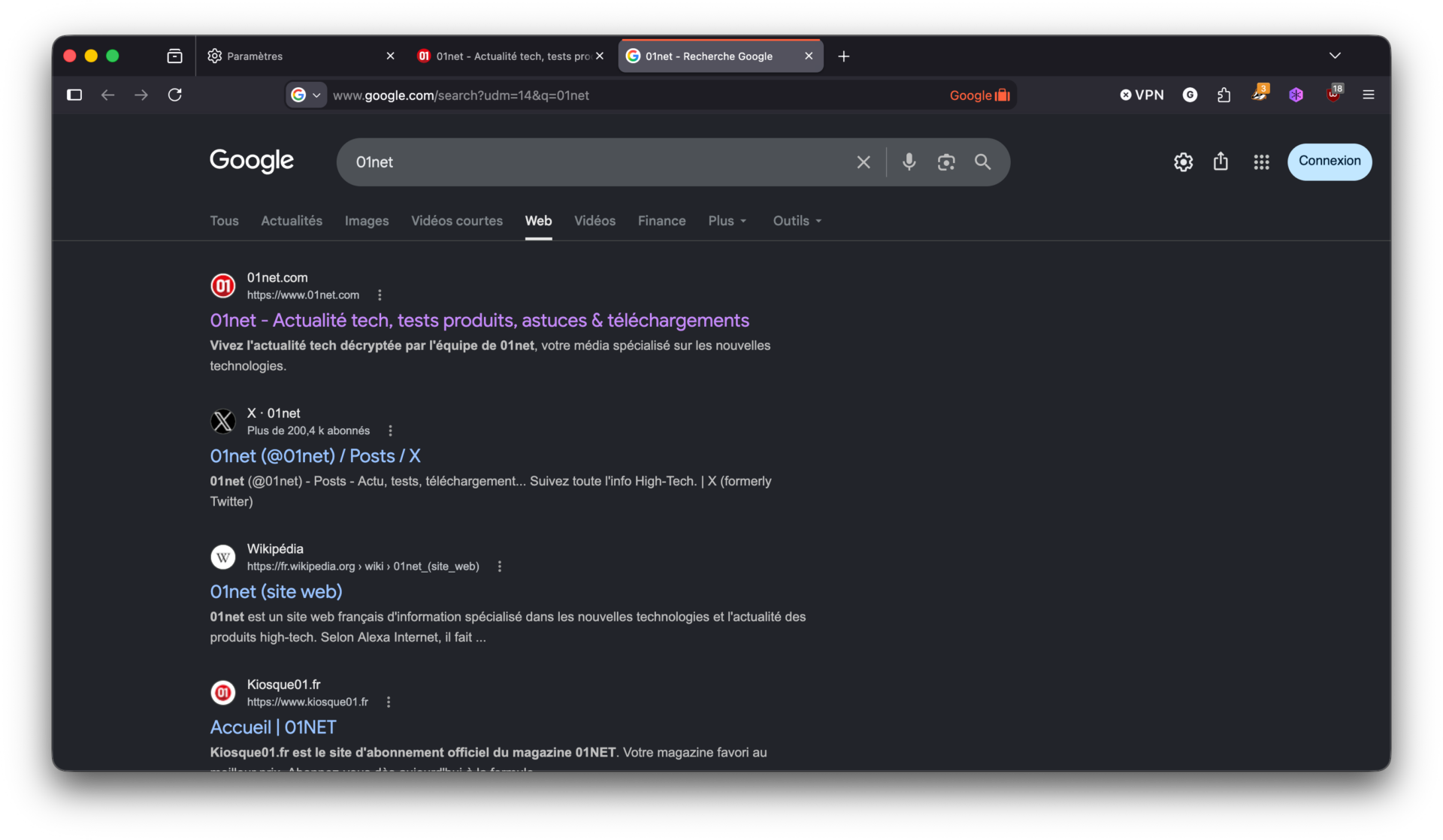
All your queries entered from the Firefox address bar will automatically be redirected to Google web results.
Sur Microsoft Edge
Just like on Chrome and Firefox, it is possible to customize search engines in Microsoft Edge. To do this, go to the Settings of the browser, and select Privacy, search and servicesenter the menu Search and connected experiences (at the very bottom), then click Address bar and search (at the very bottom), and finally enter the menu Search engines.
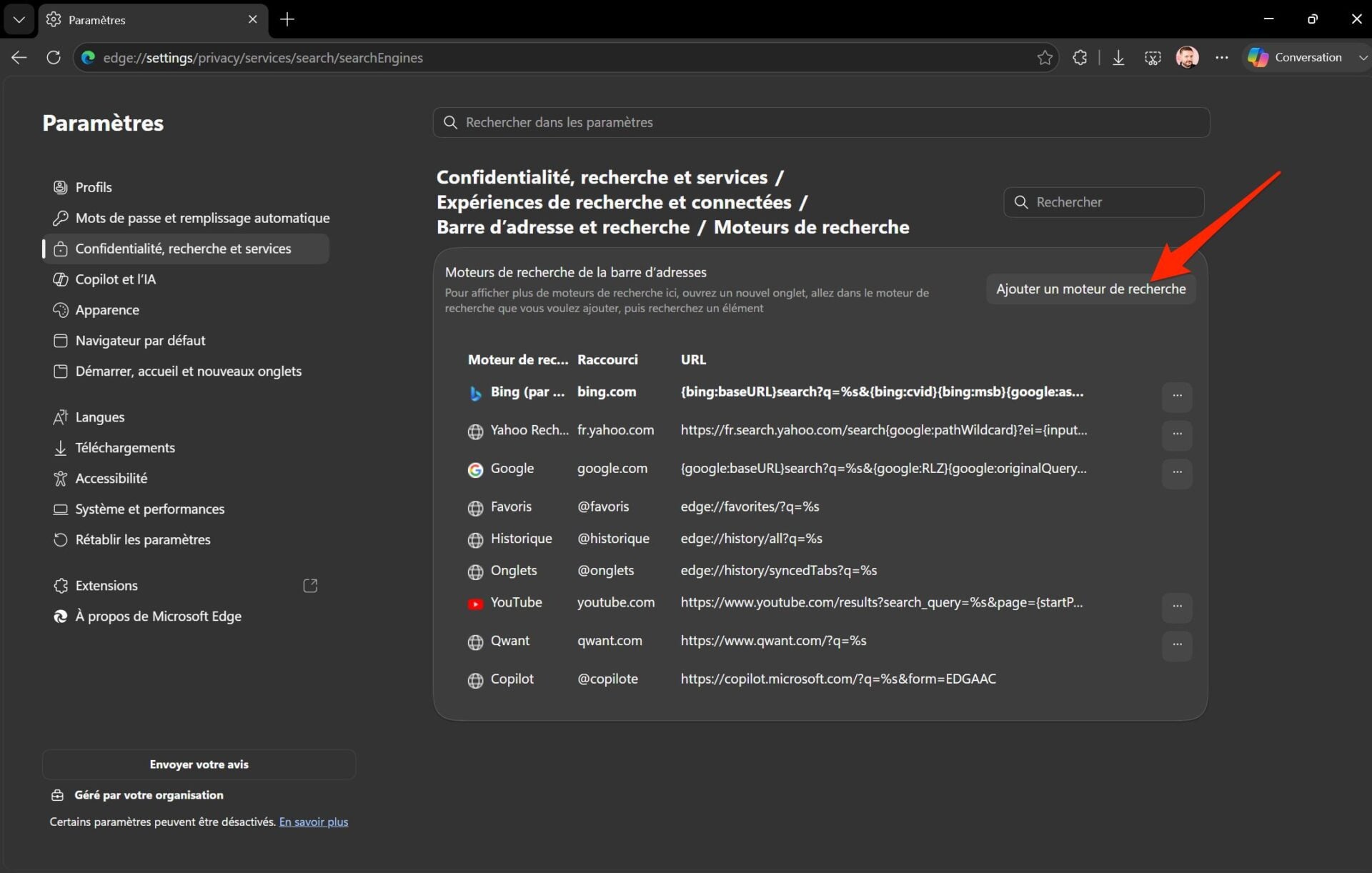
You can also save yourself the pain of navigating through all those menus deliberately convoluted by Microsoft to prevent you from changing search engines (Bing by default) by going directly to edge://settings/privacy/services/search/searchEngines. Once on the correct page, click Add a search engine.
In the pop-up that appears, at the line Search engineenter Google (Web). In the field Shortcutenter https://www.google.com. Finally, in the field URLadd the following command {google:baseURL}search?udm=14&q=%s.
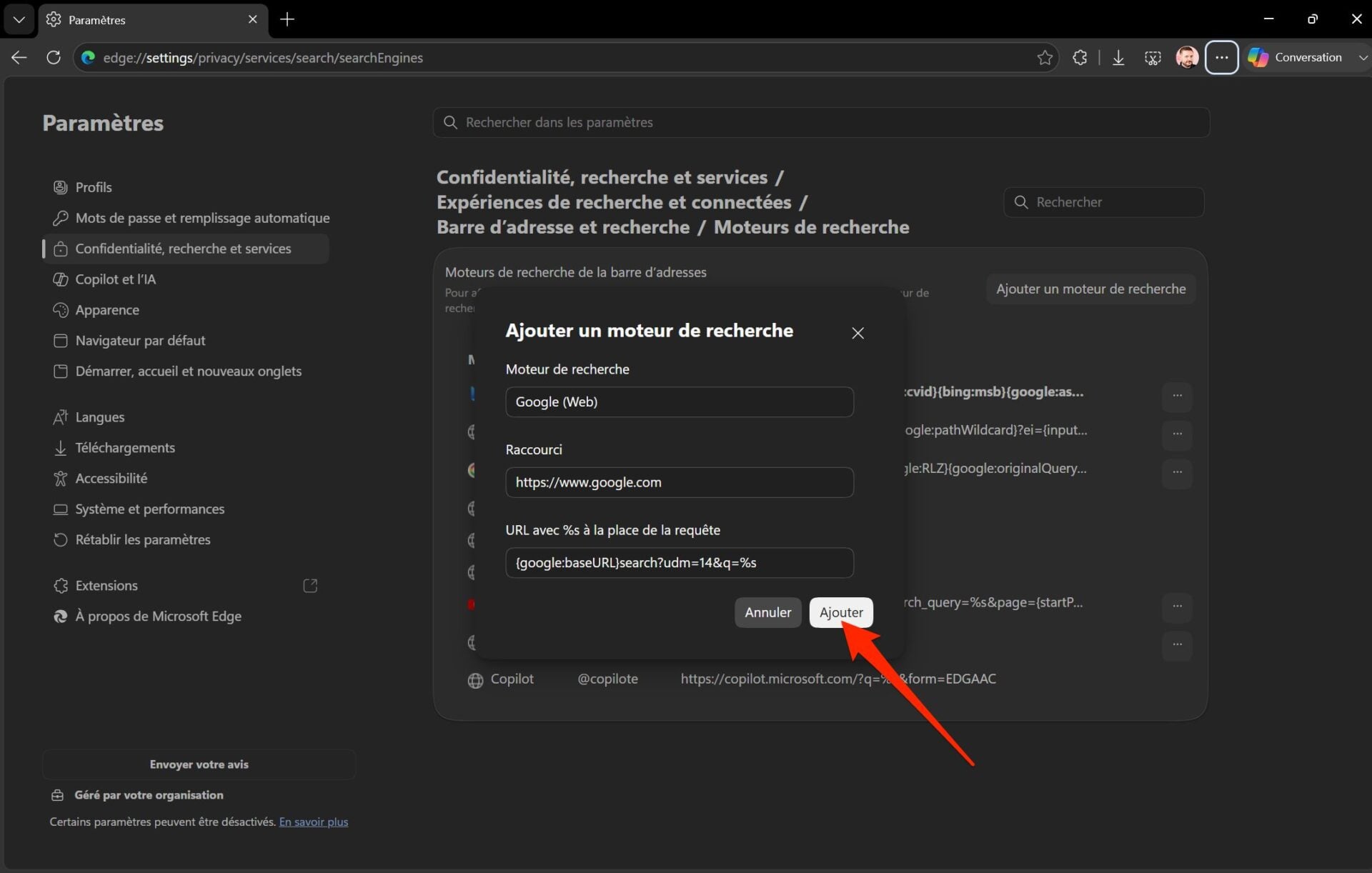
Then click on the button Add to save the shortcut to the Google web tab. Your new “search engine” is added to the last line of the search engines list.
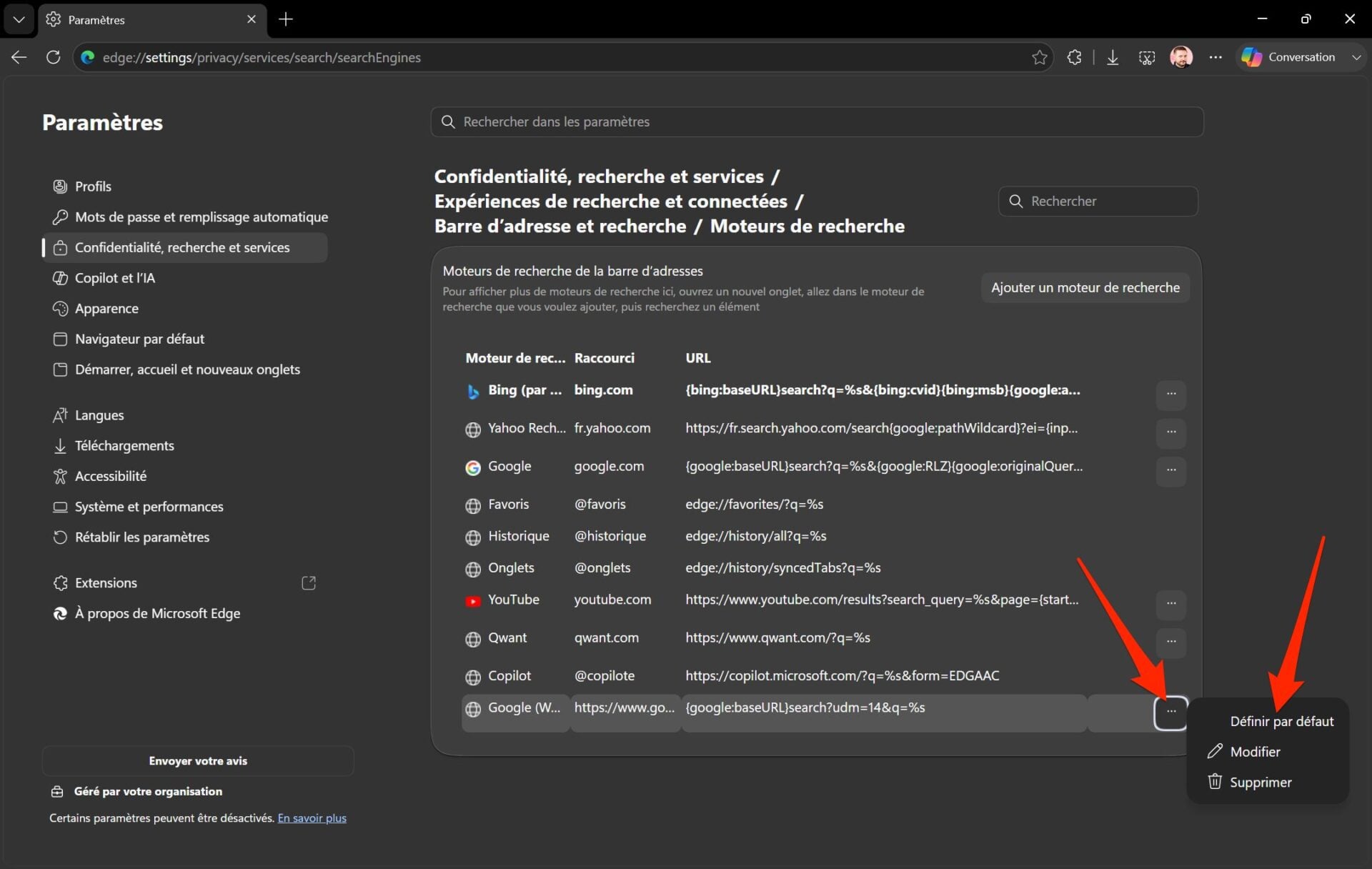
Click on the associated option button, represented by three small dots, and choose to Set as default.
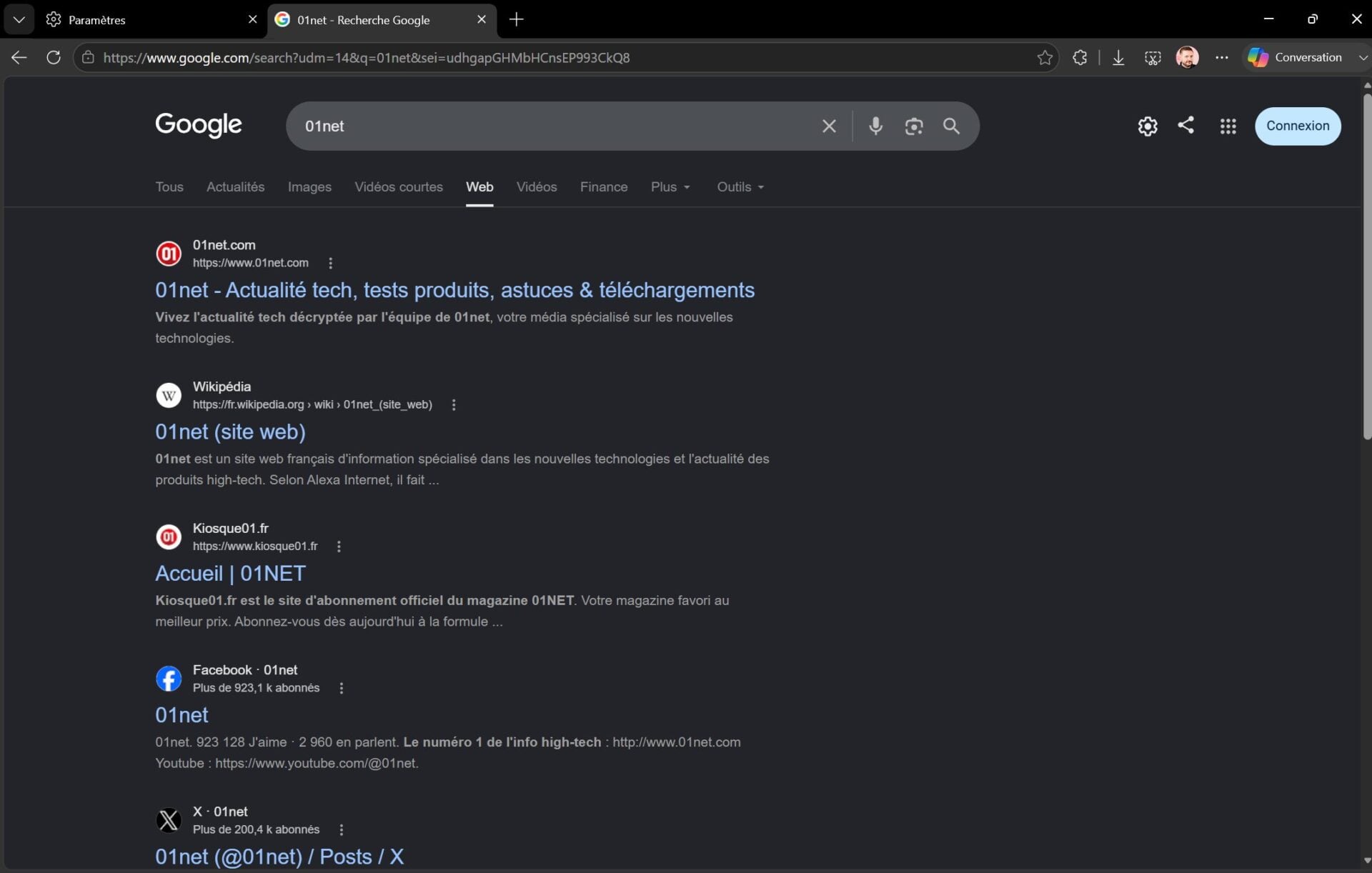
All queries sent from the Microsoft Edge address bar will now be redirected to Google-only web results.
👉🏻 Follow tech news in real time: add 01net to your sources on Google, and subscribe to our WhatsApp channel.