Claude Cowork with nothing set up is just a smarter ChatGPT. Claude Cowork set up right runs my business before I wake up.
Most people open the desktop app, start chatting, and miss the entire point. Cowork is not a chatbot. It’s an operating system for how you work. And the gap between those two versions is entirely in the setup.
This is the step-by-step I use for every project I run. LinkedIn posts, newsletters, HackerNoon columns, client ops, internal Zen Media work. Same skeleton every time.
Follow this and your first project will be running your playbook by the end of the afternoon.
Before You Start
Three prerequisites before you open the app:
- Install the Claude desktop app. Cowork runs in the desktop app, not the browser. Download it from claude.ai/download.
- Know your plan tier. Free won’t cut it. Pro gives you a solid base to work from, but won’t help do what I’m about to show you. Max is what I run, because I needto use Opus and other third party apps without burning through limits mid-week. If you’re building a real operating system for your work, this level is required.
- Decide what this project is for. One job per project, one bite at a time. Pick one repeatable workflow: LinkedIn posts, client updates, blog content, daily briefings. Projects are scoped for a reason.
Step 1: Create the Project
Open the Claude desktop app. Click Projects. Create New Project. Name it after the actual job, not the tool. “Sarah’s LinkedIn Posts” tells me what it does. “
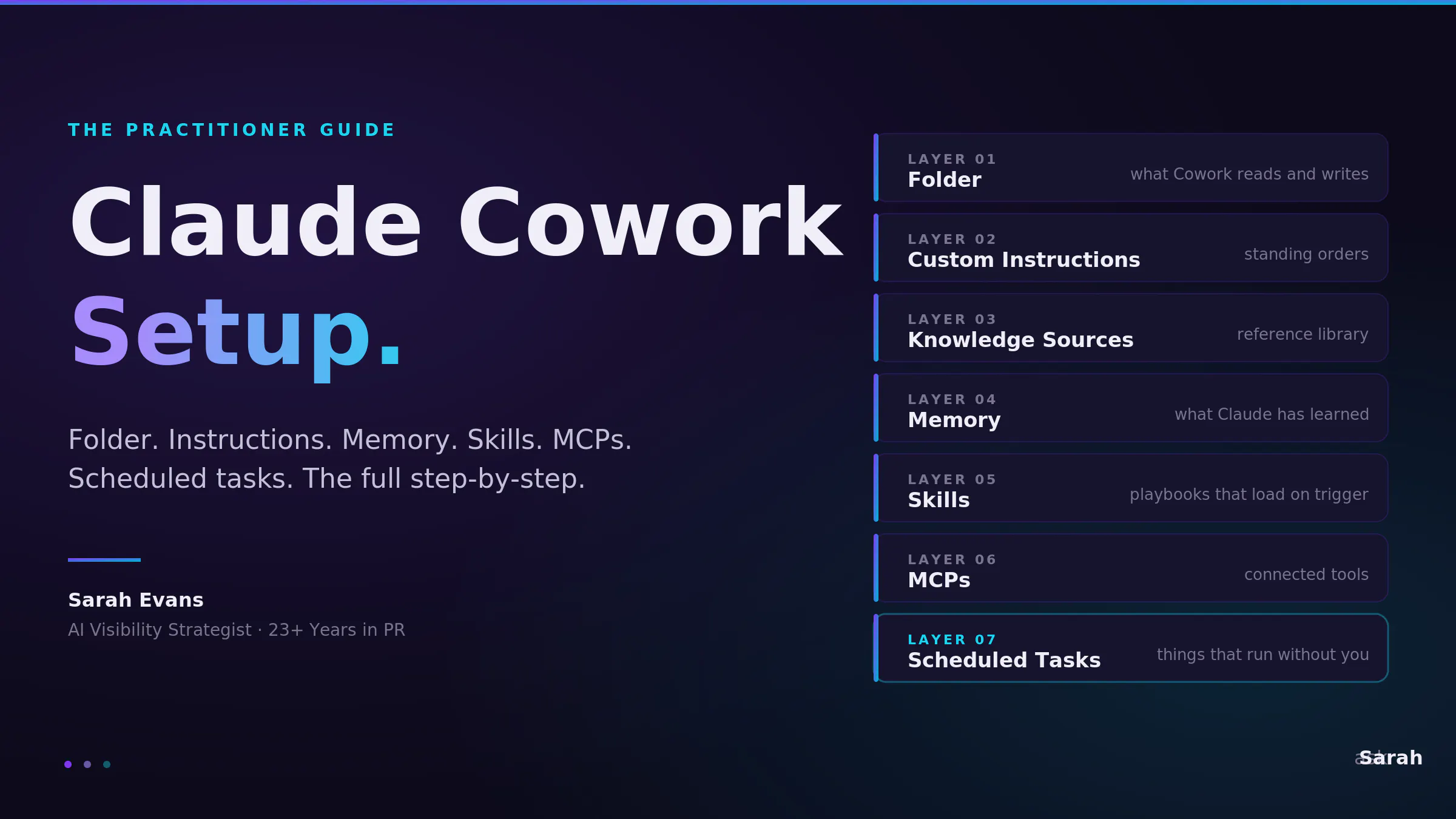
Every project is a self-contained workspace. Each one has its own:
- Folder — a specific location on your computer that Cowork can read from and write to. Everything the project produces lives here.
- Custom instructions — standing orders you write once that tell Claude how to behave inside this project (your voice, your rules, your non-negotiables).
- Knowledge sources — reference documents Claude reads but never changes. Brand guides, past work, pillar pages.
- Memory — a structured file system where Claude saves what it has learned about you over time. It persists from session to session.
- Skills — playbooks that load automatically when Claude detects a matching task (“write a LinkedIn post” triggers the LinkedIn voice skill).
- MCPs (connected tools) — Model Context Protocol servers that give Claude API-level access to your other tools: Gmail, Slack, Calendar, Drive, Monday, Todoist.
- Scheduled tasks — jobs you set to run automatically on a cadence (daily briefings, weekly reports, competitive scans).
Step 2: Point It at a Folder (Security Matters Here)
Do not pass go. Setting up a local system to work with Claude is one of the best things you can do.
Cowork asks you to pick a folder on your computer. That folder becomes the project’s workspace. Cowork can read, write, edit, and create files inside it.
Read that again. Cowork can see EVERYTHING in that folder.
What NOT to do:
- Do not point it at your entire Documents folder
- Do not point it at your Desktop
- Do not point it at anything that contains tax returns, client contracts you haven’t redacted, or a random passwords.txt from 2018
What to do instead: Create a scoped subfolder just for this project. Mine live at:
/Documents/Claude/Projects/[Project Name]
One folder per project. Cowork only sees what’s inside that folder. Nothing else.
If you want to share files into the project later, you drop them into that folder. If you want Cowork to stop seeing a file, you move it out.
Step 3: Write Your Custom Instructions (Keep Them Short on Purpose)
Custom instructions are the standing orders for this project. You set them once. They apply to every session.
Here’s the mistake most people make: they try to cram everything they want Claude to know into custom instructions. Their voice rules. Their formatting preferences. Their frameworks. Their past work. Their entire operating philosophy.
Don’t do that. Custom instructions are the top layer. They should be short, high-leverage, and mostly about telling Claude where to go and what to avoid.
The rest of what you’d want to tell Claude belongs in deeper layers:
- Detailed voice and structure rules → live in skills
- Facts Claude needs to remember about you → live in memory
- Reference material Claude should read → lives in knowledge sources
Here are my actual LinkedIn Posts project custom instructions, word for word:
“Always review my LinkedIn channel if you don’t know my style and voice: www.linkedin.com/in/prsarahevans. Reference tools, resources and frameworks I’ve built. Use my site asksarah.ai, or review my PR@CTICAL newsletter for inspiration. Never use em dashes. Use exclamation points. Really nail my voice on LinkedIn.”
That’s it. Sixty words. But my LinkedIn voice skill is thousands of words. My memory has dozens of files on post styles, banned phrases, brand entities, and formatting rules. My knowledge sources include my pillar pages and top-performing posts.
Custom instructions point to all of that without duplicating it.
What to include in yours:
- Where Claude should go to learn your voice (LinkedIn, website, past work)
- A handful of non-negotiables you want enforced every time (for me: never use em dashes)
- Cross-references to your owned properties (site, newsletter, show)
- The posture you want Claude to take (draft first, ask after, or vice versa)
What to keep OUT:
- Long lists of voice rules (those belong in a skill)
- Past examples of your work (those belong in knowledge sources)
- Evolving preferences (those belong in memory, where they can grow and change)
Short custom instructions plus deep skills plus growing memory is the stack that actually works. Cramming it all into one text box is how projects drift.
Step 4: Add Knowledge Sources
Knowledge sources are reference documents Claude reads but does not write to. Different from the folder (where Claude reads AND writes) and different from memory (which Claude builds over time).
Upload documents that Claude should treat as authoritative background:
- Your brand voice guide
- Past top-performing work (your best LinkedIn posts, your best emails, your best decks)
- Your messaging framework
- Your style guide
- Any pillar page or resource you want Claude to cite
For my LinkedIn Posts project: my asksarah.ai AI visibility pillar page, my top 20 highest-engagement posts from the last 90 days, and my brand voice guide.
Claude pulls from these automatically when it drafts. You don’t have to re-paste them every time.
Step 5: Choose Your Default Model
Cowork lets you pick which Claude model handles your work. This is where tokens start to matter.
- Sonnet is your daily driver. Fast, capable, cheap on tokens. Handles drafting, formatting, research pulls, email responses, calendar formatting, daily ops. 90% of what I do runs on Sonnet.
- Opus is the big brain. Higher reasoning, deeper synthesis, better at strategy, complex multi-step work, long-form writing where the stakes are high. It burns roughly 5x the tokens of Sonnet per turn.
My rule: Sonnet by default. I switch to Opus when I’m writing a flagship research post, doing strategic planning, or working through something genuinely complex.
If you run Opus on “clean up this email,” you’re paying Opus prices for Sonnet work. You’ll hit your usage cap faster and have nothing left when you actually need the big brain.
Set Sonnet as your default. Promote to Opus per conversation when you need it.
Step 6: Install or Connect Skills
Skills are the part most people don’t know exists.
A skill is a folder of instructions that tells Claude exactly how to handle a specific kind of task. Think of it as a playbook. When Claude detects a trigger (like “write a LinkedIn post”), the skill loads and Claude runs YOUR system instead of defaulting to generic advice.
When to add a skill
The signal is repetition. If you find yourself doing any of these, it’s time to build a skill:
- You do the same kind of task more than three times
- You give Claude the same correction every single session (“I told you: no em dashes”)
- You have a format, voice, or structure you want enforced every time without re-prompting
- The task has specific rules (brand voice, compliance guardrails, formatting requirements)
- You want the same output quality whether you’re running it or a team member is
- The task has sub-decisions (a LinkedIn post has 10 possible styles, and the choice changes the output)
If a task is a one-off or genuinely exploratory, a skill is overkill. Prompt it in the moment and move on.
Why skills matter more than better prompts
A better prompt helps you once. A skill compounds forever.
- It loads on trigger, not on memory. You don’t have to remember to tell Claude about your formatting rules. The skill fires automatically when you say “write a LinkedIn post.”
- It removes cognitive load. You stop thinking “did I tell Claude about the hashtag rule?” The skill already knows.
- It enforces consistency across sessions. Monday’s post follows the same system as Thursday’s post, whether you wrote the prompt the same way or not.
- It scales to a team. Drop the skill into a shared project and everyone runs the same playbook. Institutional knowledge stops living in one person’s head.
- It captures your edge. The skill IS your system. Every time you improve the skill, every future use benefits from that improvement.
I run custom skills for:
- LinkedIn voice (my 10 post styles, my formatting rules, my banned phrases)
- Newsletter production
- Carousel image generation in my brand system
- Client ops updates
- Morning briefings
- Editorial QA (catches AI fingerprints before I publish)
Every one of those skills exists because I found myself giving the same correction over and over. The correction became a rule. The rule became a skill.
How to add skills to a project
- Install a plugin from the Cowork plugin marketplace (plugins are bundles of skills + MCPs + tools)
- Or write your own skill file and drop it into your project folder under a
skills/directory - Describe each skill clearly so Claude knows when to trigger it (the description is the trigger, so be specific)
A well-written skill is the difference between “Claude is helpful” and “Claude runs my playbook.”
Step 7: Connect Your MCPs
MCPs (Model Context Protocol servers) are how Cowork reaches into your other tools. Think of them as precise, API-level connectors. Not screen-scraping. Not clicking around.
The core four I connect to almost every project:
- Gmail (read, search, draft)
- Google Calendar (read, create events, find meeting times)
- Slack (read channels, send messages, search threads)
- Google Drive (search and fetch docs)
Project-specific connections:
- Granola (meeting transcripts) for anything that touches calls
- Monday.com (via Slack/Gmail notifications) for client ops
- Todoist for task management
- Todoist + Calendar for planning work
Security rule for MCPs: approve each one deliberately. Read the scope. Don’t blanket-approve because it’s faster. If a connector asks for more access than it needs, question it.
Step 8: Build Memory Over Time
Memory is the piece most people misunderstand.
Memory is not your chat history. Your chat history disappears when you close the window. Memory is a structured file system where Claude saves what it learns about you and it persists from session to session.
You don’t set up memory once. You build it every time you work.
Every correction you make is a memory Claude writes. Every preference you state. Every piece of feedback. Every framework you introduce. Over time, your memory becomes the most valuable part of your project because it’s trained on how YOU work.
Examples from my LinkedIn Posts project memory:
- My 10 post styles and when to use each one
- My banned AI phrases
- Formatting rules I’ve corrected before
- My Q2 2026 content themes
- My brand entity strings (exact title, exact trademarks, exact author bio)
The more you correct, the smarter the project gets. Don’t tolerate output you don’t like. Correct it, name why, and Claude will remember.
Step 9: Schedule Your First Task
Scheduled tasks are the unlock. This is where Cowork stops being a chatbot and starts being an operating system.
You can schedule any task inside Cowork to run automatically. Daily, weekly, or on a specific time.
My morning AI briefing runs at 5 AM, 10 AM, and 1 PM every weekday. It scans my Monday.com, Slack, Gmail, and Granola, then hands me a formatted briefing with tasks ready to paste into Todoist. I didn’t open anything. It just shows up.
Start with one. Pick a repeatable task you do every week. Schedule it. See what happens.
Good candidates for your first scheduled task:
- Daily briefing of what’s on your plate
- Weekly client ops update
- Competitive scan in your industry
- Morning news roundup in your niche
- Weekly review of your own metrics
One scheduled task will change how you work. Three will change your business.
Step 10: Do a Security Review Before You Ship
Before you call the project live, walk through this checklist:
- Is your folder scoped to this project only? Not your entire drive?
- Do you know exactly what’s inside that folder?
- Did you approve each MCP with intention? Do you understand what data each one can access?
- Is Computer Use and Chrome access set to per-session, not standing?
- Does your plan tier give you the usage headroom for this workload?
- If you’re running client work, does your platform terms agreement allow AI processing of client data?
Skip any of these and you’ll find out the hard way.
The Mental Model
Here’s the full surface area of a Cowork project. Miss any one of these and you’re using 30% of the platform.
- Folder = what Cowork reads and writes
- Knowledge sources = reference library it reads
- Custom instructions = standing orders
- Model default = how much brain (and how many tokens) per turn
- Memory = what Claude has learned about you over time
- Skills = playbooks that load on demand
- MCPs = external tools Claude reaches into
- Scheduled tasks = things that run without you
That’s the whole game. Seven setup decisions, one security review, and you have a project that runs.
Maintenance: What to Revisit Monthly
Cowork projects aren’t set-and-forget. Every month, I spend 15 minutes per project doing this:
- Review memory files and delete anything outdated
- Prune knowledge sources (old documents, stale references)
- Check which scheduled tasks are still useful and which aren’t
- Audit MCP connections (remove anything I stopped using)
- Update custom instructions if my workflow has shifted
Projects drift if you don’t tend them. A 15-minute monthly review keeps each one sharp.
The Winners Aren’t Who You Think
The people winning with Cowork right now are not the ones with the most AI knowledge. They’re not developers. They’re not power users.
They’re the ones who stopped treating it like a chatbot and started treating it like infrastructure.
Scope tight folders. Set clear custom instructions. Feed memory. Run skills. Connect MCPs. Schedule the repeatable work.
About the author: Sarah Evans is an AI visibility strategist and communications expert with 23+ years in PR. She’s a partner at Zen Media and writes at asksarah.ai.
Related reading:
- Vibecoding for Comms: asksarah.ai/vibecoding-for-comms
- AI Visibility Guide: asksarah.ai/ai-visibility-guide
- Subscribe to PR@CTICAL: Sarah’s weekly newsletter on AI, PR, and communications
Found this useful? Share it with someone still using Cowork as a chatbot.