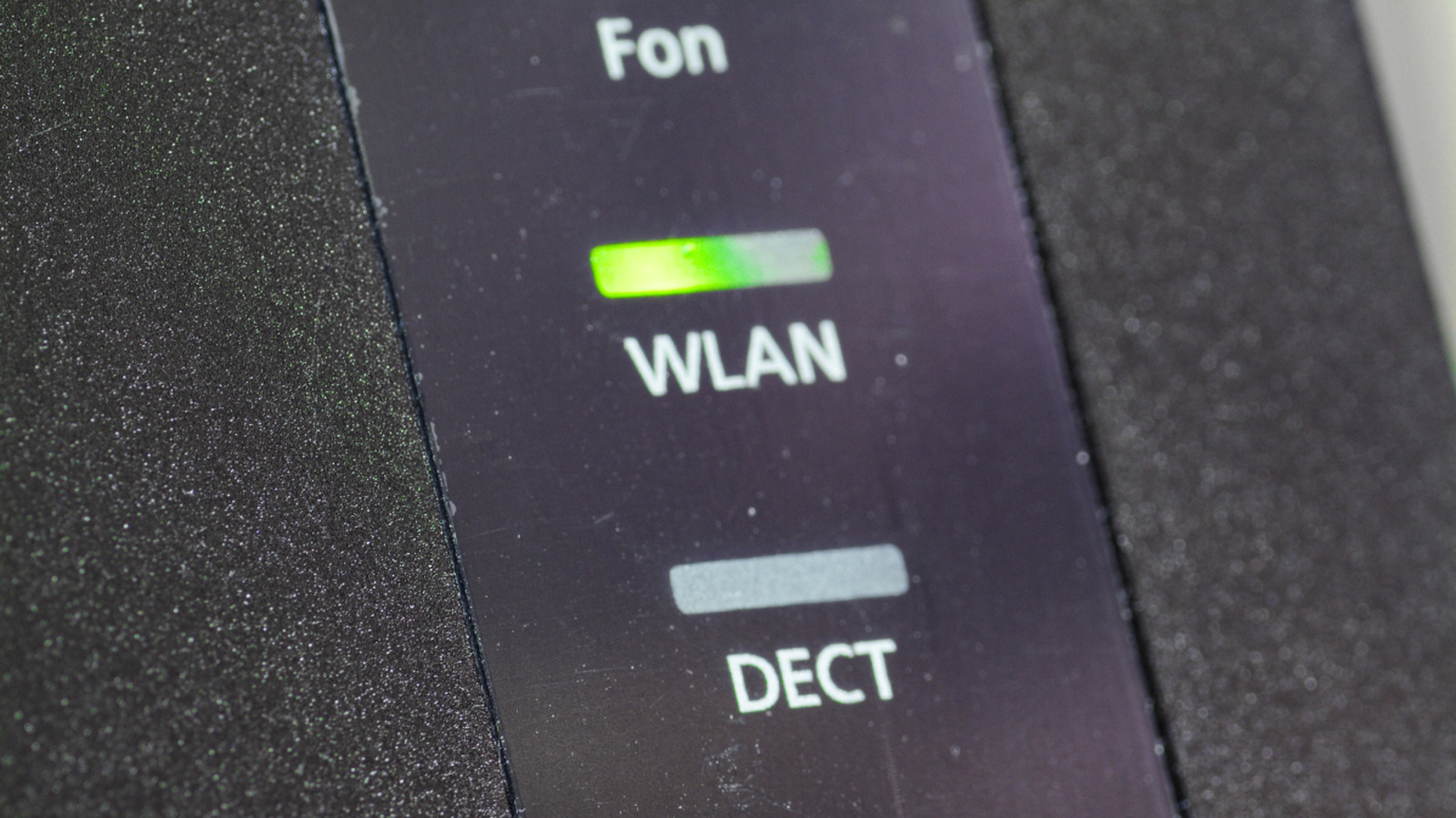
Modern Wi-Fi routers give you a lot to work with in terms of troubleshooting issues at home. This is mainly in the form of various LED (light-emitting diodes) indicators that flash to show what processes are working. Among these lights, you may have noticed a few LEDs on your router that continue blinking all the time and wondered whether there’s a reason that they’re always in motion.
The way the light behaves reflects the status of the function it represents. A light that’s turned on and doesn’t budge or flicker shows that the underlying function is active and working as intended. On the other hand, a light that’s continuously blinking might mean that the process is starting up or that it’s actively doing work. If you have a Wi-Fi router that operates fine, the blinking lights on your router usually represent data transfer or that you are using the Wi-Fi or Ethernet connection. This may differ depending on the brand of the router, but most Wi-Fi routers come with lights that show how the connection works. Usually, these lights are nothing to worry about.
There are other cases where an LED light on a Wi-Fi router or modem might flicker or blink quickly, though. For example, the power LED often blinks on a router with multiple lights when you’re starting it up. For a router with only one LED, it can flicker when you’re performing an update or connecting it to or pairing it with another device, such as another router or a smart home device. The specifics of these differ for each router, but there are a few common rules that most Wi-Fi routers follow.
LEDs help you monitor router health
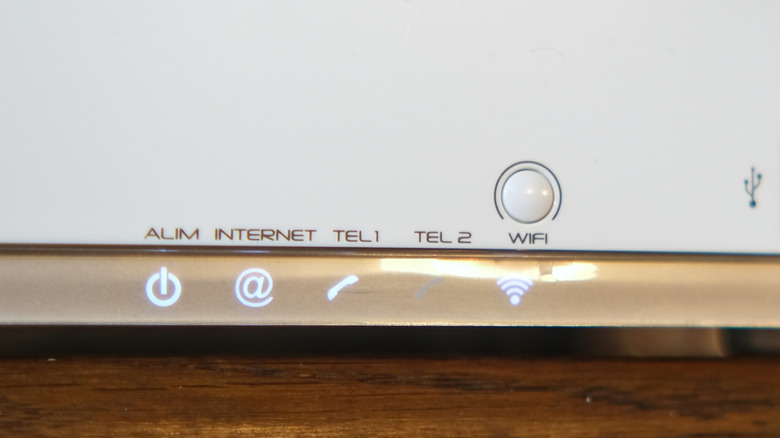
Most routers come with multiple LED indicators. While some of them may differ depending on the manufacturer and the specific model of the router, there are a few that are common in most routers. A power indicator shows if the router is being supplied with power: a blinking light shows that it’s powering on and a steady light shows that it’s functioning properly. The light being turned off means that there’s no power.
There are also lights that show the network and its traffic. A steady light shows that the connection works fine, an LED that is turned off shows that there’s no connection, and a flickering light shows that the connection is working and that there’s traffic, in that it’s being used. For dual-band routers, such as ones supporting Wi-Fi 5 or higher, there may be two different indicators, one for each band. There are often similar indicators for Ethernet connections as well.
There are a number of other LED options that give statuses for things you might not know your router can do, such as ones that show USB connections, external device pairings, and much more. Again, these will vary in form and availability by manufacturer. However, the general way of figuring out what an LED means stays the same: a consistent light means something is currently on, a flickering light means something is in process, and a light that’s turned off means that something is not being used. Most LED lights on routers have shapes that correspond to what they’re monitoring, too, like a vertical line through one side of a circle as a power indicator.
What do flashing colors on a single-LED router mean?
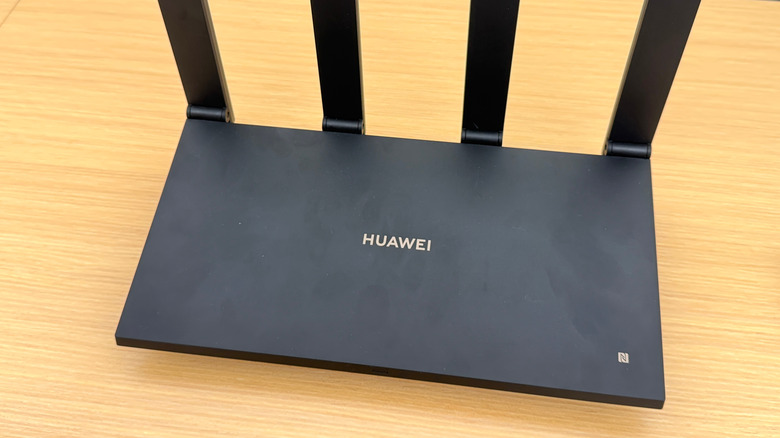
Unlike routers with multiple LED indicators, certain routers only have a single light to show different statuses. Figuring these out can be much harder, and you might need a manual to know what each status represents. To make this easier, such indicators can light up in different colors. The meaning of the colors themselves can vary by manufacturer, with green, blue, or even white used to show normal operation, depending on the company. A typical exception is an LED colored red, which often means something is not working correctly.
There are some status indicators that are common. For all Huawei routers, for example, the indicator is a steady red when first powering up and also when there’s no proper internet connection, and a consistent green when it’s working as intended. A red light in any case apart from the router turning on means that there is an issue.
For routers with NFC functionalities, the indicator may blink multiple times whenever a connection is made. The LED also blinks fast when attempting to pair with another router or a smart device. Lastly, for many single-indicator Wi-Fi routers, a colored, fast-blinking LED means that an update is in progress.