
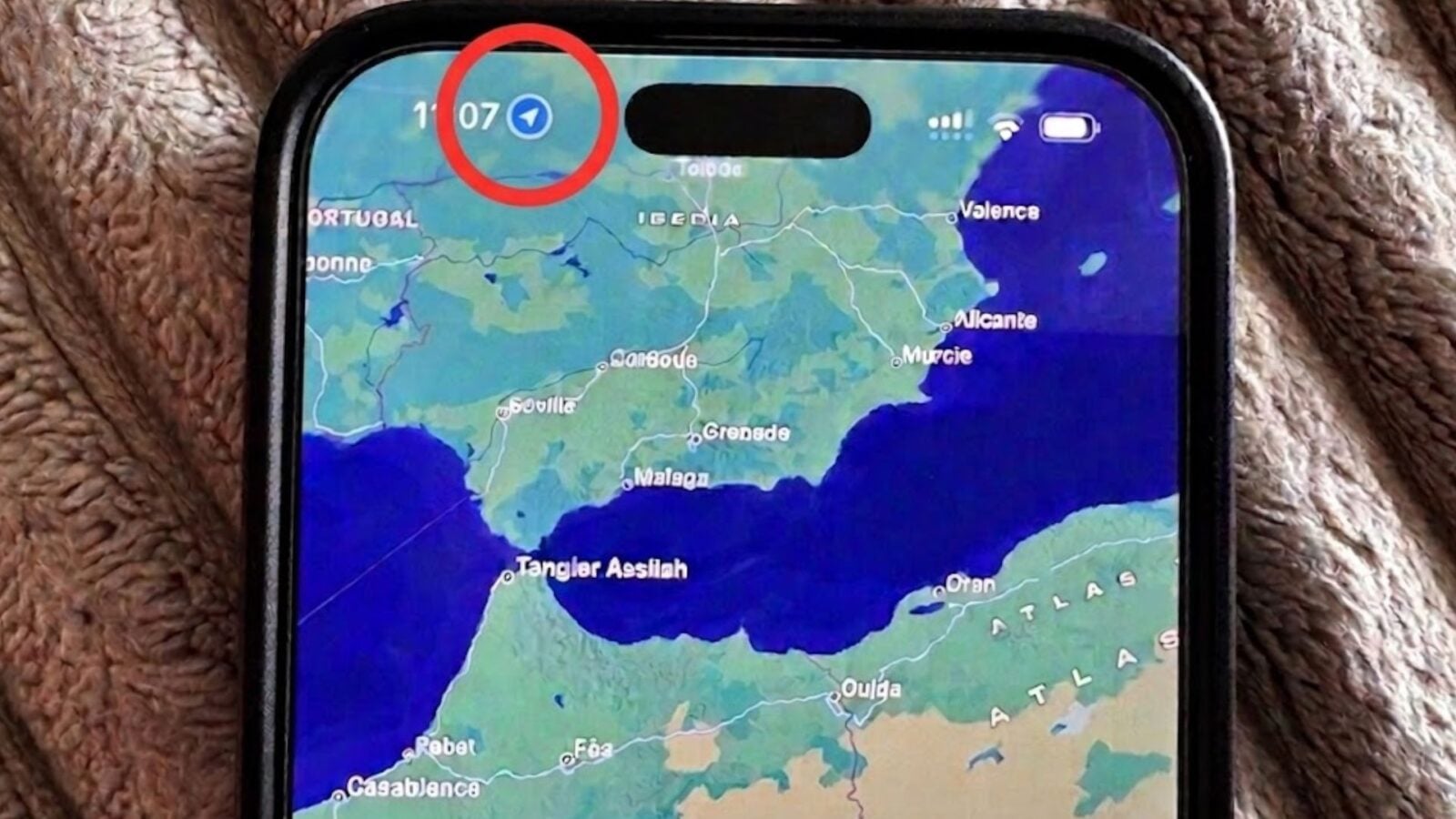
A blue dot, decorated with a small white arrow, sometimes appears near the time on the iPhone screen. This intermittent light actually signals that an application is in the process of locating you. We explain how it works and how to determine which application is of interest to you…
From time to time, a blue dot appears on your iPhone screen. This blue dot, which contains a small white arrow, appears in the left corner of the screenright next to the time. The indicator is not constantly visible. It appears intermittently, and it sometimes confuses users.
Also read: What does the green dot that appears at the top right of your Android smartphone mean?
Why you should keep your eye on the blue dot
Mirroring the green point, the blue point is part Apple’s privacy indicators. With iOS 14, the Cupertino giant has in fact inaugurated a series of indicators which allow the user to know when an application is using a sensitive functionality. In this case, the blue dot warns that an iOS app is accessing the iPhone’s GPS.
If you see this dot at the top of the screen, an app is using iPhone location services. In other words, the application wants to know where you are. This is obviouslysensitive informationand this is why Apple has implemented a dedicated indicator in its operating system.
Mirroring the blue dot on Android, that of iOS appears directly when an application sends a query to obtain your geographical position. This indicator remains on the screen, but grayed out, as long as the application in question remains open. The blue color only returns when a request is sent. Unsurprisingly, it systematically appears when using Maps or Google Maps to get around, but also with social network applications like Snapchat, which use position for sharing functions or geolocated filters. Note that many apps use location in the background, sometimes without the iPhone user realizing it.
How do you know which app is tracking you?
If the blue indicator suddenly appears on the iPhone, we advise you to check which application is currently locating you. To do this, simply drag the screen downwards from the right corner of the interface. Under the notch or under the Dynamic Island, you will find the blue indicator, to the left of the application name. You can tap on it to find out if the app is currently tracking you, or if the GPS request is no longer relevant. The iPhone will then tell you that location access ended recently.
Note that iOS also allows you to consult the complete list of applications that have the right to access your geographic location. Just go to SettingsThen Privacy and securityThen Location servicewhere you can find a complete list of apps that can locate you. The operating system lists all granted access, and you can modify these at any time. You have the choice between prohibited access, continuous access, or occasional access, to be granted manually each time the application is opened.
The system lets each app tell you why it needs your location. Below the available choices, you will find a short text from the developers. This explains the access request. For example, a weather app usually explains that it needs your location for you “give the weather forecast where you are”, Perplexity says it wants your location to search for interesting places around you, or Revolut talks about a location-based security system. Very often, applications have botched this part a bit and simply mention the need to offer “an optimal experience”.
Apple also offers to grant access to your “approximate proximity”and not at your exact location. It’s a way to take advantage of certain services without revealing the precise location where you are. We strongly advise you to check it.
👉🏻 Follow tech news in real time: add 01net to your sources on Google, and subscribe to our WhatsApp channel.