
1. Introduction — Why SwiftUI “Stutters” When It Shouldn’t
You built a polished screen in SwiftUI, but scrolling through a list reveals micro-stutters. The profiler shows thousands of body invocations. You start doubting SwiftUI — “maybe UIKit was better after all?”
The problem isn’t SwiftUI. The problem is a lack of understanding of how it decides what to update. Beneath the declarative API lies a powerful mechanism called the Attribute Graph — a directed acyclic graph (DAG) that tracks every dependency in your UI and updates exactly what needs updating. Nothing more, nothing less.
But only if you don’t get in its way.
In this article, we’ll cover:
- How the Attribute Graph is structured
- What re-evaluate and re-draw mean, and why they are fundamentally different
- How invalidation works — the process of marking “dirty” nodes
- Common mistakes that cause unnecessary recalculations
- How to optimize your code so SwiftUI performs at its best
2. What Is the Attribute Graph?
The Attribute Graph is a directed acyclic graph (DAG) that SwiftUI constructs from your view hierarchy. It consists of three layers:
- Source nodes — values from
@State,@Binding,@Environment,@ObservedObject - Computation nodes — the results of each view’s
bodycall - Render nodes — the concrete display layers (backing
CALayer/UIViewinstances)
The edges of the graph represent dependencies: “this body depends on this @State
How Dependencies Are Formed
Here’s the key insight: a dependency is recorded at the moment of access, not at the point of declaration.
struct ProfileView: View {

    @StateObject var user: UserModel
    // properties: name, avatar, settings

      var body: some View {

          // SwiftUI records: ProfileView.body depends on user.name
            Text(user.name)

          // user.settings is NOT read → changing settings
          // will NOT trigger a re-evaluate of this view
        }
}
During the first invocation of body, SwiftUI records which data sources the view accessed. This forms the edges of the graph. An important nuance: with ObservableObject, tracking operates at the level of the entire object, whereas with @Observable (iOS 17+), it operates at the level of individual properties. We’ll explore this distinction in the optimization section.
Identity and Lifetime
The graph is tied to the identity of each view. Identity is determined in one of two ways:
- Structural position — the view’s location within the
bodyhierarchy (used by default) - Explicit
.id()— a manually assigned identifier
When a view’s identity changes, its graph node is destroyed and recreated — all @State in child views is reset. Understanding this is essential to avoid accidentally losing state.
3. Re-evaluate vs. Re-draw — The Critical Distinction
This is the central concept of the article. The two terms sound similar, but they mean fundamentally different things.
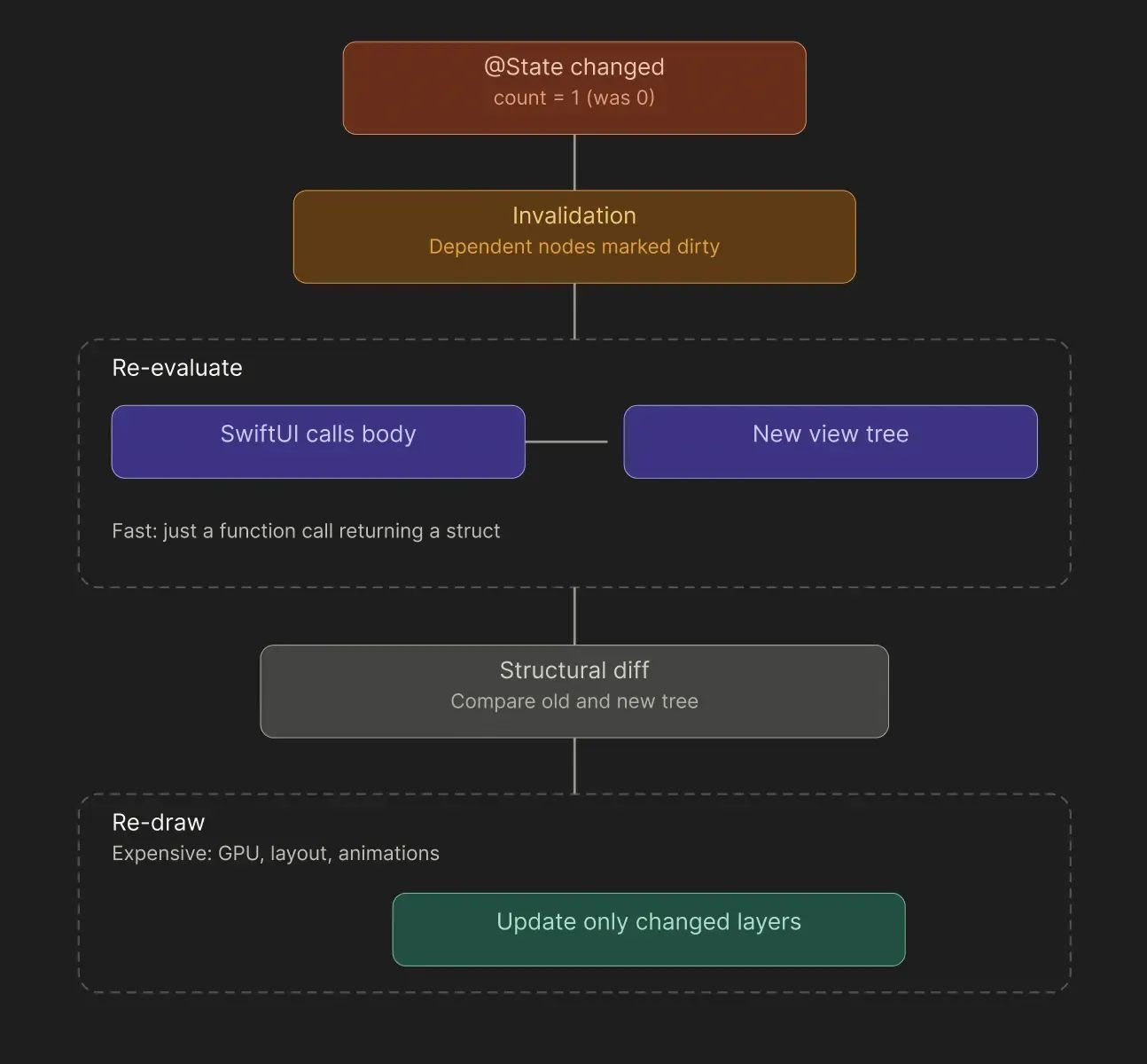
Re-evaluate (Recalculating body)
- A node’s value in the graph changes (e.g., a
@Stateproperty is updated via.wrappedValue) - SwiftUI marks dependent nodes as “dirty” (invalidated)
- On the next render cycle, it calls
bodyon the marked views bodyreturns a new view tree (these are just lightweight structs — cheap to create)
struct CounterView: View {

    @State private var count = 0

    var body: some View {

          let _ = Self._printChanges()
          // 🔍 Prints: "CounterView: _count changed."
          VStack {
                Text("Count: (count)")

                Button("Increment") {
                          count += 1 }

                HeavyView()
                      // Will NOT be re-evaluated if it doesn't depend on count
                }
          }
      }
Re-evaluate is a function call that returns lightweight structs. It’s fast.
Re-draw (Rendering)
After re-evaluate, SwiftUI performs a structural diff — comparing the old and new view trees. It then updates only the changed backing layers (the underlying CALayer/UIView instances). This involves GPU work, layout calculations, and animations — an expensive operation.
An Analogy
Re-evaluate is re-reading the recipe. Re-draw is actually replacing an ingredient on the plate.
The key insight: frequent re-evaluations are normal — they’re cheap. Problems arise when:
- A re-evaluate is unnecessary — a view recalculates even though its data hasn’t changed
- The
bodyis heavy — objects are allocated, computations are performed inline
4. Invalidation — How the Graph Decides What to Recalculate
Invalidation is the process by which SwiftUI marks graph nodes as “dirty” and schedules them for recalculation. The crucial point is that it does this surgically, not across the entire tree.
I prepared mini web-app for fully understood how it works please visit
https://pavelandreev13.github.io/SwiftUI_attribute_graph/
The Process, Step by Step
Step 1 — At rest. All graph nodes are valid. SwiftUI recalculates nothing — the UI is stable.
Step 2 — A change occurs. The user taps a button; count becomes 1. SwiftUI detects that a node’s value has changed and begins traversing its outgoing edges.
Step 3 — Marking (invalidation). SwiftUI follows only the edges leading from the changed node. CounterView.body reads count — it’s marked dirty. HeaderView, BgView, and ProfileView don’t depend on count — they are skipped entirely.
Step 4 — Re-evaluate. On the next render cycle, SwiftUI calls body only on the marked views. It receives a new UI description. The remaining body methods are never invoked.
Step 5 — Result. The diff between the old and new trees reveals that only one Text has changed. That element alone is re-drawn. The other three render layers are untouched. The graph is stable once again.
Coalescing — Batching Changes
Invalidation is a synchronous marking step, while re-evaluate is a deferred recalculation. SwiftUI batches multiple changes within a single cycle (coalescing):
Button("Update All") {

        count += 1

        // marks CounterView dirty
        title = "New"
        // marks HeaderView dirty
        // Re-evaluate happens ONCE, not twice
  }
This means you can safely mutate multiple @State properties in sequence within the same block — SwiftUI won’t recalculate intermediate states.
5. Anti-pattern “AnyView”
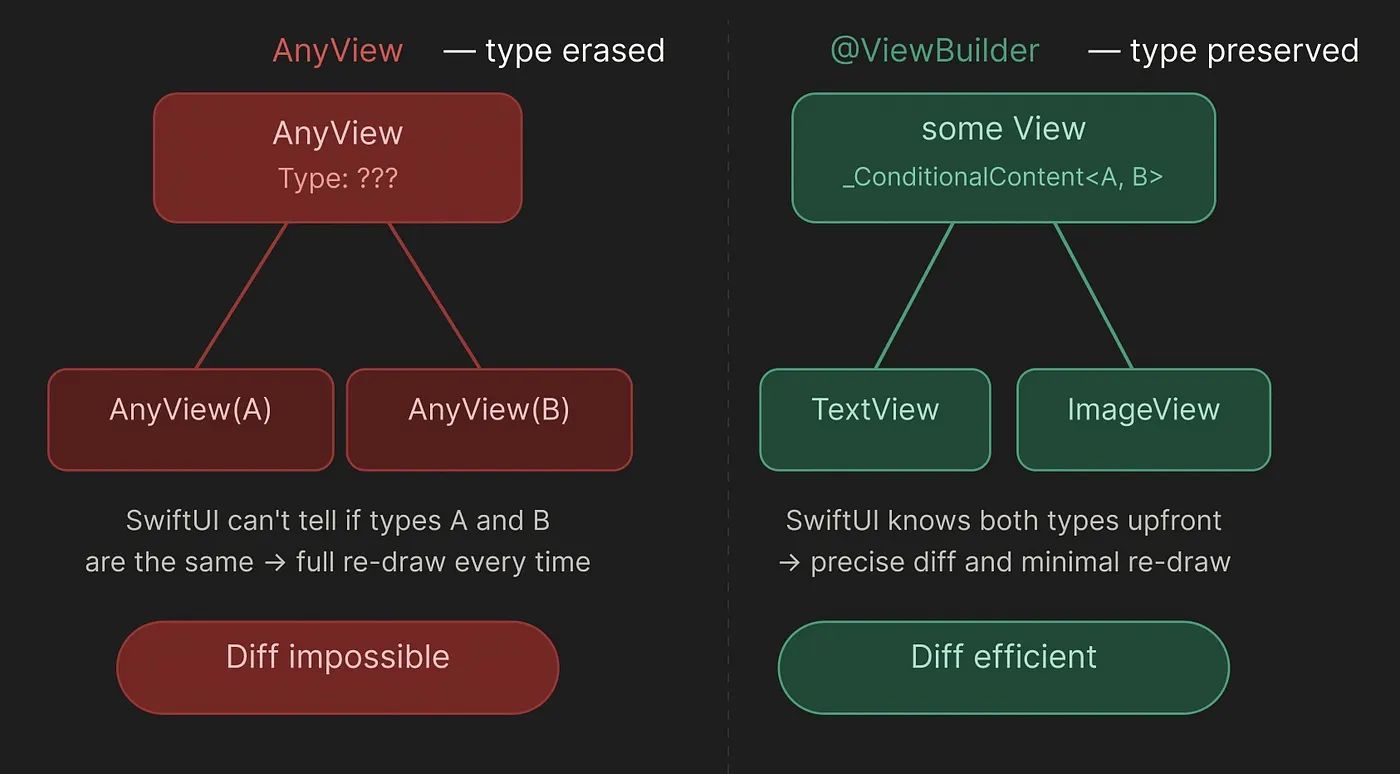
AnyView erases the type — SwiftUI sees only “AnyView → AnyView” and cannot determine whether the content has actually changed. The result: a full re-draw every time. With @ViewBuilder, SwiftUI knows the concrete type _ConditionalContent<TextView, ImageView> and performs a precise, targeted diff.
// ❌ SwiftUI can't compare types — full re-draw every time
    func makeView(for type: ContentType) -> AnyView {
          switch type {
              case .text: return AnyView(TextView())
              case .image: return AnyView(ImageView())
    }
}

// ✅ SwiftUI knows the exact types — efficient diff

@ViewBuilder
func makeView(for type: ContentType) -> some View {

          switch type {
              case .text: TextView()
              case .image: ImageView()
          }
}
6. Unnecessary Re-evaluations via Closures
struct ParentView: View {

        @State private var count = 0
        @State private var title = "Hello"

        var body: some View {
              VStack {
                  Text("Count: (count)")

                // ❌ The closure captures self → ChildView depends on ALL @State properties
                ChildView(action: { doSomething(count) })

                // ✅ Pass the value directly — ChildView doesn't depend on count
                ChildView(value: count) }
        }
}
When you pass a closure into a child view, SwiftUI doesn’t analyze what the closure actually uses — it only sees that the closure captures self. That single fact makes the child view depend on the entire parent, not just the specific state property the closure touches.
Why this matters
@State properties in SwiftUI are stored outside the struct, but self inside a View is the struct itself — a value type regenerated on every body evaluation. When ChildView receives a closure that captures self, its dependency graph now includes every @State property on ParentView: count, title, and anything else added in the future. The moment any of them changes, ChildView.body is marked dirty and re-evaluated — even if the closure never touches the changed property.
// ❌ title changes → ChildView re-evaluates even though it only uses count
ChildView(action: { doSomething(count) })
The compiler has no way to peer inside the closure at compile time and determine a narrower dependency. From SwiftUI’s perspective the closure is an opaque () -> Void blob that holds a reference to the whole parent struct.
The fix: pass values, not self
Extracting the concrete value you need and passing it directly severs the hidden dependency chain. ChildView now only receives an Int. SwiftUI can diff that scalar precisely — the view re-evaluates if and only if count itself changes.
// ✅ title changes → ChildView is completely unaffected
ChildView(value: count)
7. Optimization: How to helping the Attribute Graph
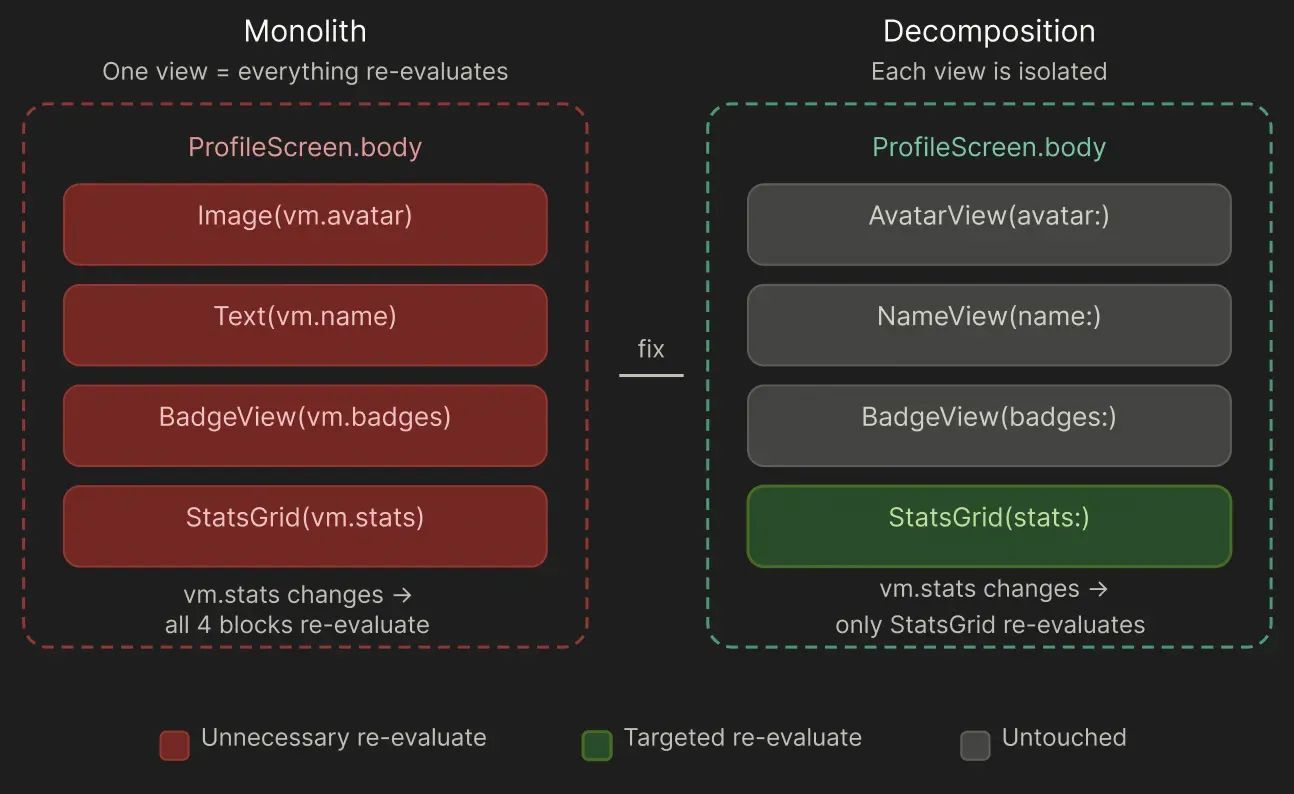
The principle: the fewer dependencies a body has, the less often it recalculates. Break views into smaller units not for “code cleanliness,” but to isolate recalculation zones.
// ❌ Monolith: any change → everything recalculatesstruct

ProfileScreen: View {
      @StateObject var vm: ProfileVM

      var body: some View {
            VStack {
                Image(vm.avatar)
                Text(vm.name)
                BadgeView(vm.badges)
                StatsGrid(vm.stats)
      }
  }
}

// ✅ Granular: each block recalculates independentlystruct

ProfileScreen: View {

        @StateObject var vm: ProfileVM

        var body: some View {
               VStack {
                  AvatarView(avatar: vm.avatar)
                  NameView(name: vm.name)
                  BadgeListView(badges: vm.badges)
                  StatsGrid(stats: vm.stats)
          }
      }
}
Equatable to Prevent Unnecessary body Calls
By default, SwiftUI re-evaluates a child view’s body every time its parent re-evaluates — even if the child’s inputs haven’t changed at all. For lightweight views this is cheap enough to ignore. For a view that renders a complex chart, runs a heavy layout pass, or processes large datasets, that cost adds up fast.
The Equatable protocol gives you a way to short-circuit this: tell SwiftUI exactly what “nothing changed” means for your view, and it will skip the body call entirely when that condition holds.
How it works under the hood
When you call .equatable() on a view, SwiftUI wraps it in an EquatableView<YourView>. On every render cycle, before invoking body, SwiftUI calls your custom == implementation and compares the previous props with the new ones:
Parent re-evaluates n │ n ▼ n SwiftUI calls lhs == rhs n │ n ┌────┴────┐ n true false n │ │ n ▼ ▼ n skip body call body → diff → re-draw
If == returns true, the entire subtree rooted at your view is frozen — no body, no diff, no re-draw. SwiftUI reuses the last rendered output as-is.
Why define a custom == instead of using Equatable synthesis
Swift can synthesize Equatable automatically if all stored properties are themselves Equatable. But automatic synthesis compares every field byte-for-byte. For a ChartData struct that contains arrays, nested objects, or computed properties, that comparison can be just as expensive as re-rendering — or it can produce false negatives that trigger unnecessary redraws.
A hand-written == lets you define a semantic equality:
static func == (lhs: Self, rhs: Self) -> Bool {
    lhs.data.id == rhs.data.id && lhs.data.version == rhs.data.version
}
This says: “the data is the same if the identity and version haven’t changed.” Two integer comparisons replace a potentially deep structural diff of the entire ChartData object. This is the same idea behind database row versioning — you don’t compare every column, you compare a version counter.
What .equatable() does NOT do
It’s important to understand the boundaries of this optimization:
- If
==returnstrue—bodyis skipped and the entire subtree is frozen. SwiftUI reuses the last rendered output unchanged. - If
==returnsfalse—bodyruns normally and its result goes through the standard diff pipeline. - If the view uses
@Stateinternally — internal state changes always trigger re-evaluation regardless of what==returns. TheEquatablecheck only guards against prop changes coming from the parent. - If the view uses
@EnvironmentObject— environment changes bypass the==check entirely. The view will still re-evaluate whenever the observed object publishes a change. - If
.equatable()is omitted at the call site —==is never called, even if the view fully conforms toEquatable. The conformance alone does nothing; the modifier is what activates the optimization.
When to reach for this pattern
Equatable diffing is worth adding when all three conditions hold:
- The view is expensive — complex layout, heavy drawing, large data processing.
- The inputs have a cheap equality check — an
id+versionpair, a hash, a timestamp. If checking equality is as costly as re-rendering, you gain nothing. - The parent re-evaluates frequently — if the parent is stable, the optimization never fires and adds only noise.
A good rule of thumb: profile first with Instruments’ SwiftUI template. If you see ExpensiveView.body appearing in the call tree during interactions that shouldn’t touch it, Equatable is one of the cleanest fixes available.
8. List of anti-patterns: “What Not to Do” Checklist
Here is a concise list of the most common mistakes that lead to unnecessary recalculations:
- Storing everything in a single
ObservableObject— oneobjectWillChangesignal updates every subscribed view - Allocating objects inside
body—DateFormatter(),NumberFormatter(), heavy models are recreated on every re-evaluate - Using
AnyView— type erasure makes diffing impossible - Passing closures that capture unnecessary dependencies — the closure drags in the entire
self - Running heavy computations in
body— filtering, sorting, or mapping arrays inline during tree construction - Using
@ObservedObjectinstead of@StateObject— the object is recreated on every parent re-evaluate - Monolithic views with 5+ dependencies — one large
bodyinstead of several isolated ones - Ignoring lazy containers — a
VStackwithForEachover thousands of items instead ofLazyVStack
9. Diagnostic Tools
1. Self._printChanges()
The quickest way to see what triggered a re-evaluate:
var body: some View {

         let _ = Self._printChanges()
          // Output: "MyView: _count changed."
          // or: "MyView: @self changed." (the view struct was recreated)
          Text("Hello")
}
2. os_signpost for Custom Measurements
import os

let log = OSLog(subsystem: "com.app", category: "performance")

var body: some View {
      let signpostID = OSSignpostID(log: log)

      os_signpost(.begin, log: log, name: "HeavyView.body", signpostID: signpostID)
      defer {
          os_signpost(.end, log: log, name: "HeavyView.body", signpostID: signpostID)
      }

      // ... your body

}
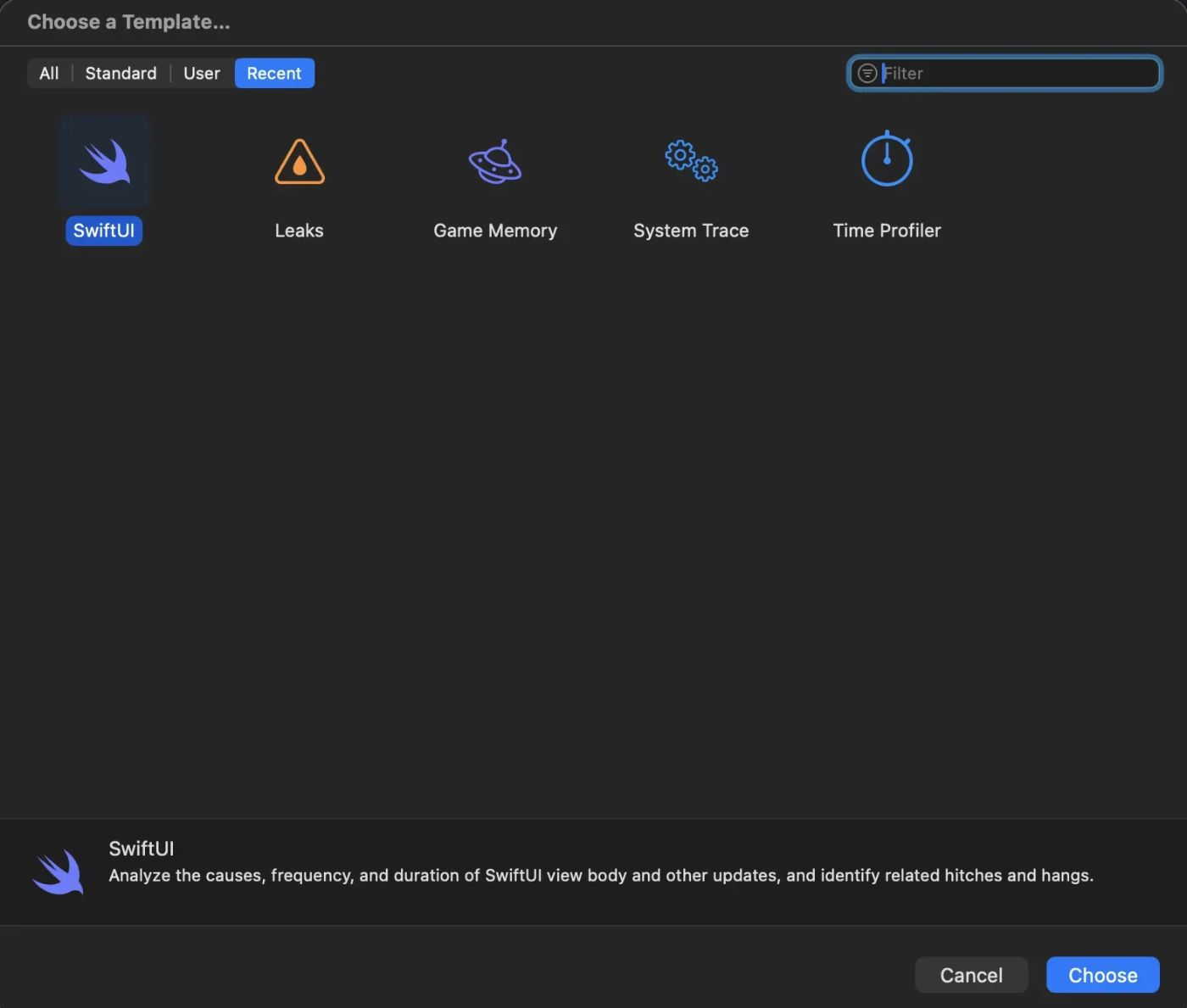
3. Instruments → SwiftUI Template
Xcode Instruments includes a SwiftUI template with two primary instruments:
-
View Body — shows how many times each view’s
bodywas called -
View Properties — shows which property changes triggered a re-evaluate
4. Flash Updated Regions
Attention: you need to connection with real device
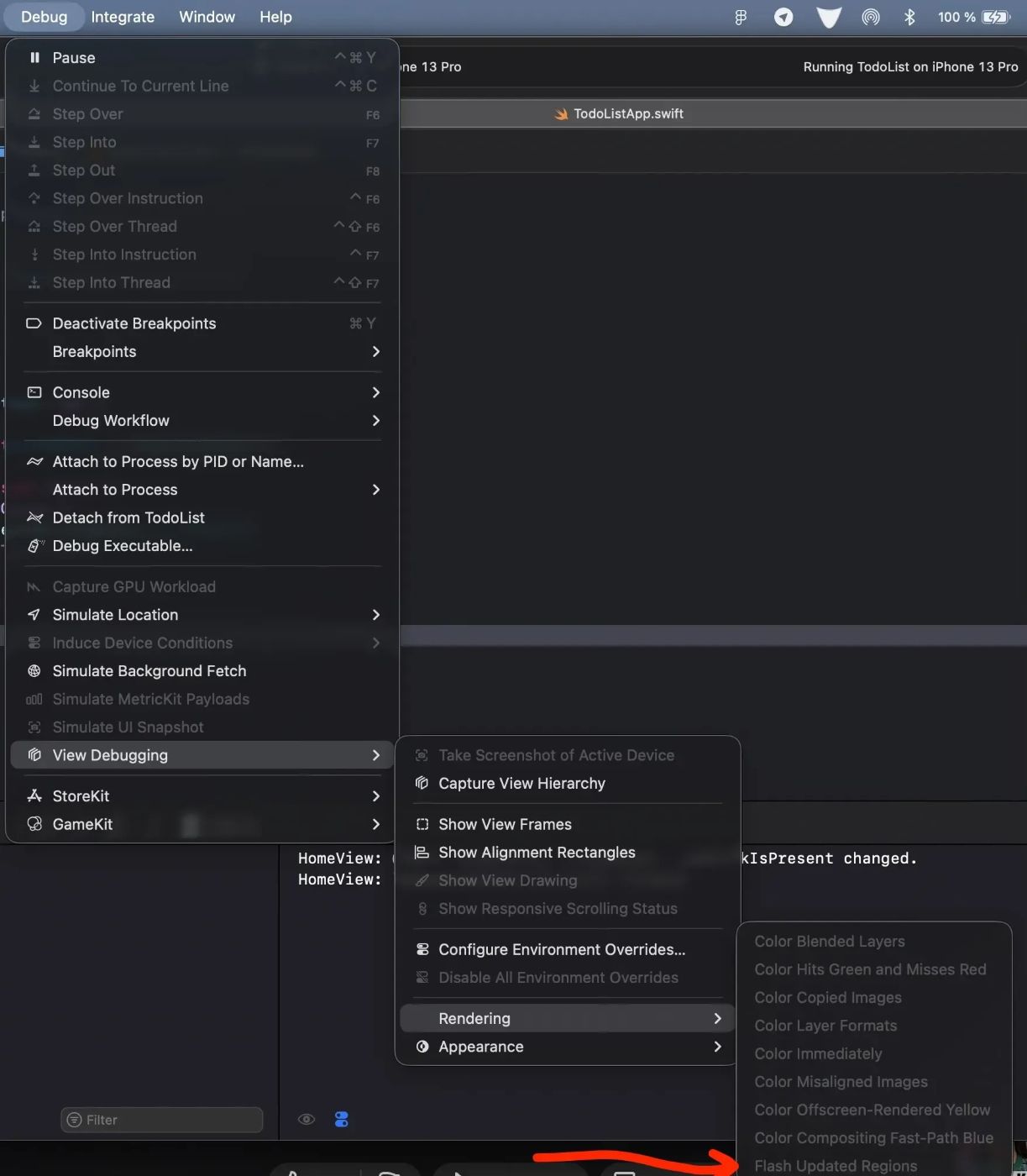
A built-in Xcode overlay that highlights every region of the screen being redrawn in real time — no third-party tools, no code changes required.
- Connect a real device — the feature is unavailable in the simulator
- Run the app via ⌘R and wait for it to fully launch
- In the menu bar: Debug → View Debugging → Rendering → Flash Updated Regions
- A checkmark confirms it’s active — takes effect instantly, no restart needed
Every time SwiftUI issues a draw call to the GPU, the affected region flashes yellow on screen for a fraction of a second. No flash means SwiftUI reused the cached texture from the previous frame — which is exactly what you want for views that haven’t changed. The overlay is composited on top of your UI so the app remains fully interactive while you observe it.
Why it’s useful
It answers the question “is this view redrawing when it shouldn’t?” instantly and visually — without opening Instruments or reading call stacks. You interact with the app naturally and watch whether flashes appear in places they have no reason to be:
- A static header flashing on every scroll → unnecessary parent re-evaluation
- All list cells flashing when one updates → overly broad
@ObservableObjectdependency - The entire screen flashing on a button tap → monolithic view structure, state living too high in the hierarchy
- Any flash during idle → background state or timer invalidating views at rest
The workflow is simple: tap something, see only what should redraw flash, investigate anything that shouldn’t. Fix it, re-interact, confirm the flash is gone — all without leaving the app.
10. Conclusion
The Attribute Graph is a contract between you and SwiftUI. You describe what to display; SwiftUI decides when and how to update it. The engine is optimized for surgical updates — but only if you isolate your dependencies correctly.
Three guiding principles:
- Granularity — small views with minimal dependencies outperform monoliths
- Precision —
@ObservableoverObservableObject, specific values over entire models - Purity —
bodyshould be a pure function with no side effects and no allocations
Understanding the Attribute Graph transforms SwiftUI’s “magic” into a predictable, controllable tool. Once you can see how data flows through the graph, you know exactly why the UI updated — and how to ensure it only updates when it should.
Closures are the most common source of invisible over-dependence in SwiftUI. The fix is almost always the same: extract the specific value the closure needs, pass it as a typed argument, and let the child close over that narrow value instead of the entire parent.
n
n